


iOS 27 Problems and Fixes: Common Bugs You Should Know
iOS 27 brings new Siri AI, Apple Intelligence improvements, Liquid Glass refinements, and other features, but the earlier software can also bring bugs. Some users have reported update issues, Siri AI problems, overheating, battery drain, Recovery Mode loops, app crashes, and connectivity problems.
If your iPhone is acting strangely after installing iOS 27, do not panic. This guide covers the most common iOS 27 problems and practical fixes. Use the table below to find the quick fixes for the most serious iOS 27 problems.
| iOS 27 Problem | Quick Fix |
|---|---|
| iOS 27 not showing up | Check Apple Account, device support, and Software Update |
| Stuck on Preparing Update | Check Wi-Fi, free storage, delete the update file, and try again |
| Stuck on Verifying Update | Wait, restart, check Apple servers, and retry later |
| Unable to install update | Free up space, charge the iPhone, and use Finder or iTunes if needed |
| Stuck on Apple logo | Wait first, force restart, then update or restore through Finder |
| Stuck in Recovery Mode | Try exiting Recovery Mode, update through Finder, or repair iOS |
| Battery drain | Wait 24–48 hours, check Battery settings, and update to the latest beta |
| Overheating | Remove the case, stop heavy tasks, and avoid charging during intensive use |
| Siri AI not working | Check Apple Intelligence settings, language, region, waitlist, and network |
| Wi-Fi or Bluetooth issues | Toggle connections, forget networks/devices, or reset network settings |
| Apps crashing | Update apps, reinstall them, or wait for developer compatibility updates |
- Before You Fix: Back Up Your iPhone First
- iOS 27 Problems Related to Installation and Update [5 Bugs]
- iOS 27 Problems Related to Performance [8 Bugs]
- iOS 27 Problems Related to Siri AI [4 Bugs]
- iOS 27 Problems Related to Connection & Apps [3 Bugs]
- When You Need TunesKit iOS System Recovery?
- Should You Downgrade from iOS 27?
- Final Thoughts
Before You Fix: Back Up Your iPhone First
Before trying advanced fixes, back up your iPhone. This is especially important when using beta software. A backup cannot prevent every problem, but it gives you a safer way to recover photos, messages, app data, and settings if the beta update goes wrong.
You can back up your iPhone with iCloud or a computer. An iCloud backup is convenient, but a computer backup through Finder or iTunes may be safer if you plan to downgrade later.
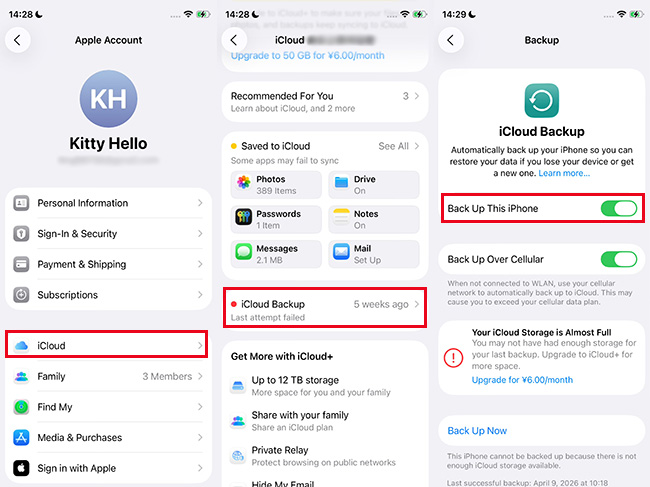
- To back up with iCloud, go to Settings > [your name] > iCloud > iCloud Backup, then tap Back Up Now.
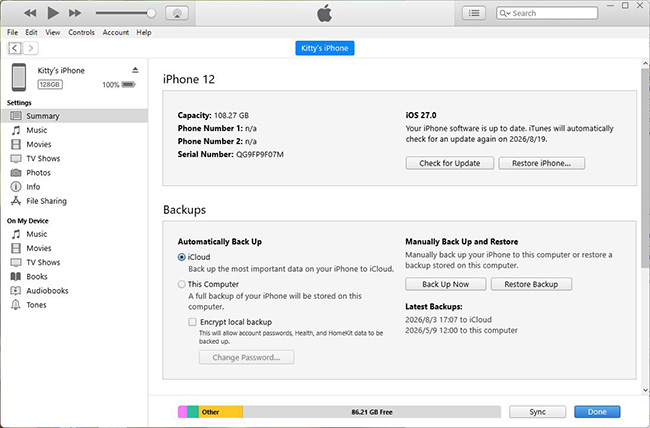
- To back up with Finder or iTunes, connect your iPhone to your computer, select the device, and click Back Up Now under the General or Summary tab.
iOS 27 Problems Related to Installation and Update [5 Bugs]
Installation and update problems are among the most common issues users may encounter with iOS 27. They can be caused by unstable Wi-Fi, insufficient storage, temporary Apple server issues, corrupted update files, or problems with the update process itself.
1. iOS 27 Not Showing Up
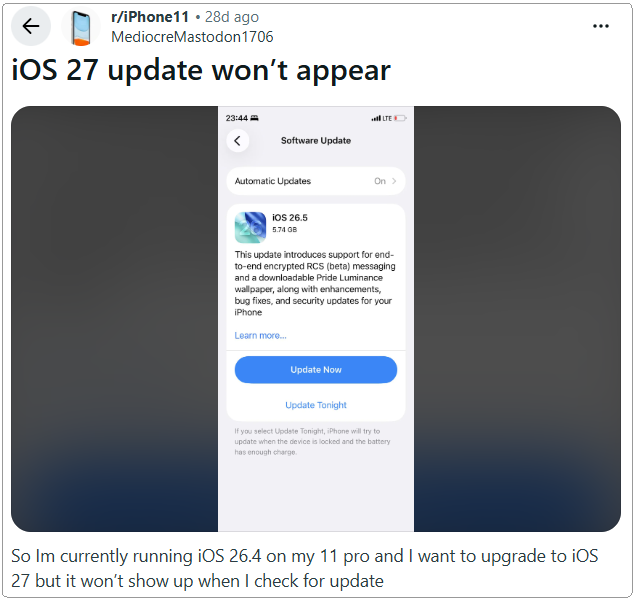
If iOS 27 does not appear in Software Update, your iPhone may already be running the latest available version, the device may not support iOS 27, or a temporary network or server issue may be preventing the update from appearing.
For detailed steps, read: How to Fix iOS 27 Not Showing Up on iPhone?
Solutions:
- Go to Settings > General > Software Update and check again.
- Make sure you are signed in with the Apple Account enrolled in the beta program.
- Restart your iPhone and check Software Update again.
- Confirm that your iPhone supports iOS 27.
- Wait and try again later if the rollout has not reached your device yet.
2. iOS 27 Stuck on Preparing Update
An iPhone may remain on Preparing Update while iOS verifies, unpacks, and prepares the downloaded files for installation. Limited storage or a temporary software issue can cause this stage to take unusually long or stop progressing.
See more solutions: iPhone Stuck on Preparing Update? 8 Real Fixes
Solutions:
- Keep your iPhone connected to stable Wi-Fi and power.
- Make sure enough storage is available.
- Restart your iPhone.
- Go to Settings > General > iPhone Storage, find the iOS update, and delete it if necessary.
- Return to Software Update and download iOS 27 again.

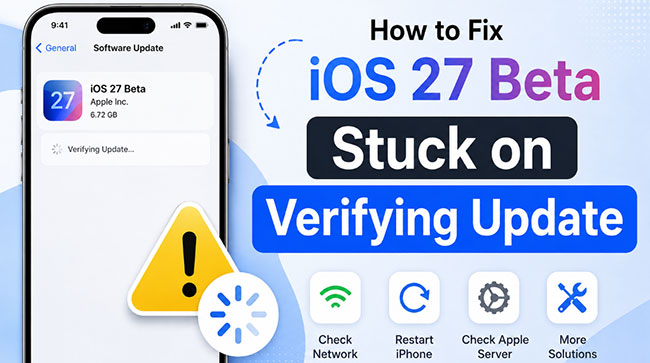
3. iOS 27 Stuck on Verifying Update
During Verifying Update, your iPhone checks the downloaded software before installation. An unstable internet connection, VPN interference, server communication problems, or a damaged update package may prevent verification from completing.
Need a full guide? See: iPhone Stuck on Verifying Update? 7 Ways to Fix It
Solutions:
- Wait a few minutes and check whether verification continues.
- Use a stable Wi-Fi connection.
- Temporarily disable any VPN or proxy.
- Restart your iPhone.
- Delete the update file and download it again.
- If the issue continues, try updating with Finder on Mac or Apple Devices on Windows.
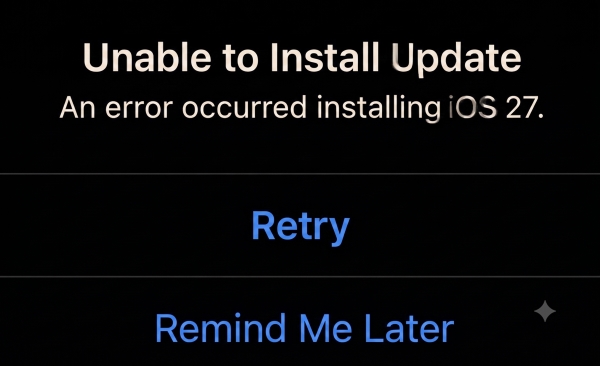
4. Unable to Install iOS 27
The "Unable to Install Update" error may appear because of low storage, weak Wi-Fi, low battery, a corrupted update file, or temporary Apple server issues. This is one of the most common iOS update problems.
Check detailed step-by-step guide: How to Fix iOS 27 Unable to Install Update
Solutions:
- Charge your iPhone to at least 50%.
- Connect to a stable Wi-Fi network.
- Free up storage in Settings > General > iPhone Storage.
- Delete the downloaded update file and download it again.
- Try updating through Finder, Apple Devices, or iTunes if OTA update fails.
5. iOS 27 Update Fails with Apple Devices or Finder
An iOS 27 update can also fail when performed from a computer. Common causes include an unstable USB connection, outdated computer software, insufficient storage, network problems, or an iPhone that is not responding normally.
Related guide: 10 Easy Solutions to Fix iPhone Software Update Failed
Solutions:
- Update Finder, Apple Devices, or iTunes to the latest version.
- Use an original or reliable USB cable.
- Try another USB port.
- Restart both your iPhone and computer.
- Put the iPhone into Recovery Mode and choose Update first.
- Use Restore only if Update fails and you have a backup.

iOS 27 Problems Related to Performance [8 Bugs]
After updating to iOS 27, some iPhones may temporarily experience higher battery usage, increased heat, slower performance, or startup problems. In some cases, background update and setup tasks continue running for a while after installation, so performance and battery life may take a few days to return to normal.
6. iPhone Stuck on Apple Logo After iOS 27
An iPhone may get stuck on the Apple logo if an update is interrupted, installation does not complete correctly, or the device encounters a startup problem after updating.
If this is your issue, follow our full tutorial: iPhone Stuck on Apple Logo After iOS 27 Update? (8 Proven Fixes)
Solutions:
- Wait for at least 30 minutes if the progress bar is still moving.
- Force restart your iPhone.
- Connect it to a computer and choose Update in Finder, Apple Devices, or iTunes.
- Use Recovery Mode if the device is still stuck.
- Restore only if other options fail.

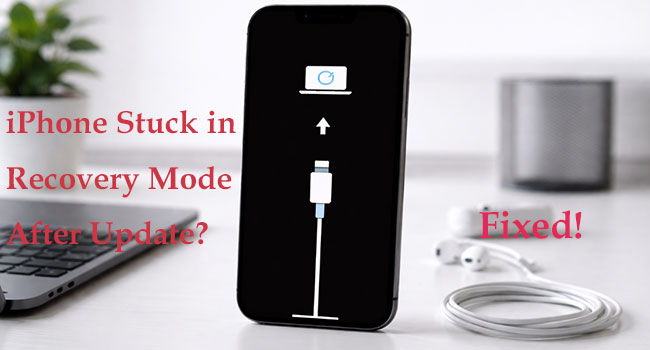
7. iPhone Stuck in Recovery Mode After iOS 27
Your iPhone may enter Recovery Mode when an iOS update fails, the system cannot start normally, or an update performed through a computer is interrupted.
Read more solutions: iPhone Stuck in Recovery Mode After iOS 27 Update? Fixed!
Solutions:
- Try a force restart first.
- Connect the iPhone to a Mac or Windows PC.
- Choose Update when Finder or Apple Devices detects the device.
- Use Restore only if Update does not resolve the issue.
- Consider a system repair tool if the iPhone repeatedly returns to Recovery Mode.
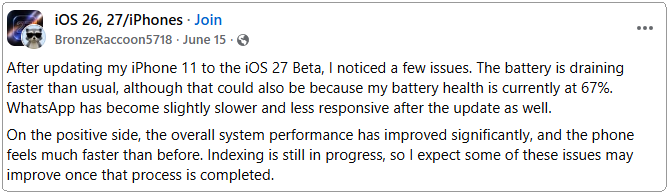
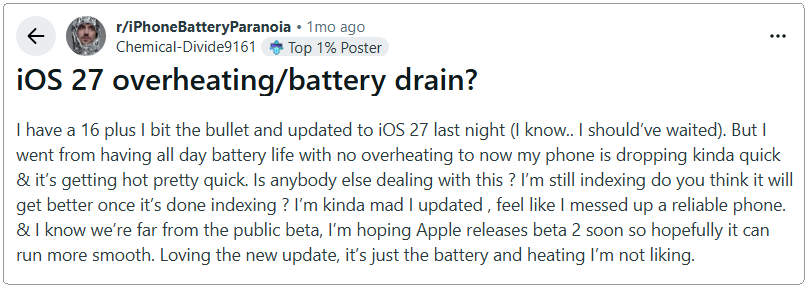
8. iOS 27 Battery Drain
Battery life may temporarily decrease after installing iOS 27 because update-related tasks can continue running in the background. App activity, high screen brightness, poor cellular coverage, and battery health can also contribute to faster battery drain.
Read full guide: Top Solutions to Fix iOS 27 Battery Drain
Solutions:
- Wait a few days after the update and check battery life again.
- Go to Settings > Battery and review battery usage and Insights.
- Update your apps from the App Store.
- Reduce unnecessary Background App Refresh.
- Lower screen brightness or enable Auto-Brightness.
- Install the latest available iOS 27 update.
9. iPhone Overheating on iOS 27
An iPhone may feel warmer after an update because of background setup tasks, app updates, iCloud syncing, intensive apps, charging, weak network conditions, or high ambient temperatures. If the device becomes too hot, iOS may temporarily reduce performance or slow charging to protect the hardware.
Check more details in this guide: How to Fix iPhone Overheating on iOS 27
Solutions:
- Move the iPhone away from direct sunlight or other heat sources.
- Remove the case if the device becomes unusually warm while charging.
- Stop gaming, video recording, or other intensive tasks temporarily.
- Restart the iPhone.
- Check Settings > Battery for unusually high app activity.
- Install the latest iOS 27 update.
10. iPhone Not Booting After Battery Drain
If an iPhone does not turn on after its battery has been completely drained, the battery may simply need more time to charge. A charging accessory problem, temperature issue, or startup error can also prevent the device from powering on.
Related tutorial: How to Fix iOS 27 iPhone Won't Turn On
Solutions:
- Connect the iPhone to a reliable charger and leave it charging for a while.
- Try another compatible cable and power adapter.
- Force restart the iPhone while it is connected to power.
- Connect it to a computer and check whether Finder or Apple Devices detects it.
- Use Recovery Mode if the screen remains black and the device still will not start.

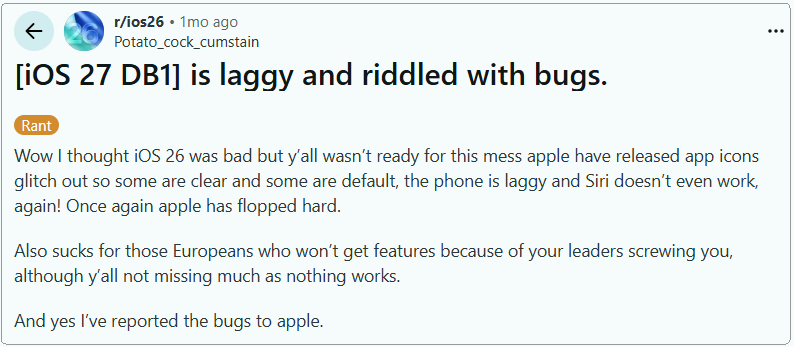
11. iPhone Running Slow or Laggy
Your iPhone may feel slower after installing iOS 27 while background update tasks are still finishing. Low storage, outdated apps, battery health, and resource-heavy applications can also contribute to lag or temporary freezes.
Further reading: Fix iPhone Slow After iOS 27 Update
Solutions:
- Restart your iPhone.
- Free up available storage.
- Update apps from the App Store.
- Remove or update apps that frequently freeze or crash.
- Reduce unnecessary widgets and background activity.
- Install the latest available iOS 27 update.
12. iPhone Keeps Restarting or Gets into a Boot Loop
Repeated restarts or a boot loop can occur if an update does not complete correctly, system files become damaged, or a software problem prevents iOS from starting normally.
Related article: Fix iPhone Stuck in Boot Loop After iOS 27 Update
Solutions:
- Force restart the iPhone.
- Update through Finder or Apple Devices if the computer can detect it.
- Use Recovery Mode and choose Update first.
- Restore the iPhone only if updating does not fix the problem.
- Consider a system repair tool for persistent boot-loop issues.

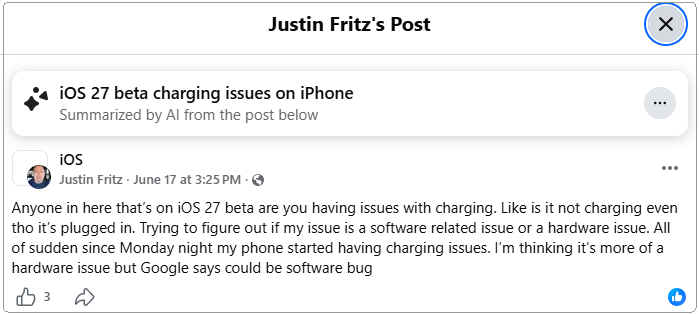
13. iPhone Not Charging or Charging Slowly
Charging problems after updating to iOS 27 are not always caused by the software itself. A low-power charger, damaged cable, dirty charging port, high device temperature, heavy app usage, or battery health issue can all reduce charging speed. iOS may also temporarily pause charging if the iPhone becomes too hot or cold.
For detailed steps, read: How to Fix iPhone Not Charging After iOS 27 Update
Solutions:
- Let the iPhone return to a normal temperature before charging.
- Try another compatible cable and power adapter.
- Check Settings > Battery for a Slow Charger or charging-related message.
- Inspect and carefully clean the charging port if necessary.
- Avoid gaming, streaming, or other intensive tasks while charging.
- Check Settings > Battery > Battery Health.
- Contact Apple Support if charging remains abnormal.
iOS 27 Problems Related to Siri AI [4 Bugs]
Siri AI is one of the major new features in iOS 27, but it may not be available or work properly on every iPhone. Problems can be related to device compatibility, language and region settings, network conditions, feature availability, or temporary service issues.
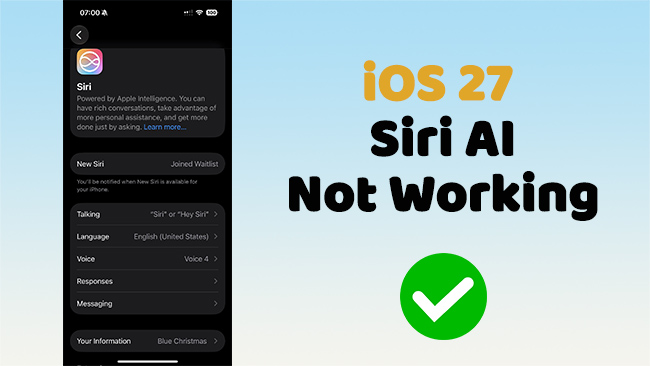
14. Siri AI Not Working on iOS 27
Siri AI (Beta) requires an Apple Intelligence-compatible iPhone and supported language settings. If Siri AI does not appear or respond correctly, first check that your device meets the requirements and that Siri is configured properly.
Detailed guide here: Siri AI Not Working on iOS 27? 10 Ways to Fix It
Solutions:
- Go to Settings > Siri and check your Siri settings.
- Make sure your iPhone supports Apple Intelligence.
- Check that your device and Siri languages are supported.
- Connect to a stable Wi-Fi or cellular network.
- Restart your iPhone.
- Install the latest available iOS 27 update.
15. Siri AI Not Available on iPhone
If you cannot find or enable Siri AI, the feature may not be supported on your iPhone, language, or region. Siri AI currently requires an Apple Intelligence-enabled device, and availability can vary depending on language and location.
For further reading: How to Fix Siri AI Stuck on Waitlist
Solutions:
- Confirm that your iPhone supports Apple Intelligence.
- Check your iPhone and Siri language settings.
- Make sure Siri is enabled.
- Restart the device after changing language settings.
- Update to the latest version of iOS 27.
- Check Apple's current availability requirements if the feature still does not appear.
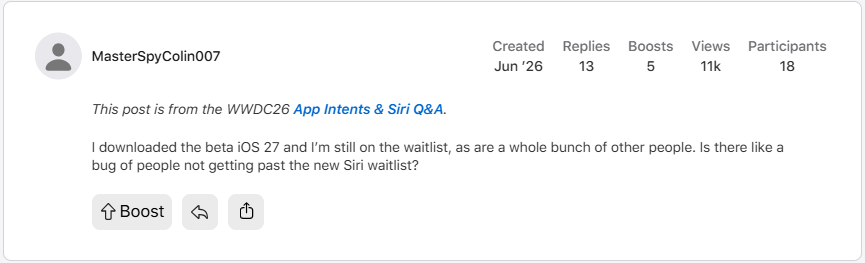
16. Siri AI Still Shows the Old Siri Experience
If your iPhone continues to show the traditional Siri experience, Siri AI may not be active or your device may not meet the current requirements. Language, region, device compatibility, and Siri settings can all affect which Siri experience appears.
Solutions:
- Open Settings > Siri and review the available options.
- Confirm that your device supports Siri AI.
- Check your Siri and device language.
- Restart your iPhone.
- Install the latest iOS 27 update.
- Contact Apple Support if Siri AI should be available but still does not appear.

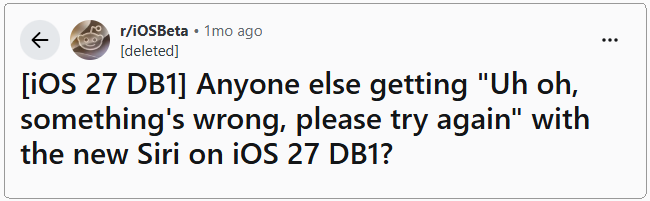
17. Siri AI Says "Something Went Wrong"
Siri AI relies on both on-device processing and online services for certain requests. A poor internet connection, VPN, temporary Apple service issue, or usage limit can cause Siri to fail or return an error.
Solutions:
- Switch between Wi-Fi and cellular data.
- Temporarily disable your VPN or proxy.
- Restart your iPhone.
- Try the request again later.
- Check Apple System Status if multiple online services are affected.
- Install the latest iOS 27 update.
iOS 27 Problems Related to Connection & Apps [3 Bugs]
After updating to iOS 27, you may also experience Wi-Fi, Bluetooth, CarPlay, or app-related issues. These problems can be caused by network settings, accessory compatibility, outdated apps, or temporary software glitches.
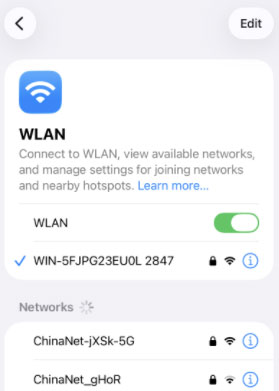
18. Wi-Fi or Bluetooth Keeps Disconnecting
Wi-Fi or Bluetooth connections may become unstable because of network settings, router or accessory compatibility, interference, or temporary software problems after an update.
Learn more details: iOS 27 Wi-Fi Not Working? Try These Fixes
Solutions:
- Turn Wi-Fi or Bluetooth off and back on.
- Restart your iPhone.
- Restart your router or Bluetooth accessory.
- Forget the Wi-Fi network or Bluetooth device and reconnect.
- Update your router or accessory firmware if available.
- Reset Network Settings if the problem continues.
- Install the latest iOS 27 update.
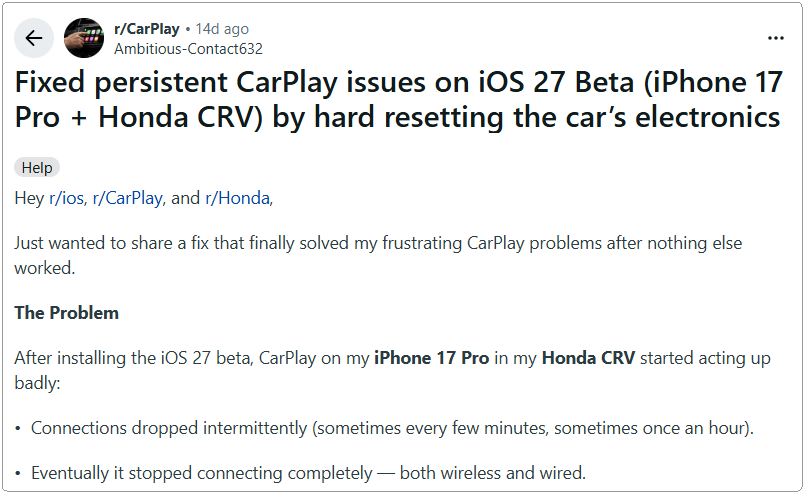
19. CarPlay Problems on iOS 27
CarPlay may fail to connect, disconnect unexpectedly, or respond slowly because of a cable problem, Wi-Fi or Bluetooth settings, vehicle compatibility, or a temporary connection issue.
Related guide: How to Fix iOS 27 CarPlay Not Working
Solutions:
- For wired CarPlay, try another compatible USB cable or USB port.
- For wireless CarPlay, make sure both Wi-Fi and Bluetooth are enabled.
- Restart your iPhone and vehicle infotainment system.
- Go to Settings > General > CarPlay, select your car, and set it up again if necessary.
- Check for available vehicle firmware updates.
- Install the latest iOS 27 update.
20. Apps, Keyboard, Safari, or Messages Bugs
Some apps or built-in features may behave unexpectedly after an iOS 27 update because of app compatibility problems, cached data, extensions, or temporary system glitches. Updating both iOS and affected apps is usually the best first step.
Related article: 9 Ways to Fix Apps Keep Crashing on iPhone After iOS 27 Update
Solutions:
- Update all apps from the App Store.
- Restart your iPhone.
- Reinstall an affected third-party app if necessary.
- Clear Safari history and website data if Safari is not working properly.
- Temporarily disable Safari extensions.
- Restart Messages if it becomes unresponsive.
- Install the latest iOS 27 update.
- Wait for an app developer update if the problem affects only one app.

When You Need TunesKit iOS System Recovery?
Not every iOS 27 problem needs an iOS repair tool. If the issue is caused by Siri AI waitlist, Apple server activation, unsupported devices, or third-party app compatibility, a system repair tool will not directly fix it. In these cases, you should check settings, wait for Apple or app developers, or contact the right support team.
However, an iOS repair tool can be useful when the problem is related to the iOS system itself.
For example, consider using an iOS repair solution like TunesKit iOS System Recovery if your iPhone:
- Gets stuck on the Apple logo after installing iOS 27
- Enters a Recovery Mode loop
- Freezes during the update process
- Shows a black screen after updating
- Keeps restarting
- Cannot boot normally
- Fails to update through normal methods
Key Features of TunesKit iOS System Recovery
Fix 150+ iOS system issues such as update failures, boot loops, frozen screens, black screen problems, and Recovery Mode errors. Provides a one-click option to enter or exit Recovery Mode, which can be helpful when troubleshooting iOS 27 update problems.
 600,000+ Downloads
Step 1. Install and Launch TunesKit iOS System Recovery
Download and install TunesKit iOS System Recovery on your Windows or Mac computer. Open the program after installation. Then connect your iPhone to the computer with a USB cable. On the main interface, choose iOS System Repair, then click Start.

Step 2. Choose Standard Repair Mode
After your iPhone is detected, TunesKit will show different repair modes. Choose Standard Repair if you want to fix iOS system issues without losing data. This mode is suitable for most common problems.
Avoid choosing Deep Repair unless Standard Repair fails or your device has a more serious system problem. Deep Repair may fix deeper issues, but it will erase all data on the iPhone.

Step 3. Put Your iPhone into Recovery Mode or DFU Mode
Follow the on-screen instructions to put your iPhone into Recovery Mode or DFU Mode. If the button steps are difficult or your iPhone is already stuck in Recovery Mode, you can use the built-in Enter/Exit Recovery Mode feature in TunesKit. This allows you to enter or exit Recovery Mode with one click. After your device enters the correct mode, click Next.

Step 4. Download Firmware and Start Repairing the iOS System
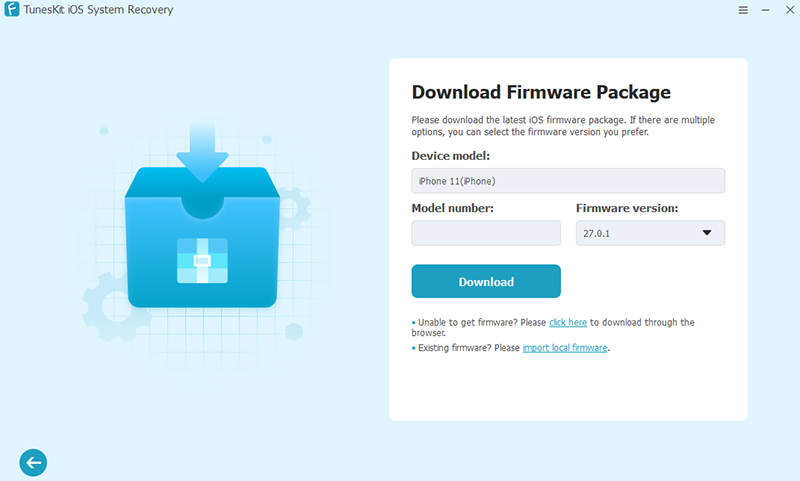
TunesKit will detect your iPhone model and show the matching firmware package. After checking the related device information, click Download to get the firmware package.
After the firmware package is downloaded and verified, click Start Standard Repair. TunesKit will start repairing the iOS system automatically. Do not disconnect your iPhone during the process. Wait until the repair is complete. Your iPhone should restart normally after the process finishes.
Should You Downgrade from iOS 27?
If iOS 27 is causing serious problems such as frequent crashes, overheating, excessive battery drain, unstable CarPlay or Bluetooth, or repeated startup issues, you may consider downgrading to an earlier iOS version. However, downgrading should usually be a last resort because it may erase your iPhone, and you can only install firmware versions that Apple still supports or signs.
How to Downgrade from iOS 27
There are two common ways to downgrade iOS 27, depending on whether you prefer Apple's tools or a third-party solution.
Method 1. Downgrade with Finder or Apple Devices
Apple's restore tools can reinstall a supported iOS version using a computer. This process may erase your iPhone, so back up important data before proceeding.
Read more: How to Downgrade iOS with or Without iTunes
- Step 1. Connect your iPhone to a Mac or Windows PC.
- Step 2. Open Finder on Mac or Apple Devices on Windows.
- Step 3. Put the iPhone into Recovery Mode if necessary.
- Step 4. Select the appropriate restore option and follow the on-screen instructions.
- Step 5. Set up your iPhone again after the restore is complete.

Method 2. Downgrade with TunesKit iOS System Recovery
Alternatively, you can use a third-party iOS downgrade tool to downgrade iOS 27 beta easily. TunesKit iOS System Recovery can also help users downgrade iOS when the firmware version is supported. This may be useful if you want a guided process instead of manually using Recovery Mode or Finder.
Further reading: How to Downgrade iOS 27 to iOS 26 Without Data Loss
- Step 1. Launch TunesKit iOS System Recovery and choose Upgrade/Downgrade iOS > iOS Downgrade.
- Step 2. Confirm your device information and click Download to download iOS firmware package.
- Step 3. Click Start Downgrade and TunesKit will start to downgrade for you automatically.

 Note
Note
- Downgrading may erase your iPhone, For the safest result, back up your iPhone before downgrading.
- You can only install an iOS version that Apple is still signing.
Final Thoughts
iOS 27 is useful for testing new features, but bugs are expected. Start with basic fixes first, such as restarting your iPhone, checking storage, updating apps, and installing the latest beta.
If your iPhone is stuck on the Apple logo, trapped in Recovery Mode, frozen, or unable to boot, you may need a deeper system repair. In that case, TunesKit iOS System Recovery can be one option after basic fixes fail.



