


iOS 27 WiFi Not Working? Try These 7 Fixes
Experiencing iOS 27 WiFi issues after updating your iPhone? You may find that WiFi won't connect, keeps disconnecting, runs slowly, or fails to detect available networks.
These problems can be caused by network settings, router issues, software glitches, VPN configurations, or bugs introduced by an iOS update. In this guide, we'll cover 7 effective ways to fix iOS 27 WiFi not working and restore a stable internet connection on your iPhone.
- What Causes iOS 27 WiFi Issues?
-
7 Ways to Fix iOS 27 WiFi Issues
- Method 1: Disable Connectivity Assist
- Method 2: Restart Your Device and Router
- Method 3: Toggle Airplane Mode
- Method 4: Forget and Reconnect to Your Network
- Method 5: Check VPN Profiles and Security Apps
- Method 6: Reset Network Settings
- Method 7: Use iOS System Recovery to Fix iOS 27 WiFi Issues HOT
- FAQs About iOS 27 WiFi Issues
- Conclusion
What Causes iOS 27 WiFi Issues?
If you're experiencing iOS 27 WiFi issues, the problem may be related to software glitches, network settings, or your router. Common causes include:
- 01 iOS 27 software bugs: An iOS update may occasionally introduce temporary WiFi or connectivity problems.
- 02 Network settings conflicts: Saved WiFi settings, DNS configurations, or outdated network preferences may cause connection issues.
- 03 Router problems: Outdated router firmware, weak signals, or incompatible settings can lead to slow or unstable WiFi.
- 04 VPN or security software: VPNs and security apps may interfere with your iPhone's network connection.
- 05 Update or system errors: A corrupted iOS update may cause WiFi and other system functions to behave unexpectedly.
7 Ways to Fix iOS 27 WiFi Issues
If WiFi keeps disconnecting or stops working after updating to iOS 27, try the following fixes in order. Start with simple network check before moving on to system repair. Here's the 7 proven solutions to fix iOS 27 WiFi keeps disconnecting.
Method 1: Disable Connectivity Assist
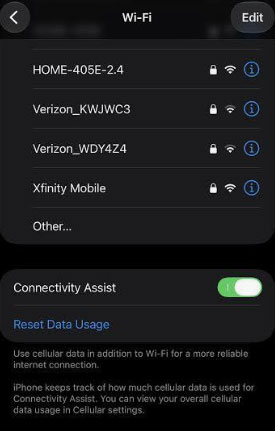
iOS 27 includes a new feature called Connectivity Assist, which is built to smooth the transition between WiFi and cellular networks. However, many testers have noticed that this feature can override custom DNS settings and cause frequent WiFi disconnects. Disabling this feature often restores normal network behavior.
- Step 1. Open the Settings app on your iPhone.
- Step 2. Tap on Wi-Fi and locate the Connectivity Assist toggle.
- Step 3. Turn the switch off to disable the feature, and then test your internet connection.
Method 2: Restart Your Device and Router
A simple restart of both your device and router is often the fastest way to fix iOS 27 slow internet. This foundational troubleshooting step clears out temporary system glitches and forces a completely fresh network connection.
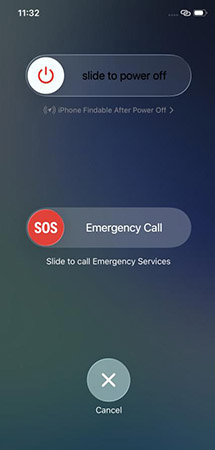
- Step 1. Press and hold the Side and one of the Volume buttons, then drag the slider to turn off your iPhone or iPad.
- Step 2. Unplug your internet router from power and wait 30 seconds.
- Step 3. Plug the router back in and wait about a minute for it to fully boot up.
- Step 4. Hold the Side button on your device until the Apple logo appears to turn it back on.
Method 3: Toggle Airplane Mode
Sometimes, your iPhone might display a strong WiFi signal, but the internet data simply refuses to load. Toggling Airplane Mode acts as a quick reset for all wireless connections on your device, including WiFi, cellular, and Bluetooth. It is often more effective than just toggling WiFi because it forces the phone to re-establish a fresh link with the router. This is one of the easiest ways to kickstart a stalled connection.
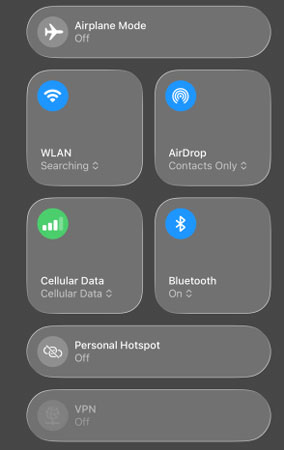
- Step 1. Swipe down from the top-right corner of your screen to access the Control Center.
- Step 2. Tap the Airplane Mode icon to activate it, and wait for about 15 to 20 seconds.
- Step 3. Tap the icon again to turn it off, allowing your iPhone to automatically reconnect to the WiFi network.
Method 4: Forget and Reconnect to Your Network
Your iPhone saves information about each WiFi network you join, including the password and network configuration. After an iOS update, this saved information can occasionally conflict with updated network settings or router configurations.
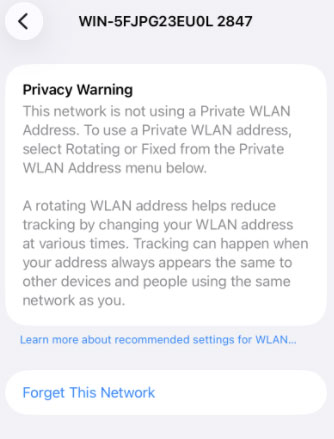
Forgetting the network removes the saved connection profile from your iPhone. When you reconnect, iOS creates a fresh WiFi profile and negotiates a new connection with the router. Before starting, make sure you know the WiFi password because you will need to enter it again.
- Step 1. Go to Settings and tap on WLAN.
- Step 2. Tap the blue "i" (info) icon next to your current network name and select "Forget This Network".
- Step 3. Wait a moment, tap on your network's name again from the available list, and enter your password to reconnect.
Method 5: Check VPN Profiles and Security Apps
VPN apps, security software, DNS filters, firewalls, and network monitoring tools can change how internet traffic is routed through your iPhone. After an iOS 27 update, an older version of one of these apps may not work correctly with the latest networking system.
If the problem started shortly after updating iOS or updating a VPN or security app, temporarily disabling these services is a useful way to isolate the cause.
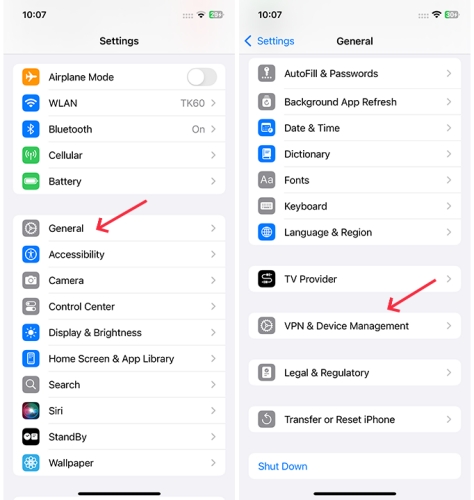
- Step 1. Open Settings, go to General, and select VPN & Device Management.
- Step 2. Turn off any active VPN services.
- Step 3. If the issue persists, consider temporarily deleting the VPN or security app, as outdated certificates can sometimes cause interference on their own.
Method 6: Reset Network Settings
When basic troubleshooting fails, you might need to wipe the slate clean. Resetting your network settings is a more drastic measure, but it is highly effective at clearing deep-seated network bugs without erasing your personal data. This will wipe all saved WiFi networks, Bluetooth pairings, and custom configurations.
- Step 1. Navigate to Settings, tap General, and then choose Transfer or Reset iPhone.
- Step 2. Tap on Reset and select Reset Network Settings.
- Step 3. Enter your passcode when prompted and wait for the device to reboot completely.

Method 7: Use iOS System Recovery to Fix iOS 27 WiFi Issues
When the basic network resets do not resolve your iOS 27 WiFi problems, a deeper system glitch might be the culprit. TunesKit iOS System Recovery is a dedicated repair tool designed to fix various software-related issues, including stubborn connectivity bugs, without erasing your personal data. By utilizing its Standard Repair mode, you can safely refresh your core iOS files while leaving your apps and settings completely intact.
For instance, this wonderful tool can fix iOS 27 Bluetooth issues, and iOS 27 Control Center not working, and iOS 27 stuck in DFU mode without data loss. Compatible with the latest iOS/iPadOS version, it is a top choice among all kinds of iOS system repair products.
Fix iOS 27 WiFi Issues in One Click
Repair WiFi problems caused by iOS 27 bugs without data loss. Supports the latest iOS version and all compatible iPhone models.
 600,000+ Downloads
Here's a step-by-step guide to fix iOS 27 WiFi issues using TunesKit iOS System Recovery.
Step 1. Connect iPhone to PC
Download and launch TunesKit iOS System Recovery on your computer, then connect your iPhone using a USB cable. Select the "iOS System Repair" option on the main interface and choose the "Start" button to continue.

Step 2. Choose A Mode
There are two repair modes for you. To Keep your data intact, just choose the Standard Repair to start.

Step 3. Download the Firmware Package
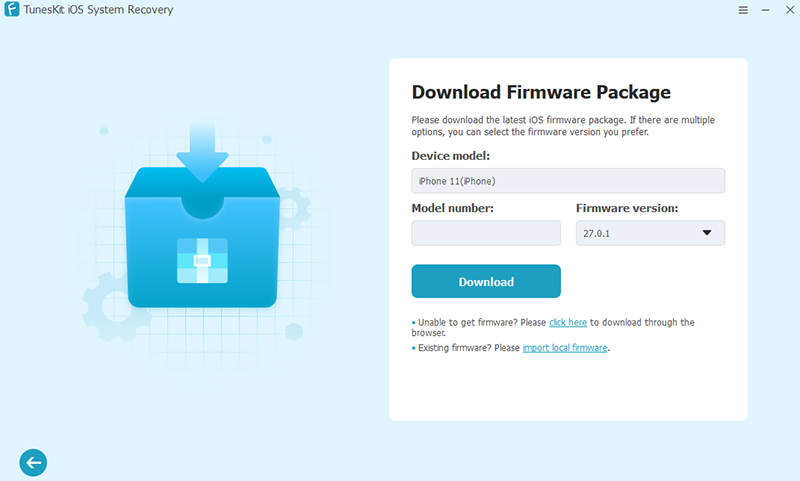
Follow the on-screen prompts to place your device into Recovery Mode or DFU Mode so the software can securely access the system. Verify that your recognized device model and iOS version are correct, then click "Download" to fetch the necessary firmware package.
Step 4. Start to Repair
Click the "Start Standard Repair" button once the download finishes, allowing the tool to automatically fix the system errors and restart your phone.

FAQs About iOS 27 WiFi Issues
-
Why does my iPhone keep disconnecting from WiFi after updating?
The primary cause is usually the new Connectivity Assist feature in the iOS 27. While it is meant to improve transitions between cellular and WiFi, it often triggers unexpected network drops during the testing phase. Disabling this option in your network settings is a reliable first fix.
-
Should I disable the "Private Wi-Fi Address" setting?
Disabling this setting can stabilize your connection if you experience random drops or privacy warnings. The feature masks your MAC address for privacy, but this behavior can occasionally confuse local routers.
-
Why is WiFi slow on iOS 27?
Slow WiFi may result from router congestion, poor signal strength, background network activity, VPN services, or software-related issues after the update.
-
What should I do if none of the WiFi fixes work?
If the problem affects multiple WiFi networks and continues after resetting network settings, it may be related to the iOS system or hardware. You can try an iOS system repair tool or contact Apple Support for diagnosis.
Conclusion
Dealing with WiFi bugs in the iOS 27 can be frustrating, but tweaking your network settings or performing a quick reset usually stabilizes the connection. If those basic fixes fail and persistent system errors keep your device offline, TunesKit iOS System Recovery offers a powerful safety net. This dedicated repair tool quickly resolves deep-rooted software glitches—including stubborn network bugs—without erasing your personal data, ensuring you can easily connect your WiFi.



