


Siri AI Not Working on iOS 27? 10 Ways to Fix It
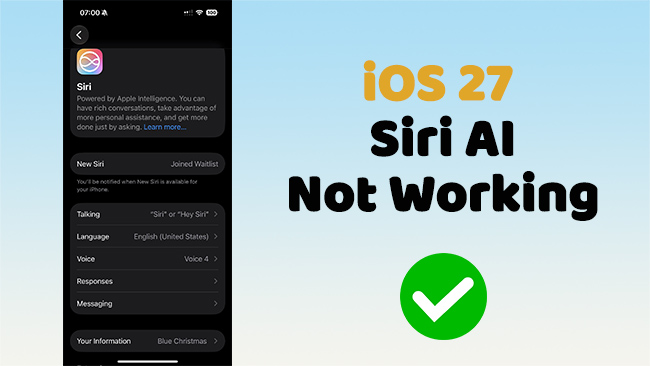
iOS 27 brings a more powerful Siri experience with Apple Intelligence, but things don't always work as expected after an update. Some users may find that Siri AI isn’t responding, stays stuck on the waitlist, fails to activate, or displays errors such as "Something went wrong."
If Siri AI is not working on iOS 27, don't worry. In this guide, we'll explain the most common reasons behind the issue and walk you through 10 practical ways to get Siri working again.
- Why Is Siri AI Not Working on iOS 27?
- Common Siri AI Problems on iOS 27
-
How to Fix Siri AI Not Working on iOS 27 [10 Ways]
- Fix 1. Check Whether Your iPhone Supports Siri AI
- Fix 2. Turn on Apple Intelligence and Siri
- Fix 3. Check Siri Language and Device Language
- Fix 4. Wait If Siri AI Is Still Activating
- Fix 5. Check Wi-Fi, Cellular Data, and VPN
- Fix 6. Restart Your iPhone and Set Up Siri Again
- Fix 7. Free Up Storage Space
- Fix 8. Update to the Latest iOS 27 Version
- Fix 9. Check Screen Time Restrictions
- Fix 10. Repair iOS System Issues If Siri Stopped Working After an Update HOT
- When Should You Contact Apple Support?
- FAQ About Siri AI Not Working on iOS 27
- Final Thoughts
Why Is Siri AI Not Working on iOS 27?
Siri AI may not work on iOS 27 if your iPhone does not support Apple Intelligence, Apple Intelligence is not turned on, your Siri language and device language do not match, or your device does not have enough storage. It can also happen because of a weak network, VPN settings, beta software bugs, or iOS system errors after an update.
| Possible Cause | What to Check |
|---|---|
| Unsupported iPhone | Check whether your device supports Apple Intelligence See more details >> |
| Apple Intelligence is off | Go to Settings and enable Apple Intelligence & Siri See more details >> |
| Language mismatch | Set Siri language and device language to the same supported one See more details >> |
| Not enough storage | Free up enough space for Apple Intelligence models See more details >> |
| Network issue | Check Wi-Fi, cellular data, VPN, and Apple servers See more details >> |
| iOS 27 bug | Update to the latest iOS 27 versionSee more details >> |
| System issue | Repair iOS if Siri fails after a bad update See more details >> |
Common Siri AI Problems on iOS 27
Siri AI issues can appear in different ways. Based on user discussions from Apple Developer Forums and Reddit, these are some common Siri AI problems reported on iOS 27:
- Siri AI is stuck on the waitlist. Some users say they joined the new Siri AI waitlist but still have not received access after many hours or even several days. (Developer report)
- The Apple Intelligence & Siri menu is missing. Some users report that the Settings app only shows the regular Siri section, with no Apple Intelligence option available. (Developer report)
- New Siri stays inactive after updating to iOS 27. In some cases, users can install the iOS 27 beta but cannot activate the new Siri AI experience.
- Siri says "Something went wrong". Some users see this error when asking Siri to complete AI-powered requests, especially tasks that need network access. (User report)
- Siri AI cannot search the web. A few users report that on-device Siri commands work, but web-based or cloud-based requests fail. (User report)
- Siri cannot find information in Messages. Some users say Siri fails to search message content correctly after the iOS 27 beta update. (User report)
- Multiple Siri requests do not work as expected. Some users report that Siri only completes the first part of a multi-step command instead of handling the full request. (User report)
- Apple Intelligence tools behave inconsistently. Some users report missing Writing Tools or other Apple Intelligence features after enabling the new Siri AI. (User report)
How to Fix Siri AI Not Working on iOS 27 [10 Ways]
Before trying advanced fixes, it is important to identify what kind of problem you are facing. A waitlist or compatibility issue cannot be fixed in the same way as a system crash or failed update.
Fix 1. Check Whether Your iPhone Supports Siri AI
The first thing to check is compatibility. Not every iPhone that can install iOS 27 will support every Apple Intelligence or Siri AI feature. Some AI features require newer hardware because they depend on on-device processing and machine learning.
- Step 1. Go to Settings > Apple Intelligence & Siri and check whether Apple Intelligence options are available.
- Step 2. If you do not see them, your iPhone may not support the feature, or your current language, region, or system version may not meet the requirements.
- Step 3. If your device supports iOS 27 but does not support Apple Intelligence, you may still be able to use basic Siri features, but the new Siri AI experience may not be available.

Fix 2. Turn on Apple Intelligence and Siri
If your iPhone supports Siri AI, make sure Apple Intelligence is turned on. Follow the steps below.
- Step 1. Open Settings and go to Apple Intelligence & Siri. Then check whether Apple Intelligence is enabled. Make sure Siri is turned on for voice or typed requests.
- Step 2. If the setting is enabled, try turning Siri off and back on. This can refresh Siri settings and fix minor setup problems.
- Step 3. Test Siri again with a simple request such as asking for the weather, setting a reminder, or opening an app. If simple commands work but AI-based answers fail, the problem may be related to network access, server availability, or Apple Intelligence activation.
 Further Reading: Fixed: iOS 27 Apple Intelligence Is Down
Fix 3. Check Siri Language and Device Language
Language settings are a common reason why Siri AI does not work. Apple Intelligence requires your device language and Siri language to be set to the same supported language. If they do not match, Siri AI may not appear or may stop working.
- Step 1. Go to Settings > General > Language & Region and confirm your iPhone language.
- Step 2. Go to Settings > Apple Intelligence & Siri and check Siri language.
- Step 3. If you recently changed Siri language, wait for the new language package to finish downloading. Apple Intelligence may be temporarily unavailable until the download is complete.

Fix 4. Wait If Siri AI Is Still Activating
Some Siri AI features may not become available immediately after updating to iOS 27. If your iPhone shows that Siri AI or Apple Intelligence is still being prepared, activated, or downloaded, you may simply need to wait.
- Step 1. Keep your iPhone connected to Wi-Fi and power.
- Step 2. Make sure Low Power Mode is turned off, because it may slow down background setup tasks.
- Step 3. If the feature is still unavailable after a long time, restart your iPhone and then check the Apple Intelligence & Siri settings again.
Further Reading: iOS 27 Siri AI Waitlist: How Long It Takes & How to Get Access
Fix 5. Check Wi-Fi, Cellular Data, and VPN
Siri can handle some basic tasks on device, but many AI-powered requests need internet access.
- Step 1. If Siri works for simple commands but fails when answering questions, searching the web, or using cloud-based features, check your network connection first. Switch between Wi-Fi and cellular data to see whether the issue changes.
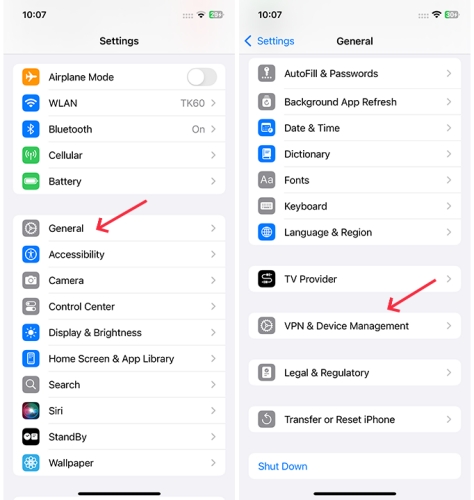
- Step 2. Check VPN settings. Some VPN profiles may block Siri or Apple services. Go to Settings > General > VPN & Device Management and temporarily turn off your VPN if needed.
- Step 3. After changing network settings, restart your iPhone and test Siri again.
Further Reading: iOS 27 WiFi Not Working? Try These 7 Fixes
Fix 6. Restart Your iPhone and Set Up Siri Again
A simple restart can fix many temporary Siri problems. This method is useful if Siri does not respond to "Hey Siri," fails to hear your voice, or behaves strangely after the iOS 27 update.
- Step 1. Restart your iPhone, then open Siri settings again. Turn Siri off, wait a few seconds, and turn it back on.
- Step 2. If your iPhone asks you to set up voice recognition again, follow the on-screen instructions.
- Step 3. Test your microphone by recording a short voice memo. If the microphone does not work properly, Siri may not be able to understand your commands.

Fix 7. Free Up Storage Space
Apple Intelligence needs enough free storage to download and store on-device models. If your iPhone is almost full, Siri AI may fail to activate or run slowly.
- Step 1. Go to Settings > General > iPhone Storage and check your available space.
- Step 2. If storage is low, remove unused apps, delete large videos, clear old downloads, or move photos to iCloud.
- Step 3. After freeing up space, keep your iPhone connected to Wi-Fi and power for a while. Then check whether Apple Intelligence and Siri start working normally.

Fix 8. Update to the Latest iOS 27 Version
If Siri AI is not working on iOS 27, the issue may be caused by a software bug or compatibility problem in your current system version. Apple regularly releases iOS updates to fix known issues, improve Apple Intelligence, and enhance overall system stability.
Installing the latest available version of iOS 27 may resolve problems with Siri not responding, activation errors, network requests, or other unexpected Siri AI issues.
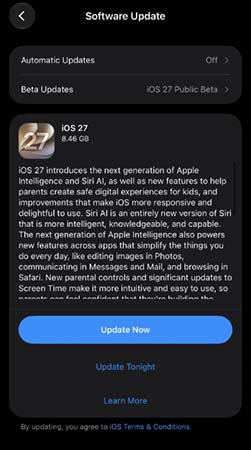
- Step 1. Go to Settings > General > Software Update.
- Step 2. If a newer iOS 27 update is available, tap Update Now and follow the on-screen instructions to install it.
Further Reading: How to Fix "Software Update Failed" on iPhone (iOS 27)
Fix 9. Check Screen Time Restrictions
Screen Time settings can also affect some Siri-related features, especially on a child's device or a managed iPhone. This may not be the most common cause, but it is worth checking if Siri AI is unavailable on a family-managed device.
- Step 1. Go to Settings > Screen Time on your iPhone and check content restrictions, app limits, communication limits, and account change restrictions.
- Step 2. Make sure Siri, web access, and Apple Intelligence-related features are not blocked.
- Step 3. If the iPhone belongs to a child account, review Family Sharing and parental control settings as well.

Fix 10. Repair iOS System Issues If Siri Stopped Working After an Update
If Siri AI is not working because of device compatibility, language limits, waitlist activation, or Apple server issues, an iOS repair tool will not directly fix the problem.
However, if Siri stops working together with other system problems after an iOS 27 update, the issue may be related to the iOS system itself. For example, your iPhone may become slow, freeze, show a black screen, get stuck in Recovery Mode, or fail to open Apple Intelligence & Siri settings.
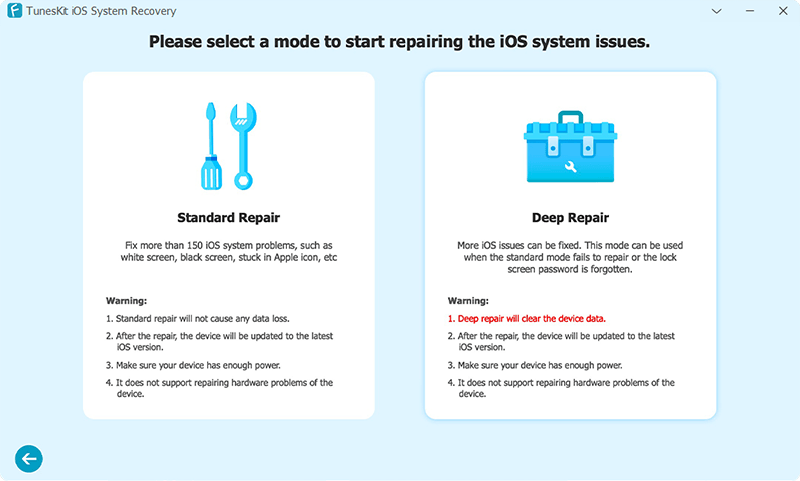
In this case, you can try repairing the iOS system after basic troubleshooting fails. TunesKit iOS System Recovery is one option for fixing common iOS system issues, such as update failures, boot loops, frozen screens, and Recovery Mode problems. It can also help enter or exit Recovery Mode with one click, which may be useful when troubleshooting iOS 27 update issues.
- Step 1. Download and launch TunesKit iOS System Recovery on your PC or Mac. Connect your iPhone to the computer via a USB cable.
- Step 2. After your device is successfully detected, choose "iOS System Repair" > "Start" and then "Standard Repair" to fix the Siri AI not working issue without losing data.
- Step 3. Follow the instructions to download the firmware package and then start the repair. After it's completed, check whether your problem is solved.
 Note
Note
This solution is most suitable when Siri AI problems appear after an iOS 27 update and your iPhone also shows other system problems. If the issue is only about Siri activation, language support, or Apple Intelligence availability, check the official settings first.
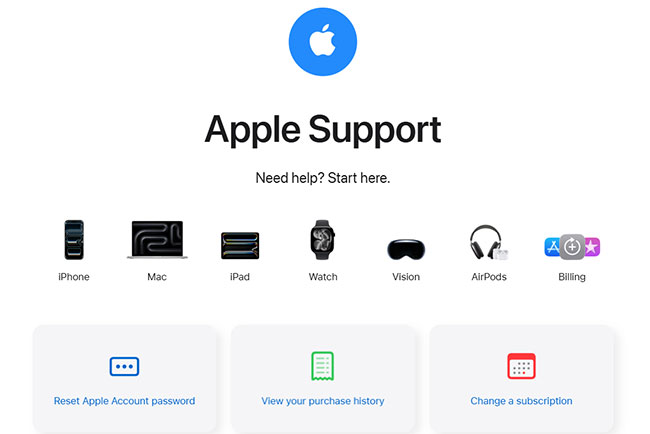
When Should You Contact Apple Support?
If Siri AI still does not work after trying the fixes above, Apple Support may be the best next step.
- Contact Apple Support if your iPhone supports Apple Intelligence, your language and region settings are correct, Apple Intelligence is turned on, and you still cannot activate Siri AI.
- Contact Apple if the issue appears to be related to your Apple Account, Family Sharing, age settings, beta activation, or Apple server-side availability.
- For hardware issues, such as a broken microphone, Apple Support or an Apple Store can also help inspect the device.
FAQ About Siri AI Not Working on iOS 27
-
Can a VPN stop Siri AI from working?
A VPN can sometimes interfere with network-dependent services, but it is not necessarily the cause of every Siri AI problem. If Siri AI cannot connect or repeatedly shows an error, temporarily disable your VPN and test Siri again. If that fixes the problem, review your VPN or network settings before turning it back on.
-
Why is Siri AI not showing on my iPhone?
Siri AI only works on Apple Intelligence-compatible iPhones running iOS 27. It also requires a supported language and an eligible region. Go to Settings > Siri and look for Try Siri AI (Beta). If the option is missing, check your iPhone model, iOS version, language settings, and regional availability.
-
Why is Siri AI stuck on the waitlist?
After you choose Try Siri AI (Beta), Apple may place your device on a waitlist before Siri AI becomes available. Wait times can vary, and Siri AI will begin downloading automatically once access is approved. Make sure your iPhone stays connected to Wi-Fi and has enough available storage.
-
Why does Siri say "Something went wrong" on iOS 27?
The "Something went wrong" message can appear when Siri cannot complete a request because of a temporary connection, service, or software issue. Try reconnecting to Wi-Fi or cellular data, restarting your iPhone, and installing the latest available iOS 27 update. If the problem only affects Siri AI, it may also be a temporary beta-related issue.
-
Does every iPhone with iOS 27 support Siri AI?
No. An iPhone may be able to run iOS 27 without supporting Siri AI. Siri AI requires an Apple Intelligence-capable device. On iPhone, supported models include iPhone 15 Pro and iPhone 15 Pro Max, iPhone 16 models and later, and iPhone Air. You can check Settings > Siri to see whether Try Siri AI (Beta) is available on your device.
-
Does Siri AI work in every country and language?
No. Siri AI availability depends on your language and region. Siri AI is currently available in English to start, and your device language and Siri language must be set to a supported language. Regional restrictions also apply, so the feature may not be available even on a compatible iPhone.
Final Thoughts
Siri AI not working on iOS 27 can be frustrating, especially because Apple Intelligence is one of the biggest highlights of the update. The good news is that most issues are caused by settings, compatibility, storage, network conditions, or beta bugs.
Start with the simple fixes first. Check device compatibility, turn on Apple Intelligence, match Siri and device language, free up storage, and update to the latest iOS 27 version. If Siri problems appear together with serious system errors after an update, then an iOS repair solution like TunesKit iOS System Recovery may help.
By following the steps above, you can quickly find the most likely cause and get Siri AI working again on your iPhone.



