
- Utilities
- Unlock
- Data Management
- Multimedia
- Solutions
- Support
 Content
This step-by-step guide will show you how to uninstall TunesKit programs on a Windows or Mac computer. The process may vary slightly depending on your operating system.
Please note that uninstalling TunesKit will safely and completely remove all program files and local caches from your computer. No personal data or hidden background processes will be left behind.
Step 1: Find the Program You Need to Uninstall
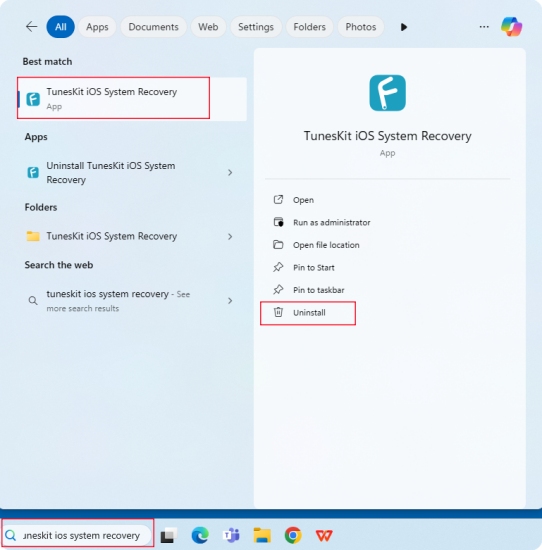
Open the Start menu in the bottom-left corner of your screen and search for the TunesKit program you want to remove. Right-click the program and select "Uninstall".
Step 2: Confirm Uninstallation
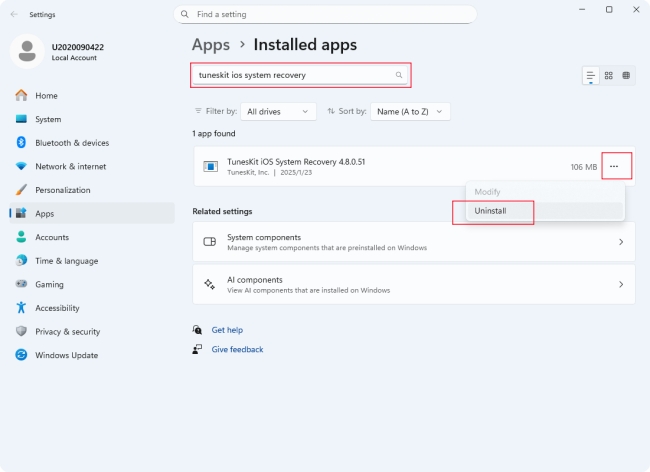
You will be redirected to a new interface. Search for the TunesKit program in the bar, and select "Uninstall" from the three-dot icon (or right-click it).
Step 3: Wait for Completion
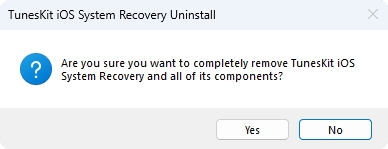
A pop-up window will ask you to confirm the action. Click "Yes" to confirm. The program will be successfully uninstalled in a few seconds.
If you change your mind later, you can reinstall it from our Download Center.
Step 1: Find the Program You Need to Uninstall
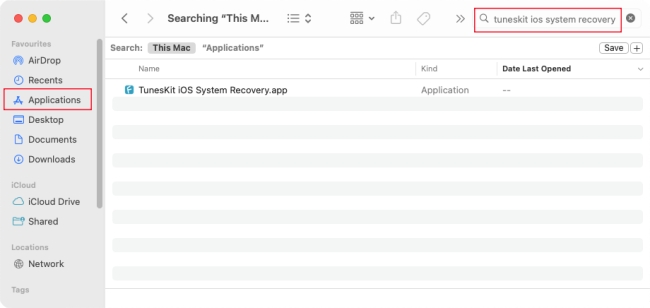
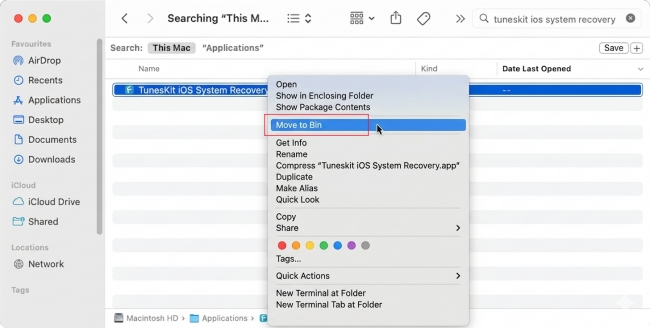
Open Finder and select the Applications folder. Search for the TunesKit program in the bar to find the program you want to remove.
Step 2: Confirm and Complete
Right-click the program and select "Move to Bin". Wait a moment for the process to complete. If you change your mind, you can quickly restore the app from the Bin.
If you encounter any issues during the uninstallation process, please feel free to contact us via email support@tuneskit.com. We will reply as soon as possible.


