


How to Fix iOS 27 Beta Not Showing Up on iPhone?
Excited to try the new features and refreshed design of iOS 27, only to find that the beta update isn't showing up on your iPhone? You're not alone. Many users encounter this issue when Apple releases a new beta version.
The good news is that the fix is usually straightforward. The iOS 27 beta may not appear because of device compatibility, Apple ID enrollment, network settings, or a disabled Beta Updates option. In this guide, we'll walk you through the most effective ways to make the iOS 27 beta show up on your iPhone.
- Why iOS 27 Beta Not Showing on Your iPhone?
- Top 8 Methods to Fix iOS 27 Beta Not Showing Up
- Method 1. Check Your Device's Compatibity
- Method 2. Verify Your Beta Enrollment and Beta Update Settings
- Method 3. Use TunesKit iOS System Recovery to Install iOS 27 BetaHOT
- Method 4. Force Restart Your iPhone
- Method 5. Free Up iPhone Storage
- Method 6. Meet the Basic Device Requirements
- Method 7. Reset Your Network Settings
- Method 8. Install iOS 27 Beta via iTunes or Finder
- FAQs About iOS 27 Beta
- Conclusion
Why iOS 27 Beta Not Showing on Your iPhone?
If the iOS 27 beta update isn't appearing on your iPhone, several factors could be preventing it from showing up in Settings > General > Software Update.
- 01 Beta Updates Are Not Enabled: Even if you're enrolled in Apple's beta program, the beta update won't appear unless Beta Updates is enabled on your iPhone.
- 02 You're Not Enrolled in Apple's Beta Program: To receive beta software updates, your Apple Account must be enrolled in one of Apple's beta programs: Apple Developer Program (Developer Beta) or Apple Beta Software Program (Public Beta).
- 03 Your iPhone Isn't Compatible with iOS 27: Not all iPhone models support the latest iOS release. If your device isn't included in Apple's supported device list, the iOS 27 beta won't be offered.
- 04 Apple Hasn't Fully Rolled Out the Beta Yet: Beta updates may be released gradually. During the initial rollout period, some users receive the update earlier than others, and Apple's servers can occasionally experience heavy traffic.
- 05 A Temporary Software or Network Issue Is Preventing Detection: Occasionally, software glitches, network problems, or outdated update data can prevent your iPhone from detecting available beta updates.
8 Proven Fixes for iOS 27 Beta Not Showing Up on iPhone
The good news is that most iOS 27 beta update issues can be resolved with a few simple checks and adjustments. Below are 8 proven fixes that can help you make the beta update appear and successfully install iOS 27 on your device.
Method 1: Check Your Device's Compatibility
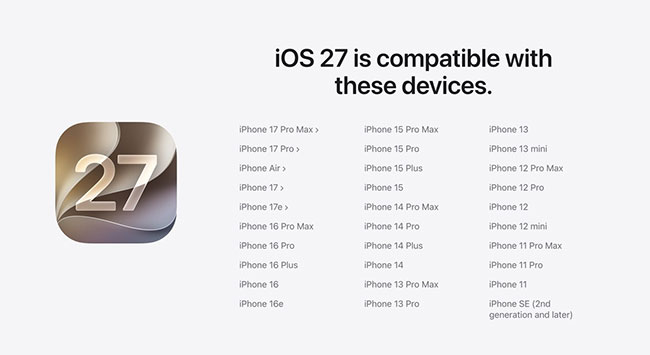
iOS 27 has dropped support for some older iPhone models. To install the beta, you will need a compatible device. The new operating system requires an iPhone 11 or newer. If you are using an older device, you will not be able to install iOS 27.
Method 2: Verify Your Beta Enrollment and Beta Update Settings
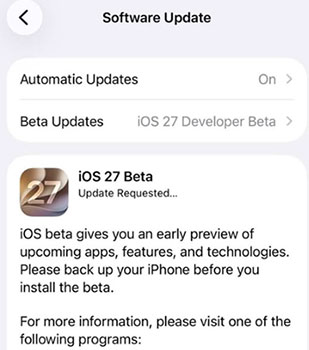
To receive beta updates, your Apple Account must be enrolled in Apple's beta program, and Beta Updates must be enabled on your iPhone.
- Step 1. Open Settings > General > Software Update.
- Step 2. Check whether the Beta Updates option appears.
- Step 3. Tap Beta Updates and select either iOS 27 Public Beta or iOS 27 Developer Beta.
- Step 4. Return to the Software Update screen and wait for your iPhone to check for available updates.
 Note
Note
If this option is set to "Off," your iPhone will only look for public releases.
If the Beta Updates option doesn't appear:
- Make sure your Apple Account is enrolled in the Apple Beta Software Program or Apple Developer Program.
- Verify that you're signed in to your iPhone with the same Apple Account used for beta enrollment.
- Restart your iPhone and check again.
Method 3: Use TunesKit iOS System Recovery to Install iOS 27 Beta
If iOS 27 beta still doesn't appear, the issue may be due to system glitches or corrupted update files. You can use TunesKit iOS System Recovery to install iOS 27 beta without Developer Account. This powerful tool enables you to download and install the latest iOS beta version in 1-click.
In addition, it enables you to fix 150+ iOS issues without data loss, including iPhone stuck on software update, battery health not showing on iPhone, and iPhone caller ID not working, etc. Apart from that, TunesKit iOS System Recovery can instantly enter or exit recovery mode without using buttons. With a clear and intuitive interface, it's suitable for all skill levels users. And it supports all iPhone, iPad, iPod touch models.
Key Features of TunesKit iOS System Recovery
TunesKit iOS System Recovery allows you to download and install iOS 27 beta without developer account or iTunes.
 600,000+ Downloads
 Here's a step-by-step guide to download and install iOS 27 beta using TunesKit iOS System Recovery.
Step 1Connect and Select the Feature
First, install and launch TunesKit iOS System Recovery on your computer. Connect your iPhone using a USB cable. On the main interface of the software, select More Tools, and then choose the Explore iOS Beta Feature section to proceed.

Step 2Download the Firmware
The software will detect your device and show the available firmware. In this case, it should offer the iOS 27 beta as an option. Click the "Download" button to have TunesKit acquire the correct firmware package for your device.

Step 3Begin the Upgrade
After the firmware package is downloaded and verified, the final step is to start the installation. Click the "Start Upgrade" button. TunesKit will begin installing the iOS 27 beta onto your iPhone.
Note
It is vital that you do not disconnect your device from the computer until the process is completely finished. Your iPhone will restart automatically once the installation is complete.

Method 4: Force Restart Your iPhone
A force restart can clear out temporary software glitches or cache issues that may be preventing the update from appearing. This will not erase any of your data.
For an iPhone with Face ID (iPhone X or newer):
- Step 1. Press and quickly release the Volume Up button.
- Step 2. Press and quickly release the Volume Down button..
- Step 3. Press and hold the Side Button until the Apple logo appears.

Method 5: Free Up iPhone Storage
The iOS 27 beta requires a substantial amount of free space to download and install—often 2-3 GB or more. If your storage is full, your device won't even show the update as available.
- Step 1. Check your available space by going to Settings > General > iPhone Storage.
- Step 2. If you have less than 5 GB of free space, you should clear some room. You can do this by deleting unused apps, offloading large files, or clearing photo and video caches. Once you have sufficient space, return to the Software Update screen to check again.

Method 6: Meet the Basic Device Requirements
Your iPhone needs the right conditions to search for and download a major update.
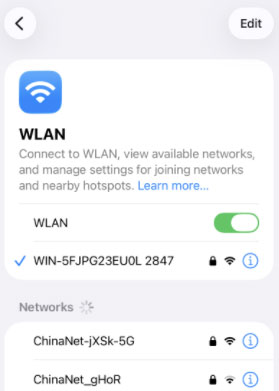
- Connect to Wi-Fi: You must be connected to a stable Wi-Fi network. Large iOS updates will not download over a cellular connection. Go to the Settings app, and WLAN option to check your Wi-Fi.
- Charge Your Battery: Your iPhone must have over 50% battery life or be connected to a charger.
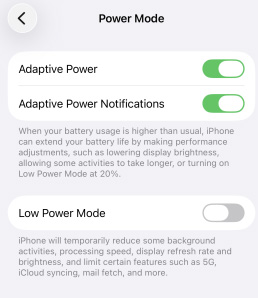
- Disable Low Power Mode: Go to Settings > Battery > Power Mode and ensure that Low Power Mode is turned off, as it can prevent your device from automatically searching for updates.

Method 7: Reset Your Network Settings
Resetting your network settings can often clear up these stubborn connectivity problems, including iOS 27 beta not showing up on iPhone issue. This action only affects network configurations and will not erase any of your personal content, apps, or photos. Here's how:
- Step 1. Navigate to the Settings app on your iPhone, then tap General. Scroll down and select Transfer or Reset iPhone.
- Step 2. On the following screen, tap Reset. From the menu that appears, choose Reset Network Settings.
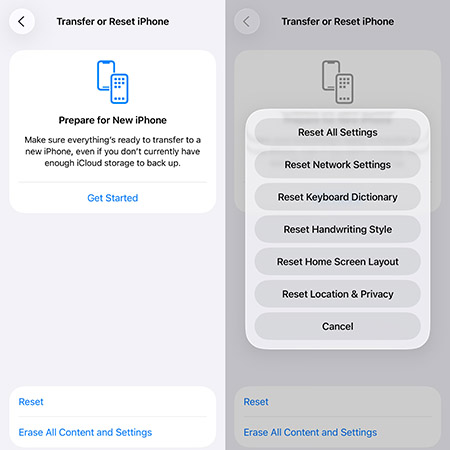
- Step 3. You will be prompted to enter your device passcode to confirm the action. Once entered, your iPhone will restart and completely clear its saved Wi-Fi networks, passwords, and other network-related data, returning them to factory defaults. You will need to reconnect to your Wi-Fi network afterward.
Method 8: Install iOS 27 Beta via iTunes or Finder
You can use a computer to manually install the iOS 27 beta, which is a reliable method to fix iOS 27 beta not showing up on iPhone issue. It is important to know that for modern Macs, this process is handled by Finder, while for Windows PCs, it is still done through iTunes.
This manual update process is for advanced users and requires careful preparation to avoid any loss of data.
Before you begin, two steps are critical:
- Back up your iPhone. A backup is essential, as you might need to restore your device, which erases all data.
- Download the official IPSW file. Get the iOS 27 beta file for your exact iPhone model from the Apple Developer Program. Using unofficial files from other sites is a security risk.
On a Windows PC (using iTunes)
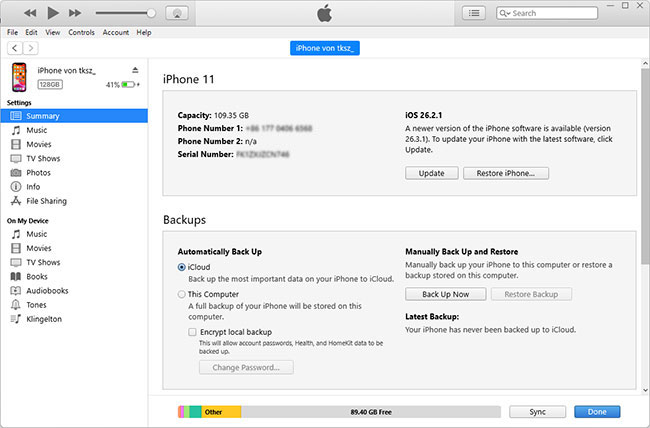
- Step 1. Connect your iPhone to your PC, open iTunes, and select the iPhone icon.
- Step 2. On the device's Summary screen, hold down the Shift key and click Update.
- Step 3. Hold "Shift" key for iTunes, and find and select the IPSW file you downloaded.
- Step 4. iTunes will now install the iOS 27 beta. Keep your iPhone connected until it restarts.
On a Mac (using Finder)
- Step 1. Connect your iPhone to your Mac and open Finder. Select your iPhone in the sidebar.
- Step 2. In the General tab, hold down the Option (⌥) key and click Check for Update.
- Step 3. Choose the IPSW file you downloaded.
- Step 4. Finder will install the latest iOS 27 beta update. Don't disconnect your iPhone until the process is complete and the device has rebooted.

FAQs About iOS 27 Beta
-
Does it cost money to upgrade the iOS 27 Beta?
Currently there is no cost to upgrade either the iOS 27 Developer Beta or the subsequent iOS 27 Public Beta, you can upgrade by joining the Apple Developer Program.
-
Is iOS 27 Beta Safe to Use?
Betas can contain bugs and may affect system stability, battery life, or app functionality. It's best to install on a secondary device or back up your iPhone before updating.
-
Can I Downgrade from iOS 27 Beta to iOS 26?
Yes, as long as Apple hasn't shut down validation of older iOS versions, you can downgrade to a previous version. You can use the downgrade iOS feature of TunesKit iOS System Recovery to downgrade iOS 27 beta to iOS 26 in one click.
Conclusion
If the iOS 27 beta update isn't appearing on your iPhone, it could be due to several issues such as not being enrolled in the Apple Beta Program, unsupported device models, or a system glitch. If the common troubleshooting methods not working, you can use TunesKit iOS System Recovery to install the iOS 27 beta without any hassle. It's a reliable option for users facing beta update issues.


