


iPhone Unable to Install Update? 7 Fixes for iOS 27
If your iPhone shows Unable to Install Update, first check your storage and keep the device connected to power. Then restart the iPhone and try again. If the error continues, delete the downloaded update and redownload it, or update through Finder or Apple Devices.
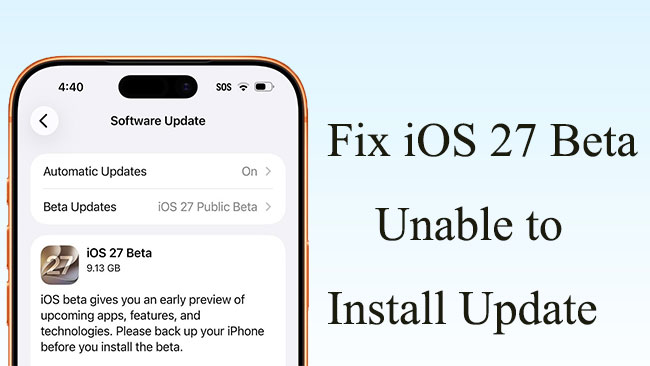
Updating to iOS 27 is usually straightforward, but some users may see an "Unable to Install Update" message after downloading the update. This means the installation could not be completed and may require a few troubleshooting steps before you can continue.
In this guide, we'll explain why iOS 27 may fail to install and walk you through practical ways to fix the error. For help with other update stages and issues, see our complete iPhone update guide.
- What Does "Unable to Install Update" Mean?
- Why Is My iPhone Unable to Install the Update?
-
How to Fix Unable to Install iOS 27 Update
- Solution 1: Free Up iPhone Storage
- Solution 2: Connect Your iPhone to Power
- Solution 3: Force Restart Your iPhone
- Solution 4: Delete and Redownload the Update
- Solution 5: Check Your Internet Connection
- Solution 6: Update via Finder or Apple Devices
- Solution 7: Repair the Update with TunesKit iOS System Recovery HOT
- FAQs About Unable to Install iOS 27 Update
- Conclusion
What Does "Unable to Install Update" Mean?
Unable to Install Update means your iPhone could not complete the iOS installation after the update was downloaded or prepared. You may see a message such as: Unable to Install Update. An error occurred installing iOS 27.
This is different from being stuck on Install Now, where the installation has not started, or seeing Software Update Failed, which is a separate update failure alert.
Related iOS Installation States
| Status | What It Means | Related Guide |
|---|---|---|
| Verifying Update | Your iPhone is checking the downloaded update before installation. | Fix iPhone Stuck on Verifying Update |
| Install Now | The update is ready, but installation has not started. | Fix iPhone Stuck on Install Now |
| Unable to Install Update | The installation failed and the "Unable to Install Update" alert appeared. | You are here |
| Software Update Failed | A separate "Software Update Failed" alert appears during the update process. | Fix iPhone Software Update Failed |
| Installing / Update Bar | iOS installation has started, but the progress may become stuck. | Fix iPhone Stuck on Update Bar |
Why Is My iPhone Unable to Install the Update?
An iPhone may show Unable to Install Update when the installation cannot complete successfully. The following are some common causes.
- Insufficient Storage: Your iPhone needs enough free space to prepare and install the update. If storage is almost full, the installation may fail.
- Incomplete or Corrupted Update File: An interrupted or incomplete download may leave an update file that cannot be installed correctly.
- Network or Update-Service Problems: An unstable connection or temporary communication problem can interrupt the update process.
- Temporary iOS Glitch: A temporary system issue may prevent the installation from completing even when the update file and storage are normal.
How to Fix Unable to Install iOS 27 Update
Start with the simplest fixes below. If one method does not work, move to the next.
Solution 1: Free Up iPhone Storage
Not having enough free storage is a common reason an iOS update cannot install. The amount of free space required varies by device and update size, so make sure your iPhone has enough available storage before trying again.
- Step 1. Go to Settings > General > iPhone Storage.
- Step 2. Check which apps, photos, videos, or files are using the most space.
- Step 3. Delete or offload unnecessary content.
- Step 4. Return to Settings > General > Software Update and try installing iOS 27 again.

Solution 2: Connect Your iPhone to Power
Keep your iPhone connected to a reliable charger while retrying the update. This helps prevent the installation from being interrupted if the battery runs low.
- Step 1. Connect the iPhone to a charger.
- Step 2. Leave it connected for a few minutes.
- Step 3. Return to Settings > General > Software Update and try again.

Solution 3: Force Restart Your iPhone
A force restart can clear temporary iOS glitches that may be preventing the installation from continuing. For iPhones with Face ID, you can follow the quick steps below.
- Step 1. Press and quickly release Volume Up.
- Step 2. Press and quickly release Volume Down.
- Step 3. Hold the Side button until the Apple logo appears.
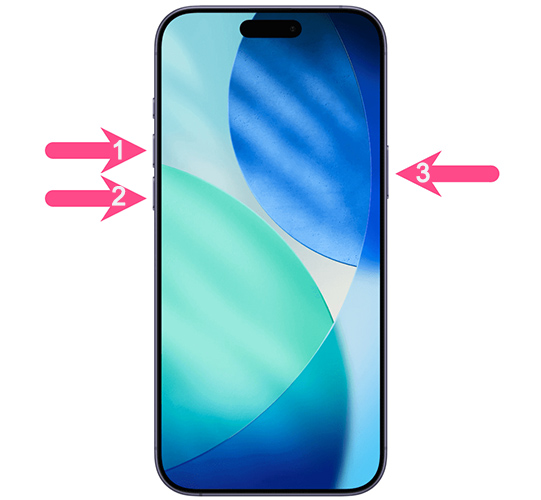
After the iPhone restarts, go back to Software Update and retry the installation.
Solution 4: Delete and Redownload the Update
If the downloaded update file is incomplete or corrupted, deleting it and downloading a fresh copy may solve the problem, according to Apple. Deleting the update file does not erase your personal photos, messages, apps, or other data.
- Step 1. Go to Settings > General > iPhone Storage.
- Step 2. Find the iOS update file if it appears in the list.
- Step 3. Tap it and choose Delete Update.
- Step 4. Return to Settings > General > Software Update. Download iOS 27 again and retry the installation.
Solution 5: Check Your Internet Connection
A stable internet connection helps your iPhone communicate reliably with Apple’s update services during the update process. If the connection is weak or interrupted, the installation may fail or stop unexpectedly. Try reconnecting to Wi-Fi or switching to another reliable network before retrying the update.
- Step 1. Go to Settings > Wi-Fi and reconnect to your network.

- Step 2. If possible, try another reliable Wi-Fi network.
- Step 3. Temporarily disable any VPN or proxy, and retry the update.
If the problem continues, you can reset network settings from Settings > General > Transfer or Reset iPhone > Reset > Reset Network Settings. Use this only after the simpler network checks, because it removes saved Wi-Fi networks and related settings.
Solution 6: Update via Finder or Apple Devices
If the over-the-air update keeps failing, try updating your iPhone with a computer instead. Using Finder on a Mac or Apple Devices on Windows gives you another update path when the update cannot be installed directly on the iPhone.
- Step 1. Connect your iPhone to the computer with a compatible USB cable.
- Step 2. On a Mac, open Finder. On Windows, open the Apple Devices app. Older setups may still use iTunes.
- Step 3. Select your iPhone and open the General or Summary tab.
- Step 4. Click Check for Update.
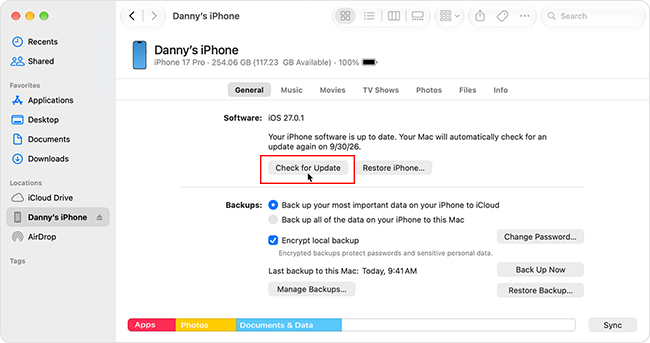
- Step 5. Choose Download and Update and follow the onscreen instructions.
Solution 7: Repair the Update with TunesKit iOS System Recovery
If the standard methods still do not work, the problem may be related to a deeper iOS system issue. TunesKit iOS System Recovery is designed to repair update-related problems such as Unable to Install Update, update loops, Apple logo issues, and other iOS system errors. Its Standard Repair mode aims to fix the system while preserving user data.
Fix Unable to Install iOS 27 with TunesKit
Fix iOS 27 installation errors, including "Unable to Install Update," while aiming to preserve your data with Standard Repair.
 600,000+ Downloads
Step 1. Connect the iPhone
Launch TunesKit iOS System Recovery on your computer and connect the iPhone with a USB cable. Choose iOS System Repair, then select Standard Repair.

Step 2. Download the Firmware
Confirm the detected device information and download the matching firmware package. Keep the computer connected to a stable internet connection during the download.

Step 3. Start the Repair
After the firmware is ready, click Start Standard Repair. Keep the iPhone connected until the repair finishes, then check whether iOS 27 can now install successfully.

FAQs About Unable to Install iOS 27 Update
-
What is the difference between Unable to Install Update and Software Update Failed?
Unable to Install Update usually appears when the installation itself cannot complete. Software Update Failed is a separate failure alert that may occur at another point in the update process.
-
Will deleting the iOS update erase my data?
No. Deleting the downloaded iOS update file removes only the update package. It does not normally delete your photos, apps, messages, or other personal data.
-
Can I install iOS 27 with a computer instead?
Yes. You can use Finder on a Mac or the Apple Devices app on Windows to download and install the update.
-
Will I lose data if the iOS installation fails?
An installation error does not normally erase personal data. However, back up your iPhone before using advanced repair or restore methods.
Conclusion
If your iPhone shows Unable to Install Update, start by checking storage, connecting the device to power, and restarting it. If the error continues, delete and redownload the update or use Finder or Apple Devices to install iOS 27. For persistent system-related update problems, TunesKit iOS System Recovery offers another repair option before resorting to a full restore.
For solutions to other iOS update problems, explore our iOS update help center.



