


How to Fix iPhone Won't Turn On After iOS 27 Update
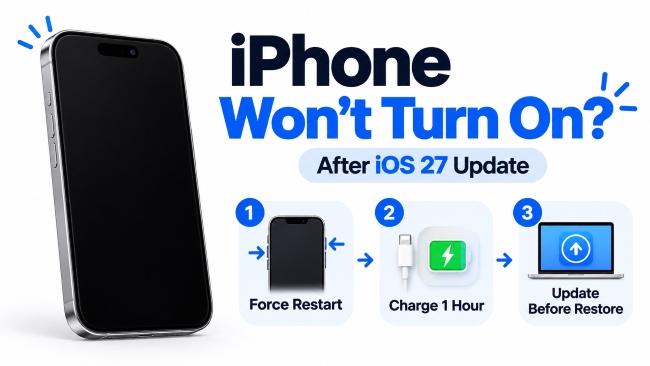
If your iPhone won't turn on after updating to iOS 27, force restart it first. If the screen stays black, charge it for about one hour. If it still won't start, use iOS Recovery or Recovery Mode and choose Update before Restore.
Seeing a completely black or unresponsive iPhone after an iOS 27 update can be alarming. However, a black screen does not always mean the device is permanently damaged or that your data is gone.
This guide focuses on an iPhone that stays black, does not respond, or cannot start normally after the update. If your iPhone shows a progress bar, Apple logo, boot loop, or Recovery Mode screen instead, see our iOS 27 update guide to find the right troubleshooting path.
- Is Your iPhone Really Off or Is the Screen Just Black?
- Why Won't My iPhone Turn On After iOS 27 Update?
-
How to Fix iPhone Won't Turn On After iOS 27 Update
- Fix 1: Force Restart the iPhone
- Fix 2: Charge the iPhone for One Hour
- Fix 3: Check the Charger, Cable, Outlet, and Charging Port
- Fix 4: Use iOS Recovery or Recovery Assistant If It Appears
- Fix 5: Use Recovery Mode and Choose Update First
- Fix 6: Repair Persistent iOS Issues with TunesKit HOT
- Fix 7: Restore the iPhone
- Fix 8: Try a DFU Restore as a Last Resort
- FAQs About iPhone Won't Turn On After iOS 27 Update
- Conclusion
Is Your iPhone Really Off or Is the Screen Just Black?
Before trying advanced fixes, check what your iPhone is actually doing. A black screen does not always mean the device is powered off.
| What You See or Notice | What It May Mean | What to Do |
|---|---|---|
| Completely black screen with no vibration, sound, or response | The battery may be depleted, or iOS may not be starting | Continue with this guide |
| Screen is black, but the iPhone vibrates, rings, plays sounds, or is detected by a computer | The iPhone may still be running even though the display is black | Force restart it first |
| Low-battery icon appears | The battery needs more power | Charge the iPhone |
| Apple logo with a progress bar | The update may still be installing | See our iPhone stuck on update bar guide |
| Apple logo stays on the screen | The iPhone is stuck during startup | Follow our Apple logo troubleshooting guide |
| Apple logo repeatedly appears and disappears | The iPhone may be in a boot loop | Use our boot-loop troubleshooting guide |
| Connect to Computer screen appears | The iPhone is in Recovery Mode | See our Recovery Mode guide |
| iOS Recovery or Recovery Assistant appears | iOS has detected a startup or system problem | Follow the on-screen recovery steps |
Use the table above to identify your situation before moving to the fixes below.
Why Won't My iPhone Turn On After iOS 27 Update?
Several problems can prevent an iPhone from starting normally after an iOS update:
- Depleted battery or charging problem: The battery may be too low to start the device, or the charger, cable, outlet, or charging port may not be supplying power correctly.
- Temporary iOS freeze or startup issue: The update may complete, but a temporary software problem can prevent the screen or system from responding normally.
- Interrupted or incomplete iOS update: A shutdown, loss of power, or installation problem can prevent the update from completing and leave iOS unable to start normally.
- Possible display, battery, or hardware problem: If the iPhone remains completely unresponsive after charging and software recovery, a hardware component may need professional diagnosis.
How to Fix iPhone Won't Turn On After iOS 27 Update
Start with the simplest, non-destructive fixes first, then move to system recovery only if the iPhone still will not start. Follow the methods below in order, or jump to the step that matches what you see on the screen.
Fix 1: Force Restart the iPhone
A force restart can reboot an iPhone when the screen is black or the device is not responding. It does not normally erase personal data.
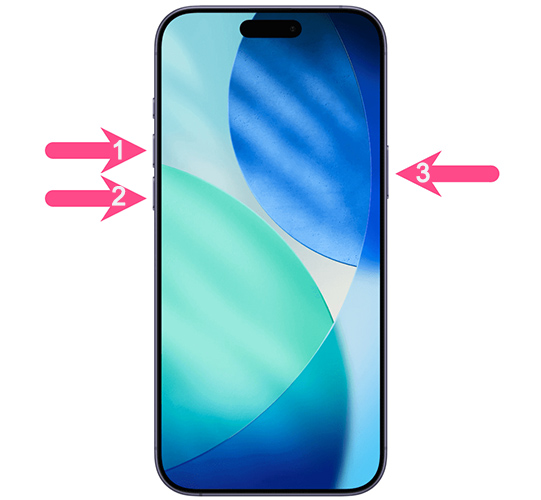
For most modern iPhones:
- Step 1. Quickly press and release the Volume Up button.
- Step 2. Quickly press and release the Volume Down button.
- Step 3. Press and hold the Side button. Keep holding it until the Apple logo appears.
If the iPhone starts normally, give it time to finish loading before using it again. If the screen remains completely black, continue to the next fix.
Fix 2: Charge the iPhone for One Hour
If a force restart does not work, the battery may be too low for the iPhone to start. Connect the device to a working charger and leave it charging for about one hour before trying another force restart.
- Step 1. Connect the iPhone to a compatible charging cable and power adapter.
- Step 2. Plug the adapter into a working power outlet.
- Step 3. Leave the iPhone charging for about one hour.
- Step 4. Try the force restart again.

A deeply discharged iPhone may stay black for a while before showing a charging symbol, so do not assume the charger is failing immediately.
Fix 3: Check the Charger, Cable, Outlet, and Charging Port
If the iPhone still shows no sign of power, check the charging setup before moving to software recovery.
- Step 1. Try another compatible charging cable and power adapter.
- Step 2. Test a different wall outlet.
- Step 3. Check the charging port for visible debris or damage.

- Step 4. Connect the iPhone directly to a computer and see whether Finder or Apple Devices detects it.
If the computer recognizes the iPhone while the screen stays black, the device may still be running even though the display is not working normally. Try another force restart before using recovery tools. If the iPhone shows no sign of power and is not detected by a computer after these checks, hardware service may be needed.
Fix 4: Use iOS Recovery or Recovery Assistant If It Appears
If iOS 27 detects a startup or update problem, your iPhone may automatically show iOS Recovery or Recovery Assistant. These built-in tools can help repair the system before you move to computer-based recovery.
- Step 1. Choose the recovery option shown on your iPhone and follow the prompts.
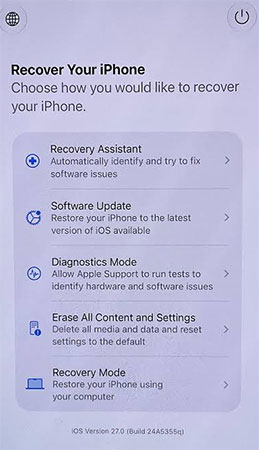
- Step 2. Connect to Wi-Fi if the selected recovery option requires it.
- Step 3. If the iPhone still cannot start, continue with Recovery Mode on a computer.
Fix 5: Use Recovery Mode and Choose Update First
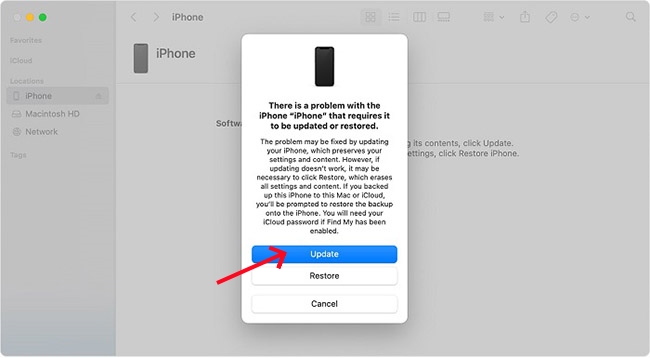
If the iPhone still cannot start but can be detected by a computer or enter Recovery Mode, try reinstalling iOS with Finder on Mac or Apple Devices on Windows.
- Step 1. Connect the iPhone to the computer with a USB cable.
- Step 2. Put the iPhone into Recovery Mode.
- Step 3. Open Finder, Apple Devices, or iTunes on your computer and select the iPhone.
- Step 4. When you see Update or Restore, choose Update first. This attempts to reinstall iOS without erasing your personal data.
 Note
Note
If the iPhone leaves Recovery Mode during the download, let the download finish, then enter Recovery Mode again and choose Update. Use Restore only if Update fails.
Fix 6: Repair Persistent iOS Issues with TunesKit
If the iPhone still cannot start after force restarting, charging, or using Apple's standard update methods, the problem may involve a deeper iOS system issue.
TunesKit iOS System Recovery is a desktop repair tool for iPhone startup failures, Recovery Mode loops, Apple logo issues, and update-related problems. Its Standard Repair mode is designed to fix common iOS system issues without erasing existing data.
- Step 1. Open TunesKit iOS System Recovery and connect the iPhone to your computer.
- Step 2. Choose iOS System Repair and click Start. Then select Standard Repair.

- Step 3. Confirm the device information and click Download to download the recommended firmware package.
- Step 4. Click Start Standard Repair to initiate the repair and keep the iPhone connected until the process finishes. If the repair succeeds, the iPhone should restart normally.
Fix 7: Restore the iPhone
If Recovery Mode Update and other non-erasing repair methods cannot fix the startup problem, you may need to restore the iPhone. Restoring erases the device, including its data, apps, settings, and accounts. So, use Restore only when the safer options have failed.
- Step 1. Connect the iPhone to the computer and open Finder, Apple Devices, or iTunes as appropriate.
- Step 2. Put the device into Recovery Mode if necessary.
- Step 3. Select Restore when the computer gives you the choice between Update and Restore.

- Step 4. Keep the iPhone connected until iOS is reinstalled.
- Step 5. Afterward, restore your data from an available iCloud or computer backup.
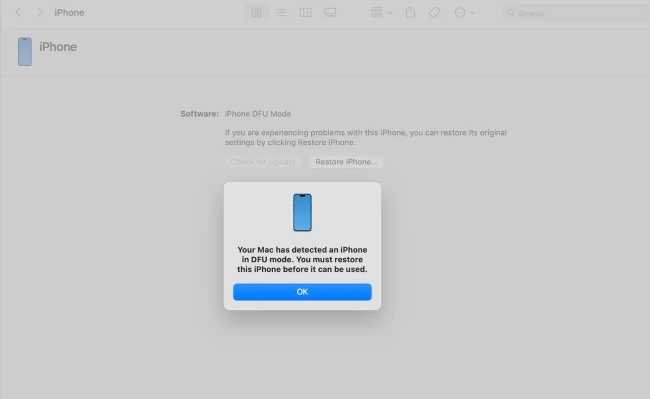
Fix 8: Try a DFU Restore as a Last Resort
A DFU Restore is an advanced restore option that may help when standard Recovery Mode cannot restore the iPhone. Unlike Recovery Mode, the iPhone screen stays completely black while the computer detects the device. A DFU Restore erases the iPhone, so use it only as a final software troubleshooting step.
Connect the iPhone to a computer, enter DFU mode using the button sequence for your model, and choose Restore when Finder or Apple Devices detects the device. If DFU Restore also fails, the problem may require hardware diagnosis rather than additional software troubleshooting.
FAQs About iPhone Won't Turn On After iOS 27 Update
-
What if my iPhone vibrates or rings but the screen stays black?
The iPhone may still be running even though the screen is black. Force restart it first. If the screen stays black, the problem may involve the display or another hardware component.
-
How long should I charge an iPhone that won't turn on?
Charge the iPhone for about one hour before trying another force restart. If there is still no response, check the charging cable, adapter, outlet, and charging port.
-
Will fixing an iPhone that won't turn on erase my data?
Not necessarily. A force restart and charging do not normally erase personal data, while Recovery Mode Update attempts to reinstall iOS without erasing it. TunesKit Standard Repair is also designed to preserve existing data. Restore and DFU Restore erase the iPhone.
Conclusion
An iPhone that will not turn on after an iOS 27 update may need anything from a simple force restart or extended charging to system recovery. Start with the least disruptive options first and move to Restore or DFU Restore only when other methods fail, since both erase the device.
If the iPhone still does not respond, update, or restore after these steps, contact Apple Support for further diagnosis. For other installation or post-update problems, visit our iOS update troubleshooting center for the right solution.



