


Should I Update to iOS 27 Beta? Pros, Cons & Who Should Wait
Should I update to iOS 27, or should I stay on iOS 26? The answer depends on your iPhone model, how much you value stability, and whether you are thinking about installing the beta or waiting for the public release.
As of August 2026, iOS 27 is still in preview, with the public release expected this fall. It brings major Siri AI improvements, faster system performance, Liquid Glass refinements, and other upgrades. However, beta software can still cause bugs, battery drain, or app compatibility issues.
If this is your main iPhone, waiting for the stable release is the safer choice. If you have a secondary device and want early access to new features, trying the beta may make sense.
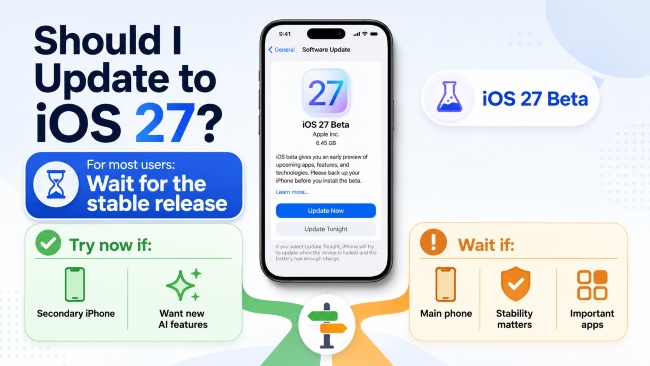
iOS 27 is still in beta. Apple's latest public iPhone software is iOS 26.6.1, released on August 17, 2026. Siri AI is scheduled to arrive in English later in 2026.
- Quick Answer: Should You Update to iOS 27?
- Is iOS 27 Worth It?
- Reasons to Wait Before Updating to iOS 27
- iOS 27 vs iOS 26: Should You Upgrade?
- Should I Update My iPhone to iOS 27?
- Should You Update to iOS 27 or Wait?
- What to Do Before Updating to iOS 27
- What If iOS 27 Causes Problems After Updating?
- Final Verdict: Should You Update to iOS 27?
- FAQs About Updating to iOS 27
Quick Answer: Should You Update to iOS 27?
For most users, not yet. Since iOS 27 is still in beta, waiting for the stable public release is the safer choice.
| Your Situation | Recommendation |
|---|---|
| Main iPhone for work or daily use | Wait for stable iOS 27 |
| Secondary compatible iPhone | Beta is reasonable to try |
| Want the latest Siri AI features | Update if your model supports them |
| Battery life and stability matter most | Wait |
| Depend on banking or work apps | Check compatibility first |
| Use iPhone 11, 12, or 13 | Wait for real-world feedback |
Bottom line: Do not install iOS 27 beta just because it is new. For most people, the stable public release will be the better upgrade point.
Is iOS 27 Worth It?
iOS 27 is worth considering because it focuses on three areas that matter in daily use: AI, performance, and system refinement.
Better Siri and Apple Intelligence
One of the biggest changes is the next generation of Siri. Apple is expanding Siri's ability to understand context, handle more natural requests, and work across apps. However, not every iPhone that supports iOS 27 supports Apple Intelligence. Apple Intelligence in iOS 27 requires an iPhone 15 Pro or 15 Pro Max, or an iPhone 16 model or later.
If Siri AI is your main reason for updating, check your iPhone model before installing iOS 27.

Faster Everyday Performance
According to Apple's testing, iOS 27 can deliver up to 30% faster app launches, up to 70% faster loading for new photos, and up to 80% faster AirDrop transfers under specific test conditions. These improvements make iOS 27 more than a cosmetic update, especially for users who care about responsiveness.
Refined Liquid Glass Design
iOS 27 continues the Liquid Glass design introduced in iOS 26, but with improvements to readability, contrast, icons, and appearance controls. If you liked the overall design of iOS 26 but found some parts hard to read, iOS 27 may feel more polished.
 To learn more new features, you can read this post: iOS 27 New Features: 15 Biggest Changes, Siri AI & More
Reasons to Wait Before Updating to iOS 27
New features are useful, but being first to update is not always the best choice.
The Beta Can Still Have Bugs
Beta software is unfinished software. It may contain bugs that affect apps, performance, or system features. If your iPhone is essential for work, travel, payments, or communication, waiting for the stable release is safer.
Battery Life May Be Unstable
Battery drain is common after major updates because iOS may continue indexing files, optimizing apps, and running background tasks. This temporary drain can improve after a few days. Beta-related battery issues, however, may last longer until Apple releases a fix. If battery life is already a concern, do not rush into the beta.
Some Apps May Not Be Fully Compatible
Major iOS updates can temporarily cause problems with apps that have not yet been optimized. Be especially careful if you rely on some important apps like banking apps, work or school apps, authentication apps, games, smart-home apps, or accessory companion apps. Check important apps before upgrading.
Older iPhones Need More Caution
iOS 27 supports older models, but the experience may differ from newer devices. Before updating an iPhone 11, 12, or 13, check its battery health, free storage, current performance, as well as user feedback from the same model. A phone with a worn battery may feel worse after a major update even if the software itself is working normally.
Downgrading Can Be Inconvenient
If you regret installing iOS 27 beta, returning to an older public version may require erasing and restoring the iPhone. A backup created on a newer beta version may also not restore to an older iOS version. That is why making a backup before installing a beta is especially important.
Further Reading: iOS 27 Beta Problems and Fixes: 20 Common Bugs
iOS 27 vs iOS 26: Should You Upgrade?
Here is the main difference between staying on iOS 26 and moving to iOS 27.
| Category | iOS 26 | iOS 27 |
|---|---|---|
| Stability | More mature | Beta is still being tested |
| Siri | Current Siri features | New Siri AI on supported models |
| Apple Intelligence | Existing features | Expanded AI features |
| Performance | Stable | New performance optimizations |
| Design | Original Liquid Glass | More refined Liquid Glass |
| App Compatibility | More mature | May vary during beta |
| Best For | Stability-focused users | Users wanting the latest features |
Bottom line: Choose iOS 26 for now if stability is your top priority. Choose iOS 27 once stable if you want newer AI, performance, and system improvements.
Should I Update My iPhone to iOS 27?
Whether you should update also depends on the iPhone you own.
| iPhone Model | Recommendation | Why |
|---|---|---|
| iPhone 17 Series / iPhone Air / iPhone 16 Series | Update when stable | Best support for iOS 27 and Apple Intelligence |
| iPhone 15 Pro / Pro Max | Update when stable | Supports Apple Intelligence and most new features |
| iPhone 15 /15 Plus / 14 Series / 13 Series | Update, but no need to rush | Supports iOS 27, but not Apple Intelligence |
| iPhone 12 Series | Wait for performance feedback | Older hardware; battery health matters more |
| iPhone 11 Series | Wait and check real-world results first | Oldest mainstream iPhone generation supported by iOS 27 |
| iPhone SE (2nd generation and later) | Check battery and performance feedback first | Older hardware makes battery health especially important |
iPhone 17, Air, 16, and 15 Pro: Best Candidates for iOS 27
These models get the most value from iOS 27, especially from Apple Intelligence and newer Siri features. For most users, upgrading makes sense once the stable release is available.
iPhone 15, 15 Plus, 14, and 13: Worth Updating, but No Need to Rush
These iPhones support iOS 27 but do not support Apple Intelligence. Their main reasons to upgrade are performance improvements, design refinements, and other non-AI features. If your current iOS version works well, there is little reason to install the beta early.
iPhone 12, 11, SE: Check Battery and Performance First
iPhone 12, iPhone 11 and older SE model users should be more cautious. Battery health, free storage, and real-world performance matter more on older devices. If your battery is already degraded or the phone feels slow, wait for stable-release feedback before upgrading.
Should You Update to iOS 27 or Wait?
Your iPhone model is only one factor. Your battery health, important apps, and need for stability should also affect your decision.
| Update to iOS 27 | Wait Before Updating |
|---|---|
| You have a newer compatible iPhone | You use an older iPhone with poor battery health |
| You want iOS 27's new AI features on a supported model | Your iPhone is essential for work or daily tasks |
| Your important apps support iOS 27 | You haven't confirmed that your critical apps support iOS 27 |
| You have enough free storage | Your iPhone storage is nearly full |
| You have backed up your iPhone | You have not created a recent backup |
| You are installing the stable public release | You are considering the beta on your main iPhone |
In short: Update if your iPhone is ready and you want the new features. Wait if stability, app compatibility, or battery life matters more than getting iOS 27 immediately.
What to Do Before Updating to iOS 27
If you decide to update, prepare your iPhone first to reduce problems.
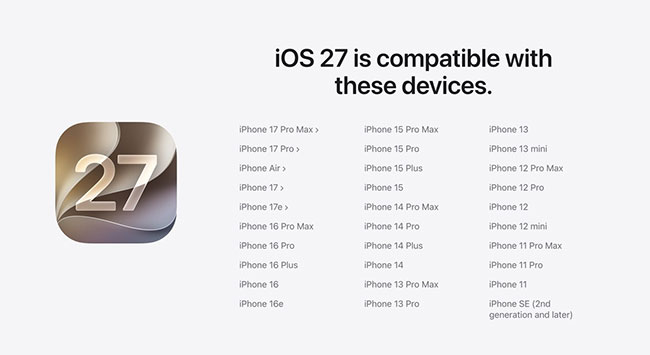
Step 1. Check Compatibility
Make sure your iPhone supports iOS 27. According to Apple, it supports iPhone SE (2nd generation and later), iPhone 11 and later models. Also remember that iOS 27 compatibility and Apple Intelligence compatibility are different. An iPhone can support iOS 27 without supporting every AI feature.
Step 2. Back Up Your iPhone
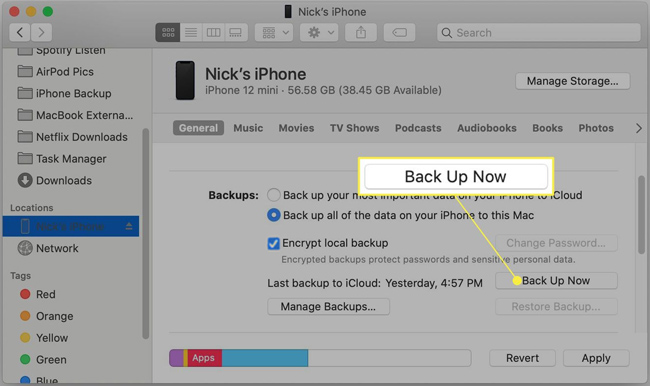
Make an iCloud or computer backup before installing a major iOS update. This is especially important for beta users because returning to an older iOS version may require erasing the device.
Step 3. Free Up Storage
Make sure your iPhone has enough available space for the update and temporary installation files. If storage is almost full, remove unused apps, downloads, or large videos first.

Step 4. Update Important Apps
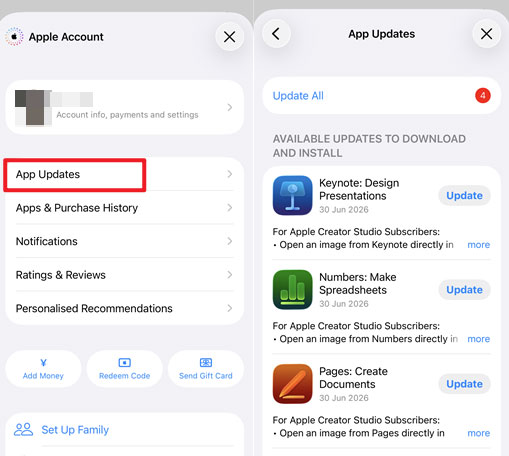
Open the App Store and install available app updates. This reduces the chance of running an outdated app that has not been prepared for newer iOS changes.
Step 5. Use Stable Wi-Fi and Enough Power
Avoid starting a major system update when your connection is unreliable or your battery is nearly empty.

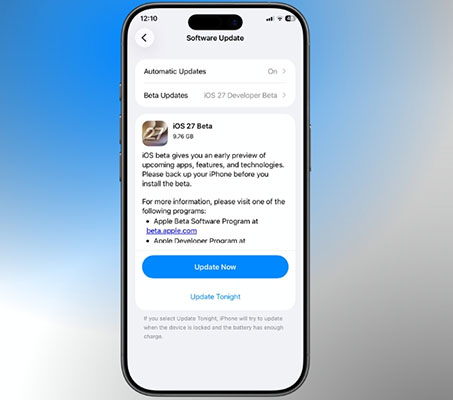
Once your iPhone is ready, you can update through Settings > General > Software Update.
What If iOS 27 Causes Problems After Updating?
If your iPhone develops a problem after updating to iOS 27, do not immediately erase it. For minor problems, first try the following fixes.
- 1. Restart or force restart the iPhone.
- 2. Update all apps.
- 3. Check for a newer iOS 27 update.
- 4. Wait a few days if the only problem is temporary battery drain.
Fix iOS 27 System Issues with TunesKit iOS System Recovery
For serious software-related issues, such as an iPhone stuck on the Apple logo, boot loop, Recovery Mode, DFU Mode, or a failed iOS update, TunesKit iOS System Recovery may help repair the system without immediately erasing the device. Its Standard Repair mode is designed to fix common software-related iOS problems while preserving existing data. The repair process involves three main steps.
- Step 1. Connect your iPhone to the computer and open iOS System Repair.
- Step 2. Choose Standard Repair and download the firmware package for your device.
- Step 3. Start the repair and keep the iPhone connected until the process finishes.

 Note
Note
Standard Repair is intended to preserve data, but backing up your iPhone beforehand is still recommended whenever possible.
Final Verdict: Should You Update to iOS 27?
For most users, iOS 27 is worth updating to—but the stable public release is the better time to do it. Update sooner if you have a newer iPhone, want the latest Siri AI features, and are comfortable with early-release changes. Wait if you depend on maximum stability, use an older iPhone, have poor battery health, or rely on important apps that must work perfectly.
In simple terms:
- Have a newer iPhone and want the latest features? Update once iOS 27 is stable.
- Need maximum reliability? Stay on iOS 26 a little longer.
FAQs About Updating to iOS 27
-
Is iOS 27 stable?
As of August 2026, iOS 27 is still in beta, so bugs and performance issues may still occur. If you use your iPhone as your main device, waiting for the stable public release is the safer choice.
-
Is iOS 27 better than iOS 26?
iOS 27 offers newer features, improved performance, refined Liquid Glass, and more Apple Intelligence features on supported iPhones. However, iOS 26 is currently more mature and may be better if stability is your top priority.
-
Does iOS 27 drain battery?
iOS 27 may temporarily use more battery after installation while the iPhone completes background tasks such as indexing and optimization. With beta versions, additional battery drain may also come from software bugs. If battery life does not improve after several days, check Battery settings for unusual app usage or wait for a newer iOS update.
-
Will iOS 27 slow down older iPhones?
Not necessarily. Performance depends on the iPhone model, battery health, available storage, apps, and the iOS 27 version installed. Users with older models such as iPhone 11 and iPhone 12 may want to check real-world battery and performance feedback before upgrading.
-
Should I install iOS 27 beta on my main iPhone?
For most users, no. Beta software can have bugs, app compatibility issues, and unstable battery life. If you rely on your iPhone for work, banking, travel, authentication, or daily communication, wait for the stable iOS 27 release.
-
Can I downgrade from iOS 27 to iOS 26?
It may be possible to return from an iOS 27 beta to an Apple-signed public version of iOS, but downgrading usually requires erasing and restoring the iPhone. Also, a backup created on a newer iOS 27 version may not be compatible with an older iOS version. Always make a backup before installing beta software.



