iOS 27 Stuck on Optimizing Search and Siri? Here's How to Fix It
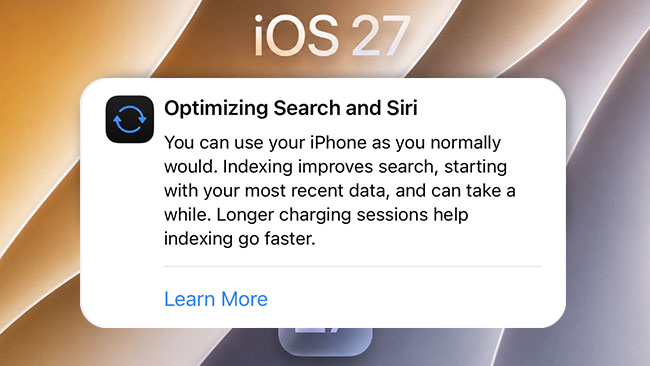
After updating to iOS 27, you may see "Optimizing Search and Siri" in Settings, sometimes with a progress percentage that appears stuck. This is the newer wording for the "Indexing in Progress" status shown in earlier iOS 27 betas.
If the percentage stops changing for a long time, your iPhone may be stuck during indexing. The fixes below can help get the process moving again.
- Quick Answer: What Is Optimizing Search and Siri on iOS 27?
- Is Optimizing Search and Siri the Same as Indexing in Progress?
- Why Is iOS 27 Stuck on Optimizing Search and Siri?
- How Long Does Optimizing Search and Siri Take on iOS 27?
- How to Fix iOS 27 Stuck on Optimizing Search and Siri
- FAQs About Optimizing Search and Siri on iOS 27
- Conclusion
Quick Answer: What Is Optimizing Search and Siri on iOS 27?
Optimizing Search and Siri is a system indexing process that makes on-device content easier to find through Search and available to Siri.
Apple explains that indexing makes content findable in Search and helps Siri locate relevant app data. Core Spotlight indexes are stored on the device and remain private to the device owner.
You can continue using your iPhone while background processing is underway. Some tasks may continue in the background after an iOS update and temporarily affect battery life or thermal performance.
Is Optimizing Search and Siri the Same as Indexing in Progress?
Yes, essentially. "Optimizing Search and Siri" is the newer description of the indexing process that iOS 27 previously displayed as "Indexing in Progress."
In iOS 27 Beta 1, users saw an Indexing in Progress notification without a clear completion percentage. Starting with newer beta builds, Apple changed the message to Optimizing Search and Siri, making its purpose easier to understand. Some current builds also show a completion percentage and the time when the progress was last updated.
Why Is iOS 27 Stuck on Optimizing Search and Siri?
Seeing Optimizing Search and Siri after an iOS 27 update is usually normal because Search-related assets and indexes may still be updating in the background.
If the percentage stays unchanged for a long time, possible reasons include:
- More content to index: Photos, messages, contacts, files, and app data can increase the indexing workload.
- Low Power Mode: Apple says Low Power Mode reduces background activity, which may affect indexing.
- Low storage: Very limited free space can reduce overall system performance.
- iOS 27 beta bugs: Earlier iOS 27 betas had known Search-related issues, including slow Search asset downloads. Similar beta bugs may cause optimization to take longer or appear stuck.
How Long Does Optimizing Search and Siri Take on iOS 27?
Apple does not provide a fixed completion time for Optimizing Search and Siri. The time can vary depending on the device and the amount of content that needs to be indexed.
If your iOS 27 build shows a progress percentage and Last updated time, check both. A slowly increasing percentage or a recently updated timestamp usually means indexing is still active. If neither changes for an unusually long time, try the fixes below.
How to Fix iOS 27 Stuck on Optimizing Search and Siri
Start with the first method and move down the list only if the optimization remains stuck.
Fix 1. Wait and Keep Your iPhone Charging
If the percentage is still moving, your iPhone is likely still indexing normally. Apple's iOS 27 indexing message notes that the process can take a while and that longer charging sessions help indexing go faster.
- Step 1. Connect your iPhone to power.
- Step 2. Check whether the Optimizing Search and Siri percentage is still increasing.
- Step 3. If it is moving, allow the process to continue before trying other fixes.

If the percentage continues to move, let the process finish on its own. Only try the next fixes if it remains unchanged for an unusually long time.
Fix 2. Turn Off Low Power Mode
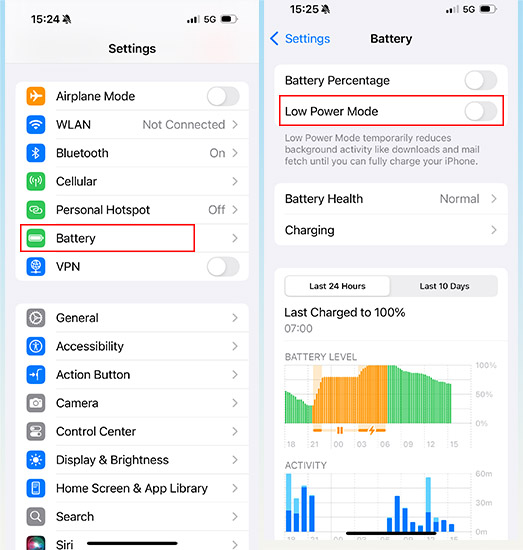
Low Power Mode reduces background activity on iPhone. If Search and Siri optimization appears stalled, turn it off temporarily and check the progress again.
- Step 1. Go to Settings > Battery > Power Mode (For iPhone 15 and later), or Settings > Battery (For iPhone 14 and earlier).
- Step 2. Turn off Low Power Mode.
Then return to the Optimizing Search and Siri screen later to see whether the percentage has started moving again.
Fix 3. Free Up iPhone Storage
Very low storage can reduce overall iPhone performance and interfere with normal system tasks. Apple does not specify a minimum amount of storage required for Search and Siri indexing, but it recommends keeping at least 1 GB of free space to avoid performance slowdowns.
- Step 1. Open Settings.
- Step 2. Go to General > iPhone Storage.
- Step 3. Check how much free space is available.
- Step 4. Remove unnecessary downloads, large videos, unused apps, or other files you no longer need.

Fix 4. Restart or Force Restart Your iPhone
If the optimization percentage has not changed for a long time, restart your iPhone to clear temporary software issues.
First, try a normal restart. If your iPhone is also frozen, lagging, or not responding correctly, perform a force restart:
- Step 1. Quickly press and release the Volume Up button.
- Step 2. Quickly press and release the Volume Down button.
- Step 3. Press and hold the Side button.
- Step 4. Release the Side button when the Apple logo appears.
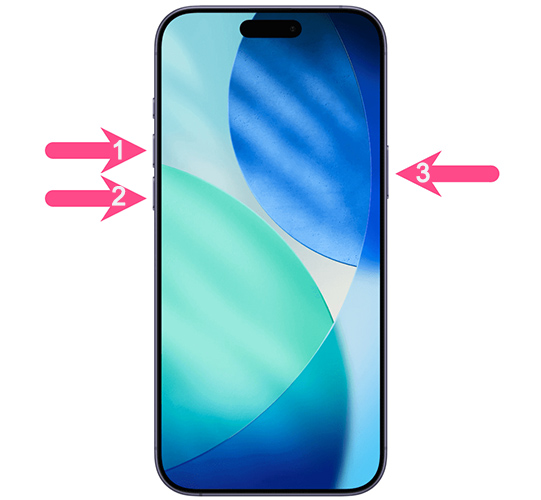
A force restart does not erase your data. After the iPhone starts again, check whether Optimizing Search and Siri begins progressing.
Fix 5. Update to the Latest iOS 27 Build
Earlier iOS 27 beta versions had known Search-related issues, including slow Search asset downloads. Apple later marked some of these issues as resolved in newer beta builds. If Optimizing Search and Siri remains stuck, installing the latest available iOS 27 update may help.
- Step 1. Go to Settings > General > Software Update.
- Step 2. Wait while your iPhone checks for updates.
- Step 3. If a newer iOS 27 build is available, back up important data and install it.
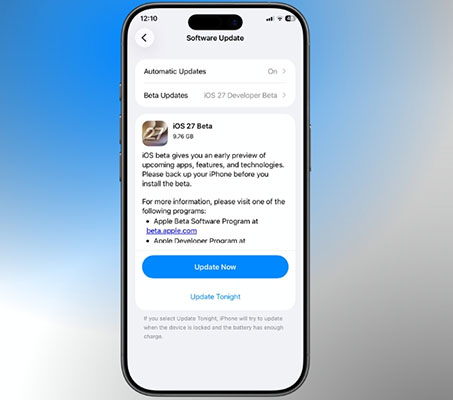
After updating, Search-related background processing may run again temporarily, so give the system some time before deciding that optimization is stuck.
Fix 6. Repair Possible iOS System Issues with TunesKit
If Optimizing Search and Siri stays stuck and your iPhone also shows other problems, such as freezing, system lag, failed updates, or unstable performance, an underlying iOS software issue may be involved.
In this situation, TunesKit iOS System Recovery can be used before considering a factory reset. Its Standard Repair mode is designed to fix common iOS system issues without erasing existing data.
It is not necessary if the optimization percentage is still moving normally. Back up your iPhone beforehand whenever possible.
Fix Indexing in Progress Instantly
TunesKit iOS System Recovery fixes Optimizing Search and Siri stuck issues with one click, repairing iOS system glitches safely without data loss.
 600,000+ Downloads
How to Fix Optimizing Search and Siri Stuck with TunesKit
- Step 1. Install and open TunesKit iOS System Recovery on your Windows PC or Mac. Connect the iPhone with a USB cable, choose iOS System Repair, and click Start.
- Step 2. Select Standard Repair to repair common iOS system problems while keeping your existing data.
- Step 3. Confirm the detected device information and download the firmware package for your iPhone.
- Step 4. Click Start Standard Repair and keep the device connected until the process finishes.
After the iPhone restarts, Search and Siri may begin processing again. Allow some time for optimization to continue.

Fix 7. Reset All Settings
If the problem continues after trying the methods above, you can reset all system settings without deleting your personal files.
- Step 1. Go to Settings > General > Transfer or Reset iPhone.
- Step 2. Tap Reset.
- Step 3. Select Reset All Settings.
- Step 4. Enter your passcode and confirm.
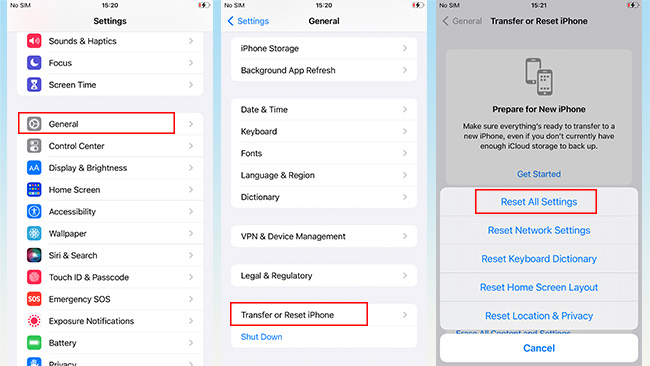
This does not delete your photos, apps, messages, contacts, or documents. However, settings such as Wi-Fi networks, Bluetooth pairings, Apple Pay cards, Face ID settings, and other preferences will need to be configured again.
 Note
Note
This step is rarely necessary, use it only after simpler fixes fail.
FAQs About Optimizing Search and Siri on iOS 27
-
Can I use my iPhone while Optimizing Search and Siri?
Yes. You can continue using your iPhone while Search and Siri optimization runs in the background. If the progress percentage is still increasing, you generally only need to let the process finish.
-
Why Is Optimizing Search and Siri Stuck at 33%, 90%, or 99%?
A percentage that stays unchanged for a while does not always mean the process is stuck. Search-related data may still be processing in the background. If both the percentage and Last updated time remain unchanged for an unusually long time, try the fixes above.
-
Does Optimizing Search and Siri Drain Battery?
Background processing after an iOS update can temporarily affect battery life and device temperature. Battery usage should return to normal after these background tasks finish.
-
Can I Stop Optimizing Search and Siri?
iOS does not provide a direct control to stop the system-wide optimization process. It is generally best to let it finish because indexed content helps Search and Siri find relevant information on your iPhone.
Conclusion
Optimizing Search and Siri is the newer wording for the "Indexing in Progress" status shown in earlier iOS 27 betas. It usually means your iPhone is still processing Search- and Siri-related indexes in the background.
If the percentage is still increasing, simply allow the process to finish. If it remains stuck for a long time, try the fixes above. For persistent problems accompanied by other iOS issues, TunesKit iOS System Recovery can help repair possible system errors without requiring a factory reset.