How to Downgrade iOS 27 to iOS 26 Without Data Loss: A Complete Guide
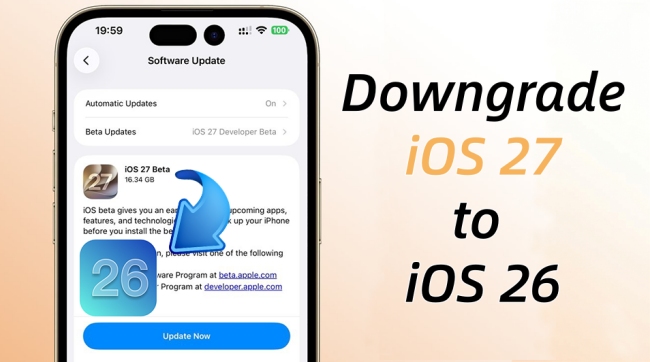
Regret upgrading to iOS 27? Early-stage updates often bring severe battery drain, app crashes, and performance drops. Reverting to a stable iOS 26 is the best fix, but can you do it without losing your personal files?
Yes, with proper preparation. The downgrade process will completely erase your iPhone, meaning your photos, messages, and settings rely entirely on a solid backup strategy.
In this guide, we explain exactly how to safely return to iOS 26 using the official Apple method, an automated alternative, and an advanced trick to restore incompatible backups.
- The Crucial Rule: Apple's Signing Window
- Preparation: Secure Your Data and Device
- Method 1: Downgrade Using Apple's Official Restore Process
- Method 2: Downgrade iOS 27 to iOS 26 with TunesKit iOS System Recovery HOT
- Method 3: Downgrade Using DFU Mode
- The Ultimate Hack: Restoring an iOS 27 Backup to iOS 26
- FAQs Related to Downgrade iOS 27 to 26
- Conclusion
The Crucial Rule: Apple's Signing Window
Before you do anything, you must understand how Apple controls software installations. Apple only permits your device to install firmware versions that are currently "signed" by their servers.
Once Apple stops signing iOS 26, normal downgrade methods become completely impossible.
Even if you have the correct software files downloaded, the installation will fail the cryptographic security check. Always verify online that iOS 26 is still being actively signed before attempting to alter your device.
Preparation: Secure Your Data and Device
Proper preparation separates a successful downgrade from a catastrophic data-loss event. Since downgrading inherently wipes your operating system, you must secure your files offline.
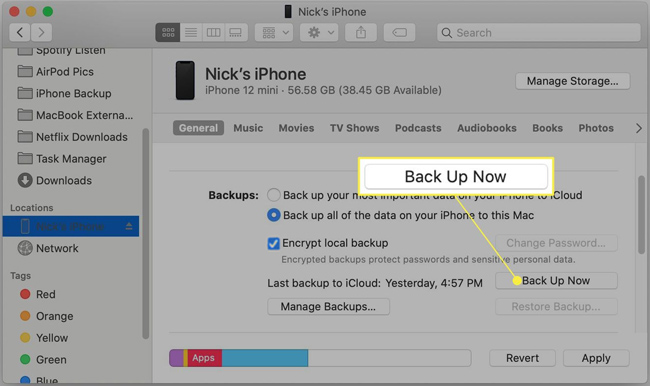
Create a complete, encrypted local backup on your computer using Finder (Mac) or iTunes (Windows) by navigating to General (Mac) or Summary (Windows) > Back Up Now.
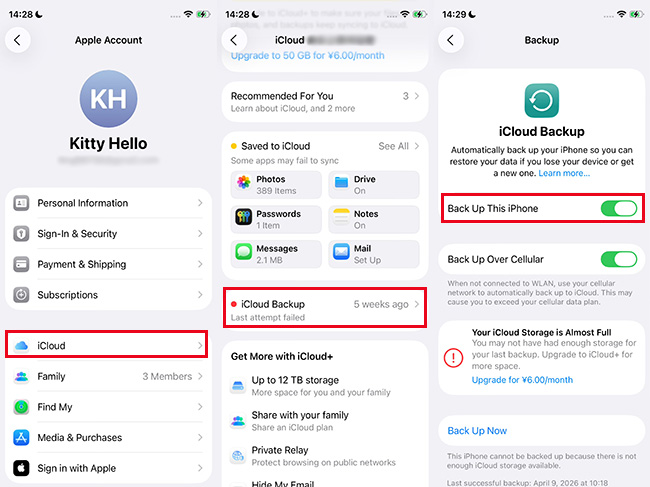
Do not rely solely on an iCloud backup (Go to Settings > Your name > iCloud > iCloud Backup > Back Up This iPhone), as cloud backups created on newer iOS versions often refuse to install onto older systems.
Next, prepare your physical hardware for the process.
- Step 1. Charge your iPhone battery to at least 50% to prevent unexpected shutdowns during the firmware installation.
- Step 2. Open your iPhone Settings, tap your Apple Account profile, and navigate to the Find My menu.
- Step 3. Toggle off "Find My iPhone" to disable the activation lock, which would otherwise block a computer from overwriting the operating system.

Method 1: Downgrade Using Apple's Official Restore Process
Apple provides a built-in mechanism to manually flash firmware onto your device. While the software interface differs slightly depending on your computer, the underlying process is identical.
| Computer OS | Recommended Official Tool |
|---|---|
| macOS Catalina and later | Finder |
| Windows 10 and Windows 11 | Apple Devices |
| Older Windows or macOS Mojave | iTunes |
This official method is completely free and highly reliable, but it does require you to manually source the correct operating system files.
- Step 1. Navigate to a trusted external firmware repository like IPSW.me to download the official iOS 26 package tailored for your exact iPhone model.

- Step 2. Connect your iPhone to the computer using an Apple-certified data cable and open your respective Apple management software.
- Step 3. Put the device into Recovery Mode by pressing and releasing Volume Up and then Volume Down, then press and hold Side button until the Recovery Mode screen appears. This allows your computer to communicate directly with the bootloader.

- Step 4. Hold down the Option key (Mac) or Shift key (Windows) while clicking the "Restore" button, then select the iOS 26.5 IPSW file you downloaded in the first step.
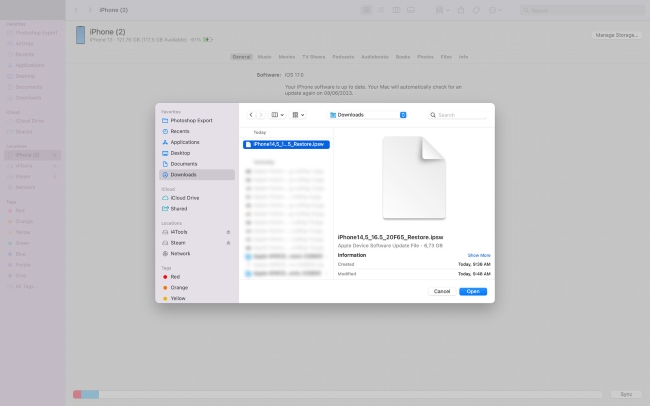
- Step 5. Allow the computer to verify the firmware and install iOS 26. Do not disconnect the cable until you see the standard "Hello" setup screen on your iPhone.
 See Also:
 Method 2: Downgrade iOS 27 to iOS 26 with TunesKit iOS System Recovery
Some users find downloading firmware files and triggering manual recovery modes frustrating, especially if iTunes throws unexpected error codes. Third-party tools like TunesKit iOS System Recovery bypass the Apple interface entirely, offering a guided approach. TunesKit is an all-in-one iOS repair toolkit, which allows you to downgrade from iOS 27 to iOS 26.5 in a quick and easy way.
Why Choose TunesKit iOS 27 Downgrade Tool?
TunesKit automates the technical heavy lifting by identifying your hardware and fetching the authorized firmware directly from Apple's servers.
 600,000+ Downloads
600,000+ Downloads
600,000+ Downloads
- Step 1. Install and launch TunesKit iOS System Recovery on your computer, then connect your iPhone.
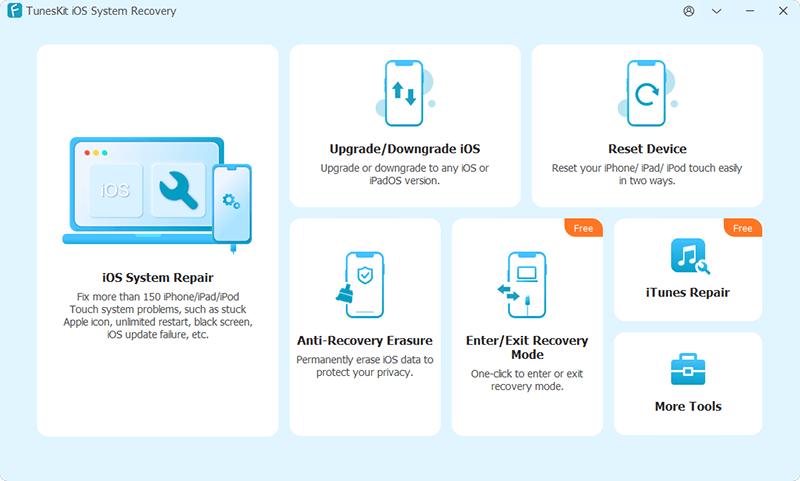
- Step 2. Select the "Upgrade/Downgrade iOS" option from the main dashboard, and choose the dedicated "iOS downgrade" function.

- Step 3. Allow the software to detect your iPhone model, and click "Download" to automatically download the correct, currently signed iOS 26.5 firmware package.
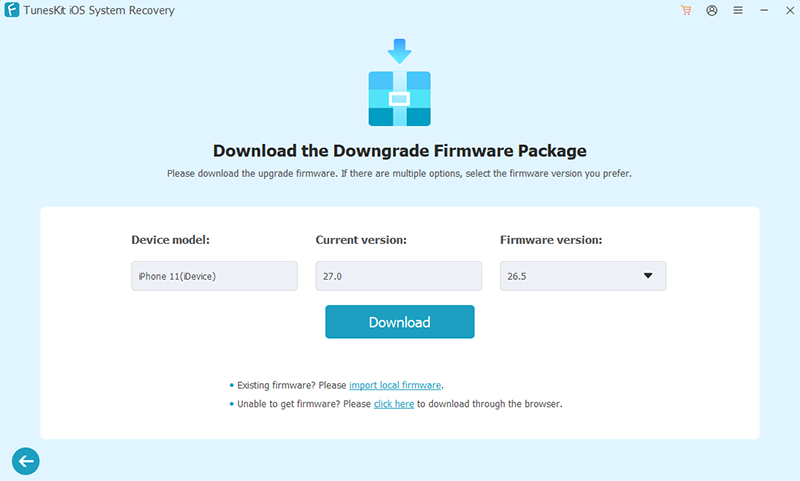
- Step 4. Click "Start Downgrade" to initiate the downgrade process within the software and wait for the automated installation to complete.

Method 3: Downgrade Using DFU Mode
DFU (Device Firmware Update) Mode is a deeper, more advanced restoration method. Unlike standard Recovery Mode, DFU communicates directly with the hardware's bootrom before the operating system even attempts to load.
| Feature | Recovery Mode | DFU Mode |
|---|---|---|
| Primary Use | Standard troubleshooting and manual downgrades | Fixing boot loops and corrupted firmware |
| Boot Process | Uses iBoot | Bypasses iBoot entirely |
| Difficulty | Easy to trigger | Requires precise button timing |
You only need to use DFU mode if your iPhone is trapped in a reboot loop or if standard restore methods repeatedly fail.
- Step 1. Connect your device to the computer and open Finder or iTunes.
- Step 2. Put your iPhone into DFU mode by following these steps: Quick press the Volume Up and then Volume Down. Hold down the Side button until the screen goes black, then continue to hold down both the Side button and Volume Down button. After 5 seconds, release the Side button while continuing to hold down the Volume Down button. When your device is in DFU mode, the screen remains completely black.
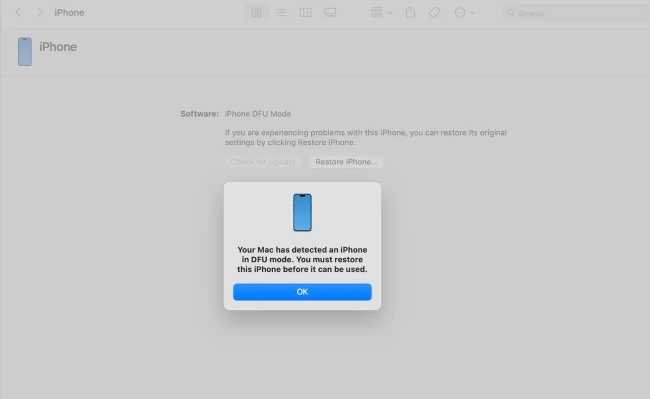
- Step 3. Choose the "Restore" option in your computer interface and manually select the iOS 26.5 IPSW file you previously downloaded, and wait for the restore process to complete.
The Ultimate Hack: Restoring an iOS 27 Backup to iOS 26
If your only backup was created while running iOS 27, your computer will normally refuse to restore it to an iOS 26 device. However, you can bypass this limitation by slightly modifying the backup files on your computer.
This advanced workaround tricks iTunes or Finder into thinking the backup was actually made on iOS 26.
- Step 1. Locate your local iPhone backup folder on your Mac or PC hard drive.
- Step 2. Scroll to the bottom of the backup folder and open the Info.plist file using a standard text editor.
- Step 3. Use the search function (Ctrl+F or Cmd+F) to locate the phrase <key>Product Version</key>.
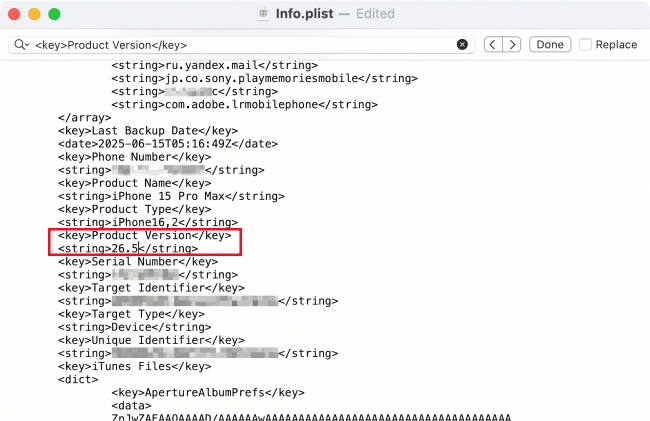
- Step 4. Directly below that line, change the text that says 27.0 to 26.5, then save and close the file.
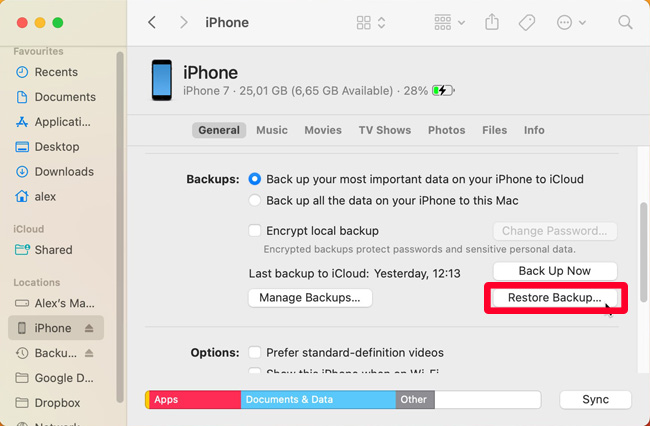
- Step 5. Return to Finder or iTunes and select "Restore Backup". The software will now accept the file and push your recent data onto your downgraded iOS 26 device.

FAQs Related to Downgrade iOS 27 to 26
-
Can I downgrade iOS 27 without a computer?
No, a physical computer connection is mandatory. You cannot safely roll back an operating system directly on the device itself.
-
Will downgrading erase everything on my phone?
Yes, the downgrade process completely wipes the device. You must restore your data from an archived backup after the installation finishes.
-
Do I need to jailbreak my iPhone to downgrade?
No, jailbreaking is completely unnecessary. All official and third-party downgrade methods utilize Apple's standard firmware systems.
-
Why does Finder say "Firmware Verification Failed"?
This error occurs either because you downloaded the wrong IPSW file for your specific iPhone model, or because Apple has officially stopped signing that version of iOS 26.
Conclusion
Downgrading from the iOS 27 beta to iOS 26.5 is highly achievable, provided Apple is still signing the older firmware. The key to success is entirely rooted in preparation: disable your security locks, download the correct firmware, and most importantly, secure an archived local backup.
For the average user, the official Apple restore process via Finder or iTunes remains the safest and most reliable method. If you run into system errors or prefer a guided interface, automating the process with TunesKit iOS System Recovery is an excellent alternative. By taking the time to protect your data first, you can safely return your iPhone to a stable, reliable state without losing what matters most.