


How Long Does iOS 27 Take to Download and Install?
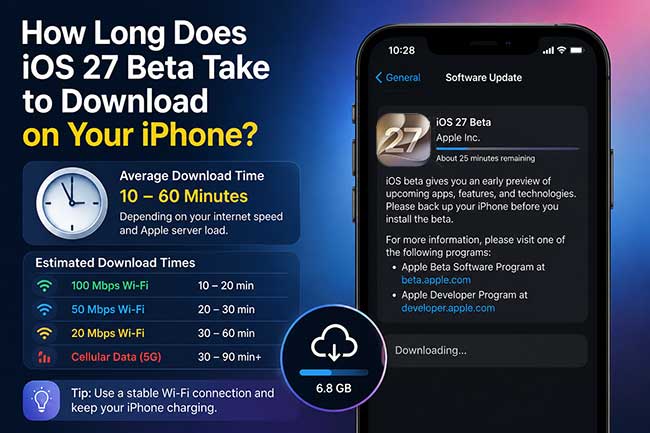
If you're planning to update your iPhone, you may be wondering how long does iOS 27 take to download and install. In most cases, the entire update process takes around 20 minutes to an hour, depending on your internet speed, iPhone model, available storage, and Apple server traffic.
This guide explains how long each stage of the iOS 27 update may take, what can affect the installation time, and what to do if the update gets stuck or takes longer than expected.
How Long Does iOS 27 Take to Download and Install?
If you're wondering how long does iOS 27 take to download, the total time depends on your internet connection, iPhone model, available storage, and Apple's servers. Although the download itself is often completed within minutes, the preparation and installation stages also require time. For most users, the entire process takes 20–60 minutes.
| Process | Estimated Time | What It Means |
|---|---|---|
| Download iOS 27 | 5–30 minutes | Your iPhone downloads the update package from Apple's servers. Faster Wi-Fi connections reduce this time. |
| Preparing the Update | 5–15 minutes | iOS verifies the downloaded files, checks compatibility, and gets the update ready for installation. |
| Installing iOS 27 | 10–20 minutes | Your iPhone installs the new software and may restart several times during the process. |
| Restart and Final Setup | 5–10 minutes | The device completes system optimization, applies settings, and loads the updated operating system. |
| Total Estimated Time | 20–60 minutes | Under normal conditions, most users can expect the full download and installation process to finish within an hour. |
If Apple's servers are busy—especially on release day—or your internet connection is slow, the process may take longer than the estimates shown above.
 Further Reading: How Long Does an iPhone Software Update Take?
Why Is the Download Speed for iOS 27 So Slow?
If iOS 27 is taking a long time to download, sometimes hanging on "Preparing Update" or displaying hours of estimated remaining time, this is almost always caused by a bottleneck on Apple's servers, a network restriction on your end, or a storage conflict.
- 01 Server Traffic: Download speeds may slow when many users are trying to download a major iOS update simultaneously.
- 02 Unstable Internet Connection: Weak or inconsistent Wi-Fi can interrupt the download and make the update take much longer than expected.
- 03 Insufficient Storage: Your iPhone needs enough free space to download and prepare the update. If storage is low, free up space in Settings > General > iPhone Storage.
- 04 VPN or Network Restrictions: VPNs, proxy connections, or third-party security software may interfere with Apple's update servers. Try disabling them temporarily or switching to another Wi-Fi network.
For the best results, connect your iPhone to a stable Wi-Fi network and a power source while downloading iOS 27.
How to Make iOS 27 Download Faster
If iOS 27 is taking too long to download, the problem may be related to your Wi-Fi connection, available storage, network settings, or heavy traffic on Apple's update servers. Try the following methods to improve the update process.
Method 1: Optimize Your Wi-Fi Connection
A weak or unstable Wi-Fi connection is the most common culprit for slow iOS updates. The update file is typically quite large, often exceeding several gigabytes in size. Ensuring your device has a direct, unimpeded connection to your router can significantly reduce overall download times. Moving into the same room as your router can immediately eliminate physical signal interference.
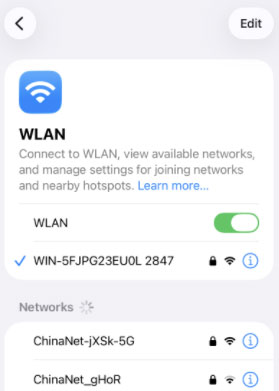
- Step 1. Open the Settings app on your iPhone and tap on WLAN.
- Step 2. Toggle WLAN off, wait ten seconds, and turn it back on to refresh the connection to the network.
- Step 3. If your router supports dual bands, ensure you are connected to the 5GHz network rather than the 2.4GHz network for faster short-range speeds.
Method 2. Free Up Device Storage
Your iPhone needs enough free space not only to download iOS 27 but also to prepare temporary files and complete the installation. If storage is running low, the update may slow down, remain stuck on Preparing Update, or fail to install, so removing unnecessary apps, videos, and large files can help the process run more smoothly.
- Step 1. Navigate to Settings, tap General, and then select iPhone Storage.
- Step 2. Review the list of apps and offload or delete any large applications you no longer use.
- Step 3. Clear out old videos, large message attachments, or recently deleted photos to free up at least 15 GB of space.
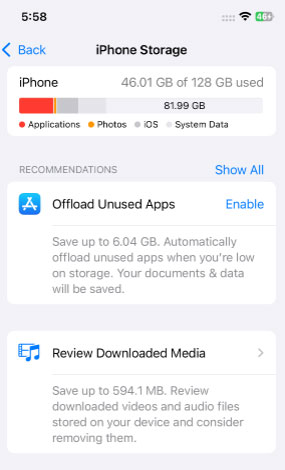
Having ample headroom allows the operating system to manage files efficiently without constantly pausing the download.
Method 3. Force Restart the iPhone
Occasionally, background processes or minor software glitches can interfere with the Software Update mechanism. A force restart clears the iPhone's temporary memory and forcefully closes any stuck background tasks without deleting your personal data. This action gives the device a fresh slate to initiate a stronger connection with Apple's servers.
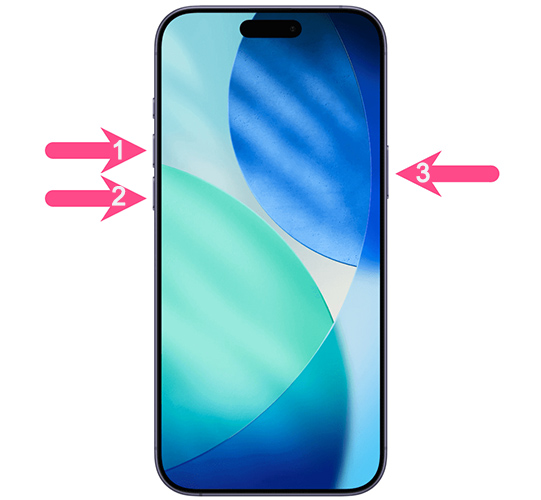
- Step 1. Quickly press and release the Volume Up button.
- Step 2. Quickly press and release the Volume Down button.
- Step 3. Press and hold the Side button until the screen goes black and the Apple logo appears, then release it.
After the restart, go back to Settings > General > Software Update to check available update.
Method 4. Update via TunesKit iOS System Recovery
If the official Apple update channels are dragging or constantly timing out, a dedicated third-party tool can bypass your iPhone's wireless bottlenecks entirely. TunesKit iOS System Recovery is a desktop application designed to fix system issues, but it also features a dedicated module for quickly installing iOS 27 update.
By downloading the firmware package directly to your computer, the software utilizes your PC or Mac's stronger network adapter to fetch the massive file significantly faster. It then safely flashes the operating system to your connected device without deleting your personal photos, messages, or apps.
Fast Desktop Upgrade via TunesKit
Bypass sluggish over-the-air bottlenecks and utilize your computer's superior network speed to quickly and securely install the iOS 27 without losing any personal data.
 600,000+ Downloads
Here's how to upgrade to iOS 27 using TunesKit iOS System Recovery.
Step 1. Connect iPhone to PC
Download and install the TunesKit iOS System Recovery application on your Mac or Windows computer, then connect your iPhone using a reliable USB cable. Launch the program and select "Upgrade/Downgrade iOS" option from the main dashboard. On the next page, select iOS Upgrade option.

Step 2. Download Firmware Package
Confirm that the software has correctly identified your iPhone model on the screen, then click the "Download" button to begin fetching the iOS 27 firmware.
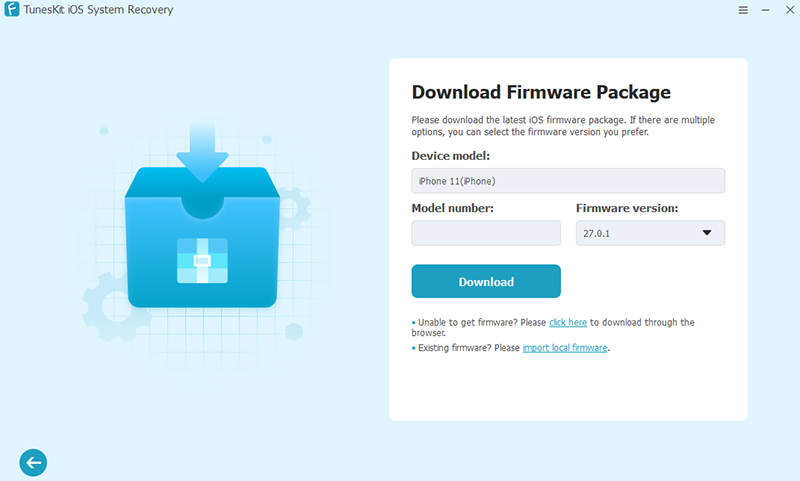
Step 3. Start to Upgrade
After the download successfully finishes, click "Start Upgrade" and wait patiently while the tool securely installs the update onto your phone.

Bypassing the standard over-the-air update mechanism completely removes your phone's internal storage and Wi-Fi chip from the downloading phase. This strategy is especially useful if your device is stuck on the "Preparing Update" screen or if you want to ensure the fastest, cleanest possible installation of a pre-release operating system.
FAQs About iOS 27 Download Time
-
Can I leave the iOS 27 download running overnight?
Yes. This is often a convenient way to complete a large update without interrupting your normal use. Keep your iPhone connected to a stable Wi-Fi network and a power source. If Automatic Updates is enabled, iOS can download and install available updates overnight while the device is charging and connected to Wi-Fi.
-
Will background activity slow down the iOS 27 download?
Yes. Large downloads, video streaming, cloud backups, app updates, and other devices using the same Wi-Fi network can compete for bandwidth and increase the download time. For better performance, avoid heavy network activity until the iOS 27 download is complete.
-
Can I use my iPhone while iOS 27 is downloading?
Yes. You can continue using your iPhone while the update downloads in the background. However, avoiding bandwidth-heavy activities may help the download finish faster.
Conclusion
Updating to iOS 27 usually takes around 30 to 60 minutes, depending on your internet speed, iPhone model, available storage, and Apple server traffic. If the update is unusually slow or gets stuck, TunesKit iOS System Recovery provides a computer-based alternative for downloading and installing compatible iOS 27 firmware. For safety, back up your iPhone before starting any major system update.



