iOS 27 Siri AI Waitlist: How Long It Takes & How to Get Access
Apple's upgraded Siri in iOS 27 introduces a deeply integrated, conversational AI experience. However, installing the update won't unlock these features instantly. To manage server load during the WWDC 2026 launch, Apple has implemented a phased rollout via the iOS 27 Siri AI waitlist.
If you are stuck on the "Joined Waitlist" screen, here is everything you need to know about wait times, compatibility, and troubleshooting.
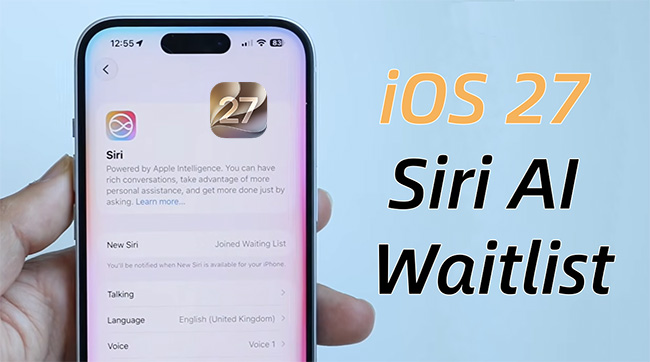
- Based on real-world user reports during the initial iOS 27 developer beta, the average wait time is 4 to 48 hours.
- Approval is controlled entirely on Apple's remote servers.
- If your device has been in the queue for less than two days, your system is working normally—you just need to wait for your account activation wave.
How to Join the Official iOS 27 Siri AI Waitlist
Updating to iOS 27 does not automatically enroll you. You must manually opt in to trigger the server request. Here is how to join the iOS 27 Siri AI waitlist step by step.
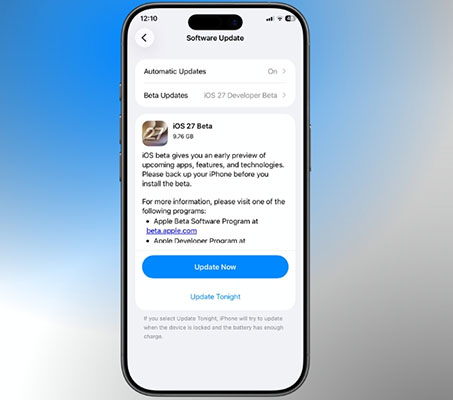
- Step 1. Go to Settings > General > Software Update and ensure you are running the latest iOS 27 build. (Note: Since it's the developer beta version now, you should first download the profile with your developer account.)
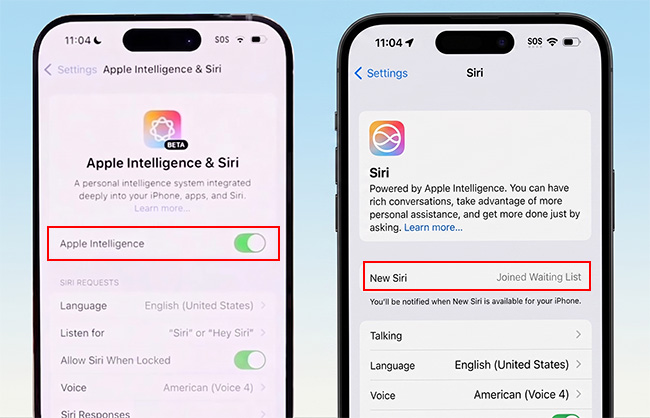
- Step 2. Navigate to the main Settings app and scroll down to the new Apple Intelligence & Siri menu.
- Step 3. Tap the prominent banner at the top of the screen that reads Join the Apple Intelligence Waitlist.
- Step 4. Once tapped, the button will change to "Joined Waiting list". You can now leave the app. Apple will send you a push notification when your device is approved and the features are active.
- Step 5. After Apple activates your account, follow any on-screen prompts to complete setup and begin using the new Siri AI capabilities.
 Further Reading:
 Who Can Join the Siri AI Waitlist?
Before looking for the join button, make sure your device and software meet Apple's requirements.
Compatible iPhone Models
The new Siri AI relies on advanced hardware designed for Apple Intelligence workloads. Generally, only supported iPhone models with sufficient processing power can access these features.
| Device Model | Siri AI Status | Requirement / Action |
|---|---|---|
| iPhone 17 Pro / Pro Max / Slim | Fully Supported | Eligible; typical wait time under 24 hours. |
| iPhone 16 / Plus / Pro / Pro Max | Fully Supported | Eligible; standard 4–48 hour queue. |
| iPhone 15 Pro / Pro Max | Supported | Eligible; requires US English language settings. |
| iPhone 15 & Older | Not Supported | Ineligible; lacks the required hardware. |
 Note:
Note:
Due to regulatory restrictions, users physically located in the European Union (EU) and China are currently blocked from the Siri AI rollout, even if they change their Apple ID region.
Software Requirements
You'll typically need:
- iOS 27 or a supported beta version.
- An eligible Apple ID.
- Apple Intelligence enabled where available.
- A region and language currently supported by Apple.
Requirements may change as Apple expands availability, so users in different countries may experience different rollout schedules.
What to Do If You Are Stuck or the Waitlist Is Missing
Joining the waitlist is only the first step. Some users remain in the queue longer than expected and wonder whether something has gone wrong. The following checks can help confirm that everything is working as intended.
Tip 1. Verify Your Eligibility
Double-check that your iPhone model supports Siri AI and that you're running a compatible version of iOS 27. If Apple updates its hardware requirements, unsupported devices will remain ineligible regardless of how long they stay on the waitlist.
Tip 2. Make Sure Apple Intelligence Is Enabled
Depending on your software version, Apple Intelligence may need to be turned on before Siri AI can be activated. Please go to Settings > Apple Intelligence & Siri and confirm the main toggle is turned on.
Then check Settings > Siri & Search to make sure "Hey Siri" side button activation, and Siri access on lock screen are enabled. Also verify that both device language and Siri language are set to a supported option (typically English US).

Tip 3. Check for New Software Updates
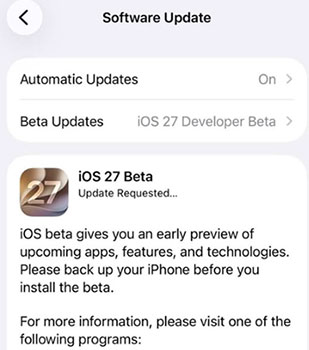
Apple frequently releases updates that fix bugs and improve compatibility. Installing the latest version may resolve display issues or other problems preventing Siri AI from appearing. Please go to Settings > General > Software Update to check whether your version is the latest iOS 27.
Tip 4. Restart Your iPhone
Although restarting won't bypass Apple's approval process, it can refresh system services and load newly activated features after your account receives access. A simple reboot is worth trying if you've recently been approved but still don't see the upgraded Siri.
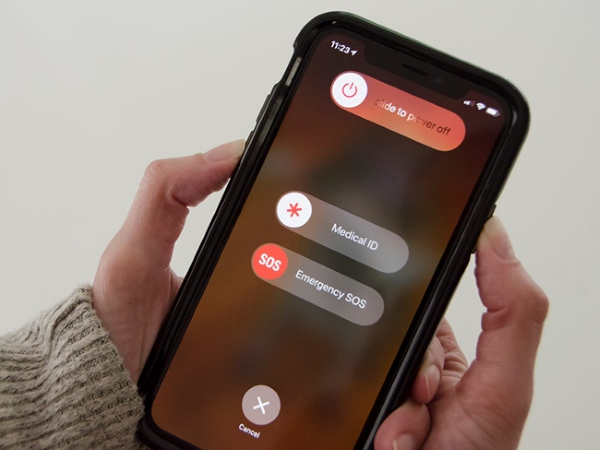
Press and hold both the Side button and either Volume button until the power-off slider appears. Then drag the slider and wait about 30 seconds for the device to turn off. To turn it back on, press and hold the Side button until the Apple logo appears.
Tip 5. Toggle Your Apple ID
Sign completely out of your Apple ID account in the Settings app, restart your iPhone, and sign back in. This forces your phone to re-verify your registration status with Apple's servers.

Tip 6. Reset Network Settings
An unstable network can prevent the activation signal from reaching your device. Go to Settings > General > Transfer or Reset iPhone > Reset > Reset Network Settings. This clears your saved Wi-Fi passwords.

Tip 7. Repair Corrupted iOS Beta Firmware
Early developer betas are inherently unstable. If core system files become corrupted during the update, your Settings app might freeze or fail to ping the server.
In this scenario, using a dedicated desktop repair utility like TunesKit iOS System Recovery can resolve the underlying software bug.
It is designed to address various system-related issues, including devices stuck during updates, abnormal behavior after installation, or software glitches, without necessarily requiring a full device reset. In other words, running a Standard Repair refreshes your core iOS 27 firmware and clears broken system caches without deleting your photos, apps, or data.
Here is step-by-step process to fix iOS 27 Siri AI stuck issue using TunesKit:
- Step 1. Open TunesKit iOS System Recovery on your computer, connect your iPhone using the USB cable, and choose iOS System Repair > Start.
- Step 2. Choose Standard Repair from the options. This mode fixes system errors without deleting your personal data. (Note: Do not select Deep Repair, as it will erase your phone).
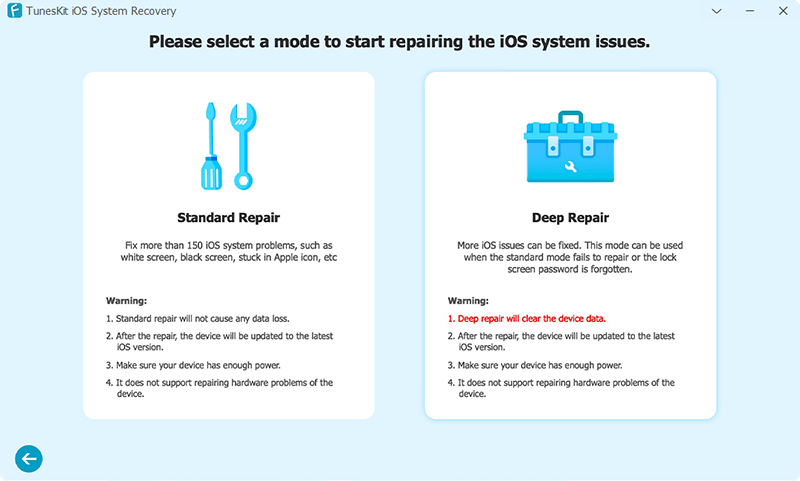
- Step 3. If the software does not automatically recognize your iPhone, follow the visual on-screen guide to put your device into Recovery Mode or DFU Mode.
- Step 4. Check the screen to ensure your iPhone model is correctly identified, then click Download. The software will fetch the clean iOS firmware directly from Apple.
- Step 5. Once the download is finished, click Repair. Keep your iPhone plugged in while TunesKit refreshes the system files. Your phone will automatically reboot when the process is complete, and your data will remain intact.
Note:
While TunesKit can fix software glitches that hide or break your Settings menu, no third-party software can bypass Apple's server-side approval process. It is a troubleshooting tool for system bugs, not a shortcut around the queue.
People Also Ask: iOS 27 Siri AI Waitlist FAQs
-
What is the difference between Siri AI and Apple Intelligence?
Apple Intelligence is the broad software ecosystem that covers writing tools, image generation, and notification summaries. Siri AI is a specific, voice-activated component within that ecosystem. You might gain access to basic writing tools before your Siri account is approved on the waitlist.
-
Does restarting my iPhone skip the Siri waitlist?
No. Restarting your device refreshes local system tasks, but it does not alter your position in Apple's server queue.
-
Can I use a VPN to bypass regional restrictions?
No. Apple determines your location using hardware signals and cellular network routing. A standard VPN will not unlock Siri AI if you are inside the EU or China.
-
When will the waitlist be removed?
Historically, Apple keeps the waitlist active during the early developer beta phases to monitor server stability. The queue is typically shortened or removed entirely by the time the Public Beta launches in July or the final public release drops in September.
Final Words
Getting access to the new Apple Intelligence features requires a mix of having the correct hardware and a bit of patience. While being stuck in a digital queue is frustrating, remember that a wait time of 4 to 48 hours is standard during this early iOS 27 beta phase.
To ensure a smooth activation, double-check that your iPhone meets the strict compatibility requirements, keep your software updated, and avoid unverified tricks that promise instant access. If you suspect a genuine system glitch is blocking your approval, a safe firmware refresh using tools like TunesKit iOS System Recovery can get your device back on track. Otherwise, simply join the queue, leave the Settings app, and wait for your official notification from Apple.