FRP Lock vs Screen Lock: Key Differences Explained 2026
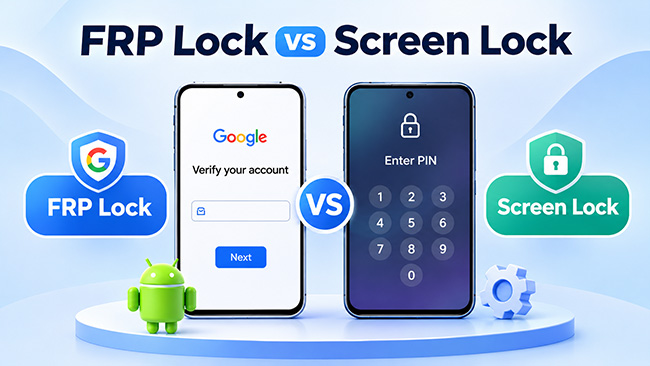
If you're locked out of an Android phone, understanding FRP lock vs screen lock can help you identify the problem. A screen lock protects your phone during everyday use, while Factory Reset Protection (FRP) prevents unauthorized access after a factory reset. Although both enhance device security, they work differently and require different recovery methods.
This guide explains their key differences, how they work, and what to do if you're locked out.
- FRP Lock vs Screen Lock: Key Differences
- What Is an FRP Lock?
- What Is a Screen Lock?
- How Are FRP Lock and Screen Lock Connected?
- How to Tell Whether Your Phone Has an FRP Lock or Screen Lock
- Does a Factory Reset Remove FRP Lock and Screen Lock?
- How to Remove FRP Lock or Screen Lock with TunesKit Android Unlocker HOT
- FAQs About FRP Lock vs Screen Lock
- Conclusion
FRP Lock vs Screen Lock: Key Differences
Both FRP and screen locks are Android security measures, but they protect your device at different stages.
A screen lock controls access to your phone while you're using it. FRP, on the other hand, helps prevent someone from taking ownership of your phone simply by erasing its data. Here's a detailed comparison:
| Feature | FRP Lock | Screen Lock |
|---|---|---|
| Full name | Factory Reset Protection | Screen Lock |
| Main purpose | Prevent unauthorized device use after a reset | Prevent unauthorized everyday access |
| When it appears | During setup after certain factory resets | When the phone is locked, awakened, or restarted |
| How it's activated | Through Google account-based Android device protection | By setting a PIN, password, or pattern |
| Verification method | Previously synced Google account or supported earlier screen lock credential | PIN, password, pattern, fingerprint, or face recognition |
| Effect of factory reset | May remain active and require ownership verification | Current screen lock settings are erased |
| How to remove it | Remove Google accounts before resetting or complete legitimate ownership verification afterward | Change or disable it in Settings using the current credential |
| Main security benefit | Discourages unauthorized reuse of reset devices | Protects personal data and device access |
In simple terms, a screen lock protects access to your phone, while FRP protects against unauthorized use after a reset.
What Is an FRP Lock?
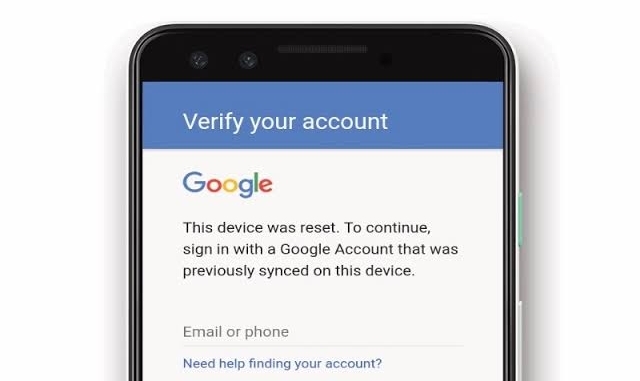
FRP (Factory Reset Protection) is a built-in Android security feature designed to prevent unauthorized use of a device after a factory reset. It is particularly useful when a phone is lost or stolen.
Introduced with Android 5.1, FRP is associated with Google account-based device protection. When a protected phone is reset through certain methods, Android may ask for previously associated credentials before allowing the setup process to continue. This means erasing a phone does not necessarily make it available for someone else to use.
When Does FRP Lock Get Triggered?
FRP verification is most commonly encountered when a protected Android phone is erased without first removing its associated Google accounts. Typical situations include:
- Recovery mode reset: A user performs a factory reset using the phone's hardware buttons.
- Remote factory reset: A device is erased through Google's Find Hub.
- Secondhand device setup: A buyer receives a phone that was reset without properly removing the previous owner's Google account.
- Forgotten screen lock: An owner erases the phone to resolve a forgotten PIN but then encounters additional verification.
A factory reset initiated normally through Settings generally requires the existing screen lock credential before the reset and differs from an unverified Recovery mode reset. FRP is not an ordinary lock that appears every time you wake up your phone. It primarily affects ownership verification during the setup process.
 Further Reading: How to Unlock a Google Locked Phone: The Complete 2026 Guide
What Is a Screen Lock?
A screen lock is an Android security feature that prevents other people from accessing your phone without authentication. It protects everyday access to personal information, including messages, photos, apps, and accounts. Unlike FRP, which is mainly encountered after certain factory resets, a screen lock is used regularly whenever your phone is locked or restarted.
Common Types of Android Screen Locks
Android offers several screen lock methods, depending on your phone's model and software version.
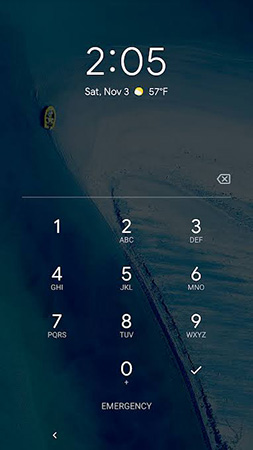
- PIN: A numeric code containing at least four digits. Google recommends six or more digits for stronger security.
- Password: A combination of letters, numbers, or other characters. A strong password provides robust protection.
- Pattern: A sequence drawn across a grid of dots.
- Fingerprint: Biometric authentication using a registered fingerprint on supported devices.
- Face unlock: Facial authentication supported by certain Android phones.
Some devices also offer Swipe or None, but these do not provide meaningful authentication protection. Biometric methods such as fingerprints and face recognition work alongside a primary PIN, pattern, or password rather than replacing it entirely.
When Does a Screen Lock Appear?
A screen lock commonly appears when:
- You wake your phone after its screen turns off.
- You restart or turn on your device.
- You manually lock the phone.
- Android requires additional authentication for security-sensitive actions.
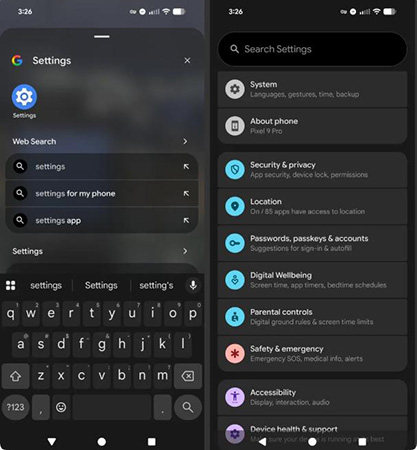
You can generally manage screen lock settings through Settings > Security or Security & privacy > Screen lock, although menu names vary by manufacturer.
How Are FRP Lock and Screen Lock Connected?
Although FRP lock and screen lock perform different functions, they can work together as part of overall security system on your Android phone.
A screen lock helps protect access to your device before a reset. FRP helps prevent unauthorized use after a protected device has been erased. Before a reset, the PIN prevents someone from accessing the phone normally. If the phone is erased through Recovery mode, FRP may require the previously synced Google account or an accepted earlier screen lock credential. This creates two layers of protection at different stages.
Can Both Locks Be Active on the Same Phone?
Yes. A protected Android phone can have a screen lock configured while also having FRP protection enabled.
However, this does not mean both authentication screens will appear simultaneously. The screen lock is used during normal device operation, while FRP verification becomes relevant during certain post-reset setup scenarios.
Can a Screen Lock Credential Unlock FRP?
Sometimes. On supported devices, Android may offer an option to verify ownership using the PIN, pattern, or password configured before the factory reset. Samsung, for example, documents this option for certain devices running Android 9 or later. However, availability depends on the device, software version, and reset method. You should not assume that a previous PIN can always replace Google account verification.
Also, removing or changing your screen lock is not a universally reliable way to disable FRP. Google identifies removing the Google account from the device as a method of turning off Google account-based device protection.
How to Tell Whether Your Phone Has an FRP Lock or Screen Lock
If you're currently locked out of your Android phone, identifying the type of lock is the first step toward choosing the right recovery method. The easiest clues are when the verification screen appears and what information the phone requests.
| What you see | Likely lock type |
|---|---|
| A PIN keypad appears when you wake your phone | Screen lock |
| The phone asks for a pattern after restarting | Screen lock |
| Fingerprint authentication is requested during normal use | Screen lock |
| A Google account verification prompt appears during setup after a factory reset | FRP |
| A reset phone requests its previously configured PIN to verify ownership | FRP-related verification |
| A used phone requests the previous owner's Google account during setup | FRP |
Does a Factory Reset Remove FRP Lock and Screen Lock?
A factory reset removes the current screen lock configuration along with the device's local user data, but it does not necessarily remove FRP protection. This is one of the most important differences between FRP and screen locks.
When an Android phone undergoes a factory reset, its locally stored apps, settings, and personal information are erased. The previous screen lock no longer functions as the phone's ordinary unlock method. However, if Google account-based device protection was enabled, Android may still require ownership verification during the next setup. The result depends partly on how the reset was initiated.
| Reset method | Screen lock result | Possible FRP behavior |
|---|---|---|
| Reset through Settings | Removed | Existing credentials generally authorize the reset |
| Reset through Recovery mode | Removed | Previous account or supported screen lock verification may be required |
| Remote erase through Find Hub | Removed | Associated Google account verification may be required |
Therefore, factory resetting a phone is not a guaranteed solution to every Android lock problem. It is also important to remember that a factory reset can permanently erase local data that has not been backed up.
How to Remove FRP Lock or Screen Lock with TunesKit Android Unlocker
If you've forgotten your Android screen lock or are stuck on Google account verification after a factory reset, TunesKit Android Unlocker is a third-party option to consider for a device you own or are authorized to unlock.
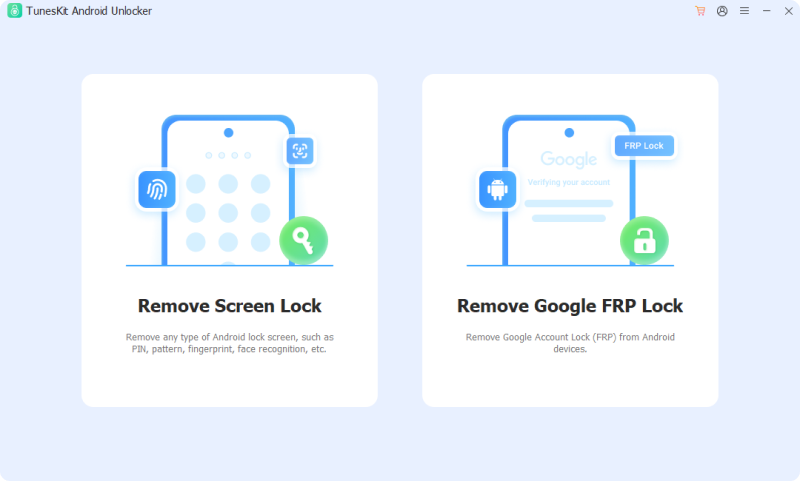
The software provides two main features for different locking situations: Remove Screen Lock and Remove Google FRP Lock.
Key Features of TunesKit Android Unlocker
Unlock screen lock and remove FRP on Android without passcode with ease. No Technical Skills Needed. High Success Rate. Support lots of Android versions.
 600,000+ Downloads
How to Use TunesKit Android Unlocker
Step 1. Select Unlock Mode
Download and install TunesKit Android Unlocker on your Windows or Mac computer. Connect your Android phone using a USB cable. Launch the software and select Remove Screen Lock or Remove Google FRP Lock, depending on the type of lock you're experiencing.
Step 2. Start Unlock Phone
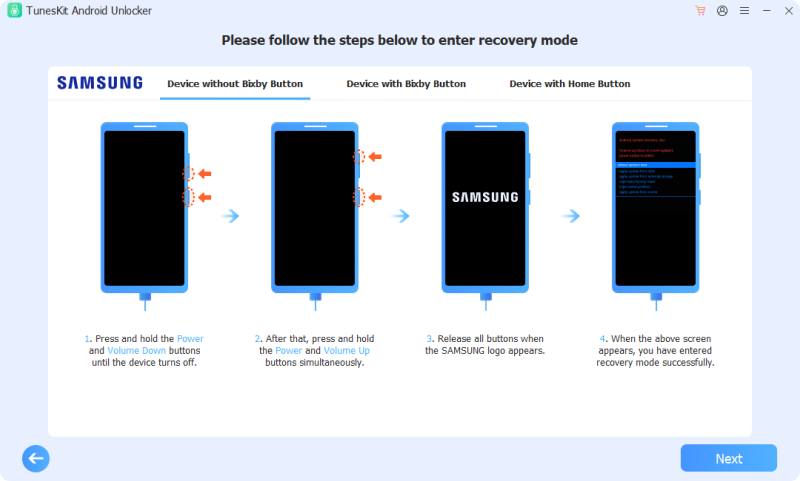
Select your device information if prompted and follow the on-screen instructions to begin the unlocking process.
Step 3. Check Phone
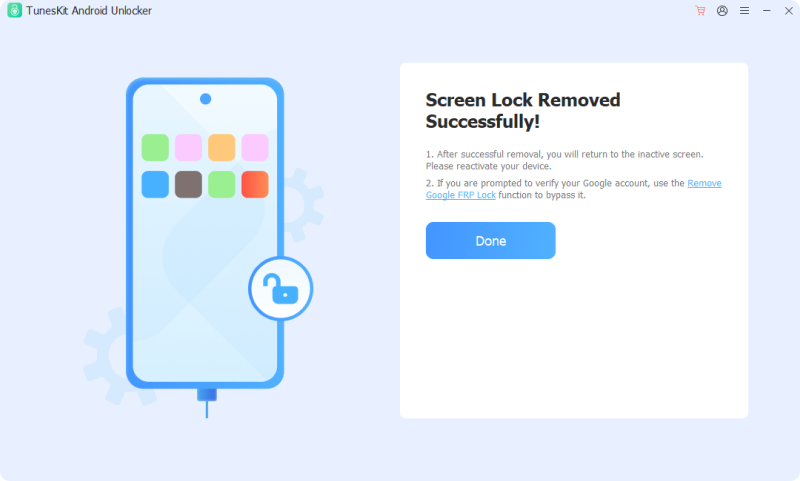
Once the software reports that the process is complete, check whether you can access or set up your Android phone.
FAQs About FRP Lock vs Screen Lock
-
Does Removing a Screen Lock Disable FRP?
Not necessarily. Removing the screen lock alone should not be treated as a reliable method for disabling FRP. Google recommends removing the Google account from the device to turn off Google account-based device protection before transferring ownership.
-
Can You Remove FRP Without the Previous Google Account?
In some cases, supported Android devices allow verification using a previously configured screen lock credential. Otherwise, legitimate recovery may require recovering an eligible Google account or contacting authorized manufacturer support. The available options vary by device.
-
Why Does My Phone Ask for a Google Account After a Factory Reset?
Your phone may have FRP protection enabled. Android is requesting a previously associated Google account to verify that you're authorized to use the device after it was reset.
Conclusion
Understanding FRP lock vs screen lock helps you choose the right solution for your Android device. A screen lock protects everyday access, while FRP prevents unauthorized use after a factory reset.
If you're locked out, TunesKit Android Unlocker offers an alternative for removing screen locks or FRP restrictions on supported devices. Be sure to check compatibility and potential data loss before using it.