Google Find My Device Unlock: Can It Unlock Your Android Phone?
If you searched for Google Find My Device unlock, you may be trying to access an Android phone after forgetting your PIN, password, or pattern. While Google's Find My Device is designed to help locate, secure, and erase lost devices, many users misunderstand its unlocking capabilities.
The short answer is: Google Find My Device cannot remotely remove a forgotten screen lock without erasing your phone. However, it can help you regain access by performing a factory reset if certain requirements are met. This guide explains what Google Find My Device can do, what it cannot do, and the best alternatives when it does not work.
 View Also: How to Unlock a Google Locked Phone
- Can Google Find My Device Unlock a Phone?
- What Google Find My Device Can and Cannot Do
- Requirements for Using Google Find My Device Unlock Features
- How to Unlock an Android Phone Using Google Find My Device (Erase Method)
- What If Google Find My Device Does Not Work?
- Best Alternative to Google Find My Device Unlock
- Google Find My Device Unlock vs. FRP Lock: What Is the Difference?
- FAQs About Google Find My Device Unlock
- Conclusion
Can Google Find My Device Unlock a Phone?
No, Device cannot directly unlock an Android phone by removing its PIN, password, or pattern lock. Unlike some older Android management tools, the current service does not include a remote screen unlock feature.
If you forget your Android lock screen password, Google only provides one official remote option: erase the device. This removes the screen lock but also deletes all personal data stored on the phone.
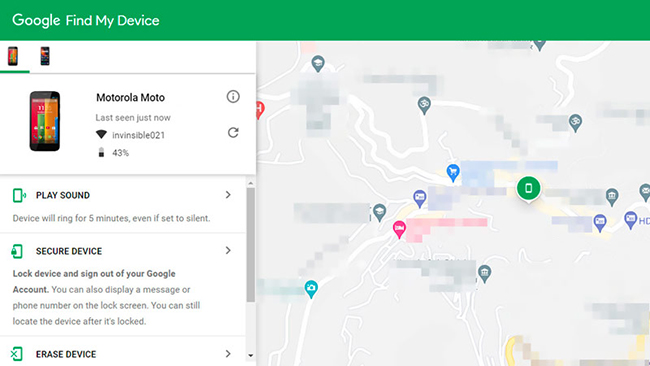
Many outdated guides claim that Google Find My Device can reset your password remotely. These instructions usually refer to older Android Device Manager features that are no longer available on modern Android versions.
Before trying any method, it is important to understand the difference between unlocking a device and recovering access:
- Screen lock removal: Removes your PIN, password, or pattern.
- Google account recovery: Helps you regain access to your Google account.
- FRP bypass: Deals with Google verification after a factory reset.
These are separate problems and require different solutions.
What Google Find My Device Can and Cannot Do
Google Find My Device is mainly a security and recovery service. It helps users find lost Android devices and protect their information remotely.
What Google Find My Device Can Do
- Locate Your Android Phone: If your device is connected to the internet and linked to your Google account, you can view its approximate location. This is useful when your phone is lost or misplaced.
- Play a Sound: The service can make your phone ring at full volume, even if it is set to silent mode. This helps you find a nearby device.
- Secure Your Device: The "Mark as lost" or "Secure device" option allows you to lock your phone remotely and display contact information on the screen. However, this feature is designed to protect a lost phone, not unlock one.
- Erase Your Device: The erase option performs a factory reset remotely.
What Google Find My Device Cannot Do
- Remove a forgotten PIN without deleting data.
- Bypass the Android lock screen.
- Remove Google account verification after a reset.
- Unlock an offline device.
- Recover deleted files after an erase.
Understanding these limitations can save time and prevent unnecessary attempts with methods that no longer work.
Requirements for Using Google Find My Device Unlock Features
Before using Google Find My Device, make sure your device meets the necessary requirements. Your phone generally needs:
- A signed-in Google account.
- Find My Device enabled before the phone was locked.
- An active internet connection.
- Sufficient battery power.
- Visibility through Google's Find My Device service.
You also need access to the same Google account associated with the device. If your phone is offline, powered off, or never had Find My Device enabled, remote actions may not work.
How to Unlock an Android Phone Using Google Find My Device (Erase Method)
Although Google Find My Device cannot unlock a phone directly, you can use the Erase Device option to remove the lock screen. Keep in mind that this method permanently deletes your data.
Before proceeding, make sure you can sign in to the Google account linked to your phone, as Android may require account verification after the reset.
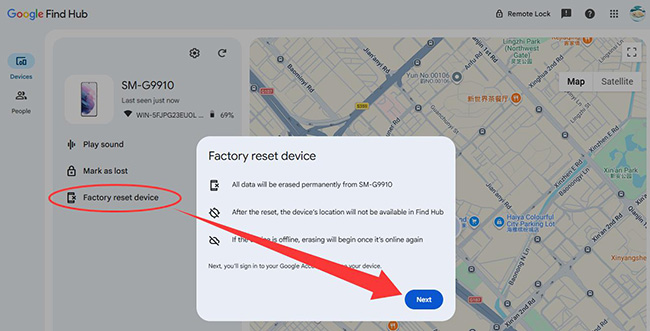
- Step 1. Open Google Find My Device website and sign in with the Google account connected to your locked Android phone.
- Step 2. Select your device from the available device list, then choose the Erase Device or Fascotry reset device option and confirm the reset request.
- Step 3. Wait for your phone to receive the command. Once the reset is complete, set up your device again and sign in with the same Google account previously used on the phone.
What If Google Find My Device Does Not Work?
Sometimes users cannot unlock or reset their phones because Find My Device is unavailable. Common reasons include:
- The Phone Is Offline: A phone without Wi-Fi or mobile data cannot receive remote commands immediately.
- You Are Using the Wrong Google Account: Only the Google account connected to the device can manage it.
- You Forgot the Google Account Password: Even after a factory reset, Android may require the original Google account during setup.
If you encounter these situations, you need another recovery method.
Best Alternative to Google Find My Device Unlock
Google Find My Device is useful for locating and securing an Android phone, but it has a major limitation: it cannot remove a forgotten screen lock without erasing the device. If you cannot use the erase option or want another way to regain access to a device you own, an Android unlocking tool may be worth considering.
TunesKit Android Unlocker is designed for situations where users are locked out of their Android devices due to forgotten screen passwords, PINs, pattern locks, or FRP lock. Instead of relying on Google's remote management features, it works through a computer connection to help remove certain screen lock restrictions from supported Android devices.
Key Features of TunesKit Android Unlocker
Unlock screen lock and bypass FRP lock without passcode with ease. No Technical Skills Needed. High Success Rate.
 600,000+ Downloads
- Step 1. Download and install TunesKit Android Unlocker on your Windows computer, then launch the program.
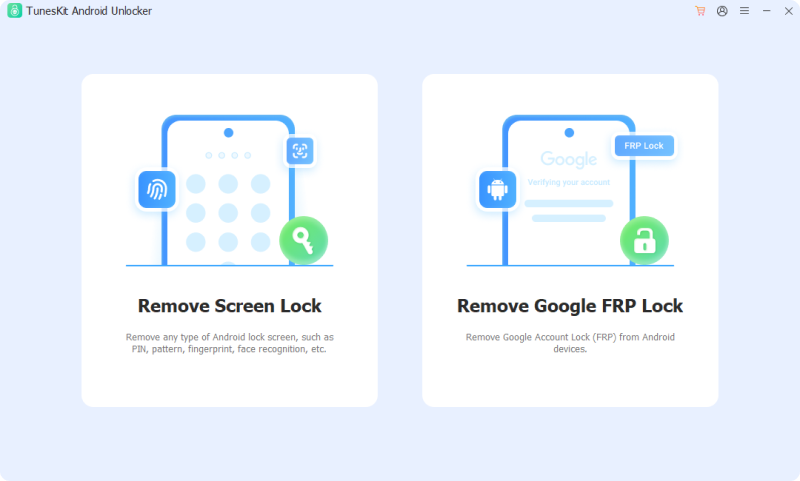
- Step 2. Connect your locked Android phone to the computer using a USB cable and choose the unlock feature you need: Remove Screen Lock or Remove Google FRP Lock from the main interface.
- Step 3. Follow the on-screen instructions to put your device into the required mode. The program will identify your phone model and prepare the necessary unlocking process.
- Step 4. Confirm the device information shown on the screen and continue with the unlock process.
- Step 5. Wait for TunesKit Android Unlocker to complete the operation. Once finished, your Android phone will restart and you can set it up again.
Google Find My Device Unlock vs. FRP Lock: What Is the Difference?
Many users searching for "Google Find My Device unlock" are actually dealing with Factory Reset Protection (FRP). These two locks work differently.
| Problem | Meaning | Solution |
|---|---|---|
| Screen lock | Forgotten PIN, password, or pattern | Reset or unlock the device |
| FRP lock | Google verification after factory reset | Recover the original Google account |
| Lost device lock | Remote protection enabled through Find My Device | Sign in and recover access |
FAQs About Google Find My Device Unlock
-
Can Google Find My Device unlock my phone without deleting data?
No. Google Find My Device does not provide a remote screen unlock option that removes a forgotten PIN, password, or pattern while keeping your data.
-
Does Google Find My Device remove FRP?
No. Factory Reset Protection remains active after a reset. You need the original Google account credentials to complete setup.
-
Will factory resetting remove the Android lock screen?
Yes. A factory reset removes the screen lock, but it also deletes your personal data and may require Google account verification afterward.
Conclusion
Google Find My Device is a valuable security tool, but it is not a traditional phone unlocking service. If you forgot your Android screen password, it cannot simply remove the lock while keeping your data.
The official Google solution is to erase the device, while other options depend on your phone brand, account access, and specific situation. If the official way is not useful for your, TunesKit Android Unlocker may be your alternative to unlock your Android phone without passcode.