How to Sign Out of Google Account on Android [2026]
Want to sign out of your Google Account on Android but can't find a Sign out button? That's normal. On most Android phones, signing out of Google across the device means removing the Google Account from the phone.
The exact method depends on what you want to sign out of. You can remove the account from the whole phone, sign out of Chrome only, switch to another account, or remotely sign out of a phone you no longer have.
 Note
Note
Removing the account only disconnects it from that Android device. It does not delete your Google Account, Gmail messages, Google Drive files, or other data stored in your Google Account online.
- Quick Answer: How to Sign Out of Google Account on Android
- What Happens When You Sign Out of a Google Account on Android?
- How to Sign Out of Google Account on Android
- What to Do Before Signing Out of Google on Android
- Why Can't I Sign Out of My Google Account on Android?
- Bonus: What If You Cannot Access Android Settings?
- FAQs About How to Sign Out of Google Account on Android
- Conclusion
Quick Answer: How to Sign Out of Google Account on Android
If you want to completely sign out of a Google Account from an Android phone, go to:
Settings > Passwords & accounts > Google Account > Remove account > Remove account
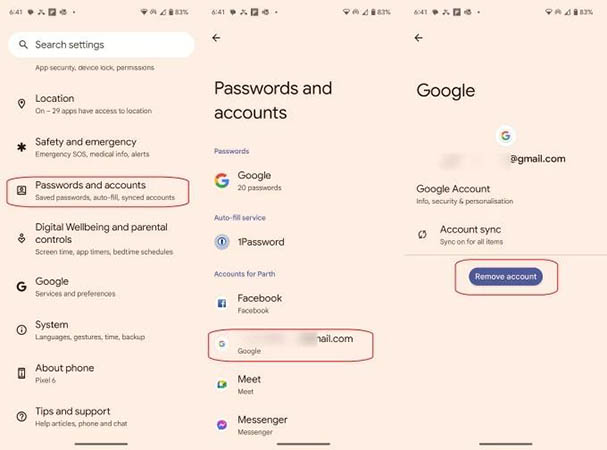
The menu name can vary by phone. You may see Accounts, Manage accounts, Passwords, passkeys & accounts, or a similar option instead.
Use this table to choose the right method for your situation:
| What You Want to Do | Best Option |
|---|---|
| Sign out of Google across the Android phone | Remove the Google Account in Settings |
| Sign out of Gmail | Remove the account from the device |
| Sign out of Chrome only | Use Chrome's Sign out option |
| Sign out of a lost or old Android phone | Sign out remotely through your Google Account |
What Happens When You Sign Out of a Google Account on Android?
Before removing an account, it is important to understand what Remove account actually does.
When you remove a Google Account from Android:
- the Google Account is disconnected from that phone;
- Gmail, Contacts, Calendar, and other synced account information may be removed from the device;
- Google apps on that phone will no longer use the removed account;
- the Google Account itself remains active;
- data already stored in your Google Account online is not deleted;
- you can add the same Google Account to the phone again later.
For example, removing your account from an Android phone does not permanently delete Gmail messages stored in Gmail or files stored in Google Drive.
However, information that exists only locally on the phone may be different from cloud-synced data. It is therefore a good idea to check synchronization and backups before removing the account, especially if you are changing phones.
How to Sign Out of Google Account on Android
For most Android phones, there is no separate device-wide Sign out button. Instead, use the Remove account option in Android Settings.
Case 1. Sign Out of Google Account on Most Android Phones
The exact wording varies slightly between Android versions and manufacturers, but the general procedure is shown here.
- Step 1. Open the Settings app on your Android phone.
- Step 2. Scroll down and tap Passwords & accounts. Depending on your device, this option may instead be called Accounts, Users & accounts, Passwords, passkeys & accounts, or Manage accounts.
- Step 3. Find the Google Account you want to sign out of and tap it.
- Step 4. Tap Remove account.
- Step 5. Tap Remove account again to confirm.
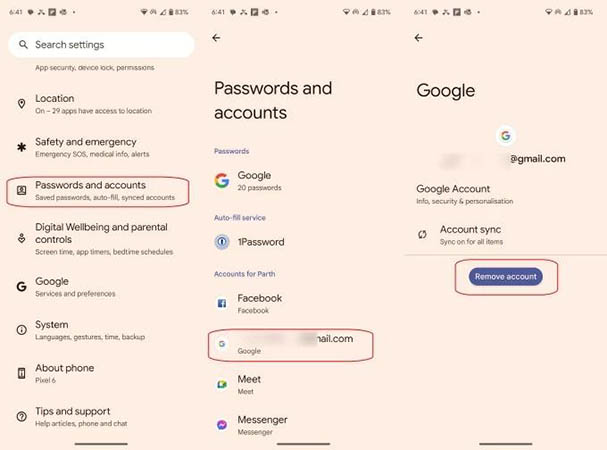
If this is the only Google Account on the phone, Android may ask you to enter your screen lock PIN, password, or pattern before the account can be removed. Once the process is complete, that Google Account will no longer be connected to the Android phone.
Case 2. Sign Out of Google Account on Samsung Galaxy
Samsung Galaxy phones use slightly different menu names.
- Step 1. Open Settings.
- Step 2. Tap Accounts and backup.
- Step 3. Select Accounts. Tap the Google Account you want to remove.
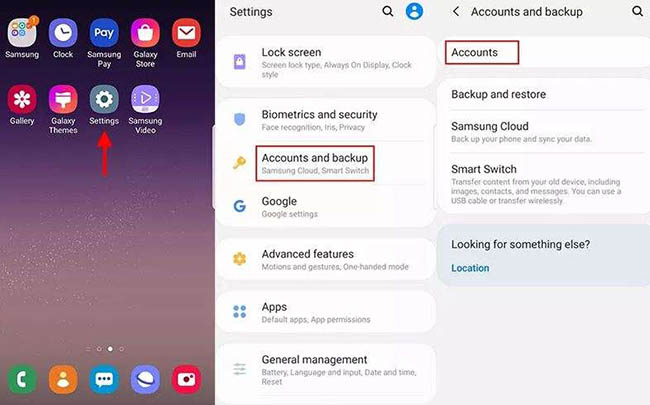
- Step 4. Tap Remove account.
- Step 5. Tap Remove account again to confirm.
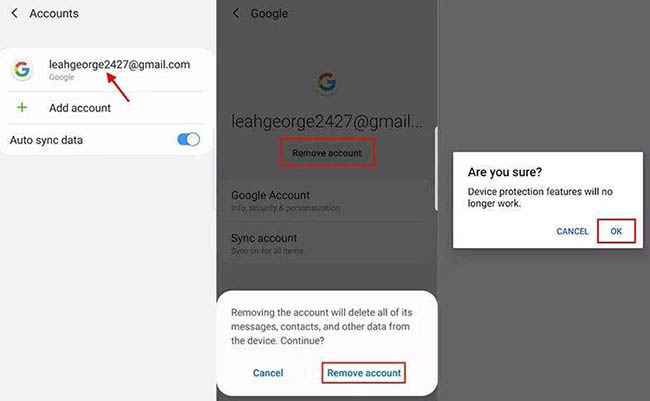
Samsung may ask you to verify your identity using your device security credentials.
Note
Samsung menu names can vary slightly depending on the One UI version, Android version, or carrier. If you cannot find the option, search for accounts inside the Settings app.
Case 3. Sign Out of Gmail on Android
If you are looking for a Sign out button inside the Gmail app, you may not find one. On Android, Gmail normally uses the Google Accounts added to the device.
- Step 1. Open the Gmail app.
- Step 2. Tap your profile picture in the top-right corner.
- Step 3. Tap Manage accounts on this device.
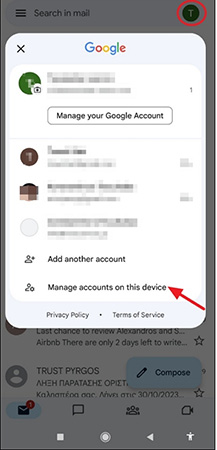
- Step 4. Select the Google Account you want to remove.
- Step 5. Tap Remove account and confirm.
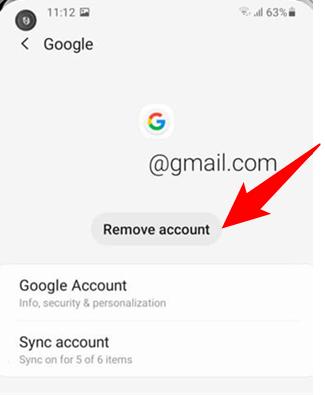
 Warning: Removing the account this way does not affect Gmail alone. Because you are removing the Google Account from Android, the account will also stop being used by other Google apps on the device. If your real goal is simply to read email from another Gmail account, switching accounts may be a better option than removing your current one.
Case 4. Sign Out of Chrome on Android Without Removing Your Google Account
Chrome is different from Gmail because it provides its own Sign out option. If you only want to stop using your Google Account in Chrome, you do not necessarily need to remove the account from Android.
- Step 1. Open Google Chrome on your Android phone.
- Step 2. Tap the three-dot menu.
- Step 3. Tap Settings.
- Step 4. Tap your Google Account name near the top.
- Step 5. Tap Sign out.
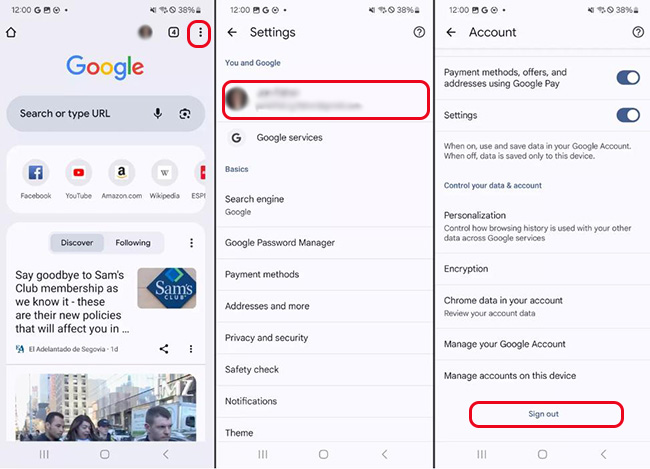
This is useful when you want to stop syncing Chrome information without disconnecting your Google Account from Gmail, the Play Store, and other Android services.
Case 5. Sign Out of Google Account Remotely on Android
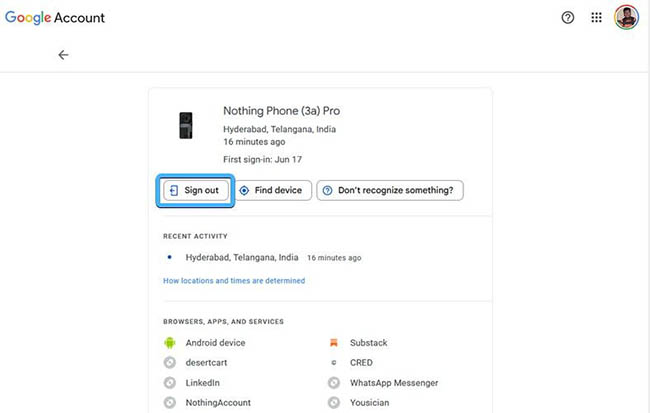
If your phone is lost, stolen, sold, or simply no longer with you, you do not need physical access to the device to sign out of your Google Account. You can remotely end its Google Account session.
- Step 1. Open your Google Account page from another phone or computer.
- Step 2. Go to Security & sign-in.
- Step 3. Find Your devices.
- Step 4. Select Manage all devices.
- Step 5. Choose the Android phone you want to disconnect.
- Step 6. Select Sign out and confirm.
What to Do Before Signing Out of Google on Android
Removing a Google Account is usually straightforward, but checking your synced data first can prevent unwanted surprises.
1. Check Google Account Sync
Open your account settings and make sure important information such as Contacts and Calendar has finished syncing. This is especially important if you recently created or edited contacts.
2. Check Your Android Backup
If you are moving to a new phone, check your device backup before removing the account. On many Android devices, you can find it under Settings > Google > Backup. Confirm that the information you want to restore later has been backed up.
3. Check Google Photos Backup
If you use Google Photos, open the app and confirm that important photos have finished backing up before switching devices. Photos already backed up to Google Photos remain associated with your Google Account after you remove the account from the Android phone.
However, locally stored files on the phone are separate from cloud backups, so do not assume every photo or video has automatically been uploaded.
4. Make Sure You Know Your Google Account Password
If you plan to add the account back later or use it on another phone, confirm that you can still sign in. This is particularly important before resetting or replacing a device.
Why Can't I Sign Out of My Google Account on Android?
If you cannot find or use Remove account, check the following situations.
1. You Can't Find the Remove Account Option
Android manufacturers organize Settings differently. Look for one of these menus:
- Accounts
- Passwords & accounts
- Users & accounts
- Manage accounts
- Accounts and backup
You can also use the search bar in Android Settings and search for account.
2. Android Asks for a PIN, Pattern, or Password
This is normal in some situations. If the Google Account is the only account on the device, Android may require your device screen lock before allowing it to be removed. Enter the PIN, pattern, or password you normally use to unlock the phone.
3. The Google Account Is Managed by Work or School
A work or school Google Account may be controlled by an organization's administrator. If the Android phone has a Work Profile, removing it may require going to:
Settings > Passwords & accounts > Work > Remove Work Profile
The exact path varies by device.
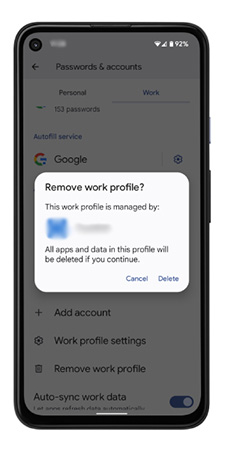
If your organization prevents users from removing the account or Work Profile, contact your administrator.
4. The Account Is Supervised with Family Link
A child's supervised Google Account may have additional removal requirements. Depending on the setup, parental verification or a Parent Access Code may be required. Removing the supervised account from one Android device does not necessarily delete the child's Google Account or end supervision on other devices.
5. You Removed the Account but Still See It Somewhere
First close and reopen the affected Google app. If the account still appears, check whether you are seeing:
- an Android device account;
- a Chrome profile;
- a Google website session;
- another saved account suggestion.
These are not always the same thing. For example, signing out of Chrome does not automatically mean the Google Account has been removed from Android Settings.
Bonus: What If You Cannot Access Android Settings?
The methods above work when you can unlock your Android phone and open Settings. But if you have forgotten the screen PIN, pattern, or password, you may not be able to reach the Remove account option at all.
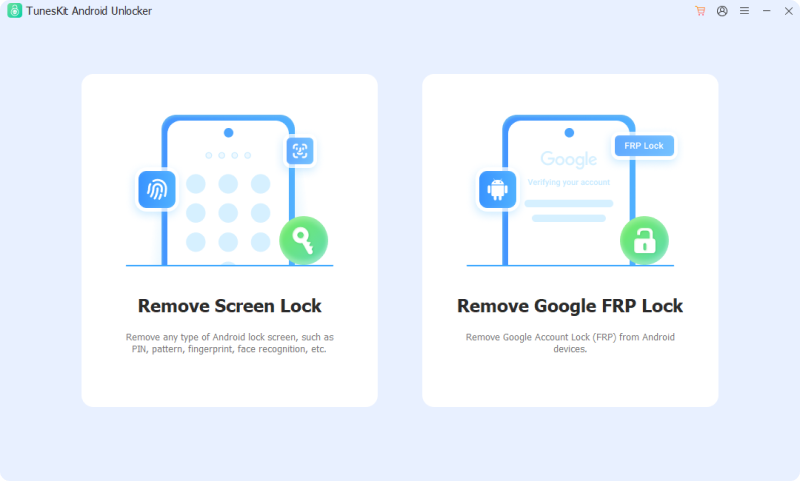
In this situation, TunesKit Android Unlocker is a desktop program for Windows and Mac that helps users regain access to supported Android phones. It can remove common Android screen locks, including PINs, patterns, passwords, fingerprints, and face locks. It also includes a separate Google FRP removal feature for supported phones that are stuck on Google account verification after a factory reset.
Key Features of TunesKit Android Unlocker
Unlock screen lock and bypass FRP lock without passcode with ease. No Technical Skills Needed. High Success Rate. Support lots of Android version including 16.
 600,000+ Downloads
How to Remove an Android Screen Lock with TunesKit Android Unlocker
- Step 1. Download and install TunesKit Android Unlocker on your Windows PC or Mac. Open the program and choose Remove Screen Lock. Connect the locked Android phone to the computer with a USB cable.
- Step 2. Select your device brand and follow the on-screen instructions to put the phone into the required mode.
- Step 3. Confirm the device information and start the screen-lock removal process.
- Step 4. Once the lock is removed, set up or access the phone again. You can then manage the Google Account through Android Settings if needed.
FAQs About How to Sign Out of Google Account on Android
-
Does removing a Google Account delete Gmail messages?
No. Gmail messages stored in your Google Account remain in Gmail. Removing the account simply stops that Android device from accessing the account until you sign in again.
-
Does removing a Google Account from Android delete the account?
No. Remove account only disconnects that Google Account from the Android device. The Google Account itself remains active, and data stored online in services such as Gmail and Google Drive is not deleted.
-
Can I sign out of one Google Account and keep another on Android?
Yes. If several Google Accounts are added to your phone, select only the account you want to remove under Android account settings. Other accounts can remain on the device.
Conclusion
Knowing how to sign out of Google Account on Android is simple once you choose the right method. You can remove the account from Settings, sign out of Chrome separately, switch accounts, or sign out remotely.
If a forgotten screen lock prevents access to Settings, TunesKit Android Unlocker can help regain access on supported devices. Before removing an account or resetting your phone, always make sure important data is backed up.