How to Unlock a Google Locked Phone: The Complete 2026 Guide
Staring at a screen demanding a previously synced Google account can be incredibly frustrating. This security hurdle, known as Factory Reset Protection (FRP), is built into modern Android devices to deter theft.
While it keeps your data safe if your phone is stolen, it can lock you out of your own device if you forget your credentials or buy a used phone. This guide will walk you through the most effective and legitimate ways to unlock a Google locked phone and regain access to your device.
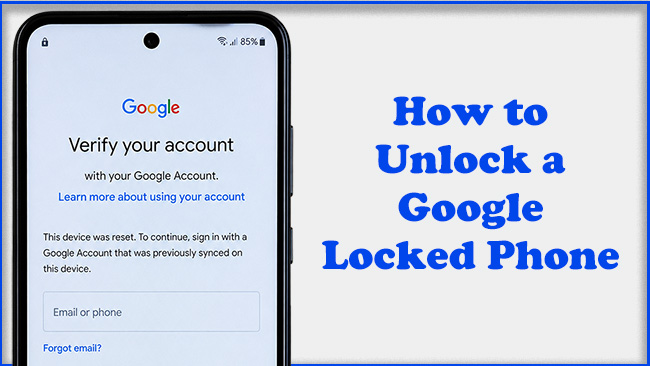
Scenario 1: You Forgot Your Own Google Account Details
The most common reason users get locked out is simply forgetting the password associated with their primary Gmail account. If you just performed a hard reset through the Android recovery menu, you will be prompted to enter those exact details. Fortunately, the official Google account recovery process is straightforward if you have access to a secondary device.
- Step 1. Open a web browser on a different computer or smartphone and go to the official Google Account Recovery page.
- Step 2. Enter the email address associated with your locked phone and then tap the Forgot Password? option. Follow the prompts to verify your identity using a backup email or phone number.
- Step 3. Create a new, secure password once your identity is confirmed and save it somewhere accessible.
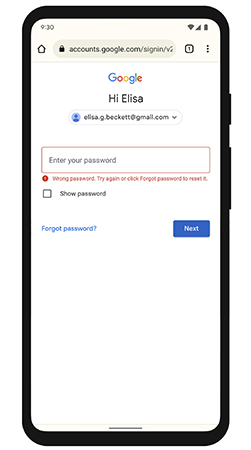
 Warning: If you reset your Google password, you must wait up to 72 hours before attempting to log into the locked phone. This mandatory waiting period is a strict security measure designed to prevent thieves from quickly changing a compromised password and wiping the device. Trying to bypass this cool-down phase will only result in continuous error messages, so patience is absolutely required.
Scenario 2: You Bought a Second-Hand Phone
Purchasing a used device online or from a local marketplace often leads to unexpected FRP locks. If the previous owner performed a hard reset without signing out of their Google account first, the phone remains tied to their identity. You have a couple of legitimate methods to unlock the Google locked phone.
Method 1. Contact the Seller for Remote Unlock
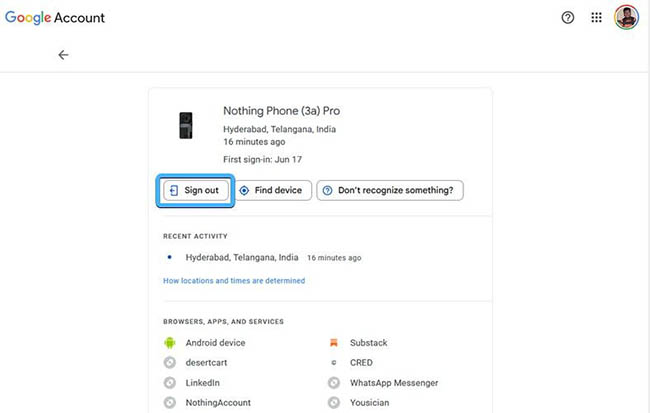
The simplest solution is reaching out to the person who sold you the device. They do not need to give you their password or meet you in person to fix the issue. They can remove the device from their account remotely, which will instantly lift the FRP lock on your end.
- Step 1. Ask the seller to log into their Google account on a web browser and navigate to their account settings.
- Step 2. Locate the "Security" tab, find the specific locked phone under "Manage all devices," and select "Sign out."
Method 2. Visit a Manufacturer Service Center
If the seller is unresponsive or untraceable, you will need to rely on official support channels. Brands like Samsung, Google, and Motorola have protocols to assist legitimate buyers who are locked out. However, they are extremely strict about security and verification.
- Bring your government-issued ID to the appointment.
- Provide the original receipt or definitive proof of purchase showing the device's IMEI number.
Once the service center verifies you are the rightful owner, their technicians can flash the device and completely remove the Google lock safely.
Scenario 3: Using Third-Party FRP Bypass Tools
When official methods fail, many users look for software designed to bypass the Google account verification screen. A quick search will reveal dozens of PC programs and downloadable APK files claiming to offer an instant unlock.
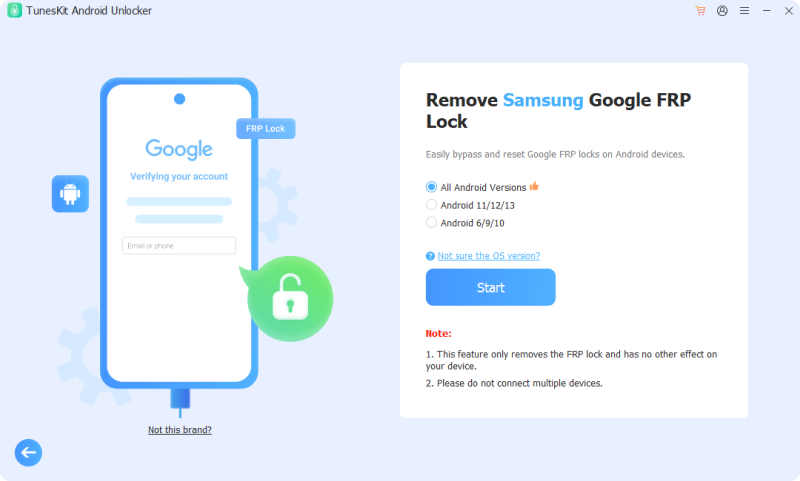
If you find yourself stuck and need a software solution, TunesKit Android Unlocker is a reputable option that effectively addresses the core problem of a Google locked phone. Unlike random bypass tools found on unverified forums, TunesKit is a dedicated utility built to remove Android lock screens and safely bypass Google FRP locks without requiring the previous owner's password.
Key Features of TunesKit Android Unlocker
Bypass FRP lock without passcode with ease. No Technical Skills Needed. High Success Rate. Support lots of Android version including 16.
 600,000+ Downloads
Step 1. Connect phone to computer
Download and install TunesKit Android Unlocker on a secure computer (Windows or Mac). Connect your locked Android device via USB and select the Remove Google FRP Lock option to bypass the Google FRP lock.
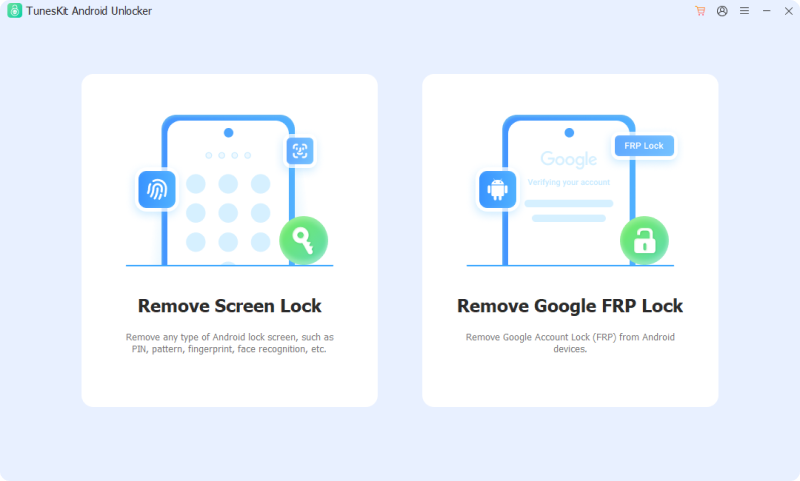
Step 2. Unlock Google locked phone
Click the Start button and then follow the on-screen prompts to safely remove the lock restriction.
How to Avoid the Google Lock in the Future
The best way to deal with Factory Reset Protection is to prevent it from triggering accidentally. Proper device management ensures you can wipe and sell your phone without passing on a major headache to the next owner. The key is avoiding the hardware button recovery menu when resetting.
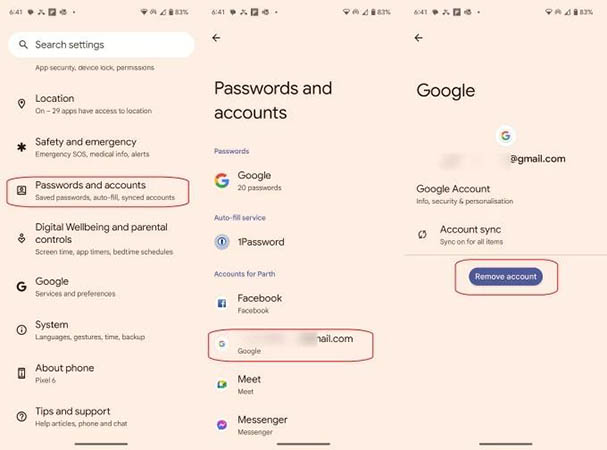
- Step 1. Open your Android device's main Settings app and navigate to "Accounts" or "Passwords and accounts".
- Step 2. Select your primary Google account and tap "Remove account" to securely unlink it from the device.
- Step 3. Proceed to the system settings and perform a standard factory data reset from within the software menus.
FAQs About Google Locked Phones
-
Can another hard factory reset remove the account lock?
No, performing an additional hardware wipe will not solve the problem or erase the security prompt. In fact, using the recovery menu to erase the device is exactly what triggers the activation lock in the first place.
-
How long do I have to wait if I recently changed my Google password?
If you forget your login details and use the official Google recovery page to create a new password, a strict security timer initiates. You will typically face a mandatory waiting period of 24 to 72 hours before the updated password is recognized by the locked phone.
Conclusion
Unlocking a Google locked phone requires a blend of patience and adherence to effective recovery procedures. Always prioritize Google's official account recovery tools or manufacturer support to protect your digital security.
If those fail, turning to a trusted third-party tool like TunesKit Android Unlocker can safely bypass the restriction. By understanding how FRP works and taking the correct steps before a reset, you can easily maintain total control over your Android device.