How to Remove Screen Lock PIN on Android Phone (5 Methods)
Getting tired of entering a PIN every time you unlock your Android phone? Or maybe you've forgotten your screen lock PIN and can no longer access your device. Fortunately, there are several ways to remove a screen lock PIN on Android, depending on your situation.
In this guide, we'll explain when you can remove a screen lock PIN, compare the available methods, and walk you through each step so you can choose the solution that best fits your needs.
- Quick Answer: How to Remove Screen Lock PIN on Android
- Can You Remove a Screen Lock PIN on Android?
- How to Remove Screen Lock PIN on Android If You Know the PIN
- What If You Forgot Your Android Screen Lock PIN?
- Comparison: Which Method Is Best?
- FAQs About Removing an Android Screen Lock PIN
- Final Thoughts
Quick Answer: How to Remove Screen Lock PIN on Android
Before diving into the detailed steps, identify which situation matches yours.
| Your Situation | Best Solution | Data Loss |
|---|---|---|
| You know your current PIN | Remove it from Settings | ❌ No |
| You forgot your PIN | Use an Android unlock tool (supported devices) or perform a factory reset | Depends on the method |
| You recently changed your PIN on a supported Samsung phone | Try Reset with Previous Lock (if available) | ❌ No |
| You're locked out and Find My Device is enabled | Remotely erase the device with Google Find My Device | ✅ Yes |
| Official methods didn't unlock your Android phone | Unlock it with TunesKit Android Unlocker | ✅ Yes |
Can You Remove a Screen Lock PIN on Android?
Yes, but only under certain conditions.
Android treats your screen lock PIN as one of the most important security features protecting your personal data. To prevent unauthorized access, Android requires you to verify your identity before changing or removing the lock screen.
That means:
- If you know the current PIN, you can remove or replace it in Settings.
- If you forgot the PIN, Android won't let you bypass it directly for security reasons.
- Depending on your device, you may need to reset the phone or use a compatible Android unlocking tool if you're locked out of your phone.
 Warning: Once you remove the PIN, biometric authentication such as fingerprint or Face Unlock will usually be disabled until you set up a new screen lock.
How to Remove Screen Lock PIN on Android If You Know the PIN
If you still remember your PIN, removing it is quick and doesn't erase your data.
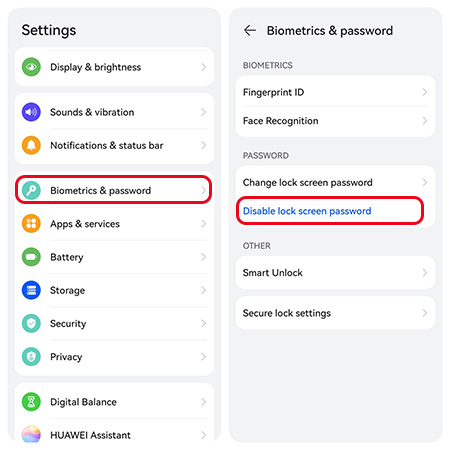
- Step 1. Unlock your Android phone and open the Settings app.
- Step 2. Depending on your phone brand, go to one of the following:
- Security
- Security & Privacy
- Lock Screen
- Password & Security
- Biometrics and password
- Step 3. Tap disable lock screen password, or a similarly named option.
- Step 4. Android will ask you to verify your existing PIN before making any changes.
What Happens After Removing the PIN?
After disabling the PIN:
- Your phone no longer asks for a PIN when unlocking.
- Fingerprint and Face Unlock may be disabled.
- Anyone with physical access to your device can open it immediately.
If your phone contains sensitive information, consider replacing the PIN with another secure authentication method instead of removing it completely.
What If You Forgot Your Android Screen Lock PIN?
If you've forgotten your PIN, Android doesn't offer a simple "Remove PIN" button. It helps prevent someone else from accessing your phone if it's lost or stolen. Fortunately, you still have several ways to regain access.
Method 1. Use Google Find My Device (Erase Device)
If you have forgotten your Android screen lock PIN and cannot access your phone, Google Find My Device is one of the official solutions you can try. It allows you to remotely erase your device and remove the existing lock screen, but this method requires your phone to meet specific conditions and will delete stored data.
- Step 1. Open a browser on another phone or computer and visit Google Find My Device.
- Step 2. Sign in with the Google account connected to your locked Android phone.
- Step 3. Select your device from the available devices list.
- Step 4. Choose Erase Device or Factory reset device.
- Step 5. Confirm the action and wait for the reset process to complete.
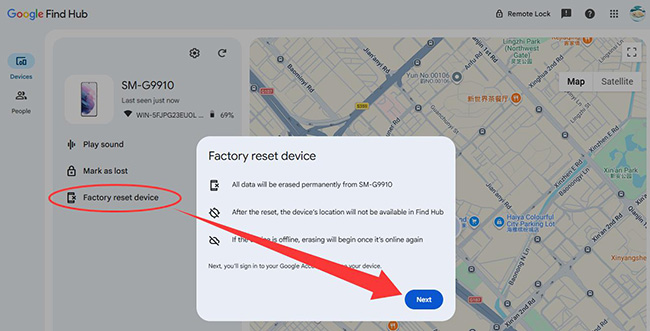
After the reset, you need to set up your phone again and verify your Google account due to Factory Reset Protection (FRP).
Method 2. Factory Reset Your Android Phone in Recovery Mode
When you cannot use Google Find My Device, performing a factory reset through Recovery Mode is another official way to remove a forgotten screen lock PIN. This method works on most Android phones, but the exact button combination and recovery menu may differ between manufacturers. Since it restores your phone to its original state, make sure you understand the data loss risks before proceeding.
- Step 1. Turn off your Android phone.
- Step 2. Enter Recovery Mode using the correct button combination for your device.
- Step 3. Select Wipe data/factory reset.
- Step 4. Confirm the reset operation.
- Step 5. Restart your device after the process finishes.
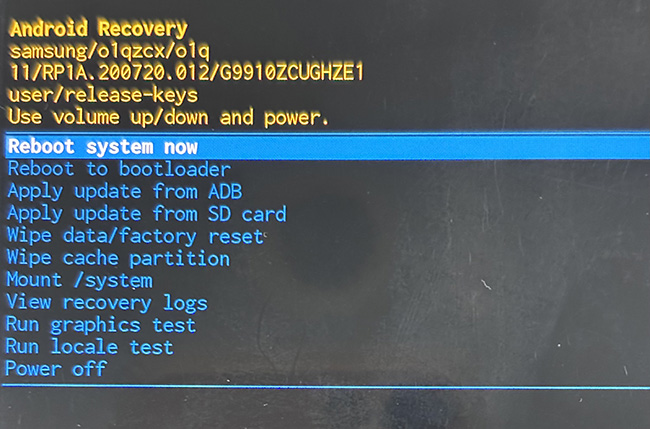
Once completed, the previous PIN, pattern, or password will be removed. However, all personal files stored on the device will also be erased.
Method 3. Try Samsung's Reset with Previous Lock (Supported Devices Only)
Samsung users may have another option before performing a factory reset. Some newer Galaxy devices include a feature called Reset with Previous Lock, which can help users recover access if they recently changed their PIN and forgot the new one. However, this feature has device and software limitations, so it is only available in certain situations.
- Step 1. Enter an incorrect lock several times until the recovery option appears (if available).
- Step 2. Select the Forgot PIN? option to use the previous lock method.
- Step 3. Enter your old PIN.
- Step 4. Follow the instructions to create a new screen lock.
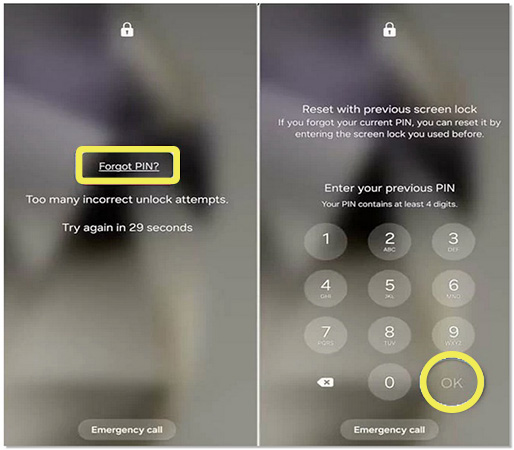
If your device does not support this feature or the previous PIN is no longer valid, you will need to consider other methods.
 View Also:
 Method 4. Remove a Forgotten Screen Lock PIN with TunesKit Android Unlocker
If official Android recovery methods are unavailable or you want a simpler unlocking process, a professional Android unlock tool can be another option to consider. These tools are designed for users who cannot access their devices because of forgotten PINs, patterns, or passwords.
TunesKit Android Unlocker provides a guided way to remove screen locks from supported Android devices. It supports common lock types, including PIN, pattern, and password locks, and works with many popular Android brands.
Key Features of TunesKit Android Unlocker
Unlock screen lock PIN and bypass FRP lock without passcode with ease. No Technical Skills Needed. High Success Rate.
 600,000+ Downloads
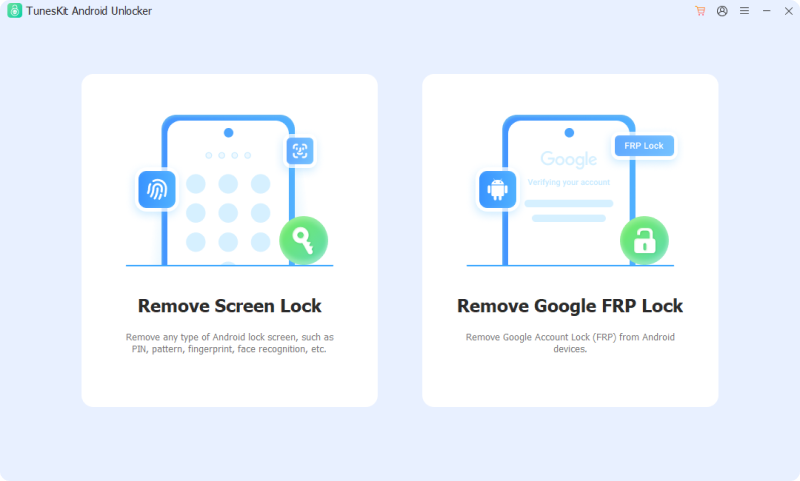
Step 1. Connect Your Locked Android Phone
Download and install TunesKit Android Unlocker on your computer, then open the program. Connect your Android phone to the computer using a USB cable and allow the software to detect your device. Choose the Remove Screen Lock option for removing Android screen locks.
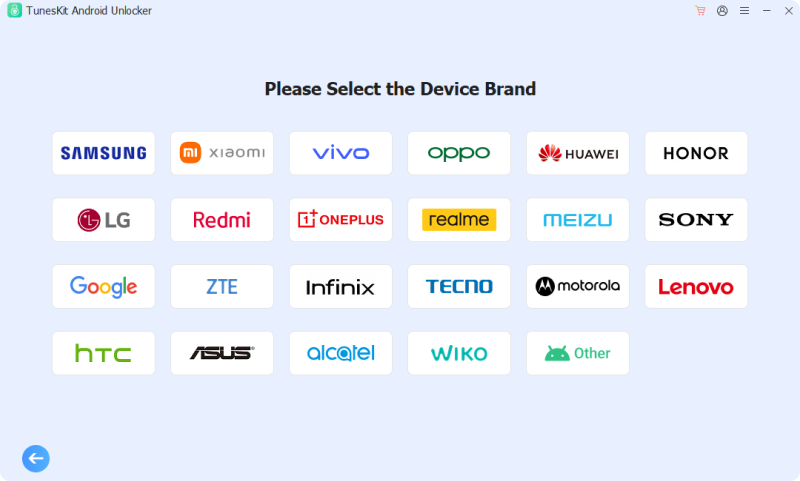
Step 2. Select Android phone information
Select your device information if required. The software will guide you through the required steps to prepare your device and start the unlocking process.
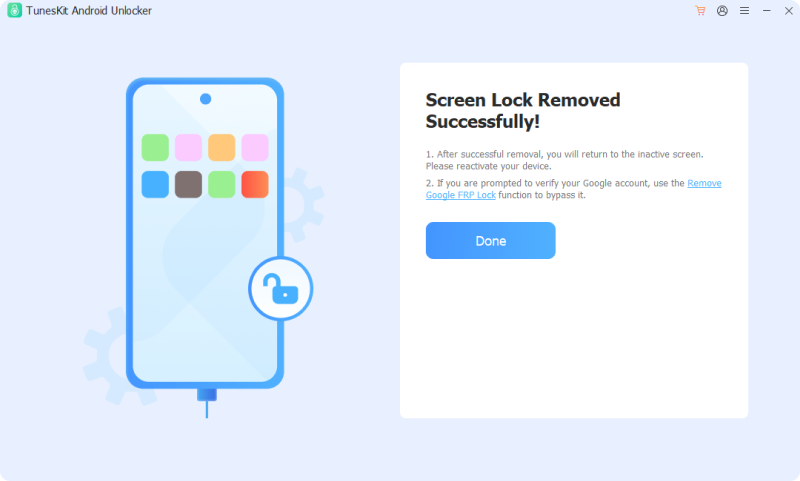
Step 3. Complete the Setup Process
After the lock is removed, restart your phone and complete the initial setup steps.
Comparison: Which Method Is Best?
| Method | Need Current PIN | Data Loss | Difficulty | Best For |
|---|---|---|---|---|
| Remove PIN in Settings | ✅ | No | Easy | Users who know the PIN |
| Google Find My Device | ❌ | Yes | Easy | Remote device reset |
| Recovery Mode Factory Reset | ❌ | Yes | Medium | Locked devices without Find My Device |
| Samsung Reset with Previous Lock | Previous PIN required | No | Easy | Supported Samsung devices |
| TunesKit Android Unlocker | ❌ | Yes | Easy | Users locked out of supported Android phones |
FAQs About Removing an Android Screen Lock PIN
-
Why can't I choose "None" as my screen lock?
Some phones managed by a workplace, school, or mobile device management (MDM) policy require a secure lock screen. In these cases, the None option may be unavailable until the security policy is removed.
-
Can I still use fingerprint unlock after removing the PIN?
Usually not. Android typically requires a secure screen lock, such as a PIN, pattern, or password, before enabling fingerprint or face recognition. If you remove the PIN, you'll likely need to set up a new secure lock before using biometric authentication again.
-
Does a factory reset remove the screen lock?
Yes. A factory reset removes the existing screen lock, but it also erases your data. Afterward, Factory Reset Protection may require you to sign in with the Google account previously linked to the device.
Final Thoughts
Removing a screen lock PIN on an Android phone is straightforward if you remember your current PIN. If you've forgotten the PIN, Android's built-in security is designed to prevent unauthorized access, so official recovery methods usually involve resetting the device.
For users who are locked out and need an alternative, tools such as TunesKit Android Unlocker can simplify the unlocking process on supported devices. Before choosing any method, consider whether preserving your data, maintaining device security, or quickly regaining access is your highest priority.