Can I Bypass Google Account Verification After Reset? 7 Ways to Regain Access
After a factory reset, your Android phone may show "Verify your account" and ask for a Google Account previously synced to the device. This is caused by Factory Reset Protection (FRP), an Android anti-theft feature.
So, can you bypass Google account verification after reset? There is no universal Google-supported way to skip FRP, but legitimate owners can often regain access by recovering the previous account, waiting after a password change, contacting the former owner, using a compatible FRP removal tool, or seeking manufacturer support.

- Can You Bypass Google Account Verification After a Factory Reset?
-
How to Get Past Google Account Verification After Reset
- Method 1. Sign In With a Previously Synced Google Account
- Method 2. Recover Your Forgotten Google Account Password
- Method 3. Find the Google Account Previously Used on the Phone
- Method 4. Wait 24 Hours After Changing Your Google Password
- Method 5. Contact the Previous Owner or Seller
- Method 6. Use TunesKit Android Unlocker on a Supported Android Device HOT
- Method 7. Contact the Phone Manufacturer or an Authorized Service Center
- What Won't Remove Google Account Verification After Reset?
- How to Avoid Google Verification Before Resetting or Selling Your Phone
- FAQs About Bypassing Google Account Verification After Reset
- Conclusion
Can You Bypass Google Account Verification After a Factory Reset?
In most cases, you cannot simply skip Google Account Verification after Factory Reset Protection has been triggered. Android uses FRP as an anti-theft feature, so resetting the phone again does not normally remove the verification requirement.
During setup, Android may ask you to verify ownership using a Google Account that was previously added and synced to the device. Depending on the phone and Android version, you may also be offered another ownership-verification method, such as a previous screen-lock PIN.
If you legitimately own the phone, the appropriate solution depends on why you cannot complete verification.
Which Situation Are You In?
| Your Situation | Recommended Solution |
|---|---|
| You know a Google Account previously used on the phone | Sign in with that account |
| You remember the account but forgot its password | Recover the Google Account password |
| You forgot which Google Account was used | Recover the Google email or username |
| You recently changed the Google password | Wait at least 24 hours and try again |
| You bought the phone second-hand | Contact the previous owner or seller |
| Account recovery is unavailable on a device you own | Check whether TunesKit Android Unlocker supports your device |
| You own the phone but still cannot regain access | Contact the manufacturer or an authorized service center |
How to Get Past Google Account Verification After Reset
If you own the Android device, start with account recovery and other official options. If those are unavailable, you can then evaluate compatible third-party tools or manufacturer support.
Method 1. Sign In With a Previously Synced Google Account
The easiest way to get past Google verification after a factory reset is to sign in with a Google Account that was previously added and synced to the device.
A common misconception is that you must always use only the last Google Account on the phone. On supported Android devices, another eligible Google Account that had previously been added and synced may also be accepted.
- Step 1. On the verification screen, enter a Google email address that was previously added and synced to the phone.
- Step 2. Enter the password for that Google Account and tap Next.
- Step 3. If you are unsure whether the password is correct, sign in to the same Google Account on another phone or computer first.
- Step 4. Once the credentials are confirmed, return to the reset Android phone and try again.

If the account works elsewhere but is still rejected on the reset phone, check whether you recently changed its password.
Method 2. Recover Your Forgotten Google Account Password
If you remember the Google email address but forgot the password, use Google Account Recovery rather than repeatedly guessing to reset your account password.
- Step 1. On another phone, tablet, or computer, open Google's official Account Recovery page.
- Step 2. Enter the Google email address previously associated with the Android phone.

- Step 3. Follow Google's identity-verification prompts. Depending on the account, you may be asked to confirm a recovery phone number, recovery email, or another verification method.
- Step 4. Once Google verifies your identity, create a new password.
- Step 5. Test the new password by signing in to your Google Account on another device.
- Step 6. Return to the Android phone and use the recovered account during setup.
If the password was changed recently, it may not work for FRP verification immediately. In that case, follow Method 4.
Method 3. Find the Google Account Previously Used on the Phone
Sometimes the password is not the problem. You may simply have forgotten which Google Account was previously synced to the phone.
- Step 1. Open Google's username or email recovery page on another device.
- Step 2. Enter a recovery phone number or recovery email address linked to the account.

- Step 3. Enter the name associated with the Google Account when prompted.
- Step 4. Complete the verification process to see matching Google Accounts.
- Step 5. Sign in to the possible accounts on another device to confirm their passwords.
- Step 6. Return to the reset phone and try an eligible Google Account that was previously synced to it.
This method can be especially useful if you use several Gmail accounts for work, personal use, or older Android devices.
Method 4. Wait 24 Hours After Changing Your Google Password
If you recently recovered or changed your Google Account password, Android may temporarily reject the new password during device verification.
- Step 1. Sign in to the Google Account on another phone or computer to confirm that the new password works.
- Step 2. Avoid changing the password again during the waiting period.
- Step 3. Wait at least 24 hours after the password change.
- Step 4. Restart the Android setup process.
- Step 5. Enter the same Google Account and new password on the verification screen.
Some manufacturers note that the security delay can occasionally last longer than 24 hours. If the credentials work normally elsewhere, waiting is preferable to repeatedly resetting the phone or changing the password again.
Method 5. Contact the Previous Owner or Seller
If you bought a second-hand Android phone and it asks for the former owner's Google Account, contacting the previous owner or seller should be your first step.
- Step 1. Contact the seller and explain that the phone is still protected by Google Factory Reset Protection.
- Step 2. Ask the previous owner to help resolve the Google Account verification requirement.
- Step 3. After the account issue is resolved, restart the phone setup process and check whether you can continue.
- Step 4. If the seller cannot or will not help, request a return, replacement, or refund where possible.

Method 6. Use TunesKit Android Unlocker on a Supported Android Device
If the Android phone belongs to you and Google Account Recovery is unavailable, a computer-based FRP removal tool can be another option. TunesKit Android Unlocker includes a dedicated function for removing Google FRP lock on supported Android devices.
According to its current product documentation, it supports FRP removal for Android brands such as Samsung, Xiaomi, Redmi, vivo, OPPO, Realme, Motorola, and others. Compatibility can vary by model, Android version, and security configuration, so check device support before proceeding.
Key Features of TunesKit Android Unlocker
Bypass FRP lock without Google account. Unlock Android screen without passcode. No Technical Skills Needed. Support lots of Android version。
 600,000+ Downloads
- Step 1. Install and launch TunesKit Android Unlocker on a Windows or Mac computer. Choose the Remove Google FRP Lock option from the main interface. Connect the Android phone to the computer using a USB cable.
- Step 2. Select or confirm your device information as prompted by the software. Follow the on-screen instructions provided for your specific device or Android version.

- Step 3. Start the FRP removal process and keep the phone connected until the process is complete. Restart the Android phone and follow the setup instructions.
Method 7. Contact the Phone Manufacturer or an Authorized Service Center
If you are the legitimate owner but cannot recover the Google Account and prefer not to use a third-party FRP tool, contact the device manufacturer or an authorized service center.
- Step 1. Find the official support website or authorized service center for your phone brand.
- Step 2. Tell support that the phone is stuck on Google Account Verification or Factory Reset Protection after a reset.
- Step 3. Prepare proof of ownership if requested. This may include the purchase receipt, invoice, IMEI, serial number, carrier information, or identification.
- Step 4. Follow the manufacturer's verification or service procedure.
- Step 5. After the issue is resolved, complete the Android setup process and add your Google Account.
Policies differ among Samsung, Google Pixel, Motorola, Xiaomi, and other Android manufacturers, so availability of FRP-related assistance is not guaranteed.
What Won't Remove Google Account Verification After Reset?
Not every commonly suggested trick can remove Google Account Verification after a reset. Some methods only erase local data or change network settings without affecting FRP. Before spending more time, check which approaches usually won’t bypass Google Account Verification after reset.
1.Factory Resetting the Phone Again
Performing another factory reset usually does not remove FRP. The purpose of Factory Reset Protection is to keep the phone protected after its local data has been erased, so another reset often returns you to the same verification screen.
2.Creating a New Google Account
A brand-new Google Account normally cannot satisfy an existing FRP verification request because it was not previously associated with the protected device.
3.Removing or Replacing the SIM Card
FRP is connected to Android device protection and Google Account verification rather than the SIM card. Changing carriers, removing the SIM, or inserting another SIM therefore does not normally remove the verification requirement.
4.Waiting for FRP to Expire
FRP itself does not normally expire after a fixed number of hours or days. The commonly mentioned 24-hour delay relates primarily to security restrictions following a recent Google password change.
How to Avoid Google Verification Before Resetting or Selling Your Phone
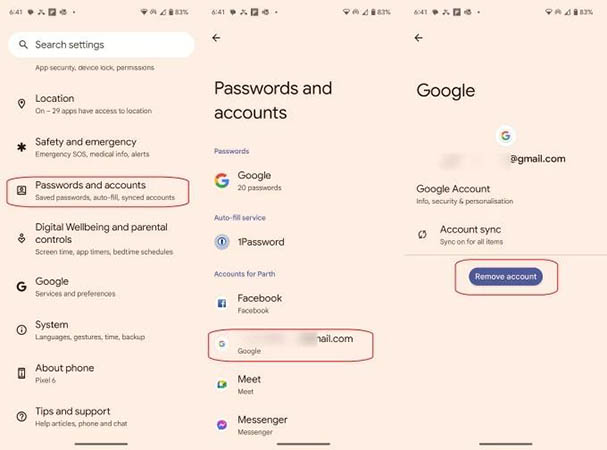
If you still have normal access to an Android phone and intend to sell, trade in, give away, or factory reset it, remove your Google Account before wiping the device.
- Step 1. Open Settings on the Android phone.
- Step 2. Go to Accounts, Passwords & accounts, Users & accounts, or a similarly named menu.
- Step 3. Select the Google Account connected to the device.
- Step 4. Tap Remove account and confirm your identity if prompted.
- Step 5. Check that any other personal Google Accounts you want removed are also deleted from the phone. Perform the factory reset through Settings.
FAQs About Bypassing Google Account Verification After Reset
-
How long does Google FRP lock last?
Factory Reset Protection itself does not normally expire after a fixed number of hours or days. The phone generally remains protected until acceptable ownership credentials are provided or the issue is resolved through another supported process.
-
Why doesn't my correct Google password work after factory reset?
Test the credentials on another device first. If the password works there but you recently changed or recovered it, wait at least 24 hours before trying it again on the reset Android phone.
Conclusion
So, can you bypass Google account verification after reset? There is no universal method that works on every FRP-protected Android phone. Start with a previously synced Google Account or Google's recovery options whenever possible.
If account recovery is unavailable on a device you legitimately own, a compatible FRP solution such as TunesKit Android Unlocker provides another option, while manufacturer support remains useful when proof of ownership is available.