How to Reset a Samsung Phone That Is Locked
Getting locked out of a Samsung Galaxy phone can be frustrating, especially if you have forgotten the PIN, password, or pattern. Fortunately, there are several legitimate ways to regain control of the device or perform a factory reset when you cannot access the Settings menu.
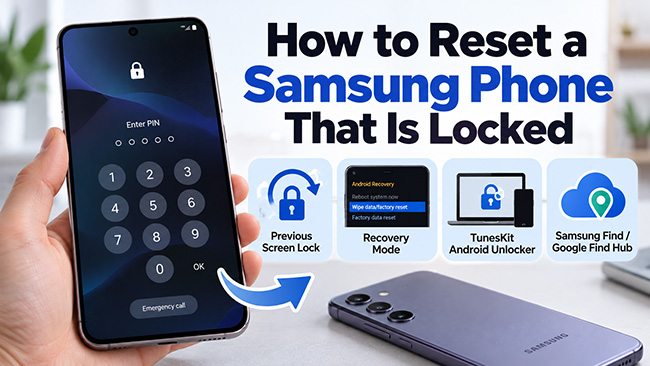
Before you reset anything, check whether you can recover access without deleting your data. Samsung Galaxy phones running One UI 6.1 or later may let you use a recently replaced screen lock for up to 72 hours. If that option is unavailable, you can factory reset a locked Samsung phone through Recovery Mode, use a computer-assisted tool such as TunesKit Android Unlocker on a supported device, or remotely erase the phone through Samsung or Google services.
- Quick Comparison: Ways to Reset or Unlock a Locked Samsung Phone
- Before You Reset a Locked Samsung Phone: Try to Unlock It Without Losing Data
- How to Reset a Samsung Phone That Is Locked Using Recovery Mode
- Alternative: Remove a Samsung Screen Lock With TunesKit Android Unlocker HOT
- How to Reset a Locked Samsung Phone With Samsung Find
- How to Reset a Locked Samsung Phone With Google Find Hub
- What If Your Samsung Asks for a Google Account After the Reset?
- FAQs About Resetting a Locked Samsung Phone
- Conclusion
Quick Comparison: Ways to Reset or Unlock a Locked Samsung Phone
Use this table to determine which option best matches your situation.
| Method | Best for | Deletes data? | Main requirement |
|---|---|---|---|
| Previous screen lock | You recently changed your PIN, password, or pattern | No | One UI 6.1+ and lock changed within 72 hours |
| Recovery Mode factory reset | You cannot unlock the phone at all | Yes | Physical access to the device |
| TunesKit Android Unlocker | You prefer guided lock removal from a computer | Usually yes | Supported Samsung phone, Windows/Mac, USB cable |
| Samsung Find/SmartThings Find | You need to remotely erase an eligible Galaxy phone | Yes | Samsung account, network connection, remote controls |
| Google Find Hub | You need to remotely erase an Android phone | Yes | Google account and Find Hub availability |
If your goal is simply to get back into your phone, try the non-destructive option first. Use methods involving data erasure only when recovering the existing screen lock is not possible.
Before You Reset a Locked Samsung Phone: Try to Unlock It Without Losing Data
Samsung Galaxy phones running One UI 6.1 or later can temporarily retain the previous screen lock after you change it. Samsung says the old PIN, password, or pattern can remain available for 72 hours unless you chose to delete the previous credential when creating the new one.
- Step 1. Enter an incorrect PIN, password, or pattern at least five times.
- Step 2. Look for Forgot PIN?, Forgot password?, or Forgot pattern? on the lock screen. Tap the option.
- Step 3. Enter your previous PIN, password, or pattern.
- Step 4. Follow the prompts to create a new screen lock.
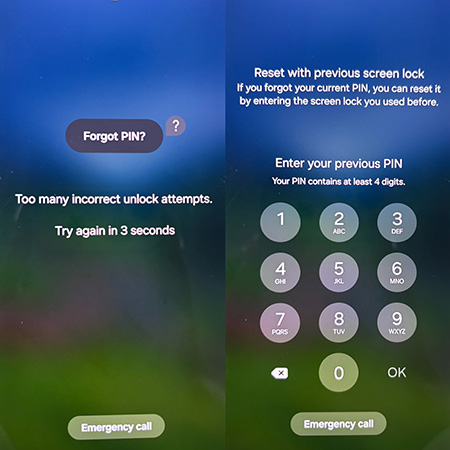
This is the best option to try first because it can restore access without performing a factory reset or deleting your files.
It may not work if:
- more than 72 hours have passed since the lock was changed;
- your phone does not support One UI 6.1 or later;
- you also forgot the previous screen lock;
- you deleted the old credential while changing to the new one.
Avoid repeatedly guessing the previous credential because attempts may be limited.
How to Reset a Samsung Phone That Is Locked Using Recovery Mode
If you cannot unlock your Samsung phone and cannot use the previous-screen-lock feature, Android Recovery Mode is one of the most direct ways to perform a factory reset without opening Settings. The exact process can differ by Galaxy model and generation.
- Step 1. Power off the Samsung Galaxy phone.
- Step 2. Connect the Samsung phone to a computer with a USB cable if your model requires a USB connection to enter Recovery Mode.
- Step 3. Press and hold the appropriate Recovery Mode button combination.
- For many newer Galaxy devices, use: Volume Up + Side/Power button
- For Galaxy phones with a dedicated Bixby button, use: Volume Up + Bixby + Power
- For older Galaxy phones with a physical Home button, use: Volume Up + Home + Power
- Step 4. Release the buttons when the Samsung logo or Android Recovery screen appears, depending on your model.
- Step 5. Use the Volume buttons to highlight Wipe data/factory reset. Press the Power or Side button to select it.
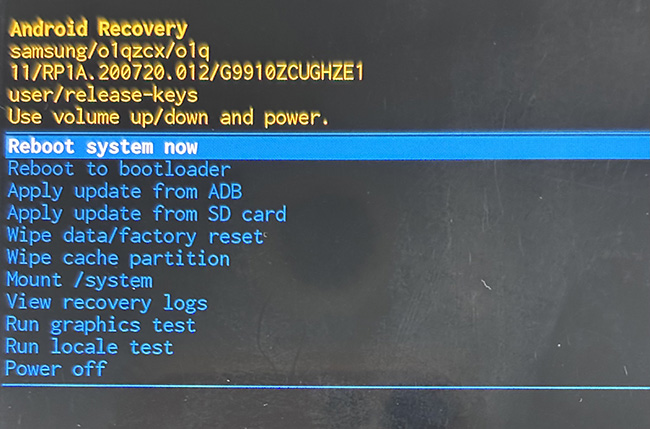
- Step 6. Highlight Factory data reset, Yes, or the equivalent confirmation option.
- Step 7. Press the Power button to confirm.
- Step 8. Wait while the phone erases its user data.
- Step 9. When the Recovery Mode screen appears again, highlight Reboot system now.
- Step 10. Press the Power button to restart the device.
The first startup after a factory reset may take longer than usual. During setup, the phone may ask for a Google account previously associated with the device.
Alternative: Remove a Samsung Screen Lock With TunesKit Android Unlocker
If manually using Recovery Mode feels inconvenient, TunesKit Android Unlocker is a computer-assisted alternative for supported Samsung devices.
Its Remove Screen Lock feature is designed to remove common Android screen credentials, including PINs, patterns, passwords, fingerprint locks, and face-recognition locks. This option is most relevant if you own the Samsung phone, cannot remember the screen credential, and prefer a guided process on a Windows PC or Mac.
Key Features of TunesKit Android Unlocker
Unlock screen lock and bypass FRP lock without passcode with ease. No Technical Skills Needed. High Success Rate. Support lots of Android versions.
 600,000+ Downloads
- Step 1. Install and open TunesKit Android Unlocker on your Windows PC or Mac.
- Step 2. Connect the locked Samsung Galaxy phone to the computer using a USB cable.
- Step 3. Select Remove Screen Lock in the software.
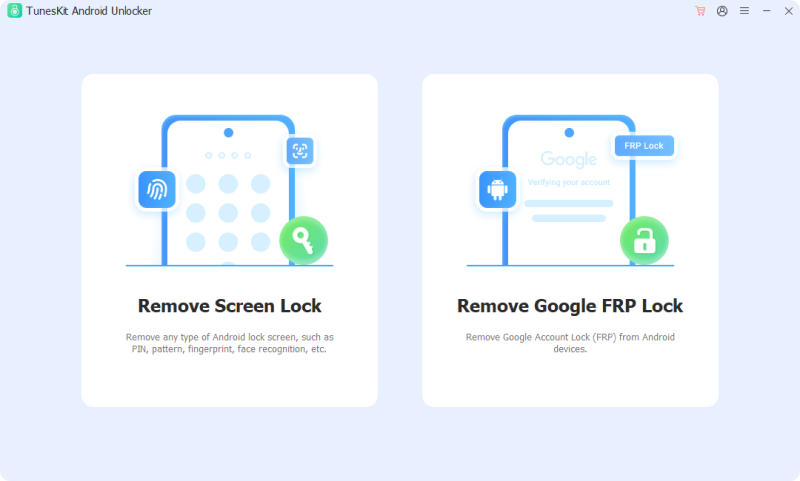
- Step 4. Choose Samsung as the phone brand.
- Step 5. Follow the onscreen instructions to prepare the Samsung phone. Depending on the device, this may involve entering Recovery Mode or another device-specific mode.
- Step 6. Continue with the lock-removal process as instructed by the software. Wait for the program to finish and then restart or set up the phone as directed.
How to Reset a Locked Samsung Phone With Samsung Find
If the locked Samsung phone is turned on, connected to the internet, and associated with your Samsung account, you may be able to remotely erase it using Samsung Find or SmartThings Find.
- Step 1. Open Samsung Find or the appropriate Samsung device-finding service on another device or through a browser.
- Step 2. Sign in with the Samsung account associated with the locked Galaxy phone.
- Step 3. Select the locked Samsung device from the device list.
- Step 4. Choose Erase data.
- Step 5. Verify your Samsung account if prompted. Confirm the erase operation.
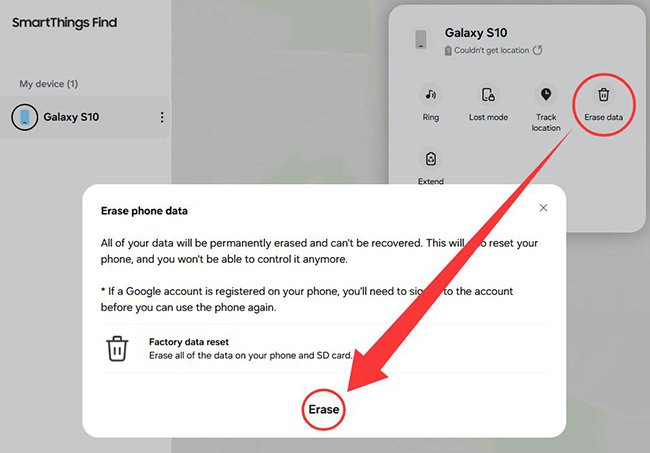
- Step 6. Wait for the phone to receive and process the remote reset command.
How to Reset a Locked Samsung Phone With Google Find Hub
Google Find Hub is another remote option for an eligible Samsung phone connected to your Google account. The device generally needs to be powered on, connected appropriately, signed into your Google account, and available through Google's device-finding service.
- Step 1. Open Google Find Hub from another supported device or browser. Sign in with the Google account linked to the locked Samsung phone.
- Step 2. Select the Samsung phone from the available devices.
- Step 3. Open the device actions or settings.
- Step 4. Choose the Factory reset device option. Confirm the factory reset.
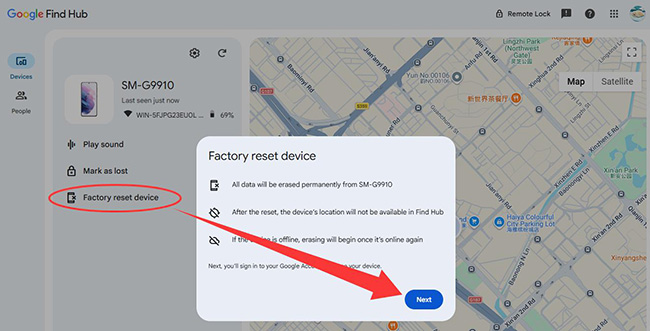
- Step 5. Wait for the device to receive and complete the reset command.
What If Your Samsung Asks for a Google Account After the Reset?
This is commonly caused by Factory Reset Protection (FRP). FRP is designed to prevent someone from taking over a lost or stolen phone simply by performing a factory reset.
A screen lock and FRP serve different purposes:
- Screen lock: Prevents normal access to the phone.
- Factory Reset Protection: Helps verify ownership after certain reset scenarios.
A factory reset or screen-lock removal tool may remove the current PIN or password, but it does not necessarily eliminate FRP. If Google verification appears, use an eligible Google account previously associated with the phone.
 Further Reading: How to Unlock a Google Locked Phone
FAQs About Resetting a Locked Samsung Phone
-
Can You Reset a Locked Samsung Phone Without Losing Data?
If by "reset" you mean a factory reset, generally no. A factory reset is intended to erase user data. The main non-destructive option discussed here is Samsung's previous-screen-lock recovery feature on supported One UI 6.1 or later devices. If that method works, you can regain access without factory resetting the phone.
-
Can I Reset a Samsung Phone Remotely?
Yes. Samsung Find and Google Find Hub can remotely erase eligible devices when the required account, connectivity, and device settings are available.
-
Does Factory Reset Bypass Google FRP?
No. A factory reset should not be considered a way to bypass Factory Reset Protection.
Conclusion
If your Samsung phone is locked, first try the previous-screen-lock option on supported One UI 6.1 or later devices to avoid data loss. If that does not work, you can factory reset the phone through Recovery Mode, use Samsung Find or Google Find Hub for remote erasure, or try TunesKit Android Unlocker on a supported device.
Keep in mind that most reset methods erase local data, and Google Factory Reset Protection may still require a previously linked Google account afterward.