How to Remove Google Account from Android Phone
Want to remove a Google Account from your Android phone without deleting the account itself? You can usually do this from the Settings app. The exact menu names may vary by Android version and phone brand, but the process is similar.
Before you begin, it's important to know the difference between removing a Google Account from your phone and deleting the Google Account permanently. Removing the account only disconnects it from that device. Your Gmail, Google Drive, Google Photos, and other cloud data remain associated with your Google Account.
What to Know Before Removing a Google Account
Removing a Google Account from Android is generally safe when you simply want to switch accounts or stop using a particular account on the phone. However, there are a few things to check first.
Removing an Account Does Not Delete It
There is an important difference between these two actions:
- Remove a Google Account from Android: Disconnects the account from the phone and removes its associated information from that device.
- Delete a Google Account: Permanently deletes the account and its associated Google data.
For example, if you remove your Gmail account from your Android phone, the Google Account itself is still available. You can sign in to it again on another phone or add it back to the same device later. Google explains that removing an account deletes the information associated with it from the device, including email, contacts, and settings.
Back Up or Sync Important Data First
If you have recently created contacts, photos, files, or other information that has not synced, check your backups before removing the account.
This is especially important if you are removing the account because you're about to sell or give away the phone. Removing the account is not a substitute for backing up information you want to keep.
Know Your Screen Lock
If the Google Account is the only Google Account on the phone, Android may ask for the device's pattern, PIN, or password before allowing you to remove it.
How to Remove a Google Account from an Android Phone
The exact wording varies between Android phones, but the general process is the same.
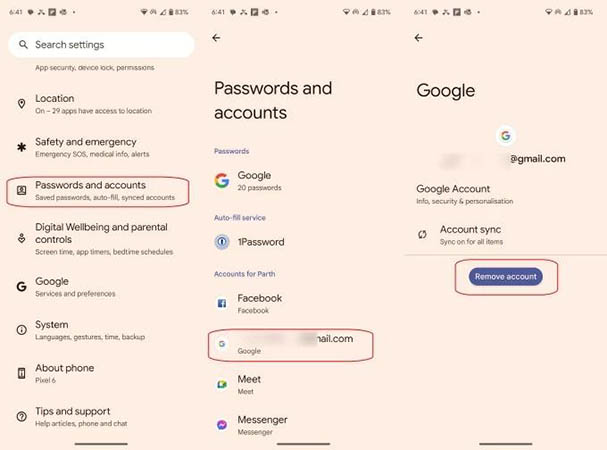
- Step 1. Open the Settings app on your Android phone.
- Step 2. Tap Passwords & accounts, which is depending on your Android version or manufacturer. You may instead see: User & accounts, Passwords, passkeys & autofill, Password, passkeys & accounts, or Manage account.
- Step 3. Under the account list, tap the Google Account you want to remove. If you have multiple Google Accounts on the phone, make sure you select the correct one. You do not need to remove all of them if you only want to disconnect one.
- Step 4. Tap Remove account and follow the confirmation prompts. If Android asks for your screen lock, enter your PIN, pattern, or password.
- Step 5. Confirm the action when prompted. The account and its associated information will be removed from that Android device. The Google Account itself is not permanently deleted.
How to Remove a Google Account from a Samsung Phone
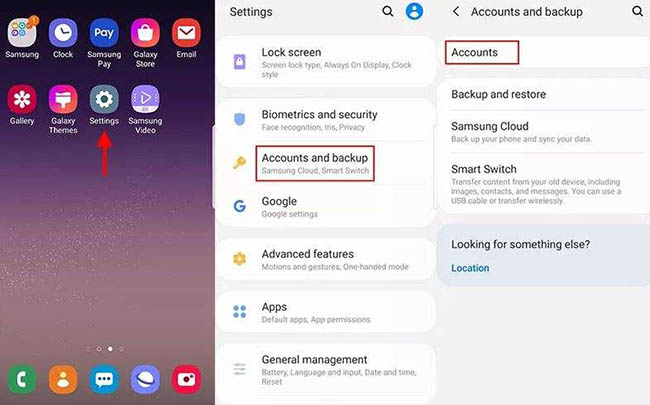
Samsung Galaxy phones use a slightly different Settings structure. On many current Galaxy devices,
- Step 1. Go to Settings > Accounts and backup.
- Step 2. From here, select Accounts.
- Step 3. Find your Google Account and select it.
- Step 4. Tap Remove account. Follow the on-screen instructions to complete the process.
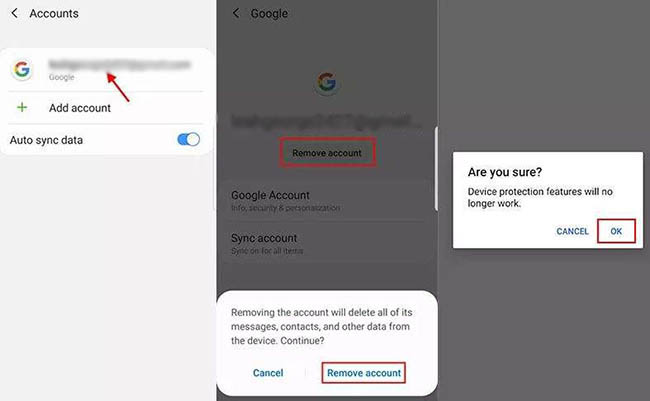
Samsung notes that account settings and available options can vary depending on the device and software version, and some accounts may require additional authentication.
What Happens When You Remove a Google Account?
Removing a Google Account affects the account's information on that particular device. According to Google, information associated with the removed account, including email, contacts, and settings, is removed from the device.
However, this does not mean that your Google Account or its cloud data has been deleted. For example:
- 1. Your Gmail account still exists.
- 2. Your Google Account can still be used on another device.
- 3. Cloud-based information associated with the account is not automatically deleted simply because you removed the account from one phone.
- 4. You can add the Google Account back to the phone later by signing in again.
This distinction is particularly important if you are removing an account because you want to use a different Google Account.
How to Remove a Google Account Before Selling Your Android Phone
If you're selling, trading in, donating, or giving your Android phone to someone else, simply removing the Google Account may not be enough. You should also erase your personal data from the phone.
- 1. Backup important data
- 2. Remove your Google Account
- 3. Factory reset the phone
- 4. Verify that the phone reaches the initial setup screen
Why Remove the Google Account Before a Factory Reset?
Android has device-protection features designed to prevent unauthorized use after a factory reset. Google explains that removing your Google Account from the device turns off this device protection.
If a protected phone is reset while the account remains associated with it, the setup process can require the screen lock or a Google Account that was previously synced to the device. Therefore, if you're transferring ownership, removing your Google Account before resetting the phone is an important step.
Google Account Removal vs. Factory Reset vs. Account Deletion
These three actions are easy to confuse, but they have very different purposes.
| Action | Removes Google Account from phone | Erases phone data | Deletes Google Account |
|---|---|---|---|
| Remove Google Account | Yes | No | No |
| Factory reset | Erases device data | Yes | No |
| Delete Google Account | No | No | Yes |
If you only want to stop using a Google Account on your current phone, remove the account.
If you're preparing the phone for another person, remove the account and then erase the phone.
If you want to permanently stop using the Google Account and delete its cloud data, that is a separate Google Account deletion process. Google warns that deleting an account can remove emails, files, calendars, photos, and access to services associated with that account.
What If Your Android Phone Is Stuck on Google Verification?
 Further Reading: How to Remove Previously Synced Google Account from Android
If you have already factory-reset your Android phone and now see a message such as “This device was reset. To continue, sign in with a Google Account that was previously synced on this device,” the issue is no longer simply removing a Google Account from Android. The phone is protected by Factory Reset Protection (FRP). At that time, you can use a dedicated FRP removal tool such as TunesKit Android Unlocker to remove the lock screen.
TunesKit Android Unlocker includes a Remove Google FRP Lock mode designed specifically for devices stuck at Google account verification. The basic process is straightforward:
- Step 1. Install and launch TunesKit Android Unlocker on a Windows or Mac computer. Connect the FRP-locked Android phone to the computer with a USB cable.
- Step 2. Choose Remove Google FRP Lock from the main interface. Select your phone's brand and the appropriate Android version or device option shown by the program, then click Start.
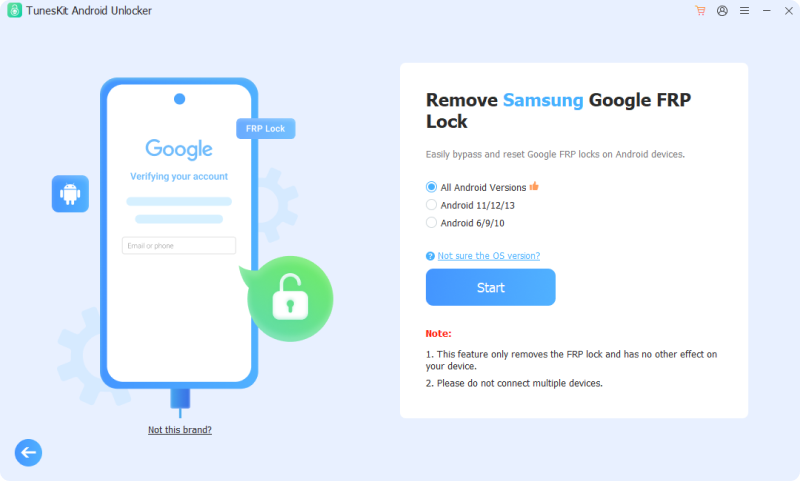
- Step 3. TunesKit will provide instructions for preparing the phone for the FRP removal process. Follow the prompts on the computer and phone. When prompted, you may need to tap Allow to enable USB debugging.
- Step 4. After the required steps are completed, click Next and let TunesKit process the FRP removal. Once the process finishes, you can restart the phone and go through the Android setup again.
FAQs About Removing Google Account from Android Phone
-
Does a factory reset remove my Google Account?
A factory reset erases data from the phone, but it is not the same thing as deleting your Google Account. If you're preparing a phone for another person, Google recommends clearing the device's data and applications, and removing your Google Account beforehand is important for device-protection reasons.
-
Can I remove only one Google Account if I have several on my phone?
Yes. Android lets you select the particular account you want to remove. Your other Google Account can remain on the device.
Final Thoughts
Removing a Google Account from an Android phone is usually a simple process through the Settings app. However, if the phone has been factory-reset and is stuck at Google verification, the situation is different because FRP is preventing you from completing the setup.
In that case, sign in with the previously synced Google Account if possible. If you cannot do so, a tool such as TunesKit Android Unlocker can help remove FRP on supported devices and Android versions.