


What is FRP Lock? Everything You Should Know
Imagine buying a used phone, performing a factory reset to make it fresh, and suddenly hitting a wall: a screen demanding the previous owner's Google account email and password. This screen is the result of Factory Reset Protection (FRP). While it is a vital security measure designed to deter smartphone theft, it frequently causes headaches for legitimate users who have forgotten their credentials or purchased second-hand devices.
In this comprehensive guide, we will break down exactly what is FRP lock, how to manage it properly to avoid future issues, and the proven methods to bypass it if you are currently stuck.

Part 1. What is Factory Reset Protection (FRP)?
Factory Reset Protection (FRP) is a built-in security system introduced by Google with Android 5.1 (Lollipop). It effectively ties your Android device to your Google account, ensuring that even if someone physically steals your phone, they cannot simply wipe it and use it as their own.
Before FRP existed, a thief could steal a phone, perform a "hard reset" to wipe all data, and resell the device immediately. With FRP enabled, a hard reset triggers a security lockdown. The device essentially asks, "Are you really the owner?" and requires the original Google credentials to verify ownership. This feature is standard on all modern Android devices, including Samsung, Google Pixel, Xiaomi, Motorola, and others.
How the FRP Lock Works
It is important to understand that not all factory resets are created equal. The system distinguishes between a "Trusted Reset" and an "Untrusted Reset."
If you navigate to your phone's settings and select Factory Data Reset, the system assumes you are the owner because you already unlocked the screen to get there. This is a "Trusted Reset," and it automatically removes the FRP lock before wiping the data.
However, if a reset is performed via the Recovery Mode (usually by holding Volume + Power buttons) or via remote wipe tools (like Find My Device), the system classifies this as an "Untrusted Reset." Because the screen lock was bypassed to initiate this action, the FRP lock engages immediately upon reboot to protect the device.
Part 2. How to Enable and Disable FRP Correctly
Many users accidentally trigger the FRP lock because they are unaware that it is active. Knowing how to control this feature is the best way to prevent getting locked out of your own device.
How to Enable FRP
You do not need to flip a specific switch to turn on Factory Reset Protection. It is activated automatically as part of the standard Android setup.
Step 1. Connect your device to a Wi-Fi or mobile data network.
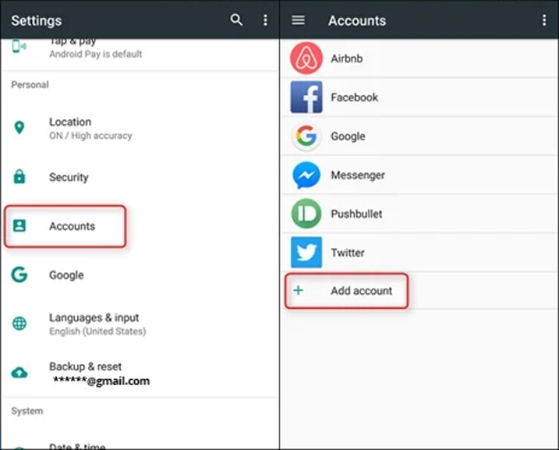
Step 2. Navigate to Settings > Accounts (or Accounts and Backup on Samsung devices).
Step 3. Tap Add Account and select Google.
Step 4. Enter your Gmail address and password.
Once a Google account is added, FRP is live.
How to Disable FRP (Essential for Selling)
This is the most critical step often missed by sellers. If you plan to sell, trade in, or gift your phone, you must disable FRP first. If you don't, the new owner will be unable to use the phone.
Step 1. Open the Settings app on your device.
Step 2. Locate Accounts or Users & Accounts and tap on it.
Step 3. Select the Google account currently synced to the device.
Step 4. Tap the Remove Account button. You will likely be asked to enter your device PIN or pattern to confirm this action.
Step 5. If multiple Google accounts are signed in, repeat these steps for every single one.
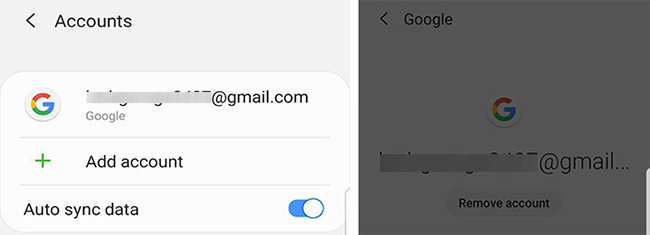
Once the accounts are removed, the FRP link is broken. You can now safely perform a factory reset, and the phone will be ready for a new user to set up from scratch.
Part 3. How to Bypass FRP Lock without Password
If you are already stuck on the "Verify your account" screen, disabling it via settings is no longer an option. You must bypass the verification.
Method 1: The Official Google Recovery
Before attempting technical hacks, exhaust the official recovery options. This is often the fastest route if the device is yours or if you are in contact with the seller.
Step 1. Visit the Google account recovery website on a separate computer or mobile device.
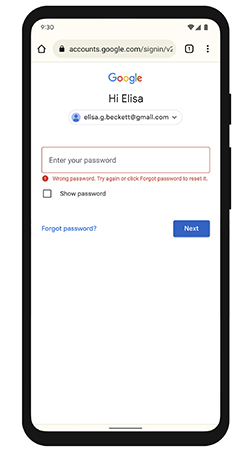
Step 2. Type in the email address linked to the locked device. Use the "Forgot Password?" option to reset your Google password.
Step 3. Reset your password following the on-screen prompts.
Step 4. Wait 24 hours. After a password reset, Google's security systems often enforce a 24 to 72-hour waiting period before that new password can be used to unlock a factory-reset device.
Step 5. Log in to the locked device with the new credentials after the waiting period.
Method 2: TunesKit Android Unlocker
If you cannot recover the original Google account credentials, using a professional tool is the most reliable solution. TunesKit Android Unlocker is a powerful utility designed specifically to remove screen locks and bypass Google FRP on Android devices. It simplifies the complex bypass process into a few clicks, handling the technical "heavy lifting" automatically.
Why Choose TunesKit Android Unlocker
Bypass FRP lock without passcode with ease. No Technical Skills Needed. High Success Rate. Support lots of Android version incuding 16.
 600,000+ Downloads
Let's learn how to use TunesKit Android Unlocker to bypass Google FRP lock step by step.
Step 1 Connect phone to computer
Download and install TunesKit Android Unlocker on your Windows or Mac computer. Connect your locked Samsung phone to the computer via a USB cable.
Step 2 Select removal feature
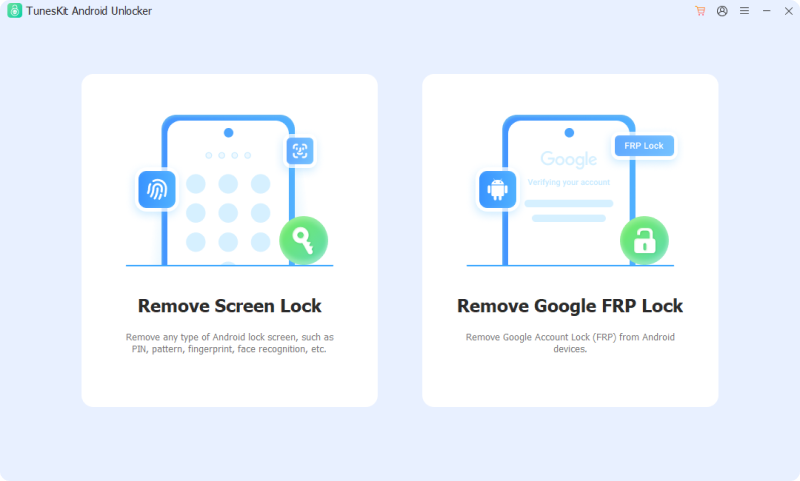
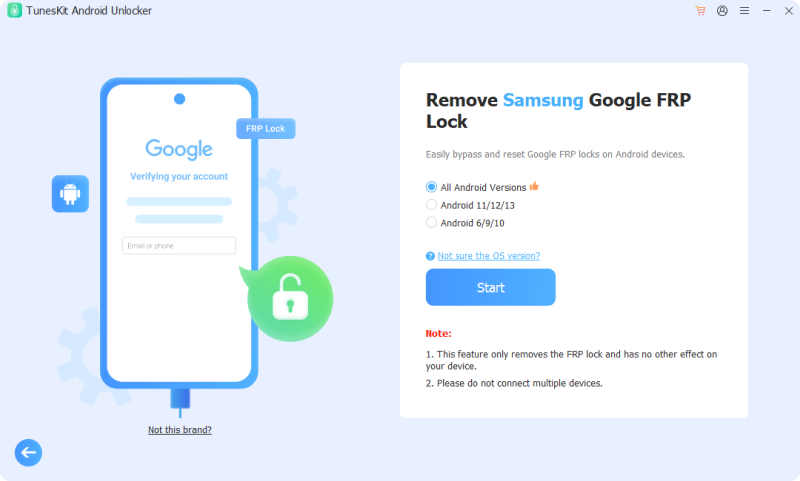
Launch the program and select the "Remove Google FRP Lock" mode from the main interface. Click the Start button to continue.
Step 3 Start FRP bypass
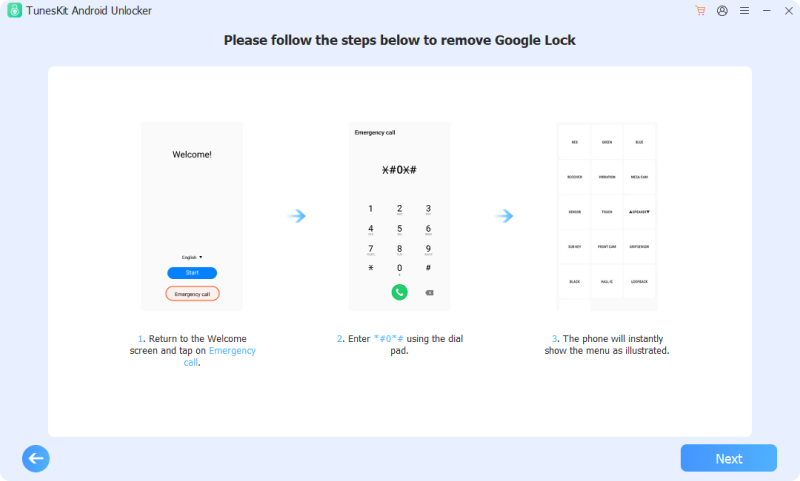
Follow the on-screen instructions to allow the tool to remove the FRP partition. Once the process is complete, your phone will reboot without the Google lock, allowing you to set it up as new.
Part 4. FAQs about FRP Lock
-
1. Does a factory reset remove FRP lock?
No. In fact, a factory reset (if done via buttons/Recovery Mode) is exactly what triggers the FRP lock. To remove the lock, you must delete the Google account from the settings before resetting.
-
2. Is it illegal to bypass FRP?
It is generally legal to bypass the lock on a device you own. However, bypassing FRP on a device you do not own, or selling software specifically designed to aid in the theft of devices, can have legal consequences.
Part 5. Conclusion
The FRP lock is a double-edged sword: it offers excellent protection against theft but requires responsible management by the owner. The most effective way to handle FRP is prevention. Always remember to remove your Google account before wiping your phone, especially if you are passing it on to someone else.
If you find yourself locked out, start with official recovery methods. If those fail, TunesKit Android Unlocker offers a balance of speed and safety to get you back into your device quickly.


