- Utilities
- Unlock
- Data Management
- Multimedia
- Solutions
- Support
 Content
 Forgot your Android device screen password? No panic! TunesKit Android Unlocker can help you remove all kinds of screen locks, including PIN, Pattern, passcode, fingerprint, and face recognition. Now, let's learn how to unlock your phone with this powerful tool.
Step 1. Launch TunesKit and Connect Your Device to Computer
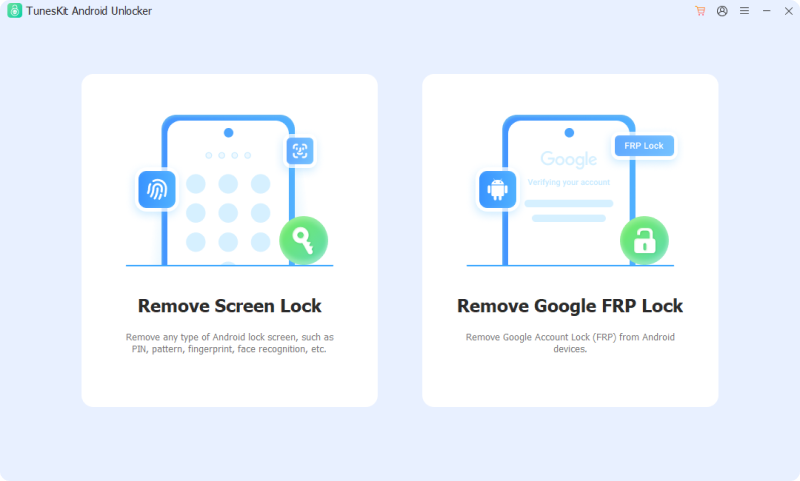
Open TunesKit Android Unlocker on your computer after it has been installed successfully. Then connect your Android device to the PC with a USB cable. Choose the "Remove Screen Lock" option to remove the screen lock.
Select the brand of your device. TunesKit Android Unlocker supports over 20+ brands and 2000+ different Android devices.
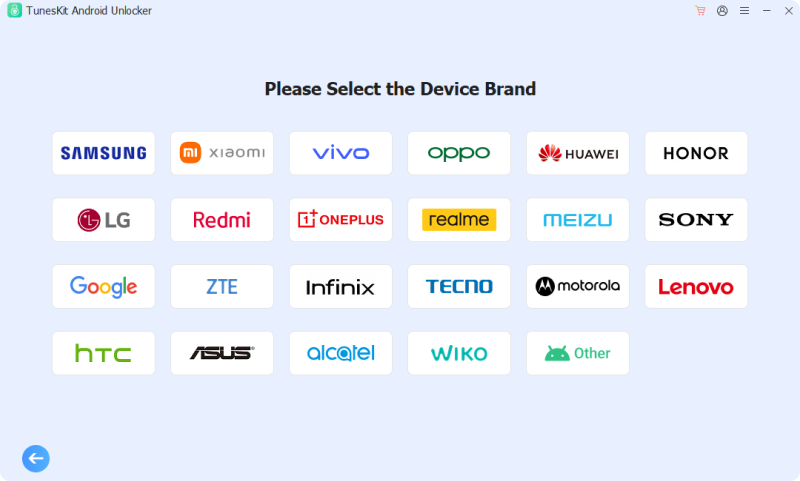
Then click the "Start" button, and the program will start to recognize your phone automatically. Please note that removing the lock screen password will erase all data on your phone. Click the "Continue" button. TunesKit Android Unlocker will start to obtain resources.
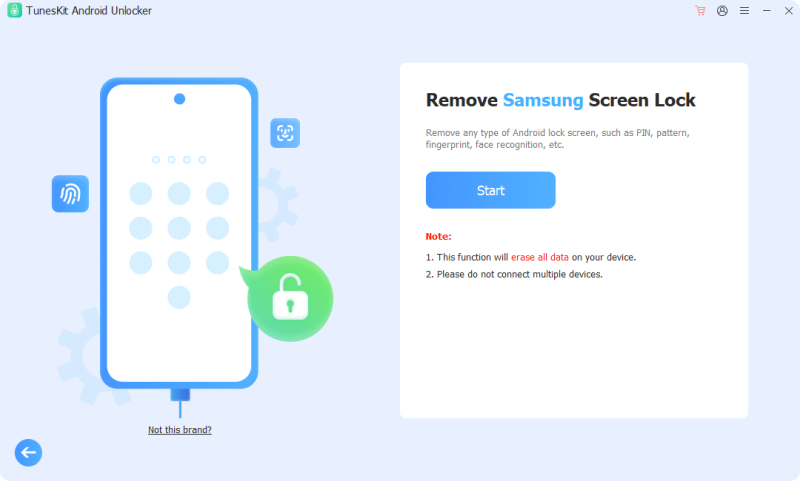
Step 2. Put Your Device into Recovery Mode
Now, follow the onscreen instructions to put your Android device into recovery mode manually. After that, click the "Next" button to continue.
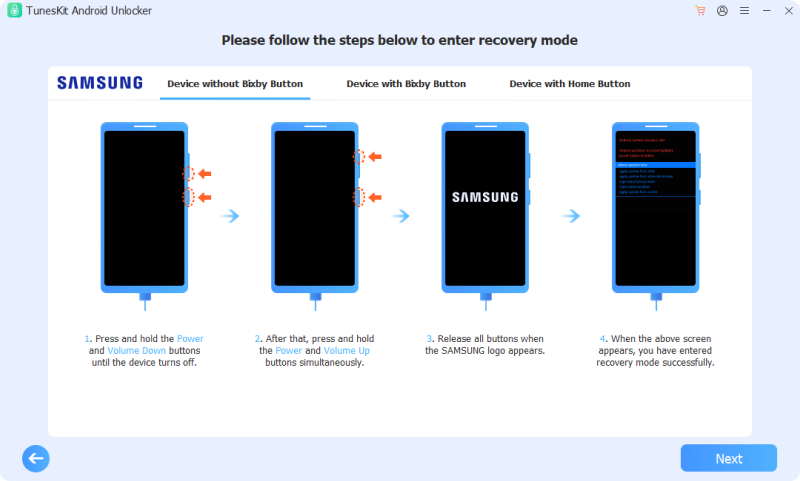
Step 3. Start to Remove Screen Lock on Android
After your device enters recovery mode, click the "Next" button and continue to operate as it prompts on the interface. Then click the "Next" button, and TunesKit Android Unlocker will start to remove the screen lock for your device.
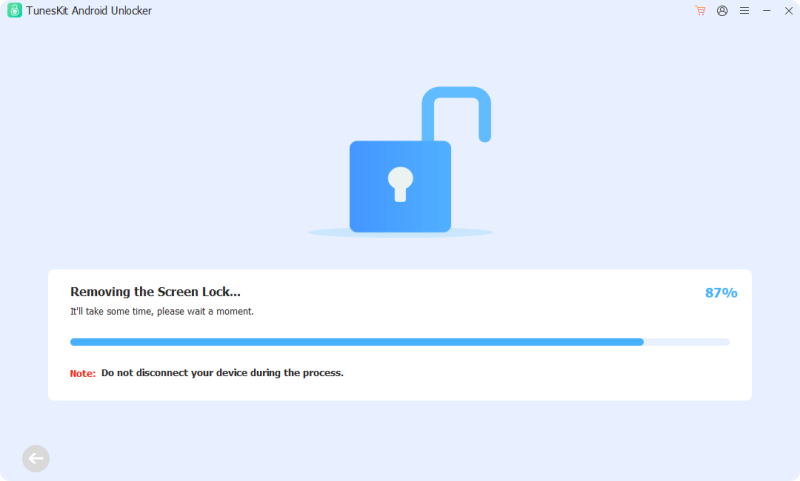
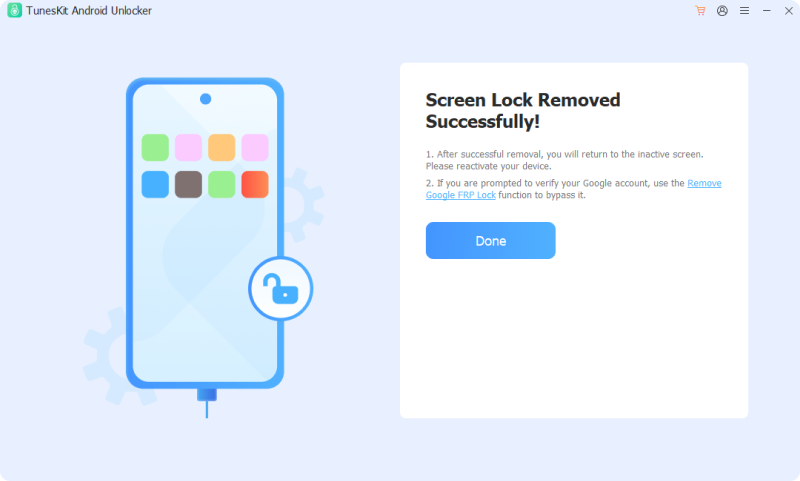
Now your Android phone screen lock has been removed successfully. You can now set it up as new and create a new screen passcode.
Bought a second-hand Android device with a locked Google FRP lock? Try TunesKit Android Unlocker to instantly remove it without contacting the previous owner. Next, let's learn how to use this great FPR bypass tool, and for instance, we'll remove Google FRP Lock on Samsung.
Step 1. Open TunesKit and Connect Phone to Computer
Launch TunesKit Android Unlocker on your Windows or macOS computer. Connect your Android phone to the computer via a USB cable. On the main interface, choose the "Remove Google FRP Lock" mode.
Step 2. Select Device Brand and Version
Select the brand of your device. TunesKit Android Unlocker currently supports up to 7 different kinds of Android devices, including Samsung, Xiaomi, Redmi, vivo, OPPO, realme, and Motorola.
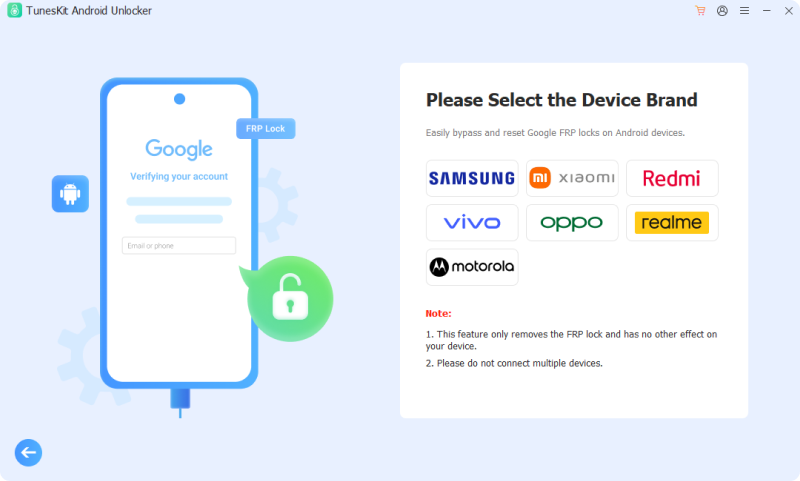
TunesKit Android Unlocker provides different options according to your Android version. Choose one such as "All Android Versions". Then click the "Start" button and click the "Continue" button to confirm.
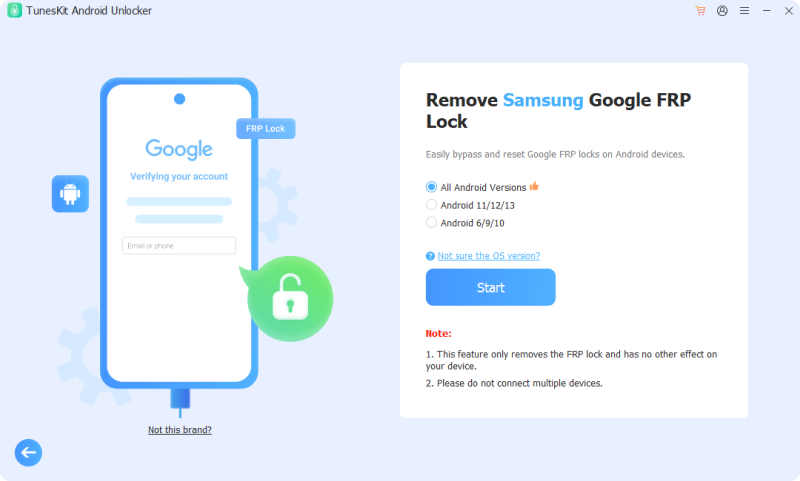
Step 3. Start to Remove Google Lock
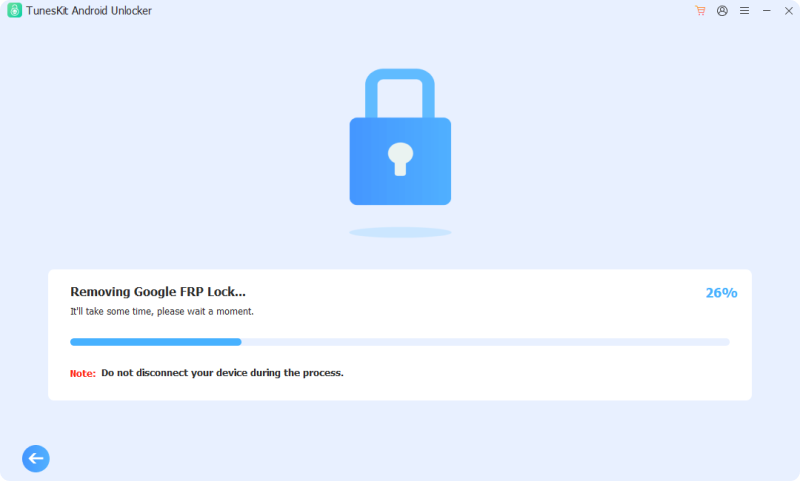
Now, follow the step-by-step instructions on the interface to set the phone ready for the bypass. Once it's done, click the "Next" button on the program, and TunesKit Android Unlocker will start to bypass the Google lock.
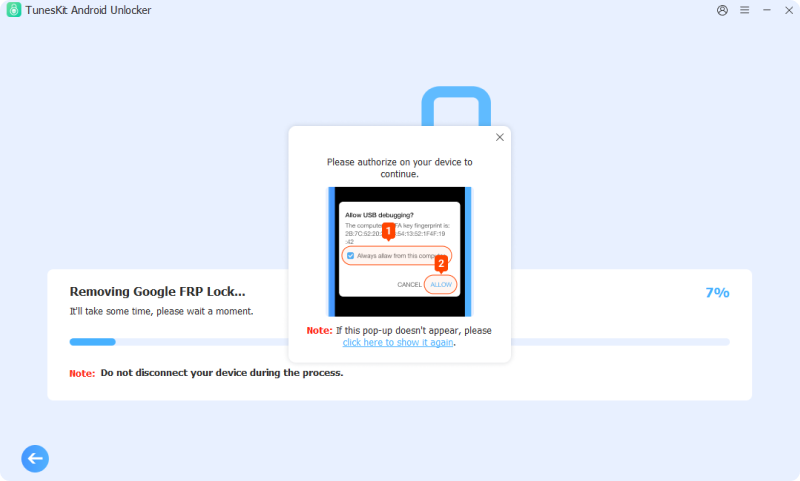
Tap the "Allow" option to turn on USB debugging on your device when prompted. Then TunesKit Android Unlocker will continue removing the Google FRP lock.
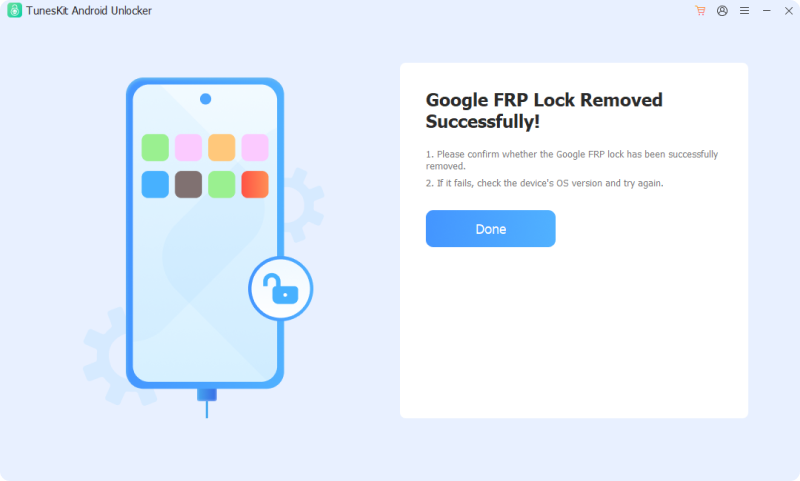
Wait for a few seconds, TunesKit Android Unlocker will finish bypassing the Google lock. Then you can go back to your phone, and the lock should have gone.
Next, let's watch the following short video and learn how to remove Android lock screens and bypass Google FRP locks with TunesKit Android Unlocker.