How to Unlock Pattern Lock on Android If You Forgot It
Forgetting your Android pattern lock can leave you unable to access photos, messages, apps, and other important data. If this happens, you may wonder how to unlock pattern lock on Android without losing data or whether your Google Account can help you reset the pattern.
The answer depends on your phone model and Android version. On most modern Android phones, there is no universal way to simply replace a forgotten pattern. However, some options are worth checking first—especially if you have a recent Samsung Galaxy phone. This guide explains the current methods, what they require, whether they erase your data, and which outdated solutions you should avoid.
- Quick Answer: How Can You Unlock a Forgotten Android Pattern?
- Before You Unlock an Android Pattern Lock
- Can You Unlock Android Pattern Lock Without Losing Data?
- How to Unlock Pattern Lock on Android When a Reset Is Required
- What Happens After You Reset the Android Pattern Lock?
- FAQs About How to Unlock Pattern Lock on Android
- Conclusion
Quick Answer: How Can You Unlock a Forgotten Android Pattern?
If you forgot the pattern lock on a modern Android phone, try these options in order:
- 1. Samsung users: If you recently changed your pattern, try Samsung's Previous Screen Lock feature. On supported One UI 6.1 or later devices, it may let you regain access with your previous lock within 72 hours without erasing data.
- 2. Check whether another authentication option still works, if your phone currently allows one.
- 3. Use Google Find Hub to factory reset the phone remotely if the device meets Google's requirements. This also erases local data.
- 4. Factory reset the phone through Recovery Mode if the other options are unavailable.
- 5. Use TunesKit Android Unlocker if you prefer a computer-assisted way to remove the forgotten pattern from a supported Android device. Note that its standard screen-lock removal process erases data.
- 6. Android 4.4 or earlier only: You may be able to use the old Forgot pattern feature with the Google Account previously added to the device.
 Note
Note
Before using any method that erases the phone, make sure you know the Google Account previously associated with it. Android may request that account again during setup because of Factory Reset Protection (FRP).
Before You Unlock an Android Pattern Lock
Before trying a destructive method, check a few things first.
1. Confirm Whether Your Data Is Backed Up
A factory reset removes locally stored apps, photos, music, settings, and other data from the device. Data already backed up to your Google Account may be restored during setup afterward. If you know that Google Photos, Google Drive, Google One, Samsung Cloud, or another backup service was enabled, losing local data may be less of a concern.
2. Make Sure You Know Your Google Account
After resetting a protected Android phone, Google may ask for account or security information that was previously associated with the device. This is part of Android's device-protection system and helps prevent someone from simply resetting a stolen phone and using it as their own. If you have also forgotten your Google Account password, recover the account before resetting the phone when possible.
3. Check Your Phone Brand and Android Version
Not every pattern-unlock method applies to every device. Samsung, Google Pixel, Xiaomi, Motorola, and other manufacturers use different recovery procedures, while some features are limited to particular Android or One UI versions.
Can You Unlock Android Pattern Lock Without Losing Data?
Sometimes, but only under specific conditions. There is no universal no-data-loss method for resetting a forgotten pattern on modern Android phones. Google's current support guidance says that if you cannot unlock an Android device, a factory reset may be required.
Before resetting, however, try the following applicable options.
Option 1. Unlock Samsung with the Previous Pattern Without Losing Data
Samsung provides one of the most useful current recovery features for users who forget a newly changed screen lock.
On supported Galaxy phones running One UI 6.1 or later, your previous PIN, password, or pattern can be temporarily retained for 72 hours after you change the screen lock. If you forget the new pattern during this period, you may be able to use the previous one to create another screen lock.
- Step 1. Enter wrong pattern several times. Samsung says the recovery prompt can appear after five unsuccessful attempts.
- Step 2. Tap Forgot PIN/password/pattern? when it appears.
- Step 3. Enter the previous pattern, PIN, or password.
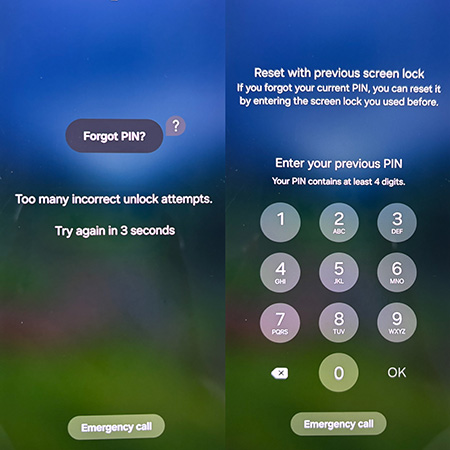
- Step 4. Follow the onscreen instructions to create a new screen lock. You can then unlock your Galaxy phone normally without factory-resetting it.
If you changed the pattern more than 72 hours ago, deleted the previous lock information, or your device does not support the feature, move to the reset methods below.
Option 2. Check Any Authentication Method Your Phone Still Accepts
If your phone still presents another configured authentication option and accepts it, use that before attempting a factory reset.
However, do not depend on features such as Extend Unlock, formerly called Smart Lock, as a way to reset a forgotten pattern. Google's documentation states that Extend Unlock requires the phone to first be unlocked with its PIN, pattern, or password before it can keep the device unlocked under trusted conditions.
It therefore cannot be considered a general solution once you are already completely locked out.
How to Unlock Pattern Lock on Android When a Reset Is Required
If none of the data-preserving options works, you will usually need to remove the current screen lock by resetting the device. You have three practical choices:
- 1. Remotely erase the phone through Google Find Hub.
- 2. Manually reset the phone through Recovery Mode.
- 3. Use an Android screen-unlock program such as TunesKit Android Unlocker.
All three approaches can result in data loss, so check whether your important files are backed up before proceeding.
Method 1. Remove Android Pattern Lock with Google Find Hub
Google Find Hub, previously known as Find My Device, can locate, secure, or factory-reset an Android device remotely. It does not simply replace a forgotten pattern. To remove the pattern this way, you need to factory reset the phone.
 Requirements for Google Find Hub:
- The phone have power.
- It is connected to Wi-Fi or mobile data.
- It is signed in to a Google Account.
- It has Find Hub enabled.
- It is visible in Google Play.
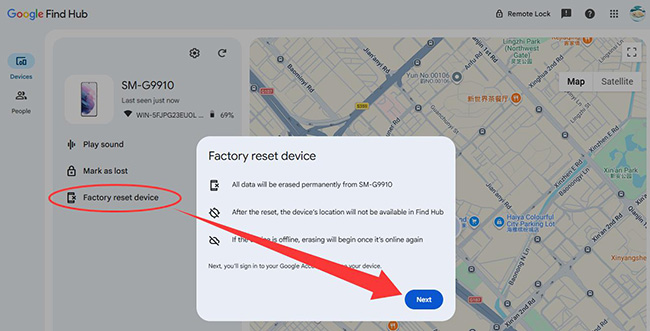
- Step 1. Open Google Find Hub on another phone, tablet, or computer.
- Step 2. Sign in with the Google Account associated with the locked Android phone.
- Step 3. Select your locked device.
- Step 4. Choose Factory reset device. Confirm the reset.
 View Also: How to Unlock a Google Locked Phone
Method 2. Unlock Android Pattern Lock Through Recovery Mode
If Google Find Hub is unavailable, you can usually reset a locked Android phone through its built-in Recovery Mode. Google specifically recommends checking the manufacturer's support instructions because the buttons used to open Recovery Mode differ among Android phones. Here we list the steps for Samsung as an example.
How to Remove Pattern Lock on Samsung via Recovery Mode
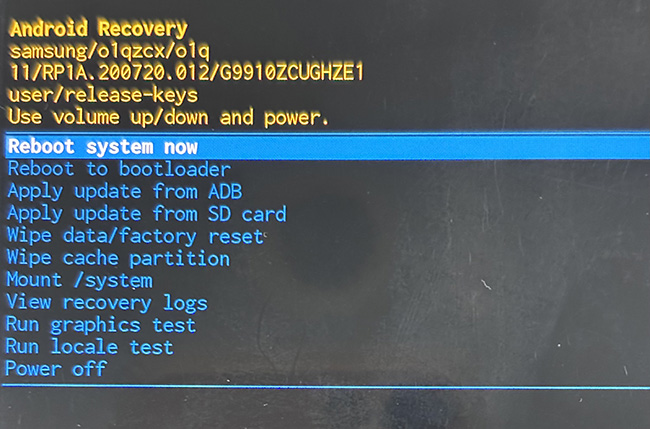
Samsung's exact button combination depends on the Galaxy model. On many Galaxy phones without a physical Home button, Samsung instructs users to use the Volume Up and Side/Power buttons to reach the recovery menu. Older models with a physical Home button may use Volume Up + Home + Power.
Once Recovery Mode appears:
- Step 1. Use the Volume buttons to highlight Wipe data/factory reset.
- Step 2. Press the Power button to select it.
- Step 3. Confirm that you want to delete the user data.
- Step 4. When the reset finishes, choose Reboot system now.
Method 3. Remove Android Pattern Lock with TunesKit Android Unlocker
If you have access to a Windows PC or Mac and prefer guided instructions, TunesKit Android Unlocker is another option to consider. The software is designed to remove several Android screen-lock types, including pattern, PIN, password, fingerprint, and face locks. TunesKit lists support for more than 20 Android brands, including Samsung, Xiaomi, Redmi, Google, Motorola, OnePlus, Huawei, OPPO, vivo, Sony, and others.
Key Features of TunesKit Android Unlocker
Unlock screen lock and bypass FRP lock without passcode with ease. No Technical Skills Needed. High Success Rate. Support lots of Android version including 16.
 600,000+ Downloads
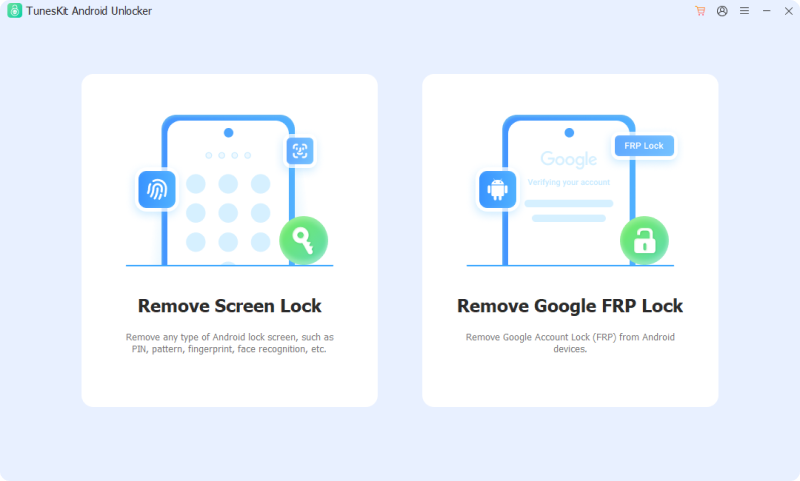
Step 1. Connect the locked Android phone
Install and open TunesKit Android Unlocker on your Windows or Mac computer. Connect the locked phone with a USB cable. On the main screen, choose Remove Screen Lock.
Step 2. Select your Android brand
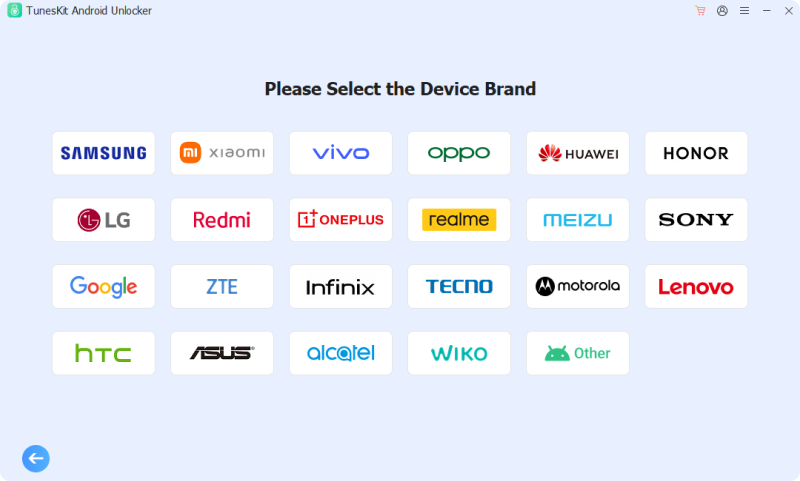
Choose the manufacturer of your phone and click Start. Follow the prompts while TunesKit identifies the device and prepares the required resources. Before proceeding, read the data-loss warning carefully and confirm only if you are prepared to erase the phone.
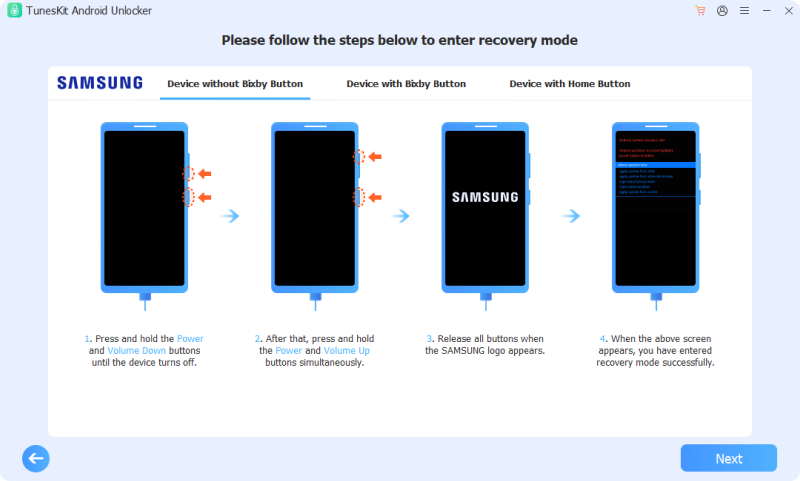
Step 3. Put the Android phone into Recovery Mode
Follow the onscreen instructions for your specific phone to enter Recovery Mode. The procedure can vary depending on the manufacturer and model.
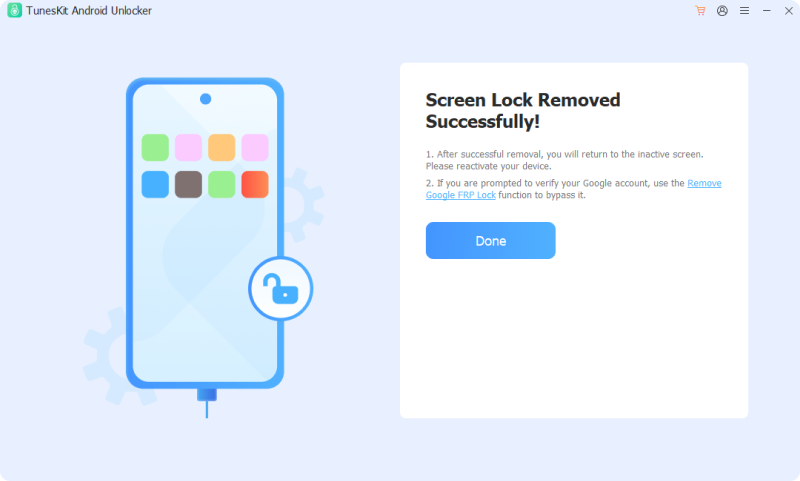
Step 4. Remove the forgotten pattern
Once the phone is ready, continue with the onscreen prompts. TunesKit will process the screen-lock removal. After the process finishes, set up the Android phone again and create a new pattern, PIN, or password.
What Happens After You Reset the Android Pattern Lock?
Removing the screen pattern with a factory reset does not necessarily mean you can immediately set up the phone with any account. You may encounter Android's device-protection verification during setup.
Google Factory Reset Protection
Android's Factory Reset Protection, commonly called FRP, helps prevent unauthorized reuse of a reset device.
Google explains that to reset and use a protected device, you may need either the screen-lock information or the credentials for a Google Account associated with the phone. After a remote erase through Find Hub, Google also warns that you need your Google Account password to use the device again.
Therefore, don’t factory reset your phone until you know which Google Account was previously used on it. A factory reset removes the screen pattern, but it does not function as an FRP bypass.
Xiaomi Account Verification
A similar issue can occur on Xiaomi devices. Xiaomi states that if a Mi Account is logged in on the phone and has not been removed, its password can be required after rebooting following a wipe.
If you forgot the Xiaomi Account password, recover the account through Xiaomi's official account-recovery process rather than relying on unofficial bypass techniques.
FAQs About How to Unlock Pattern Lock on Android
-
Can Find Hub remove a forgotten pattern?
Find Hub can factory-reset an eligible Android phone remotely, which removes the lock together with the phone's locally stored data. It does not simply display the forgotten pattern or replace it with another pattern.
-
Can I use Forgot Pattern on a new Android phone?
Generally, no. Google's current Android documentation limits the traditional Forgot pattern Google Account recovery procedure to Android 4.4 or earlier.
Conclusion
If you forgot your Android pattern, start with any legitimate option that can preserve your data. Samsung's Previous Screen Lock feature is particularly useful when you recently changed the lock and meet its requirements.
If no no-data-loss option is available, you can use TunesKit Android Unlocker for a guided computer-based process, Google Find Hub for a remote factory reset, or Recovery Mode for a manual reset. TunesKit is especially relevant for users who prefer onscreen guidance, but its screen-lock removal process still erases local data.