Forgot Android PIN? How to Unlock Your Phone With or Without a Reset
If you forgot your Android PIN, try Samsung's previous PIN recovery feature if available. Otherwise, use Google Find Hub, Recovery Mode, or TunesKit Android Unlocker to regain access, potentially erasing data.
Locked out of your phone because you can't remember the screen PIN? Depending on your Android device, there may be ways to regain access before resorting to a factory reset. Some Samsung models support previous-PIN recovery, while other Android phones may require Google's remote reset service or Recovery Mode.
This guide walks you through practical solutions for a forgotten Android PIN, explains which options may preserve your data, and helps you choose the right approach for your device.
Can You Unlock an Android Phone If You Forgot the PIN?
Yes, you can regain access to an Android phone after forgetting its PIN, but the available methods depend on your device, Android version, and existing security settings.
Modern Android devices use screen locks to protect personal information. Your PIN is part of the security system that safeguards access to encrypted data. For this reason, Google does not provide a universal option to reveal or remove a forgotten PIN while keeping all locally stored files intact.
According to Google's official Android Help documentation, users who cannot unlock their devices generally need to erase them before setting up a new screen lock. Before choosing a recovery method, compare the available options
| Recovery method | Data loss | Requirements |
|---|---|---|
| Previous PIN on Samsung Galaxy | No | One UI 6.1 or later, PIN changed within 72 hours |
| Fingerprint or face recognition | No | Biometric unlocking must already be configured and currently permitted |
| Extend Unlock | No | Feature must already be enabled and active |
| Google Find Hub | Yes | Eligible device, Google Account access, and remote reset availability |
| Recovery Mode factory reset | Yes | Device-specific hardware-button procedure |
| TunesKit Android Unlocker | Usually yes | Compatible Android device, Windows/Mac computer, and USB cable |
How to Unlock an Android Phone If You Forgot the PIN
There are three main approaches worth considering when you've forgotten your Android screen-lock PIN. Start with any supported recovery feature that preserves your data. If that isn't available, you can consider remote erasure or a factory reset through Recovery Mode.
Method 1: Use Your Previous PIN on a Samsung Galaxy Phone
If you forgot your Android PIN shortly after changing it, Samsung offers a particularly useful recovery option. Compatible Samsung Galaxy devices running One UI 6.1 or later can temporarily retain the previous PIN, password, or pattern for 72 hours after a screen-lock change. This feature allows eligible users to recover access without factory resetting their phones.
Requirements for Samsung Previous PIN Recovery
Before attempting this method, ensure that:
- Your Samsung Galaxy device runs One UI 6.1 or later.
- You changed your PIN, password, or pattern within the past 72 hours.
- You remember the previous screen-lock credential.
- You did not select the option to delete the previous screen lock when changing it.
If these requirements are met, follow the instructions below.
How to Reset Your Samsung PIN Without Losing Data
On your Samsung Galaxy lock screen, enter an incorrect PIN until the Forgot PIN? option appears. Samsung states that this option becomes available after five unsuccessful attempts.
- Step 1. Tap Forgot PIN? to open the recovery screen.
- Step 2. Enter your previous PIN, password, or pattern when prompted.
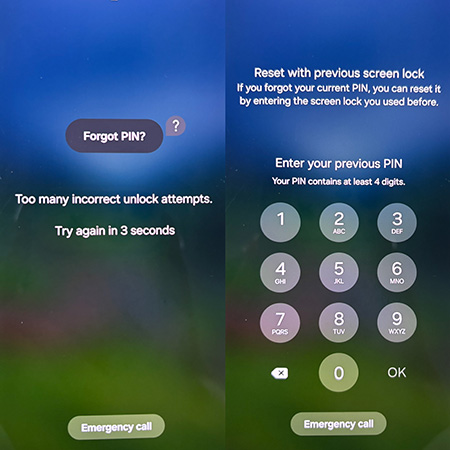
- Step 3. After successful verification, select a new screen-lock method.
- Step 4. Enter and confirm your new PIN to finish the process.
Your phone should now be accessible with the new PIN, and your locally stored data should remain intact. Samsung limits attempts to enter the previous credential, so avoid guessing if you are unsure of it.
 Note
This feature is not available on every Samsung Galaxy phone. If your device doesn't meet the requirements or the recovery option isn't displayed, consider the next methods.
Method 2: Reset Your Android Phone Using Google Find Hub
If your phone doesn't support previous-PIN recovery, Google's Find Hub may help you regain access by remotely factory resetting the device.
Find Hub, previously known as Find My Device, lets users locate, secure, and erase eligible Android devices through their Google Accounts. However, Find Hub does not recover your forgotten PIN. Instead, it erases the phone so you can set it up again with a new screen lock.
Requirements for Remote Factory Reset
According to Google's Find Hub support guide, your phone generally needs to meet these requirements:
- The device is powered on.
- It has an internet connection through Wi-Fi or mobile data.
- It is signed in to a Google Account.
- Find Hub is enabled.
- The device is visible on Google Play.
- You must be able to sign in to the relevant Google Account.
How to Factory Reset Android Using Google Find Hub
- Step 1. On another phone, tablet, or computer, visit https://android.com/find.
- Step 2. Use the account associated with your locked Android phone.
- Step 3. If multiple devices appear, choose the Android phone with the forgotten PIN.
- Step 4. Open the selected device's settings or management controls and look for Factory reset device. The exact interface may differ between the Find Hub website and mobile app.
- Step 5. Read the warning carefully and complete any required verification. If the service allows the action, confirm the reset.
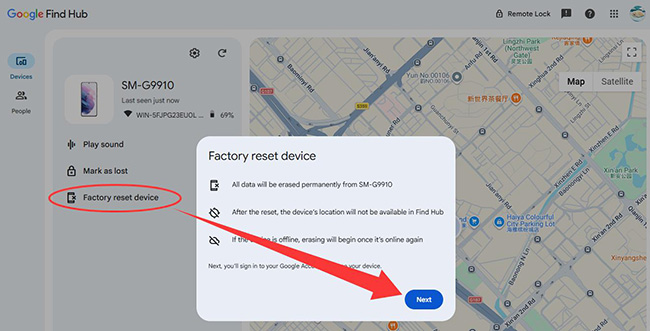
- Step 6. After the reset completes, follow the setup instructions. You may need to verify a previously associated Google Account before creating a new PIN.
If Find Hub cannot access your phone or requests authentication you cannot provide, the next option is to consider a hardware-button factory reset.
Method 3: Factory Reset Android Through Recovery Mode
If you forgot your Android lock screen PIN and cannot use Google Find Hub, you may be able to reset the phone through Recovery Mode. Recovery Mode is a built-in environment that allows users to perform maintenance tasks, including factory resetting a device when they cannot access Android settings.
How to Enter Recovery Mode on Android
The correct buttons depend on your phone manufacturer and model. Here are some common brands.
| Android brand | Recovery Mode guidance |
|---|---|
| Google Pixel | Many models use Power + Volume Down to enter Fastboot Mode, followed by Recovery Mode |
| Samsung Galaxy | Button combinations vary; some models require a USB connection to a computer |
| Xiaomi / Redmi | Many models use Power + Volume Up from the powered-off state |
| Motorola | Many models use Power + Volume Down to access bootloader options |
| OnePlus | Procedures vary by model and software version |
How to Factory Reset a Google Pixel Using Recovery Mode
The following is an example based on Google's official instructions for compatible Pixel devices.
- Step 1. Turn off your Pixel phone.
- Step 2. Press and hold Power + Volume Down until the Fastboot Mode screen appears. Use the volume buttons to navigate to Recovery Mode, then press Power to select it.
- Step 3. If the screen displays No command, hold Power and press Volume Up once, then release both buttons to open the recovery menu.
- Step 4. Navigate to Wipe data/factory reset and press Power.
- Step 5. Confirm the factory reset when prompted.
- Step 6. Once the reset is complete, select the Reboot system now option to reboot the system.
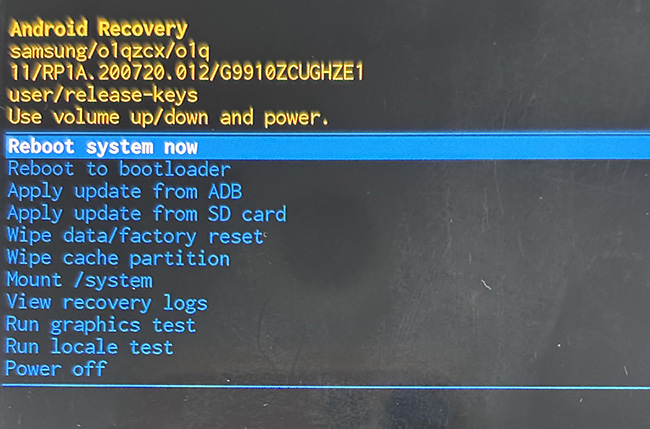
- Step 7. Follow the setup prompts, complete any required Google Account verification, and create a new screen-lock PIN.
Method 4: Remove a Forgotten Android PIN Using TunesKit Android Unlocker
If you prefer a guided process on your computer rather than navigating Android recovery menus independently, TunesKit Android Unlocker is another option worth considering.
TunesKit Android Unlocker is a third-party desktop application designed to remove several Android screen-lock types, including PINs, patterns, passwords, fingerprint locks, and face locks. The developer lists support for multiple Android brands, including Samsung, Xiaomi, Google Pixel, Motorola, OnePlus, and others.
Key Features of TunesKit Android Unlocker
Unlock screen lock PIN on Android without passcode with ease. No Technical Skills Needed. High Success Rate. Support lots of Android versions.
 600,000+ Downloads
Step 1. Install and Launch the Software
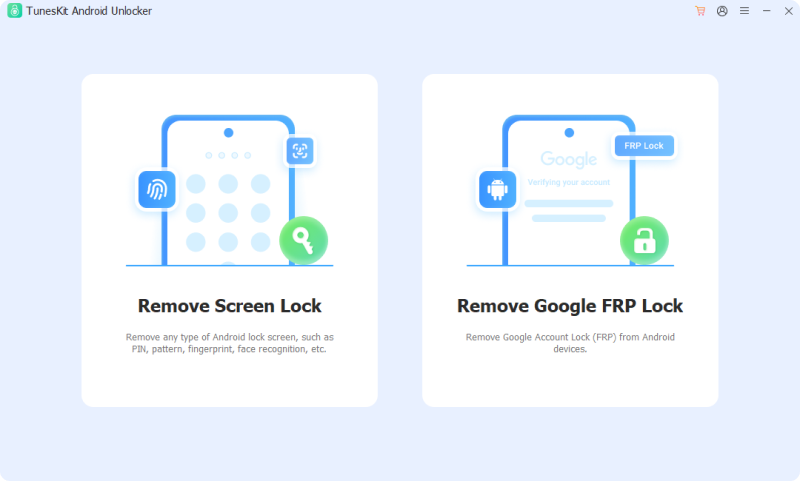
Download TunesKit Android Unlocker from its official website and install it on a compatible Windows or Mac computer. Open the program and select Remove Screen Lock from the main interface.
Use a USB cable to connect your locked Android device to the computer. Select your phone manufacturer in TunesKit and follow the prompts to identify your device.
Step 2. Start the Screen-lock Removal Workflow
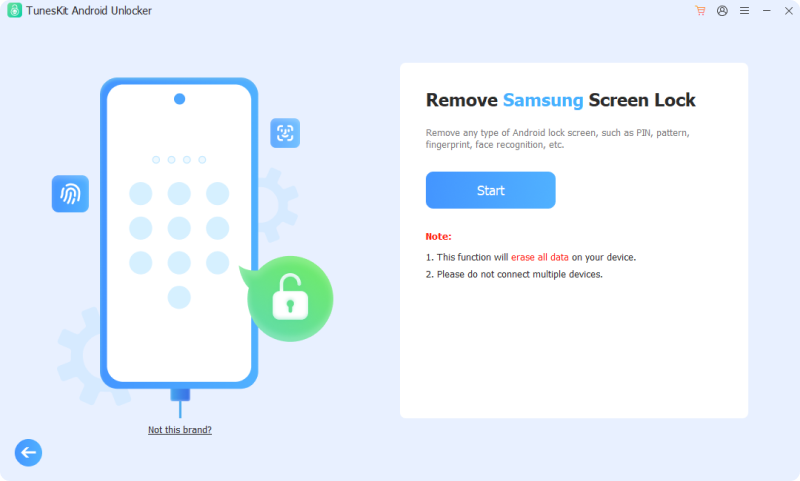
Click Start and review the information displayed by the software. If the software warns that your data will be erased, make sure you are prepared for that outcome before selecting Next.
Step 3. Follow the Recovery Mode Instructions
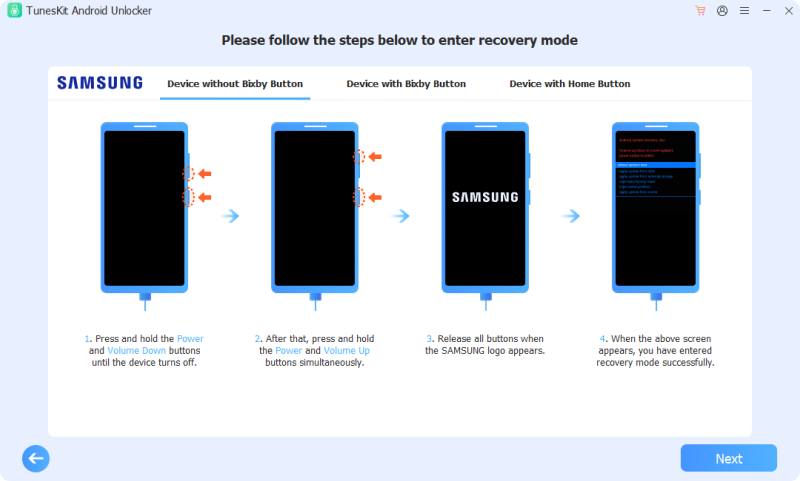
TunesKit may ask you to enter Recovery Mode using the hardware buttons on your phone. Follow the instructions shown for your specific supported device rather than using a generic button combination.
Step 4. Complete the Unlock Process
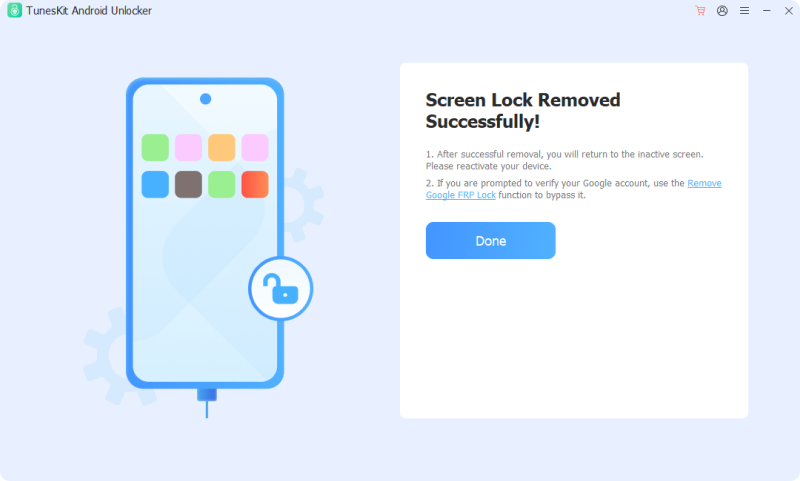
Follow the remaining on-screen prompts to initiate screen-lock removal. Keep the phone connected until the process finishes or the software provides further instructions.
What Happens to Your Data After Resetting Android?
If you factory reset an Android phone after forgetting the PIN, the device returns to its initial setup state and removes locally stored user data. This is why checking recovery options and backups before resetting is so important.
What Gets Deleted During a Factory Reset?
A factory reset generally removes:
- 1. Installed apps and their locally stored data.
- 2. Photos and videos stored only in internal storage.
- 3. Downloaded files.
- 4. Locally stored messages and call history.
- 5. Saved device settings and screen-lock configuration.
- 6. Other personal information stored only on the phone.
However, a factory reset does not automatically erase information already saved to your cloud accounts. For example, photos previously backed up to Google Photos should remain associated with your Google Account, even after the phone has been reset. You should not assume every file has been backed up automatically.
What If You Still Can't Unlock Your Android Phone?
Even after following the recovery methods above, you might encounter additional problems. Here are several common situations and what you can do.
Google Find Hub Doesn't Detect Your Device
If your locked Android phone doesn't appear in Find Hub, check whether you're signed in to the correct Google Account. Also consider whether the device is powered on, connected to the internet, and configured for Find Hub.
If it remains unavailable, remote factory reset may not be an option. You can consult your manufacturer's Recovery Mode instructions instead.
Your Phone Requests the Previous Google Account
If Android displays an account-verification screen after a reset, the phone may be protected by FRP. Try signing in with a Google Account previously associated with the device. If you don't remember the password, recover the account through Google's official recovery service.
If you've recently changed your Google Account password, a security waiting period may apply before the new credentials can be used for device setup. Avoid repeatedly entering unrelated accounts, since they will not satisfy the ownership-verification requirement.
 Further Reading:
Recovery Mode Doesn't Work
If your phone won't enter Recovery Mode, first confirm the correct button combination for your exact model. Make sure the device has sufficient battery power and follow the manufacturer's instructions for turning it off or entering its bootloader. Some phones require a USB connection, and the menu sequence may differ between Android versions.
If the device still cannot enter recovery or the reset repeatedly fails, contact the manufacturer.
FAQs About Forgotten Android PINs
-
Does a Factory Reset Remove the Android Screen-Lock PIN?
Yes. A completed factory reset removes the existing screen-lock configuration along with the device's locally stored user data. However, you may still need to complete Google Account ownership verification before using the reset phone.
-
What If I Forgot Both My Android PIN and Google Password?
Start by attempting to recover your Google Account at https://accounts.google.com/signin/recovery.
This is particularly important because your phone may request the previously associated Google Account after a factory reset. Recovering the account password does not directly remove the forgotten screen PIN.
Conclusion
If you forgot your Android PIN, check for data-preserving recovery features before resetting your device. Eligible Samsung phones may support previous-PIN recovery, while Google Find Hub and Recovery Mode provide factory reset options. TunesKit Android Unlocker is another alternative for users who prefer guided computer-based unlocking.
Most reset or removal methods erase local data, so verify your backups and Google Account credentials first. After regaining access, set a memorable, secure PIN and keep important files backed up.