What to Do If You forgot Your Samsung Tablet Password
Being locked out of your device is a highly stressful experience. When you forget your Samsung tablet password, your immediate concern is likely regaining access without losing your precious photos and files. Unfortunately, modern security protocols make it incredibly difficult to bypass a lock screen without erasing the device entirely.
However, if you recently changed your security PIN or pattern, there is a built-in safety net that might save your data. In this guide, we will provide ways to unlock your Samsung tablet when you forgot the password with or without losing data.
- The Only Way to Unlock Without Losing Data (The 72-Hour Rule)
- The Hard Truth About Remote Unlock
- How to Unlock Samsung Tablet If You Forgot Password [All Data Loss]
- Locked Out After a Reset? Understanding Factory Reset Protection (FRP)
- Restoring Your Data
- FAQs About Forgetting Samsung Tablet Password
- Conclusion
The Only Way to Unlock Without Losing Data (The 72-Hour Rule)
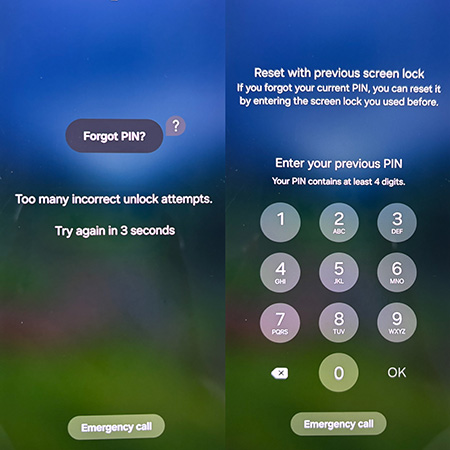
Samsung introduced a highly useful feature starting with the One UI 6.1 update to help users who suffer from sudden memory lapses. If you changed your tablet's lock screen credential within the last 72 hours and forgot the new one, you can use your previous PIN, pattern, or password to unlock the screen. This is currently the only official method to bypass the lock without performing a complete system wipe.
- Step 1. Enter any incorrect password or PIN into your tablet five times in a row.
- Step 2. Look for a prompt that says "Forgot PIN?" or "Forgot Password?" at the bottom of the screen and tap it.
- Step 3. Enter the previous password you used before your recent change to unlock the device and set up a new credential.
The Hard Truth About Remote Unlock
If you scour the internet for solutions, you will likely find countless articles telling you to use Samsung's "Find My Mobile" service to remotely unlock your screen. It is crucial to know that Samsung quietly removed this specific remote unlock capability from its SmartThings Find ecosystem. You can no longer log into a web browser and click a button to magically bypass your lock screen while keeping your data intact.
Relying on outdated tutorials will only waste your time and prolong your frustration.
The security landscape has shifted to prioritize absolute data protection over convenience. Because that remote backdoor no longer exists, you must accept that a factory reset is the only solution if the 72-hour rule does not apply to your situation.
How to Unlock Samsung Tablet If You Forgot Password [All Data Loss]
If you have changed your Samsung tablet password for more that 72 hours, factory resetting the tablet is the only way that you can unlock it. A factory reset will erase all local data on your tablet, returning it to its original out-of-the-box state.
While this means losing files that are not backed up to the cloud, it effectively removes the forgotten password so you can use the device again. There are a few different ways to trigger this wipe depending on your current situation.
Method 1: Remote Wipe via SmartThings Find
The easiest way to wipe your device is by using Samsung's official tracking portal, provided your tablet is powered on, connected to the internet, and signed into your Samsung account.
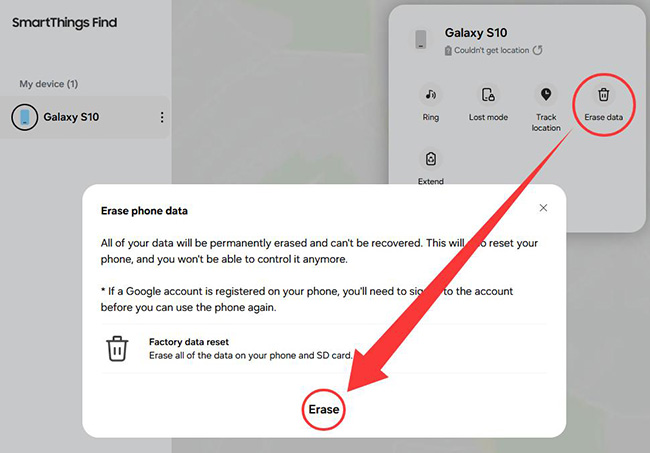
- Step 1. Navigate to the official SmartThings Find website on a separate phone or computer and log in with your Samsung account credentials.
- Step 2. Select your locked Samsung tablet from the list of devices tied to your account.
- Step 3. Click on the "Erase data" option and follow the on-screen prompts to remotely factory reset the tablet.
Method 2: Remote Wipe via Google Find My Device
If you do not have a Samsung account set up but actively use Google services, you can achieve the exact same result using Google's native tracking tools. Your tablet still needs an active internet connection for this remote command.
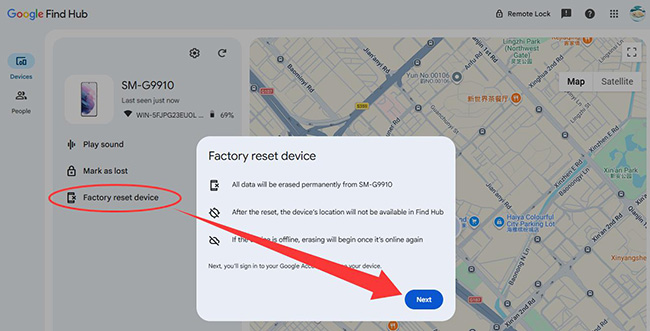
- Step 1. Go to the Google Find My Device website using another device and sign in with the primary Google account linked to your tablet.
- Step 2. Choose your tablet from the top menu, then click on "Factory reset device."
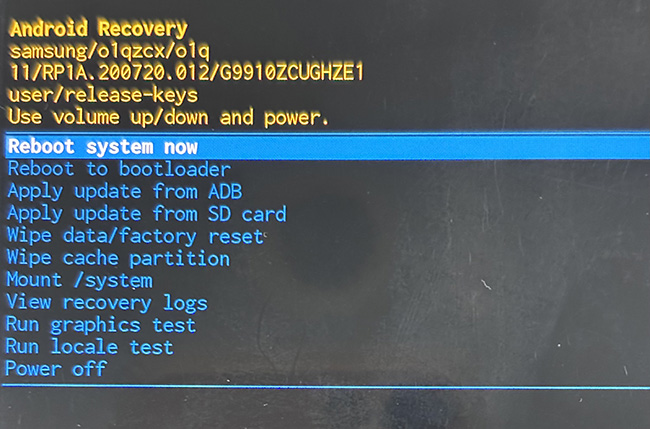
Method 3: Factory Reset Samsung Tablet via Recovery Mode
When your tablet is offline, out of battery, or disconnected from your accounts, remote options simply will not work. In these cases, you must manually force a factory reset using the physical buttons to enter Android Recovery Mode.
- Step 1. Ensure your tablet is completely powered off.
- Step 2. Press and hold the Power button and the Volume Up button simultaneously until you see the Samsung Galaxy logo appear on the screen, then release both keys. If you cannot enter Recovery Mode, you can try to connect your tablet to a computer and repeat the above steps.
- Step 3. Use the volume keys to navigate the black menu screen, highlight "Wipe data/factory reset," and press the Power button to confirm your selection.
Method 4: Using Desktop Unlocking Software
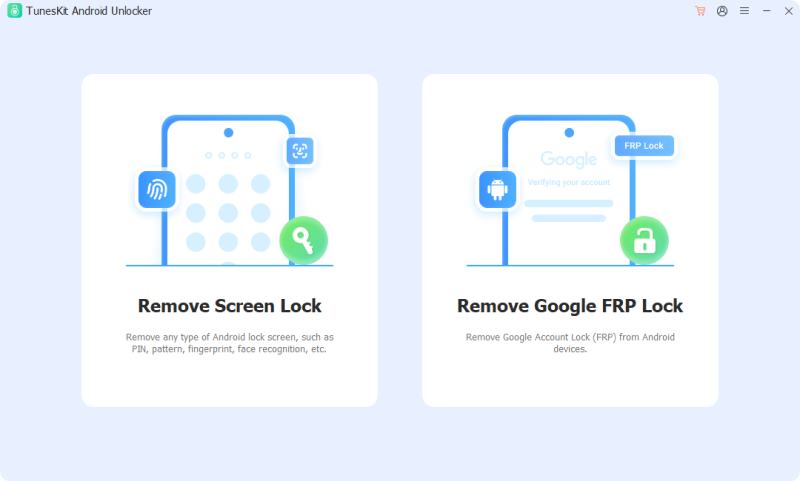
If you struggle with the physical button combinations required for Recovery Mode, or if the remote wipe tools fail to connect, using a computer-based utility is a practical alternative. Programs like TunesKit Android Unlocker provide a guided interface to help you bypass the lock screen and even FRP lock on Android devices.
This software connects your tablet to a PC or Mac via USB, streamlining the process of resetting the device and removing the forgotten PIN or pattern. Keep in mind that just like the official reset methods, utilizing this tool on modern Samsung devices will still result in the erasure of your local data. It simply serves as an accessible workaround when standard procedures are difficult to execute.
Key Features of TunesKit Android Unlocker
Unlock screen lock and bypass FRP lock without passcode with ease. No Technical Skills Needed. High Success Rate. Support lots of Android version incuding 16.
 600,000+ Downloads
- Step 1. Install the TunesKit software on your computer and open the application. Connect your locked tablet to the computer using a compatible USB cable.
- Step 2. Select the "Remove Screen Lock" feature on the screen and follow the step-by-step instructions to reset your tablet.
Locked Out After a Reset? Understanding Factory Reset Protection (FRP)
After the wiping process completes and your tablet reboots, you might encounter an unexpected security barrier. Modern Android devices utilize Factory Reset Protection (FRP) to deter theft. Because the device was wiped using recovery methods or third-party tools rather than through the normal settings menu, the system assumes it might have been stolen.
You must verify your identity before the tablet allows you to reach the home screen. To bypass this FRP lock natively, simply enter the Google Account email and password that was synced to the device before the reset occurred.
 Note
Note
If you have completely lost your Google credentials, tools like TunesKit Android Unlocker also feature dedicated FRP bypass functions to help you regain access.
Restoring Your Data
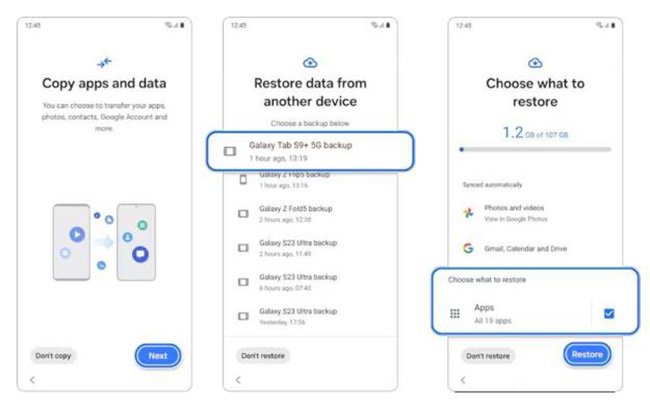
Losing your local files is the hardest part of forgetting a Samsung tablet password, but you might have more data saved than you realize. During the initial setup process, both Samsung and Google will prompt you to restore from a cloud backup.
- Step 1. Connect to a reliable Wi-Fi network during the initial setup wizard.
- Step 2. Sign into your Google Account and your Samsung Account when prompted.
- Step 3. Choose the most recent cloud backup from either Google Drive or Samsung Cloud to reinstall your apps, contacts, and synced photographs.
FAQs About Forgetting Samsung Tablet Password
-
Can I unlock my Samsung tablet without a factory reset if I forgot my password?
In most modern scenarios, you cannot bypass the lock screen without a factory reset. The only official exception is the 72-hour rule available on devices running One UI 6.1 or later. If you recently changed your password, you can use your old one to regain access. Older methods, such as the remote unlock feature on Samsung's Find My Mobile, have been permanently disabled for security reasons.
-
What happens to my photos and apps when I factory reset my tablet?
A factory reset completely wipes all local data stored on your device's internal memory. This includes your downloaded apps, local photos, messages, and customized settings. However, any data actively synced to your Google Account or Samsung Cloud remains safe on those secure servers. You can easily restore this saved information during the setup process after the reset is complete.
-
Why is my tablet asking for a Google account after a reset?
This is a standard security feature known as Factory Reset Protection, which is designed to prevent thieves from using stolen devices. Because your tablet was wiped using hardware buttons or remote tools rather than the internal settings menu, the system triggers a lockdown. You must log in with the Google Account that was previously synced to the tablet to prove you are the rightful owner before you can use it again.
Conclusion
Forgetting your Samsung tablet password can feel like a disaster, but regaining access is entirely possible if you follow the correct procedures. If the official methods are not working, third-party software like TunesKit Android Unlocker will help you unlock the tablet with ease.