


How to Bypass FRP on Samsung J7 With/Without PC
If you are stuck on the "Verify your account" screen after factory resetting your Samsung Galaxy J7, you are encountering Factory Reset Protection (FRP). This security feature is designed to protect your data, but it can be a nightmare if you've forgotten your original Google credentials.
Fortunately, bypassing FRP on Samsung J7 devices, including J7, J7 Prime, J7 Pro, and J7 Max, is possible. Whether you have a computer, an OTG cable, or just the phone, there's a method that can help. This guide covers the most effective ways to bypass the Google account on Samsung J7, from simple one-click tools to manual solutions, so you can regain access quickly and easily.

Part 1. An Easier Way to Bypass FRP on Samsung J7 Series on PC
While manual methods are free, they can be technical and time-consuming. If you want to save time and avoid downloading risky APKs from unknown sources, the most efficient solution is using a professional FRP removal tool.
For Samsung devices specifically, TunesKit Android Unlocker is a highly recommended solution. It is designed to handle the complex command-line work automatically, connecting to your device via USB to remove the Google lock without requiring you to navigate hidden menus.
Why Choose TunesKit Android Unlocker
 Pros:
Pros:- Dedicated Samsung Support: Specifically designed to bypass FRP on Samsung devices, including the entire J7 series.
- Wide Compatibility: Works with Samsung J7 models running Android 6.0 and newer versions.
- Safe and Fast: Removes the Google lock in minutes without installing risky files on your phone.
- High Success Rate: Frequently updated to match the latest Android security patches.
- 24/7 Customer Support: Access professional assistance whenever you need help.
Instantly Bypass Google Lock on Samsung J7 Using TunesKit Android Unlocker
Connect your device, click start, and unlock your phone safely without tech hassle - regain access in minutes with just a few simple steps.
 600,000+ Downloads
How to Use TunesKit Android Unlocker to Bypass FRP
Step 1 Connect Your Samsung J7 to the Computer
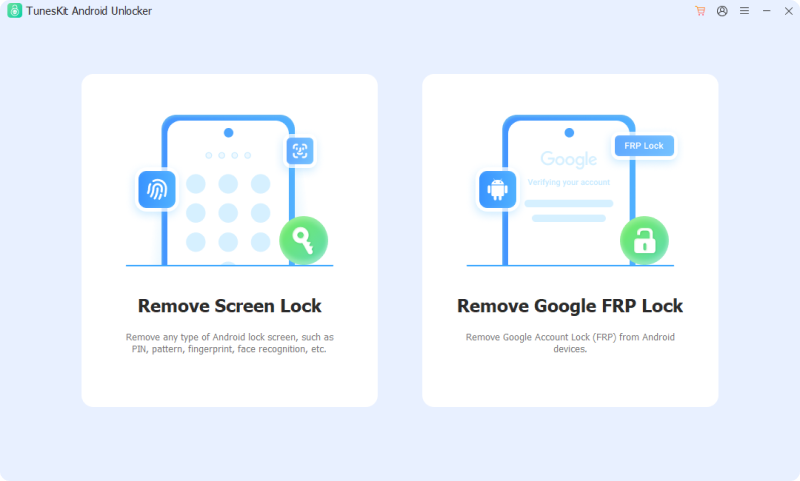
Download and launch TunesKit Android Unlocker on your PC. From the main screen, select "Remove Google Lock (FRP)", then connect your Samsung J7 to the computer using a USB cable.
Step 2 Select Brand and Android Version
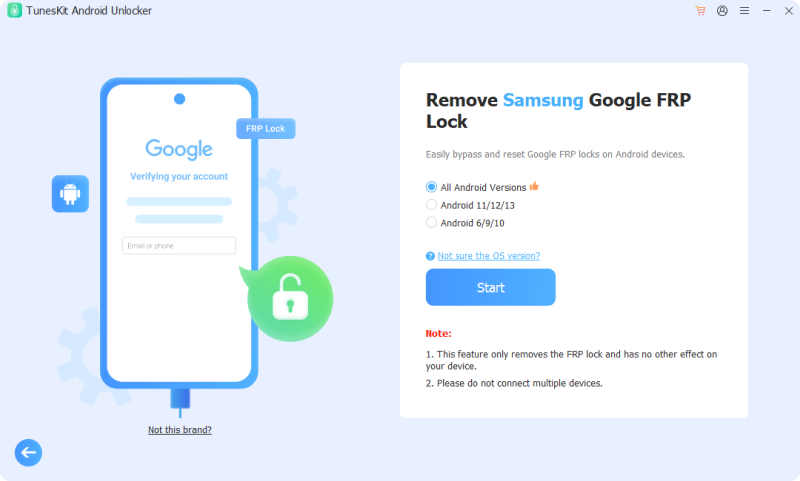
Choose Samsung and select your device's Android system version. If you're not sure which version your phone is running, TunesKit provides easy on-screen guidance to help you confirm and apply the safest bypass method.
Step 3 Bypass the FRP Lock
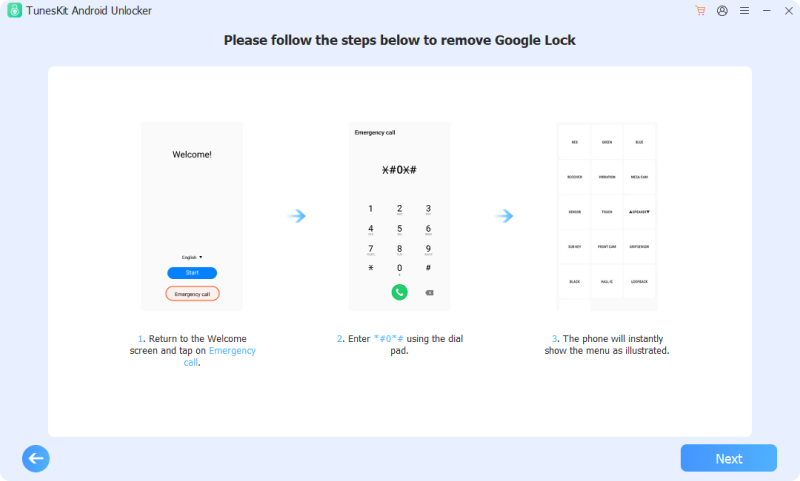
Follow the on-screen instructions to place your device into the required mode. Click Start and wait a few minutes while the software removes the Google verification screen and restores access to your phone.
Part 2. Bypass FRP on Samsung J7 via Easy Flashing Bypass 8.0 APK [OTG Required]
This method is one of the oldest and most reliable ways to bypass FRP on Samsung J7, especially for devices running earlier Android versions. It uses the phone's USB OTG (On-The-Go) feature to access the File Manager and install a bypass APK.
When a USB drive is connected via OTG, the Samsung J7 may automatically open the File Manager - giving you a useful entry point to bypass the Google account verification.
What You Need:- A USB Flash Drive.
- A USB OTG Cable (allows you to plug the USB drive into your phone).
- The Easy Flashing Bypass 8.0 APK (download this on your PC and copy it to the flash drive).
Step-by-Step Guide to bypass FRP on Samsung J7:
Step 1. Prepare the USB Drive
Download Easy Flashing Bypass 8.0 APK (or a generic FRP Bypass APK) on your computer and copy it to the root directory of your USB flash drive.
Step 2. Power On the Samsung J7
Turn on the device, connect it to Wi-Fi, and continue setup until you reach the "Verify your account" screen.
Step 3. Connect the OTG Cable
Plug the OTG cable into your Samsung J7, then connect the USB flash drive to the cable.
Step 4. Open the File Manager
Wait a few seconds. If supported, the phone will automatically open My Files or the File Manager.
 Note
Note
If the File Manager does not open, this method may be patched on your Android version. In that case, skip to Part 3.
Step 5. Install the APK
Open the USB storage folder and tap the Easy Flashing Bypass 8.0 APK file.
Step 6. Enable Unknown Sources
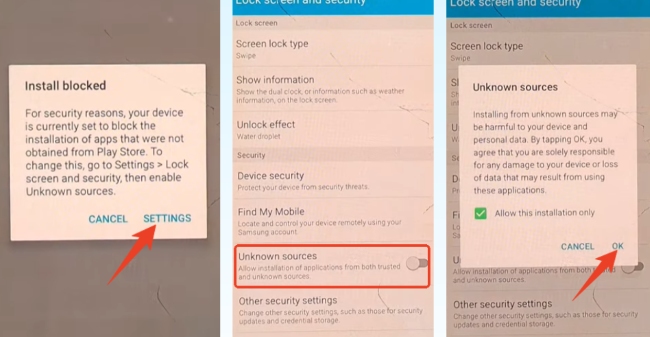
If you see an "Install blocked" message, go to Settings > Security, enable Unknown Sources, then return and complete the installation.
Step 7. Open and Reset.
Once installed, tap Open. The app typically redirects you to the necessary settings for bypassing FRP.
Go to Settings > Backup and Restore > Factory Data Reset. After the reset finishes, restart your phone to complete the FRP bypass process.
Part 3. Bypass FRP on Samsung J7 via QuickShortcutMaker
If the OTG method doesn't work, the next step is to access a web browser so you can download QuickShortcutMaker. This powerful tool lets you bypass FRP on your Samsung J7 directly by adding a new Google account. We can access the browser in two ways:
Way 1. Use the SideSync Trick [PC Required]
This method uses Samsung's official SideSync software to trigger a browser popup on your locked device.
Step 1. Download and install Samsung SideSync on your Windows PC.
Step 2. Launch SideSync and connect your locked Samsung J7 to the computer using a USB cable.
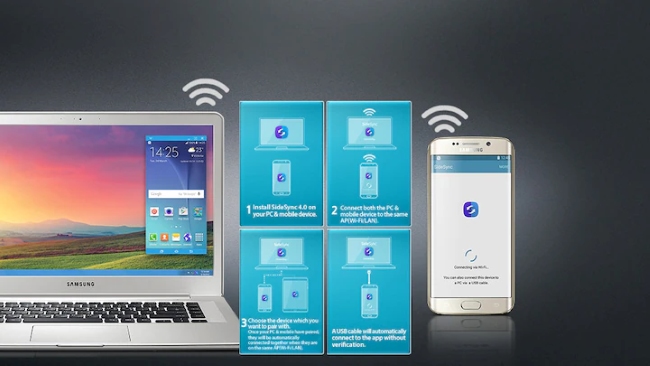
Step 3. A popup should appear on your phone asking you to open Galaxy Apps or Chrome. Select Chrome.
Step 4. In Chrome, visit is.gd/M_R_T, tap All FRP Bypass APK, and download QuickShortcutMaker 2.4.0 APK.
Step 5. After the download starts, go back and tap Galaxy Apps when prompted.
Step 6. Search for ES File Explorer in Galaxy Apps, then download and install it.
Step 7. Once installed, tap Open to launch the app.
Step 8. Go to the Downloads folder and tap the QuickShortcutMaker APK file.
Step 9. If prompted, tap Settings and allow app installation from unknown sources.
Step 10. Return and tap Install, then wait for the process to complete. After installation, tap Open.
Step 11. In the app, search for Google Account Manager and select Type email and password.
Step 12. This opens a Chrome sign-in page. Log in with your Google account details to complete the FRP bypass.
Way 2. Use Assist Trick [No PC]
This method is similar to Way 1 but works without a computer, making it a good option if you only have access to your Samsung J7.
Step 1. Turn on your Samsung J7 and begin setup until you arrive at the "Verify your account" screen.
Step 2. When asked to enter a phone number or email, type any text, then long-press to select it. Tap the three-line (hamburger) icon and choose Assist.
Step 3. When prompted, deny assistance and tap the Google search bar instead.
Step 4. In the browser, search for is.gd/M_R_T, tap All FRP Bypass APK, and download the QuickShortcutMaker 2.4.0 APK.
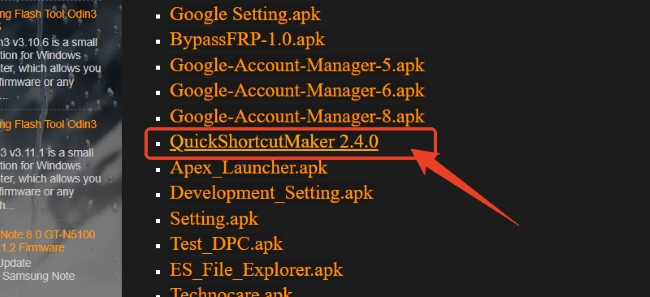
Step 5. Tap Bookmarks at the bottom, go to History > Download History, and locate the APK file.
Step 6. Tap the APK, then go to Settings > Unknown sources, enable it, and tap Install > Open.
Step 7. In the app, tap Application, search for Settings, and tap Try.
Step 8. Go to Lock Screen and Security > Other security settings > Device administrators, then deactivate Find My Device.
Step 9. Return to Settings > Apps, tap the three-dot menu, and select Show system apps.
Step 10. Scroll down, tap Google Play Services, and select Disable.
Step 11. Find Google Account Manager and tap Disable.
Step 12. Return to the All FRP Bypass APK page, download Technocare.apk, install it using the same steps, and tap Done at the end.
Step 13. Open QuickShortcutMaker again, access Settings, then go to Cloud and accounts > Accounts > Add account > Google. Sign in with a new Google account.
Step 14. Go back to Settings and enable Google Play Services, Google Account Manager, and Find My Device.
Step 15. Return to the initial setup screen and finish setting up your Samsung J7 using the new Google account.
Step 16. For a clean start, go to Settings and perform a final factory reset.
Part 4. Bypass FRP on Samsung J7 via Albastuz3d [TalkBack Trick]
This is one of the most popular methods to bypass FRP on Samsung J7 devices running Android 6.0 (Marshmallow) to Android 8.0 (Oreo). It uses the TalkBack accessibility feature to open a web browser and download the required bypass tools.
Phase 1: Access the Browser
Step 1. Turn on your Samsung J7, connect to a Wi-Fi network, and return to the Welcome or Start screen.
Step 2. Quickly press the Home button three times until you hear "TalkBack enabled." If your device has no Home button, press and hold two fingers on the screen for 15-20 seconds.
Step 3. Draw a large L on the screen with one finger.
Step 4. Tap TalkBack Settings once to select it, then double-tap to open.
Step 5. Scroll using two fingers and turn on Single-tap activation.
Step 6. Draw an L again, then tap Text-to-speech Settings.
Step 7. Quickly double-tap the Settings icon next to Samsung Text-to-Speech. Tap Settings for Samsung text-to-speech, then tap the area beside the version number to open Legal information.
Step 8. Press the Home button 3 times, and tap the Start button at bottom-right to open the app store, search for Samsung Internet Browser, install it, and open it.
Phase 2: Download and Apply the Bypass Tools
Step 9. In Samsung Internet, visit albastuz3d.net and download FRP_vnROM.apk and Development Settings.apk.
Step 10. Tap the Menu icon, go to Downloads, install FRP_vnROM.apk, then install Development Settings.apk.
Step 11. Go to Settings > Lock Screen and Security > Other security settings > Device administrators, and deactivate Find My Device.
Step 12. Go to Settings > Apps > Menu > Show system apps, then disable Google Play Services and Google Play Store.
Step 13. Navigate to Settings > Cloud and accounts > Accounts > Add account > Google, and sign in with a new Google account.
Step 14. Re-enable Google Play Services, Google Play Store, and Android Device Manager, then reboot your device to complete the Samsung J7 FRP bypass.
Part 5. Conclusion
Bypassing the Google account on a Samsung J7 may take a bit of patience, but it's completely doable. If you want the simplest and most reliable solution, TunesKit Android Unlocker (introduced in Part 1) is the best choice, as it handles all the technical steps for you.
If you prefer free or no-PC methods, options like the TalkBack or Assist tricks can help you access a browser and download the necessary FRP bypass tools. Choose the method that fits your situation best, and you'll be able to regain access to your Samsung J7 successfully.


