How to Reset a Samsung Tablet: 4 Safe Methods
If your Samsung tablet is frozen, slow, locked, or experiencing persistent issues, resetting it can help. Depending on the problem, you may only need a restart or settings reset, while more serious situations may require a full factory reset.
This guide explains how to reset a Samsung tablet using four practical methods, including restart, force restart, reset settings, and factory reset. It also covers what to do if you forgot the screen lock and when TunesKit Android Unlocker may be useful as an alternative.
How to Reset a Samsung Tablet: 4 Methods
Choose the method that matches your situation:
| Situation | Best method | Deletes personal data? |
|---|---|---|
| Tablet is slow or glitchy | Restart | No |
| Tablet is frozen | Force restart | No |
| Settings are causing problems | Reset all settings | No |
| You want to erase everything | Factory reset | Yes |
Method 1. Restart Your Samsung Tablet
If your tablet is slow or behaving strangely, try a normal restart first.
- Step 1. Press and hold the Side/Power button.
- Step 2. Tap Restart.
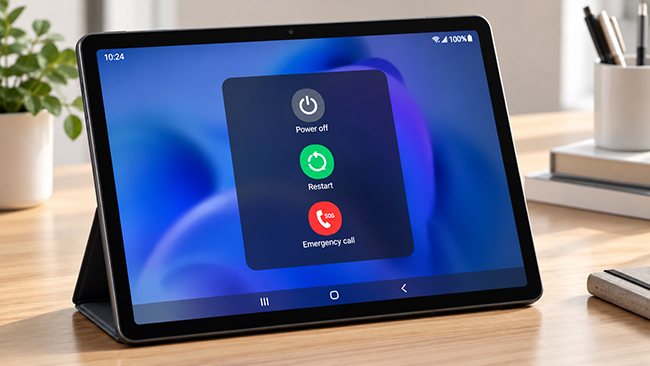
- Step 3. Tap Restart again if prompted.
- Step 4. Wait for the tablet to reboot.
A restart does not delete your apps, files, or settings.
Method 2. Force Restart a Frozen Samsung Tablet
If the screen is frozen or unresponsive, press and hold Volume Down + Side/Power for about 7 to 10 seconds until the tablet restarts.
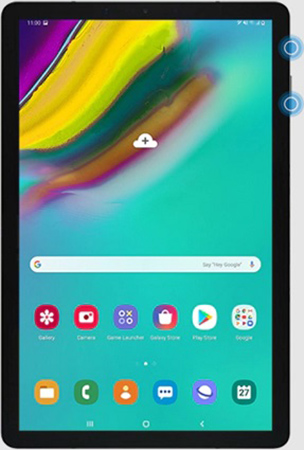
This is a force restart and does not erase your personal data.
Method 3. Reset Samsung Tablet Settings Without Deleting Data
If restarting does not fix the issue, you can reset system settings without wiping your files.
- Step 1. Go to Settings > General management > Reset.
- Step 2. Tap Reset all settings.
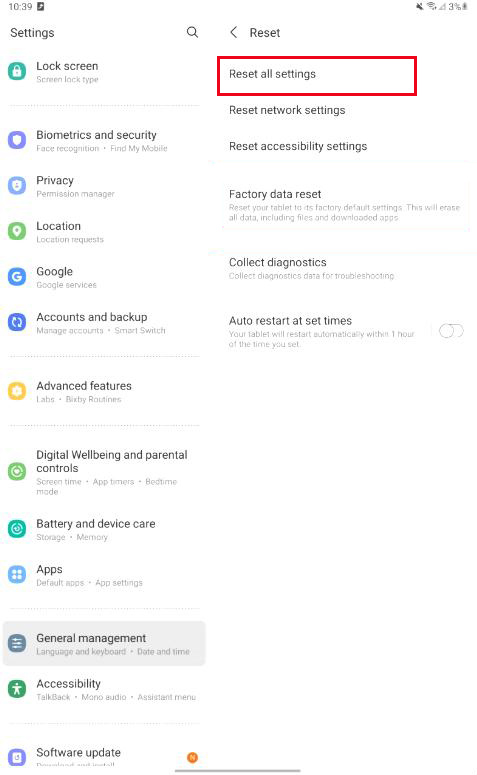
- Step 3. Follow the prompts to confirm.
This can help with configuration-related problems while keeping your apps, accounts, and personal files.
Method 4. Factory Reset a Samsung Tablet
A factory reset removes personal data and returns the tablet to its default state. Use it when you want to erase the device completely or when other troubleshooting methods have failed.
Before continuing:
- Back up important files.
- Make sure you know your Google and Samsung account credentials.
- Charge the tablet sufficiently.
- Check any encrypted microSD card.
- Be aware of Google Factory Reset Protection.
Way 1. Factory Reset Through Settings
If you can access to the Settings app of your tablet, you can factory reset it via Settinfgs.
- Step 1. Go to Settings > General management > Reset > Factory data reset.
- Step 2. Tap Factory data reset. Review what will be removed.
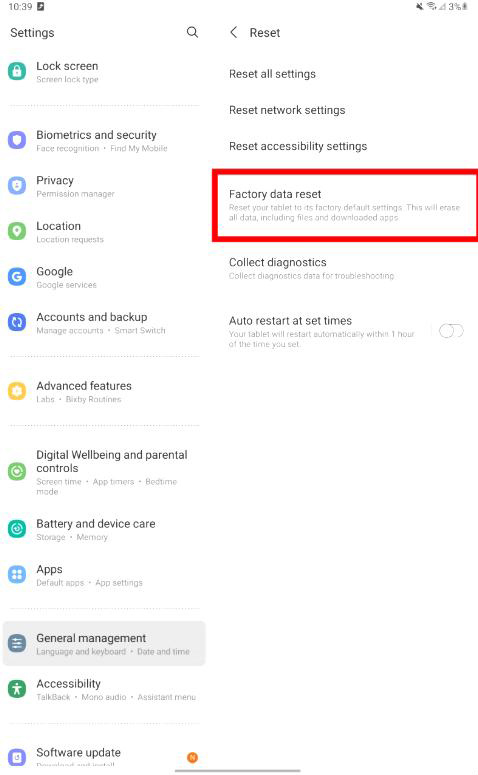
- Step 3. Tap Reset. Enter your PIN or password if requested.
- Step 4. Tap Delete all. Enter your Samsung account password if prompted.
- Step 5. Wait for the tablet to restart.
Way 2. Factory Reset Through Recovery Mode
If you cannot access Settings, Recovery Mode would be an alternative.
- Step 1. Turn off the tablet.
- Step 2. Press and hold Volume Up + Power/Side.
- Step 3. Release the buttons when Recovery Mode appears.
- Step 4. Highlight Wipe data/factory reset with the Volume buttons.
- Step 5. Press the Power button to select it. Confirm the reset.
- Step 6. Select Reboot system now when finished.
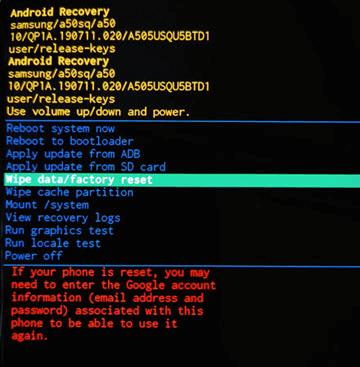
Older Samsung tablets with a physical Home button may require Volume Up + Power + Home instead.
How to Reset a Samsung Tablet Without a Password
If you forgot the screen lock and cannot open Settings, Recovery Mode can be used to erase the tablet. However, a factory reset does not necessarily bypass Google's security protections. After the reset, Factory Reset Protection (FRP) may require a Google Account that was previously synced to the device.
If you own the tablet but cannot get past the screen lock, TunesKit Android Unlocker can be another option for supported Samsung devices. Its screen-lock removal feature is designed to handle PINs, patterns, passwords, fingerprints, and face locks. It runs on a Windows PC or Mac and requires a USB connection.
Key Features of TunesKit Android Unlocker
Factory reset Android phone without unlocking it. No Technical Skills Needed. High Success Rate. Support lots of Android version including 16.
 600,000+ Downloads
- Step 1. Connect the Samsung tablet to a computer. Open TunesKit Android Unlocker.
- Step 2. Choose Remove Screen Lock.
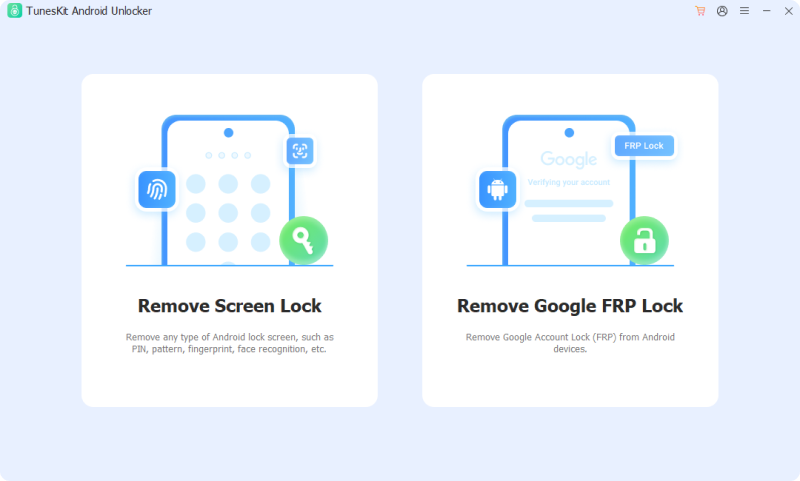
- Step 3. Select Samsung. Follow the on-screen instructions.
- Step 4. Review the data-loss warning before continuing.
If there is an FRP screen on your tablet after the factory reset, TunesKit Android Unlocker also can remove it without any password.
How to Reset a Samsung Tablet Before Selling It
If you are selling, trading in, or giving away the tablet:
- 1. Back up your data.
- 2. Remove your Google Account.
- 3. Remove your Samsung account.
- 4. Remove the SIM and microSD card if applicable.
- 5. Perform a factory reset through Settings.
Samsung Tablet Reset Troubleshooting
Samsung Tablet Won't Restart
Try Volume Down + Power/Side for 7 to 10 seconds. If the tablet still does not respond, charge it and try again.
Recovery Mode Won't Open
Make sure the tablet is fully powered off and use the correct button combination for your model. Some newer Samsung devices may also require a USB connection while entering Recovery Mode.
Tablet Asks for an Old Google Account
This is usually caused by Factory Reset Protection. Sign in with a Google Account that was previously synced to the tablet. If you recently changed the Google password, you may need to wait before the new password is accepted.
Problems Continue After a Factory Reset
If crashes, shutdowns, charging problems, or touchscreen issues continue after a clean reset, the problem may be hardware-related. Consider Samsung support or an authorized repair provider.
FAQs About Samsung Tablet Reset
-
Does Resetting a Samsung Tablet Delete Everything?
A restart, force restart, or Reset all settings does not delete personal files. A factory reset does.
-
How Do I Reset a Frozen Samsung Tablet?
Hold Volume Down + Power/Side for about 7 to 10 seconds until the device restarts.
-
Can TunesKit Android Unlocker Reset a Locked Samsung Tablet?
TunesKit Android Unlocker is mainly a screen-unlocking tool rather than a general reset utility. It can help with supported Samsung devices when you cannot access the tablet because of a forgotten screen lock, although the process may erase data.
-
Does a Factory Reset Remove the Screen Lock?
It removes the local screen-lock configuration, but Google Factory Reset Protection may still require verification of a previously synced Google Account.
Conclusion
To reset a Samsung tablet, start with the least destructive option: restart, force restart, or reset settings. Use a factory reset only when you need to erase the tablet or when other fixes do not work.
If you are locked out of the device and cannot access Settings, Recovery Mode or a compatible tool such as TunesKit Android Unlocker may provide another option. Always back up important data when possible and make sure you know your Google and Samsung account credentials before proceeding.