


SamFw Tool for Android FRP Bypass: 2026 Full Review
Factory Reset Protection (FRP) can prevent access to an Android phone after a reset if the original Google account credentials are forgotten. Many users turn to SamFw Tool as a free solution to bypass this lock, especially on Samsung devices. But with Android security improving every year, many people wonder whether the tool still works reliably.
This complete review explains how SamFw Tool works, advantages, risks, and whether it's still worth using in 2026.
- Part 1. What Is SamFw Tool?
- Part 2. Key Features of SamFw Tool
- Part 3. Does SamFw Tool Still Work in 2026?
- Part 4. Pros and Cons of SamFw Tool
- Part 5. Safety & Legal Considerations
- Part 6. How to Use SamFw Tool to Bypass FRP Lock
- Part 7. Best Alternative If SamFw Tool Fails - TunesKit Android UnlockerHOT
- Part 8. Conclusion
Part 1. What Is SamFw Tool?
SamFw Tool is a third-party Windows program designed mainly to bypass Google FRP locks on Samsung devices. It uses system communication methods like ADB and diagnostic modes to remove account verification without rooting the phone, making it popular among beginners and repair technicians.
Unlike many paid unlocking solutions, SamFw focuses primarily on Samsung devices. Due to its accessibility and one-click options, it has become especially popular among beginners and technicians seeking a quick first attempt at FRP removal.
Part 2. Key Features of SamFw Tool
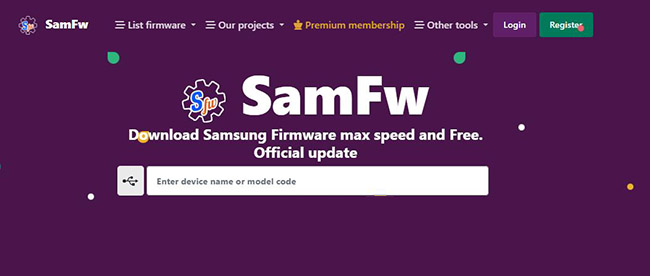
Although best known for FRP bypassing, SamFw Tool also includes several device maintenance functions. These tools allow users to perform resets, enable debugging, and manage certain Samsung settings from a PC, making it a multifunctional utility rather than a single-purpose unlock tool.
1. FRP Bypass Functions
- One-click FRP removal
- Support for multiple Samsung security methods
- Test Mode FRP unlock
- Browser-opening bypass method
2. Samsung Device Utilities
- Factory reset via PC
- Change CSC (region/carrier configuration)
- Enable or disable ADB
- Samsung account removal (limited scenarios)
3. Additional Service Tools
- Device information reader
- Basic flashing assistance
- Diagnostic functions
Part 3. Does SamFw Tool Still Work in 2026?
SamFw Tool can still work, but success now depends largely on the device model and Android security patch level. While older Samsung devices often unlock successfully, newer versions increasingly block free bypass methods.
Evaluating the tool realistically requires looking beyond marketing claims and considering actual user experiences. Many successful unlocks still occur on compatible devices, but newer models increasingly resist free bypass solutions. Understanding these limitations helps users set realistic expectations before starting the process.
Part 4. Pros and Cons of SamFw Tool
Evaluating both advantages and limitations helps users decide whether SamFw Tool fits their needs. While the tool is free and easy to use, it also has compatibility limits on newer Android devices.
 Pros:
Pros:- Completely free
- Simple interface
- No rooting required
- Fast process on supported devices
- Multiple Samsung utilities included
 Cons:
Cons:- Inconsistent success on new Android versions
- Requires PC and drivers
- May fail without clear error explanation
- Possible data loss in some cases
Part 5. Safety & Legal Considerations
FRP bypass tools interact with system-level functions, so users should download them only from trusted sources and use them responsibly. FRP removal should only be performed on devices you legally own or are authorized to access.
Is SamFw Tool Safe?
- Generally safe when downloaded from trusted sources, but risks exist:
- Unofficial downloads may contain malware
- Incorrect operations can cause system issues
- Knox security changes may affect warranty
Is FRP Bypass Legal?
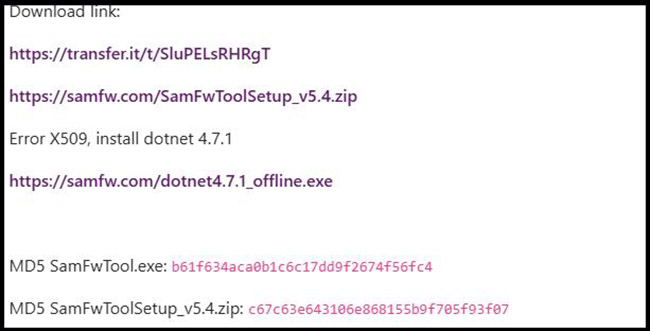
- Step 1. Download SamFw Tool on your computer from the SamFw Tool website. The latest version is SamFw Tool 5.4.
- Step 2. Launch the software and then connect your phone to the computer. Install the Samsung USB Driver first if you are using Samsung device.
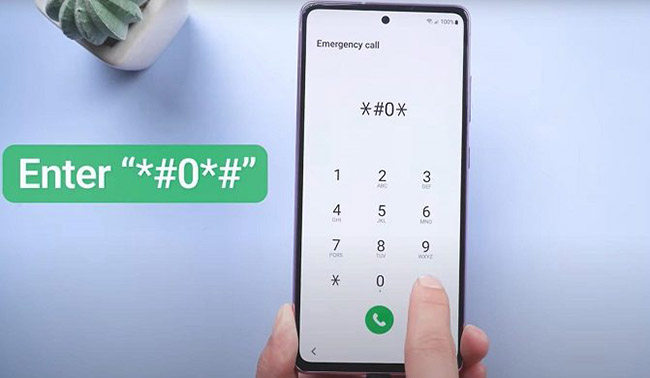
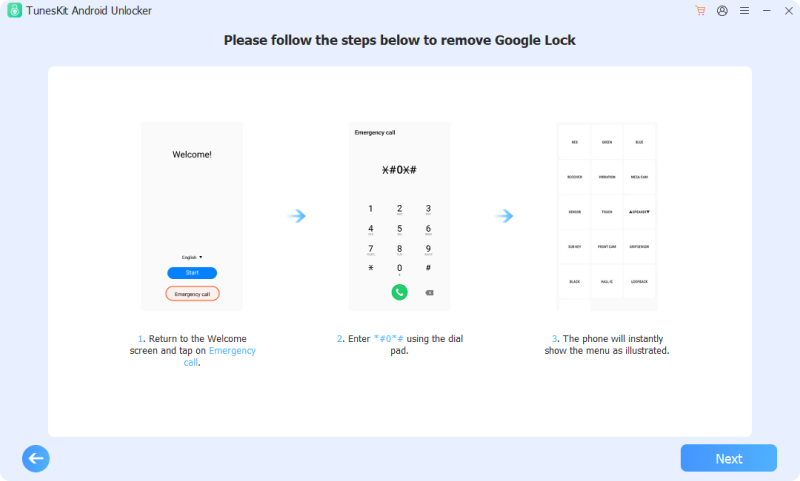
- Step 3. On the Emergency call screen of your phone, you should dial *#0*# to enable AT mode.
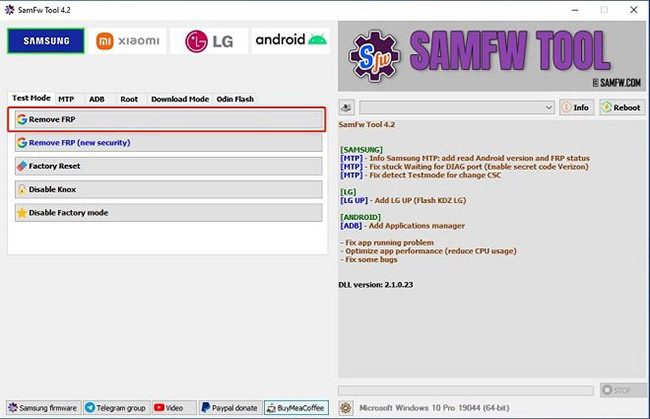
- Step 4. Go to SamFw Tool, and then select your phone's brand. Click the Remove FRP button.
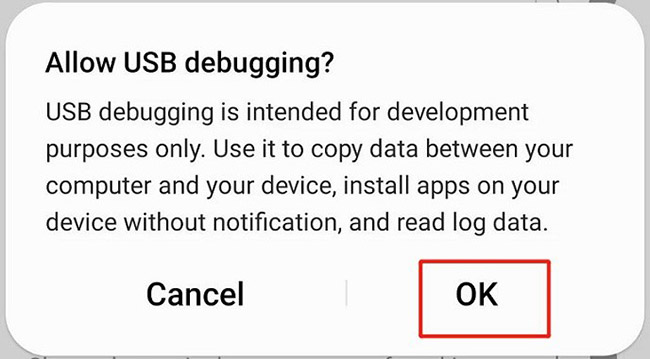
- Step 5. A prompt will appear on your phone screen. Click the OK option on it. The FRP removal process will start.
- Unlike SamFw Tool, which depends on system loopholes that may stop working after updates, TunesKit Android Unlocker provides a structured unlocking process designed for broader compatibility.
FRP removal is legal only if you own the device or have permission from the owner. Using bypass tools on stolen devices may violate laws.
Part 6. How to Use SamFw Tool to Bypass FRP Lock
A correct setup is essential for successful FRP removal. Many failures occur due to missing drivers or incorrect preparation rather than software issues. Following the proper steps carefully improves the chances of unlocking the device.
Part 7. Best Alternative If SamFw Tool Fails - TunesKit Android Unlocker
Because newer Android security patches have reduced the effectiveness of many free FRP bypass tools, some users may find that SamFw Tool no longer works on their device — especially on newer Samsung models or phones running recent Android versions. In these situations, using a dedicated Android unlocking program can be a more practical solution.
One alternative worth considering is TunesKit Android Unlocker, which is designed to remove different Android locks, including Google FRP verification, through guided workflows rather than manual bypass methods.
Why It Can Be a Useful Alternative:Key Features of TunesKit Android Unlocker
No complex tools, no risk - just connect, follow clear instructions, and bypass FRP lock on your Android device.
 600,000+ Downloads
The process of bypassing FRP with TunesKit Android Unlocker is designed to be beginner-friendly and requires only a computer and USB connection. Here are the detailed steps.
Step 1 Connect Your Android Device
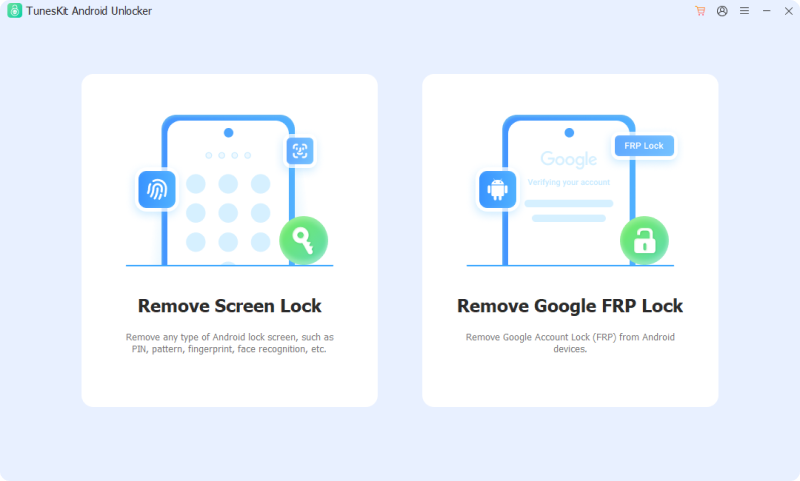
Download and install TunesKit Android Unlocker on your Windows computer. Open it and then select Remove Google FRP Lock from the main interface. Use a USB cable to connect your locked phone to the computer.
Step 2 Select Device Information
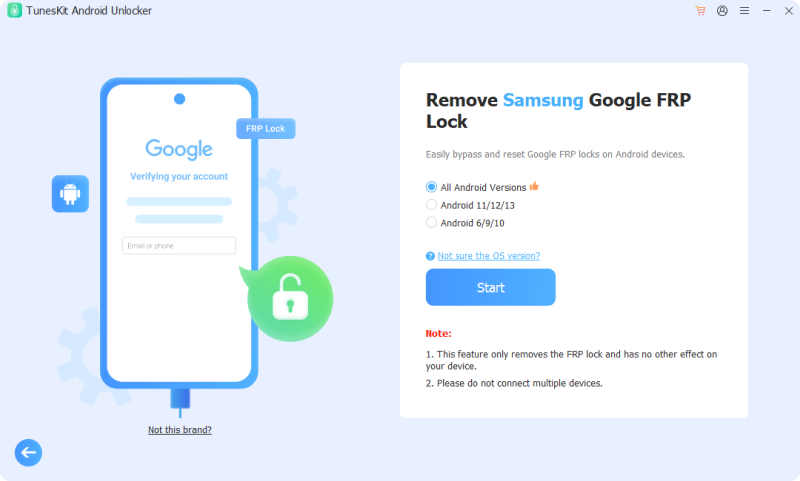
Choose your device brand (for example, Samsung) when prompted. Click Start to continue.
Step 3 Begin FRP Removal
Follow the instructions on the computer screen to operate your phone. Click the Next > Start to begin the bypass process.
Part 8. Conclusion
SamFw Tool remains a useful free option for compatible Android devices, particularly older models. However, stronger Android security protections mean it may not work reliably on newer firmware. If compatibility issues occur, switch to structured solutions like TunesKit Android Unlocker, which provide guided FRP removal steps and broader device support.


