


[iOS 27] How to Fix Apple Intelligence Stuck Downloading
I had the Apple Intelligence upgrade stuck on "preparing" for over 10 hours. Resetting all settings let me toggle it on, but now it's been stuck downloading all day with no features working yet. --From Apple Community
If you've been eager to try Apple's latest AI-powered features but find yourself stuck waiting, you're not alone. Many users have reported the update hanging for hours or even days, preventing Apple Intelligence from functioning at all.
In this guide, we'll walk you through practical methods to fix iOS 27 Apple Intelligence stuck downloading so you can finally start using the new tools on your device. Whether it's frozen on "Preparing" or endlessly "Downloading," these solutions will help you get things moving again. Without dilly-dallying much, let's get started!

Why Is My iOS 27 Apple Intelligence Stuck Downloading?
If your iOS 27 Apple Intelligence is stuck downloading, don't worry—this is a common issue, especially on beta versions. Here are the most likely reasons:
- 01 Large AI models are still downloading. Apple Intelligence requires several gigabytes of on-device models, so the download may take longer than expected, especially after installing iOS 27 Beta.
- 02 Network or Apple server issues. A slow Wi-Fi connection or heavy traffic on Apple's servers can prevent the download from completing.
- 03 Insufficient storage or power. If your iPhone is low on storage, has a low battery, or is in Low Power Mode, Apple Intelligence assets may not finish downloading.
- 04 Unsupported settings or beta bugs. Incorrect language or region settings, or temporary bugs in iOS 27 Beta, can also cause Apple Intelligence to remain stuck on "Downloading."
 View Also: Fixed: iOS 27 Apple Intelligence Is Down
How to Fix iOS 27 Apple Intelligence Stuck Downloading?
Let's try the following six methods to fix Apple Intelligence stuck downloading issue.
Method 1: Restart Your iPhone
Restarting your iPhone isn't just a basic "turn it off and on again" trick—it can fix update issues like iOS 27 Apple Intelligence getting stuck. Also, it clears temporary glitches, a restart shuts down all running processes and refreshes the operating system. And it frees up system memory, the background tasks or stalled processes that block downloads get cleared.
For iPhones with Face ID (no Home button):
- Step 1. Press and hold the Side button and either Volume button until the power slider appears.
- Step 2. Drag the slider to turn off your iPhone.
- Step 3. Wait about 30 seconds, then press and hold the Side button until the Apple logo appears.

For iPhones with a Home button:
- Step 1. Press and hold the Top (or Side) button until the power slider appears.
- Step 2. Drag the slider to turn off your iPhone.
- Step 3. Wait 30 seconds, then press and hold the Top (or Side) button until the Apple logo appears.

Method 2: Examine Your Network Connection
A weak or unstable internet connection is one of the most common reasons iOS 27 Apple Intelligence gets stuck downloading. The update relies on a steady, high-speed connection to transfer large amounts of data from Apple's servers to your device.
If your Wi-Fi signal drops, fluctuates, or is too slow, the download can freeze indefinitely. Checking and improving your network connection ensures your iPhone can complete the process without interruptions.
- Step 1. Use Safari to visit a speed test site (e.g., speedtest.net) and check your download speed. Aim for at least 5–10 Mbps for stable downloading.
- Step 2. Go to Settings → WLAN and select a network with full signal bars.
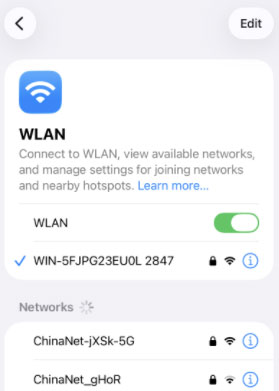
Step 3: If it won't work, you can restart your router and modem. Unplug them for 30 seconds, then plug them back in to refresh the connection.

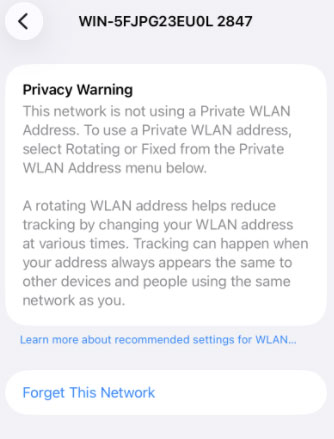
Step 4: You can also forget and reconnect to your Wi-Fi. In Settings → WLAN, tap your network, choose Forget This Network, then reconnect with your password.
Method 3: Set iPhone Region to Another Language
Sometimes, Apple Intelligence updates or features may rely on region-specific settings or language configurations. If your iPhone's language or region is set to one not fully supported by the update, it can cause the download or installation to stall.
Switching your device's language and region to English (United States) ensures compatibility with Apple's servers and software, which can help resolve issues with the update getting stuck.
- Step 1. Open Settings and tap General.
- Step 2. Scroll down and select Language & Region.
- Step 3. Tap Add Language and choose English (US).
- Step 4. Confirm by tapping Change to English (US), and tap the "Use English (US)" button again.
- Step 5. Next, tap Region and select United States.
- Step 6. Your iPhone will update the settings and may restart to apply changes.
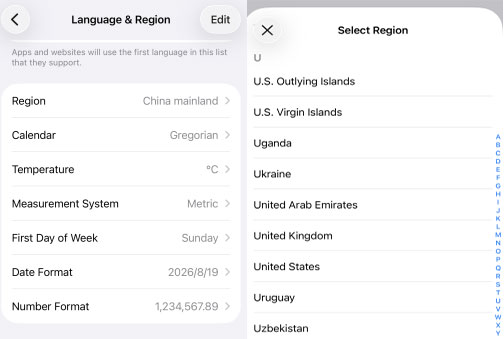
After changing the language and region, try downloading Apple Intelligence again to see if the issue is resolved.
Method 4: Free Up iPhone Storage Space
Apple Intelligence is a large feature upgrade that requires plenty of free space to download, unpack, and install. If your iPhone's storage is nearly full, the update may pause indefinitely or fail without an error message. Even if the download size seems small, iOS also needs extra "working space" to process the installation.
Checking your available storage ensures there's enough room for both the update files and temporary system data, which can prevent the stuck download issue.
- Step 1. Go to Settings → General → iPhone Storage.
- Step 2. Look at the top of the screen for your used vs. available storage. Aim for at least 10GB free for large updates.
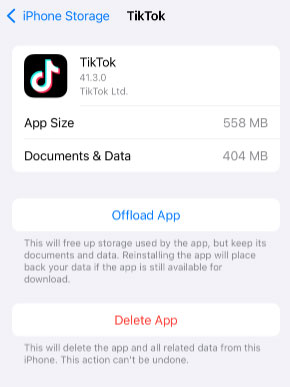
- Step 3. Scroll down to see apps listed by storage usage. Tap an app to view details.
- Step 4. Delete unused apps, large videos, or old photos. Offload apps by tapping Offload App (keeps documents and data but removes the app itself).
- Step 5. In Photos → Collections, scroll down to find the Utilities section, tap the Recently Deleted option, use your Face ID or enter your passcode to view this album, then you can permanently delete items to reclaim space.
Method 5: Reset All Settings
Sometimes, hidden software glitches or conflicting settings prevent Apple Intelligence from downloading properly. Resetting all settings restores your iPhone's system preferences—like Wi-Fi passwords, display settings, and privacy options—back to their defaults without deleting your personal data. This can clear out bugs or misconfigurations that block the update process, helping the download to resume and complete successfully.
- Step 1. Open Settings and tap General.
- Step 2. Scroll down and select Transfer or Reset iPhone.
- Step 3. Tap Reset, then choose Reset All Settings.
- Step 4. Enter your passcode if prompted, then confirm the reset.
- Step 5. Your iPhone will restart automatically after the reset.

After the reset, reconnect to your Wi-Fi and try downloading Apple Intelligence again.
Method 6: Use iPhone Repair Software to Fix System Bugs
If none of the standard troubleshooting steps work, the problem may be caused by deeper iOS 27 system bugs or corrupted firmware. These issues can prevent downloads—like Apple Intelligence—from completing, even if your Wi-Fi, storage, and settings are fine. iPhone repair tools such as TunesKit iOS System Recovery are designed to repair underlying system errors without erasing your personal data.
In addition to the powerful system repair feature, this software enables you to enter or exit recovery mode for free, eliminating the need of manually press the button to enter recovery mode. It works with the latest iPhones and iPads, including the newest iOS/iPadOS releases. It's also available for both macOS and Windows.
Fix Apple Intelligence Stuck Downloading Without Data Loss
Repair iOS 27 system issues in one click and get Apple Intelligence downloading again—no data loss required.
 600,000+ Downloads
Step 1. Connect your iPhone to the computer
Get the software and install it on your Mac or Windows PC. Use a USB cable to connect your iPhone, and launch TunesKit. Click the iOS System Repair option on the main screen, then hit the Start button to continue.

Step 2. Choose Standard Repair
There are two repair modes for you to choose from. It's recommended that you select Standard Repair to fix system bugs without data loss.

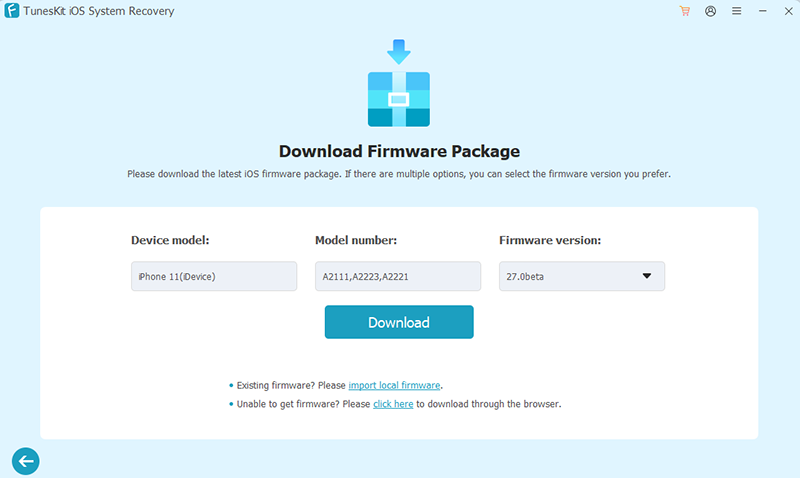
Step 3. Download the iOS firmware package
Confirm your device info, click the Download button, and let the tool download the latest firmware. Wait patiently to complete the process.
Step 4. Repair your iOS system
Click Start Standard Repair button, wait for the process to complete, then restart your iPhone. After the repair, retry the Apple Intelligence download—it should now install without getting stuck.

FAQs About Apple Intelligence Stuck Downloading
-
Why is my Apple Intelligence download stuck on "Preparing" or 99%?
This usually happens due to a dropped internet connection, insufficient storage space, or minor system bugs. Your device might also pause the download if it is not plugged into power, if a VPN is active, or if Low Power Mode is restricting background activity.
-
How much storage space does Apple Intelligence actually need?
While the exact size can vary depending on your specific device and the models being downloaded, most users report needing at least 7 to 10 GB of free space for the installation to successfully unpack and complete.
-
Will restarting my device erase my download progress?
No, restarting your phone or tablet safely pauses the process and clears out temporary memory glitches. In many cases, a quick power cycle is exactly what the device needs to resume and finish the download without starting over from scratch.
Conclusion
This guide explains why iOS 27 Apple Intelligence may get stuck downloading and offers step-by-step fixes, from checking your internet connection and freeing up storage to resetting settings and adjusting language/region. For stubborn cases caused by deeper iOS bugs, TunesKit iOS System Recovery is a powerful repair tool that can resolve system errors without data loss, ensuring the update installs smoothly.



