


How Much Storage Does iOS 27 Take on iPhone
If you're planning to install the latest iOS 27 version, you may wonder how much storage does iOS 27 take on your iPhone. The required space can vary depending on your device model and current iOS version, and the installation may need more free storage than the download size itself. In this guide, we'll explain the iOS 27 storage requirements and what to do if you don't have enough space.
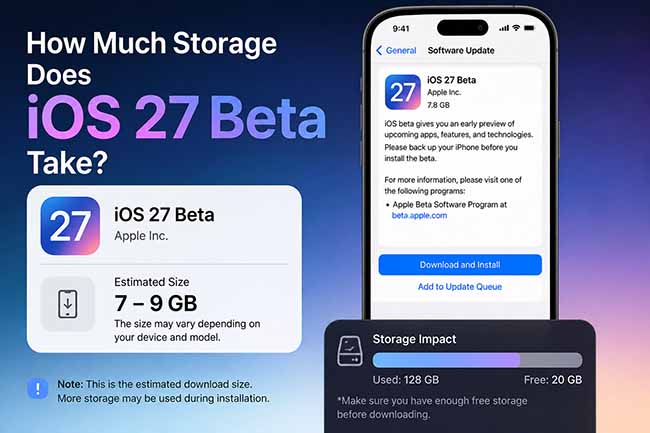
How Much Storage Does iOS 27 Take
iOS 27 does not have one fixed storage size. To avoid installation problems, make sure your iPhone has around 15–20 GB of available space before updating.
The exact size of iOS 27 varies depending on your iPhone model, current iOS version, and the beta build you install. The download itself may take several gigabytes, but your iPhone usually needs free space to unpack and install the update.
For a smoother update, it is recommended to keep at least 15–20 GB of free storage available before installing iOS 27. Keep in mind that the actual storage used by iOS 27 after installation may also change over time because of system files, caches, and future beta updates.
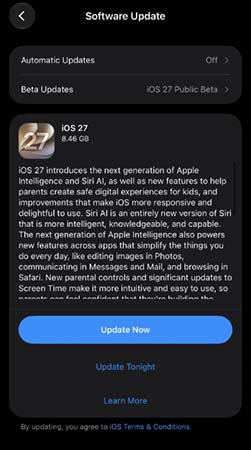
 Further Reading: How Long Does iOS 27 Take to Download and Install?
What Takes Up Space During iOS 27 Installation?
Installing iOS 27 requires more storage than the update file alone. Your iPhone also needs temporary space to prepare, verify, and install the system.
| Storage Item | What It Is | When It Uses Space |
|---|---|---|
| iOS 27 Update File | The downloaded installation package | Before installation |
| Temporary Installation Files | Files created while iOS unpacks and prepares the update | During installation |
| System Files | Core iOS components that are added or replaced | During and after installation |
| Caches and Logs | Temporary cache, diagnostic, and log files | During and after installation |
| System Data | Background system files used for indexing and optimization | Mainly after installation |
Some temporary files are automatically deleted after the update is complete, so your available storage may increase again once iOS 27 finishes installing and optimizing the system.
Best Way to Free Up Space for iOS 27 [Quick and Free]
If your iPhone is running out of storage before installing iOS 27, you may need to remove large photos, videos, or other files. Before deleting anything important, however, it is a good idea to create a backup first so you can recover the data later.
TunesKit iOS System Recovery offers a free iOS data backup feature, allowing you to save important iPhone data to your computer before clearing storage. Once the backup is complete, you can safely remove large files to make more room for the iOS 27 installation and restore the backed-up data afterward.
Free Up Space Safely for iOS 27
Back up your important iPhone data with TunesKit iOS System Recovery before clearing storage, then restore it when you need it.
 600,000+ Downloads
Here's how to back up iPhone data for free before installing iOS 27.
Step 1. Open the Backup & Restore feature
Connect your iPhone with a USB cable and wait for the program to recognize it. From the main interface, choose Backup & Restore, and then select the Back Up iOS Data option to back up your iPhone data.
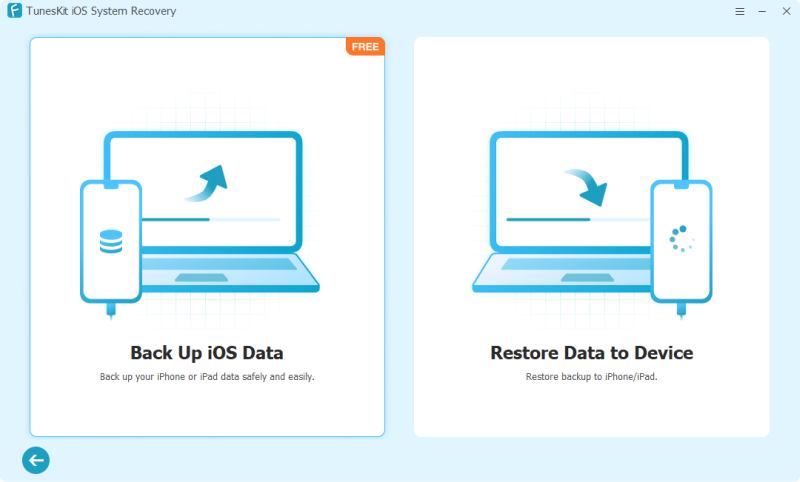
Step 2. Choose the data to back up
Choose your backup device, and choose a location on your computer to store the backup. Then click the "Start Backup" button, and the program will start backing up your device data. Keep your iPhone connected until the backup is complete.
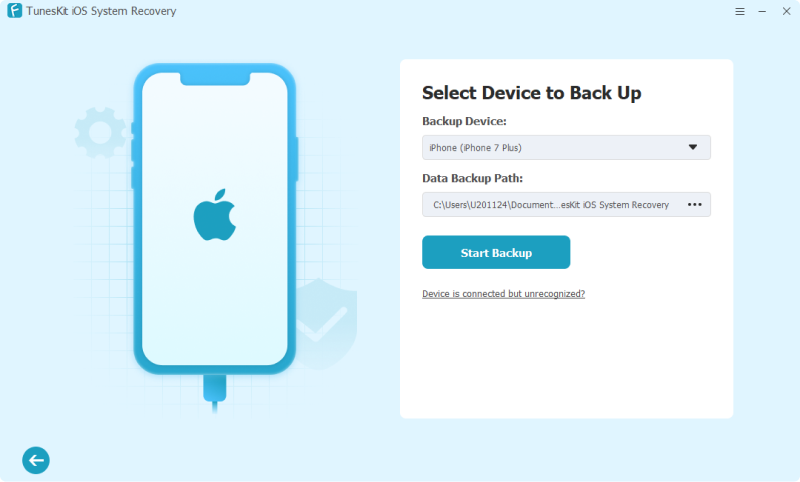
Step 3. Free up iPhone storage & Install iOS 27
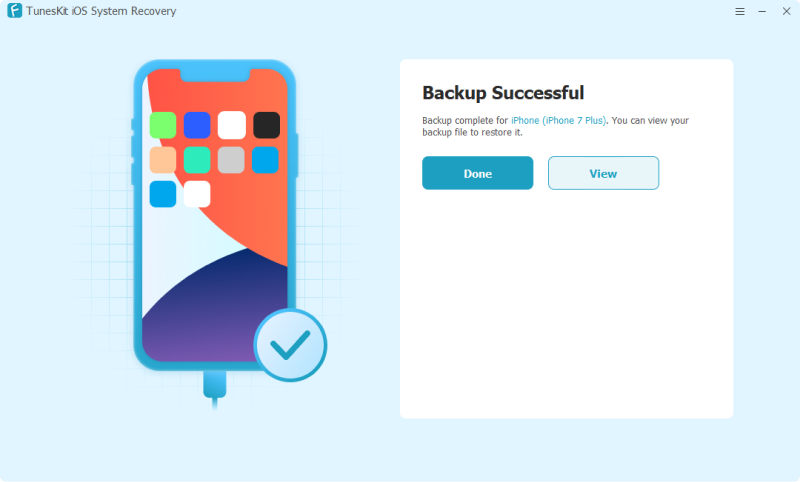
3.1 Then you can click "Done" on the screen, or "View" to manage your backup file. After confirming that your important data has been backed up, remove large or unnecessary files from your iPhone to create free space for the iOS 27 installation.
3.2 Once sufficient storage is available, download and install iOS 27 through Settings > General > Software Update > Update Now.
Bonus Tip: Restore Your Data When Needed
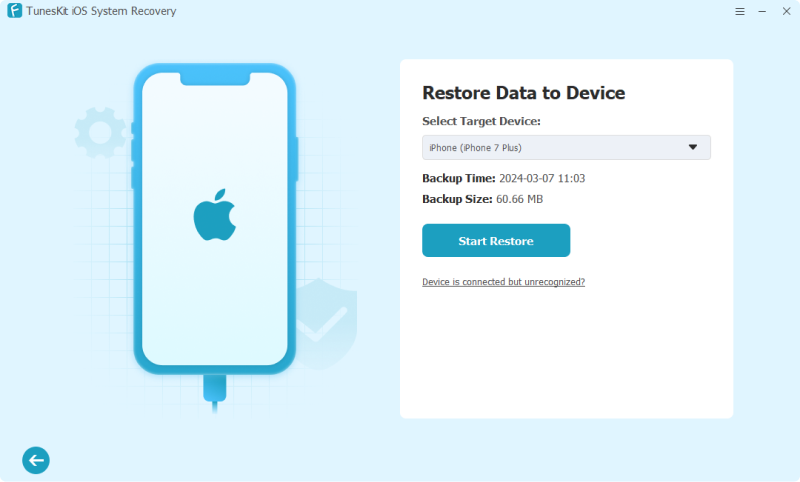
After the update is complete, reconnect your iPhone to TunesKit iOS System Recovery, open Backup & Restore option on the main screen, select Restore Data to Device, and choose your previous backup, click the Start Restore button, and follow the on-screen instructions to restore your data.
This approach helps you make room for iOS 27 without permanently giving up important files, while also keeping a backup available in case you need your data after the update.
More Ways to Free Up Storage Space for iOS 27
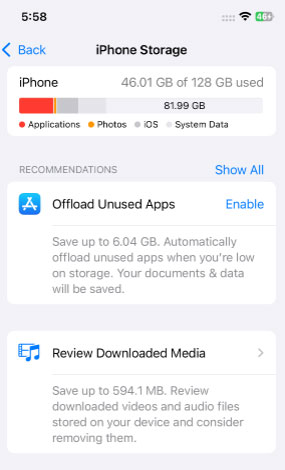
If you still do not have enough storage for iOS 27, try the following methods one by one. After each method, check Settings > General > iPhone Storage to see how much space you have freed up.
Method 1. Offload Unused Apps
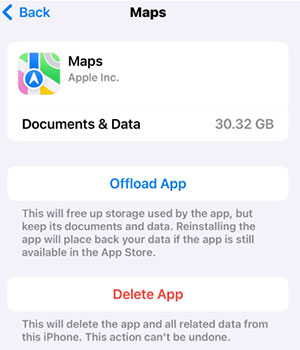
Offloading removes the app itself but keeps its documents and data, so you can reinstall it later without starting over.
- Step 1. Open Settings on your iPhone.
- Step 2. Go to General > iPhone Storage.
- Step 3. Wait for the storage list to load, and tap an app you rarely use.
- Step 4. Tap Offload App, then confirm. You can also enable Offload Unused Apps automatically from the iPhone Storage page if the option is available.
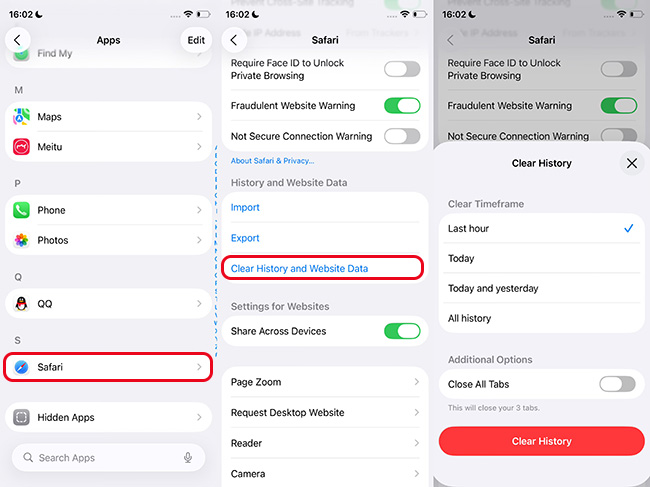
Method 2. Clear Safari History and Website Data
Safari stores browsing history, cookies, and cached website files that can build up over time.
- Step 1. Open Settings on your iPhone.
- Step 2. Scroll down and tap Apps > Safari.
- Step 3. Tap Clear History and Website Data.
- Step 4. Choose the time range if prompted. Tap the red Clear History button to confirm the deletion.
 Note
Note
Clearing Safari data may sign you out of some websites.
Method 3. Remove an Old iOS Update File
A previously downloaded iOS update package may remain on your iPhone and take up several gigabytes.
- Step 1. Open Settings > General > iPhone Storage.
- Step 2. Scroll through the list and look for an iOS update file.
- Step 3. Tap the update entry.
- Step 4. Tap Delete Update, and confirm your choice.

You can then download the iOS 27 update again when you are ready to install it.
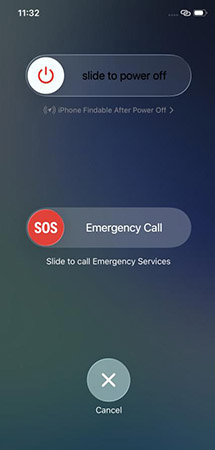
Method 4. Restart Your iPhone
Restarting will not remove personal data, but it can clear some temporary files and refresh the storage calculation.
- Step 1. Press and hold the Volume Up and the Power button for your iPhone model until the power-off slider appears.
- Step 2. Drag the slider to turn off the iPhone. Wait a few seconds.
- Step 3. Press and hold the Side button until the Apple logo appears.
FAQs About iOS 27 Storage
-
How much free space do I need to install iOS 27?
Apple does not specify one fixed amount of free storage required for every iPhone. The space needed can vary depending on your iPhone model, current iOS version, and the size of the update. As a practical precaution, keeping around 15–20 GB or more of free space can help give the system enough room to download, prepare, and install the update.
-
Can I install iOS 27 if my iPhone has low storage?
Possibly, but the installation may fail if your iPhone does not have enough available space. iOS may temporarily remove some downloadable app data to make room for an update. You can also free up space by offloading unused apps, deleting large videos or downloads, and reviewing storage under Settings > General > iPhone Storage.
-
Does iOS 27 take more storage than the previous version?
It can. Storage usage may change because of new system features, updated built-in resources, caches, and system data. The exact amount can vary by iPhone model and how the device is used.
-
Will the iOS 27 download size be the same as the space it uses after installation?
No. The update package size and the final amount of storage used by iOS are different. During installation, your iPhone also needs temporary working space to download, unpack, verify, and install the update.
Conclusion
Now you should have a clearer idea of how much storage does iOS 27 take and why extra free space is needed during installation. If your iPhone is short on storage, TunesKit iOS System Recovery can help you back up important iOS data for free before clearing space, making it easier to prepare your device for the iOS 27 update.



