


iOS 27 Beta Stuck in DFU Mode? Exit It Easily
If your iOS 27 Beta is stuck in DFU mode, your iPhone screen will stay completely black, and the device may seem unresponsive. This can happen after a failed beta update, a downgrade, or an unsuccessful attempt to enter DFU Mode.
The good news is that being stuck in DFU Mode usually does not mean your iPhone is permanently damaged. In this guide, we'll explain why it happens and walk you through 5 ways to exit DFU Mode and get your iPhone working normally again.
 Further Reading: Full Guide - How to Put iPhone/iPad in DFU Mode
Why Is iOS 27 Beta Stuck in DFU Mode?
If your iOS 27 Beta is stuck in DFU Mode, the screen will stay completely black and the iPhone may fail to restart normally. Common causes include:
- A failed or interrupted iOS 27 Beta update
- Bugs in the beta software
- An incorrect DFU button sequence
- A failed restore or downgrade
- USB or computer connection problems
In most cases, a force restart can help exit DFU Mode.
How to Fix iOS 27 Beta Stuck in DFU Mode
If your iPhone stays on a completely black screen after entering DFU Mode, try the following methods in order. Start with a force restart, since it is the simplest way to exit DFU Mode and does not erase your data.
Method 1. Force Restart Your iPhone
A force restart is the first method you should try when your iOS 27 Beta is stuck in DFU Mode. DFU Mode itself keeps the iPhone screen completely black, but a correct force-restart button sequence can interrupt this state and boot the device back into iOS.
This method doesn't erase your photos, messages, or other data, so it is safer to try before using any restore option.
- Step 1. Quickly press and release the Volume Up button.
- Step 2. Quickly press and release the Volume Down button.
- Step 3. Press and hold the Side button.
- Step 4. Keep holding the Side button until the Apple logo appears, then release it.
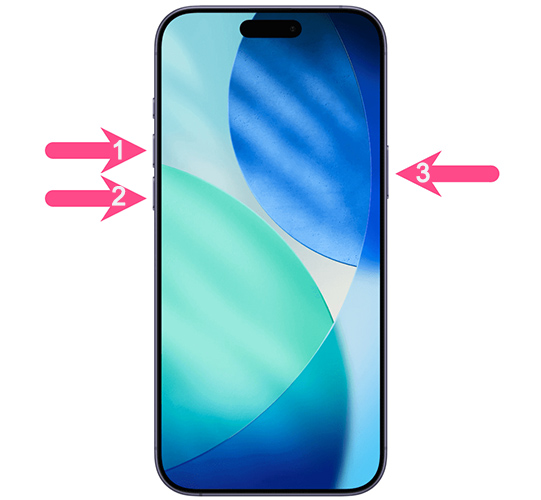
If the Apple logo appears and the iPhone boots normally, you have successfully exited DFU Mode.
Method 2. Charge Your iPhone and Force Restart It Again
If the force restart does not work, make sure your iPhone has enough battery power. A device with a low battery may remain on a black screen or fail to complete the startup process, which can make it look as though it is still stuck in DFU Mode.
- Step 1. Connect your iPhone to a reliable wall charger with a working USB cable.
- Step 2. Leave the iPhone charging for at least 20–30 minutes.
- Step 3. While it is still connected to power, quickly press and release Volume Up. Quickly press and release Volume Down. Press and hold the Side button until the Apple logo appears.

Method 3. Fix iOS 27 Beta Stuck in DFU Mode Using TunesKit
If a force restart cannot get your iPhone out of DFU Mode, the problem may be deeper than a temporary startup glitch. In this case, TunesKit iOS System Recovery can repair iOS system issues that cause an iPhone to remain stuck in DFU Mode. Its Standard Repair mode is designed to fix common iOS problems without erasing your personal data, making it a safer option before attempting a full restore.
Apart from the powerful repair feature, it comes with the features that repair iTunes error for free, backup and restore iPhone with ease, enter or exit recovery mode without buttons combination, and factory reset iPhone without passcode. Compatible with Windows and macOS, it’s the all-in-one solution that you should not miss.
Key Features of TunesKit iOS System Recovery
Repair iOS 27 Beta system issues and get your iPhone out of DFU Mode with TunesKit iOS System Recovery without erasing your data.
 600,000+ Downloads
Step 1. Connect Your iPhone to TunesKit
Download and install TunesKit iOS System Recovery on your computer. Launch the program, connect your iPhone with a USB cable, and select iOS System Repair. Click Start to continue.

Step 2. Choose Standard Repair
Select Standard Repair from the available repair modes. This mode is recommended first because it can resolve DFU Mode and other iOS system problems while retaining the data stored on your iPhone.

Step 3. Download the Firmware Package
Confirm that the detected iPhone model and device information are correct. Then click Download to get the compatible firmware package required for the repair. Keep your computer connected to a stable network and do not disconnect the iPhone while the firmware is downloading.

Step 4. Repair iOS 27 Beta and Exit DFU Mode
Once the firmware package has been downloaded and verified, click Start Standard Repair to begin fixing the iOS system. Keep the iPhone connected throughout the process. When the repair finishes, your iPhone should restart automatically and exit DFU Mode without requiring a factory restore.

Method 4. Restore Your iPhone
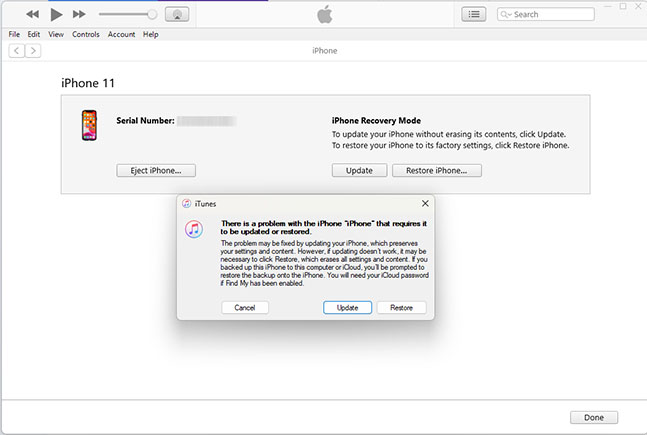
If reinstalling iOS with the Update option fails, a full restore may be required. Restoring removes the existing iOS installation and installs a fresh copy of the operating system, which can fix more serious software corruption.
However, Restore erases all data and settings on the iPhone. Therefore, this method should normally be used only after the non-destructive solutions above have failed.
- Step 1. Connect the iPhone to your Mac or Windows PC.
- Step 2. Open Finder or Apple Devices.
- Step 3. Put your iPhone into Recovery Mode.
- Step 4. When the computer displays the recovery prompt, choose Restore. Confirm that you want to restore the device. Wait while the required iOS software is downloaded and installed.
- Step 5. When the iPhone restarts, set it up as a new device or restore your data from an available backup.
Method 5. Contact Apple Support
If your iPhone still has a completely black screen after force restarting, reinstalling iOS, and performing a full restore, the problem may not be caused solely by iOS 27 Beta.
A damaged Side or Volume button can prevent the correct DFU exit sequence, while battery, USB, or internal hardware problems can also interfere with startup and restoration. At this stage, professional diagnosis is more appropriate than repeatedly restoring the device.
- Step 1. Try a different USB cable, USB port, or computer to rule out connection problems. Perform the force-restart sequence one final time.
- Step 2. If the iPhone still cannot boot or restore successfully, contact Apple Support.
- Step 3. If necessary, arrange an inspection at an Apple Store or Apple Authorized Service Provider.
Apple can determine whether the problem is caused by the iOS bugs or by a hardware component that requires service.
FAQs About iOS 27 Beta Stuck in DFU Mode
-
How do I know if my iPhone is really in DFU Mode?
When an iPhone is correctly in DFU Mode, the screen remains completely black. However, a connected Mac or Windows PC should still detect the device. If you see a cable-and-computer image on the screen, your iPhone is in Recovery Mode, not DFU Mode.
-
How do I exit DFU Mode on iOS 27 Beta?
For iPhone 8 or later, quickly press Volume Up, quickly press Volume Down, then press and hold the Side button until the Apple logo appears. If the force restart does not work, you may need to repair or restore iOS using a computer.
-
Will exiting DFU Mode erase my iPhone data?
Simply exiting DFU Mode with a force restart does not erase your data. However, restoring your iPhone through Finder or Apple Devices will erase the device. Therefore, try non-destructive methods before performing a full restore.
-
What should I do if my iPhone keeps returning to DFU Mode?
If your iPhone repeatedly returns to DFU Mode, a simple restart may not be enough. Try repairing the iOS system first. If the problem began after installing iOS 27 Beta and continues, downgrading iOS 27 Beta to iOS 26 may be necessary.
Conclusion
If your iOS 27 Beta is stuck in DFU Mode, start with a force restart and basic troubleshooting. If the iPhone still cannot boot normally, TunesKit iOS System Recovery is a practical option. Its Standard Repair mode can fix iOS system problems and help your iPhone exit DFU Mode without erasing existing data, making it worth trying before a full restore.



