


[iOS 27] Fix The iPhone Software Update Server Could not be Contacted?
When trying to update your iPhone to the latest iOS 27 version through iTunes, you may encounter the error message "The iPhone software update server could not be contacted". This issue usually appears when iTunes fails to connect to Apple's update server due to network problems, system settings, or software glitches. If you are facing the same problem and don't know how to fix it, don't worry. In this guide, we will explain the possible causes and provide several effective solutions to help you update your iPhone successfully.

[iOS 27] Why Could the iPhone Software Update Server Not Be Contacted?
If your iPhone shows "The iPhone software update server could not be contacted" while checking for an iOS 27 update, it usually means your iPhone cannot successfully reach Apple's update servers. Common causes include:
- 01 Apple server issues: Apple's update servers may be temporarily unavailable, overloaded, or experiencing regional service disruptions, especially during major iOS releases.
- 02 Network connection problems: Unstable internet connections, network restrictions, VPNs, proxies, or filtering services may prevent the iPhone from communicating with Apple’s update servers.
- 03 Device or system configuration issues: Incorrect date and time settings, network configuration errors, system cache problems, or update-related software issues may interfere with server verification.
- 04 Update requirements not being met: Device compatibility issues, insufficient storage space, beta software profiles, or other device conditions may cause the update request to fail.
[iOS 27] How to Fix iPhone Software Update Server Could Not Be Contacted?
Encountering the "iPhone software update server could not be contacted" error can quickly halt your transition to iOS 27. This warning usually points to a communication breakdown between your computer and Apple's verification servers. Fortunately, this is a common hurdle with several reliable workarounds.
Here is how you can bypass the error and get your update back on track.
Method 1: Troubleshoot Your Network Connection
If your computer cannot reach Apple's backend, your local network configuration is the first place to look. You need an active, stable internet connection to authenticate the request and download the massive firmware files.
- Step 1. Turn off your Wi-Fi router, wait about three minutes, and power it back on to clear out any network glitches.
- Step 2. Open a web browser on your computer and run a quick search to confirm your machine is successfully connected to the internet.
- Step 3. Connect your computer to a completely different Wi-Fi network or a mobile hotspot if your primary connection is still struggling to recognize the server.

Method 2: Update iTunes to the Latest Version
Running outdated device management software is a frequent culprit for server communication errors. Apple frequently updates its backend protocols, meaning older versions of iTunes might simply be locked out of the current server loop.
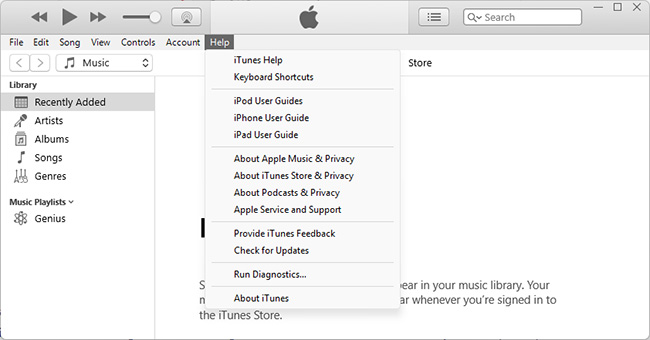
- Step 1. Open iTunes on your computer and click the "Help" tab located in the top menu bar.
- Step 2. Select "Check for Updates" and follow the on-screen prompts to install the newest version.
Method 3: Switch to an Over-The-Air (OTA) Update
If routing the update through your computer continues to throw error codes, bypassing the PC entirely is an excellent alternative. Upgrading your iPhone directly over the air uses your device's internal hardware to ping Apple's servers directly.
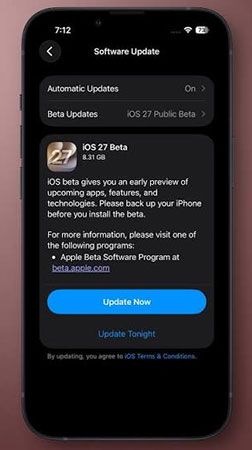
- Step 1. Navigate to the Settings app, tap General, and select Software Update.
- Step 2. Tap the "Update Now" button once the iOS 27 update populates, and enter passcode to authorize the installation.
- Step 3. Allow your iPhone to handle the rest, keeping it plugged into power until the installation finishes.
Method 4: Utilize iOS System Recovery Software
If the measure above still cannot fix your problem, maybe there is something wrong with your iOS system that makes your iPhone update server could not be contacted. Here, I recommend TunesKit iOS System Recovery, a powerful tool designed to fix various iOS issues and restore your iPhone to normal. It will provide you two modes to repair the system. The first one is the Standard Repair, which is used to deal with some common issues like iTunes error 54, iTunes error 39, iPhone not ringing issues. The second one is the Deep Repair, which is used to deal with some more serious issues like iPad won't charge, iPhone is disabled connect to iTunes error.
In addition to basic software repair functions, this software can also provide you 1-click to enter/exit recovery mode, downgrade iOS, back up or restore data from computer. It is not only suitable for Windows but also for Mac. And it is very easy to operate and you just need to do the following three steps.
Fix iOS 27 Update Server Connection Issues
Repair iOS system errors and resolve update server connection problems without data loss using TunesKit iOS System Recovery.
 600,000+ Downloads
Here's how to fix iOS 27 update server connection issues using TunesKit iOS System Recovery.
Step 1. Open TunesKit and connect your iPhone to PC
Install and open TunesKit iOS System Recovery on your computer, then connect your iPhone to the computer with a USB cable. Once your device is detected, click iOS System Repair on the main screen, on the next page, click the Start button.

Step 2. Choose A Repair mode
Choose Standard Repair mode. This mode can fix common iOS system issues without erasing your data.

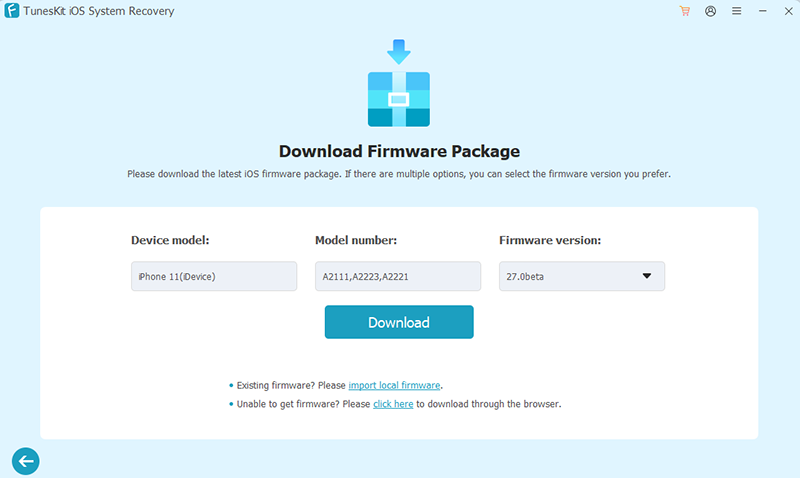
Step 3. Download The Matching Firmware Package
TunesKit will automatically detect your iPhone model and provide the appropriate firmware package. Click Download to get the required iOS firmware.
Step 4. Repair the iOS System
Click Start Standard Repair and wait while TunesKit repairs the system components related to update failures, system errors, and connection issues. When the repair process finishes, your iPhone will restart automatically. Try checking for the iOS 27 update again to see if the software update server connection issue has been resolved.

Video Guide: Fix iPhone Update Server Connection Issues
In this video, we'll show you a simple way to fix it using TunesKit iOS System Recovery. With just a few steps, you can repair common iOS system issues and get your iPhone ready for the latest update.
Conclusion
The "iPhone software update server could not be contacted" error on iOS 27 can be caused by server issues, network problems, or iOS system glitches. If basic troubleshooting does not work, TunesKit iOS System Recovery provides an effective way to repair common iOS system errors and restore normal update functionality. With its Standard Repair mode, you can fix update-related issues without losing your data and get your iPhone ready for the latest iOS version.



