


How to Put iPhone into Recovery Mode without Home Button [FREE]
Enter Recovery Mode Easily
Put your iPhone into or out of Recovery Mode for free—even when the Home button is unavailable.
 600,000+ Downloads
If your iPhone has no Home button—or the Home button is broken—you can still put it into Recovery Mode. On iPhone 8 and later, Recovery Mode is activated with the Volume and Side buttons, while older models with a damaged Home button may require another solution.
This guide explains how to put iPhone into Recovery Mode without Home button. You will learn the correct button combinations for different iPhone models, how to enter or exit Recovery Mode for free with a dedicated tool, and what to do if your iPhone does not respond.

Put iPhone in Recovery Mode without Home Button [FREE]
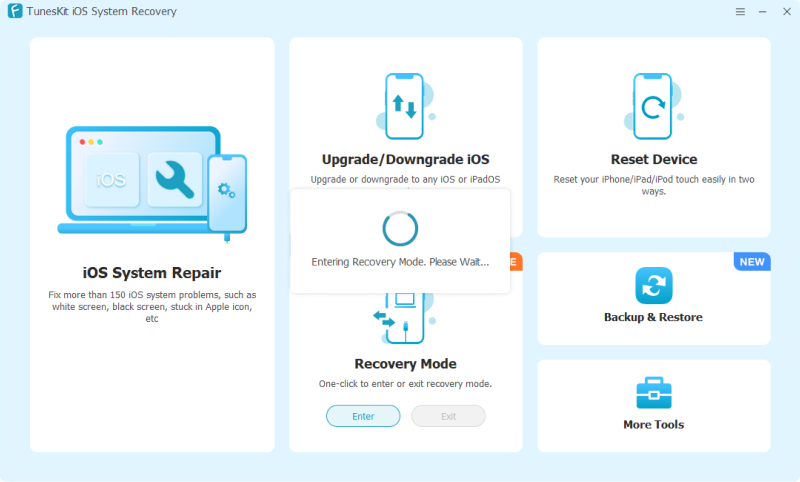
Manually entering Recovery Mode can be difficult if your iPhone's Home, Side, or Volume buttons are broken or unresponsive. In this case, TunesKit iOS System Recovery provides a simpler alternative. After connecting your iPhone to a computer, you can enter or exit Recovery Mode for free with just one click—no button combinations required.
TunesKit also includes system repair tools for more than 150 iOS and iPadOS issues, such as boot loops, black screens, update or restore failures, and iPhone stuck in Recovery Mode. Better yet, this assistant can work well to downgrade & upgrade iOS without jailbreak, and factory reset device when iPhone is locked, disabled or even frozen.
Key Features of TunesKit iOS System Recovery
Enter or exit iPhone Recovery Mode for free in one click with TunesKit iOS System Recovery—no Home or Power button required.
600,000+ Downloads
Enter Recovery Mode in One Click with TunesKit iOS System Recovery.
Launch TunesKit iOS System Recovery on your computer. Head on to connect your iPhone using a genuine Apple USB cable. Within seconds, this software will detect your device and now move to the Recovery Mode section, just click the "Enter" button and TunesKit will put your iPhone into Recovery mode without Home button automatically.
How to Manually Enter or Exit iPhone Recovery Mode
You can manually enter or exit Recovery Mode using different button combinations, depending on your iPhone model. Connect the iPhone to a computer with a USB cable before entering Recovery Mode.
On a Mac, open Finder. On a Windows PC, open the Apple Devices app. Use iTunes instead if Apple Devices is unavailable or the Mac is running macOS Mojave or earlier.
1. How to Enter iPhone Recovery Mode
For iPhone 8 or Later (This method also applies to iPhone SE (2nd generation and later)
- Step 1. Connect your iPhone to the computer.
- Step 2. Quickly press and release the Volume Up button, then press and release the Volume Down button.
- Step 3. Press and hold the Side button. Keep holding it after the Apple logo appears, and release it only when you see the Connect to computer screen.

For iPhone 7/7 Plus
- Step 1. Connect your iPhone to the computer.
- Step 2. Simultaneously press and hold the Volume Down button and Side button.
- Step 3. Keep holding both buttons until the Connect to computer screen appears.

For iPhone 6s or Earlier (This method also applies to iPhone SE (1st generation)
- Step 1. Connect your iPhone to the computer.
- Step 2. Press and hold the Home button and the Side or Top button simultaneously.
- Step 3. Keep holding both buttons until the Connect to computer screen appears.

2. How to Exit iPhone Recovery Mode
Do not disconnect the iPhone while an update or restore is in progress.
For iPhone 8 and later models
- Step 1. Quickly press the Volume Up button and then the Volume Down button.
- Step 2. Hold the Side button until an Apple logo appears.
For iPhone 7/7 Plus
Simply press and hold the Side button and Volume Down button simultaneously. Then release both buttons when the Apple logo appears.
For iPhone 6s or Earlier
Just press and hold the Home button and the Side or Top button simultaneously. Then release both buttons when the Apple logo appears.

FAQs About iPhone Recovery Mode
-
How long does it take to put an iPhone into Recovery Mode?
Entering Recovery Mode normally takes only the time needed to connect the iPhone and complete the correct button sequence. Using TunesKit iOS System Recovery can simplify the process by letting you enter Recovery Mode with one click.
However, updating or restoring the iPhone afterward may take longer. The total time depends on the firmware download, internet speed, computer performance, and device condition.
-
What is iPhone Recovery Mode?
Recovery Mode is a troubleshooting state that allows a computer to communicate with an iPhone when iOS cannot start, update, or restore normally. Once the iPhone is in Recovery Mode, you can use Finder, Apple Devices, or iTunes to update or restore it.
Choosing Update attempts to reinstall iOS without erasing data, while Restore erases the device and reinstalls the operating system.
-
When should I use Recovery Mode?
You may need to use Recovery Mode when:
- Your computer cannot recognize the iPhone properly.
- The iPhone is stuck on the Apple logo without a progress bar.
- The Connect to computer screen appears.
- An iOS update or restore repeatedly fails.
- The iPhone is disabled or you have forgotten its passcode.
- The device is stuck in a boot loop or cannot start normally.
Try a restart or force restart first when possible. Use Recovery Mode when basic troubleshooting does not resolve the problem.
-
What does the iPhone Recovery Mode screen look like?
The current Recovery Mode screen displays a cable pointing toward a computer. Apple refers to it as the Connect to computer or Restore screen.
Older iOS versions may display an iTunes logo instead, so the exact appearance can vary depending on the device and installed system version.
-
Does Recovery Mode erase iPhone data?
Simply entering or exiting Recovery Mode does not erase data. After connecting the iPhone to a computer, choosing Update attempts to reinstall iOS while preserving your information.
Choosing Restore erases the iPhone, including its settings and stored data. Create a backup whenever possible before restoring the device.
-
What to do when the Home button is not working on iPhone?
1. Make sure all cases and screen protectors are removed.
2. Maintain a clean button area.
3. It might be a good idea to restore your iPhone or iPad firmware with iTunes. Or you can learn how to fix Home button not working.
Video Tutorial: Enter Recovery Mode without Home Button
For those of you who have never exposed to iPhone before, it may be difficult for you to fully understand what recovery mode is, when to use it and how to enter this mode. To simplify the process and make all operations more intuitive, here we share this YouTube video for you to watch and learn.
Conclusion
There it is. You now know how to put iPhone in recovery mode without Home button using a free tool - TunesKit iOS System Recovery software and via manual operations. If you're not skilled with much technical knowledge, then using the mentioned tool can greatly save your time. The software has an intuitive interface that makes it easy to use; it is fast and allows you to complete the process in just a few seconds. Only one click and then it's done!



