How to Fix iPhone Stuck on Update Bar in iOS 27
- If the iPhone update bar is still moving, keep the device connected to power and wait.
- If the bar has stopped completely and the iPhone is unresponsive, force restart it.
- If the same Apple logo and progress bar return, connect the iPhone to a computer and continue with the recovery options below.
Seeing your iPhone stuck on the Apple logo with a progress bar can be worrying, especially when you cannot tell whether the update is still running or has actually frozen.
This guide explains how to tell if the iPhone update bar is really stuck and what to do next. If your iPhone is stuck at another stage, such as Update Requested, Preparing Update, or Verifying Update, see our iOS 27 update guide for the right troubleshooting steps.

- Is Your iPhone Update Bar Really Stuck?
- Why Does the iPhone Update Bar Stop or Appear Stuck?
-
What Should You Do If the iPhone Update Bar Is Stuck?
- Fix 1: Wait and Keep the iPhone Connected to Power
- Fix 2: Force Restart If the iPhone Is Unresponsive
- Fix 3: Check Available Storage
- Fix 4: Delete and Redownload the iOS Update
- Fix 5: Retry the Update on a Stable Network
- Fix 6: Update with Finder or Apple Devices
- Fix 7: Repair Persistent iOS Issues with TunesKit HOT
- Fix 8: Use Recovery Mode and Choose Update First
- FAQs About iPhone Stuck on Update Bar
- Conclusion
Is Your iPhone Update Bar Really Stuck?
The iOS progress bar may move slowly or appear unchanged while the update is still running. In some cases, it may even finish and start again as the system completes the update.
If the bar is still moving, avoid interrupting the device. If pressing a button shows that the iPhone is still updating, let the process continue.
If the progress bar remains unchanged for a long time and the iPhone becomes unresponsive, use the troubleshooting guide below.
Why Does the iPhone Update Bar Stop or Appear Stuck?
Several things can make an iPhone update bar stop moving or appear stuck:
- The update is still processing: A large update or a device with a lot of data may take longer to finish.
- Low battery or interrupted power: Losing power during installation may interrupt the update process.
- Insufficient storage: Your iPhone needs enough free space to install the update and process temporary files.
- Incomplete update files: A problem during the download or preparation stage may prevent installation from finishing normally.
- Temporary iOS issue: A system process may stop responding and leave the iPhone on the update screen.
What Should You Do If the iPhone Update Bar Is Stuck?
| What You See | What It Usually Means | What to Do Next |
|---|---|---|
| The progress bar is still moving | The update is likely still running | Keep the iPhone connected to power and wait (Fix 1) |
| The bar has stopped and the iPhone does not respond | The update may be frozen | Force restart the iPhone (Fix 2) |
| The iPhone restarts normally to the Home screen | You can troubleshoot before retrying | Check storage (Fix 3), redownload the update (Fix 4), and retry on a stable network (Fix 5) |
| The iPhone starts normally but the update fails again | The on-device update is still failing | Try Finder or Apple Devices (Fix 6) |
| The iPhone returns to the Apple logo and progress bar | A system-level update or startup issue may be involved | Try system repair (Fix 7) or Recovery Mode(Fix 8) |
Use the table above to find the right starting point, then follow the matching fixes below.
Fix 1: Wait and Keep the iPhone Connected to Power
Keep the iPhone connected to a power source and give the update time to finish. Do not interrupt it while the progress bar is still moving. As a practical reference, if the bar has shown no visible movement for about an hour and the iPhone remains unresponsive, move to the next fix.

Fix 2: Force Restart If the iPhone Is Unresponsive
If the update bar has completely stopped and your iPhone no longer responds, a force restart may help the device start normally again. Only force restart the iPhone when the update appears genuinely frozen.
For iPhone 8 and later:
- Step 1. Quickly press and release the Volume Up button.
- Step 2. Quickly press and release the Volume Down button.
- Step 3. Press and hold the Side button until the Apple logo appears.

If the iPhone starts normally, continue with Fixes 3–5 before retrying the update. If it returns to the same Apple logo and progress bar, skip to the computer-based recovery options below.
Fix 3: Check Available Storage
Before retrying the update, make sure your iPhone has enough available storage. Insufficient free space can prevent iOS from installing properly. The required storage varies by device and update size. In our TunesKit test on an iPhone 11 running iOS 27.0.1, about 15 GB of free space was needed to complete the update. Actual requirements may vary.
- Step 1. Open Settings > General > iPhone Storage. Check how much storage is available.
- Step 2. Delete or offload apps, videos, photos, or other files you no longer need.

- Step 3. Return to Settings > General > Software Update when you are ready to retry.
Fix 4: Delete and Redownload the iOS Update
The downloaded iOS file may be incomplete or damaged. This can happen if the download was interrupted or the update package did not finish preparing correctly. Deleting the current update file gives your iPhone a fresh copy to work with, which may help the installation complete successfully on the next attempt.
- Step 1. Go to Settings > General > iPhone Storage.
- Step 2. Find the iOS update in the list. Tap it and select Delete Update.
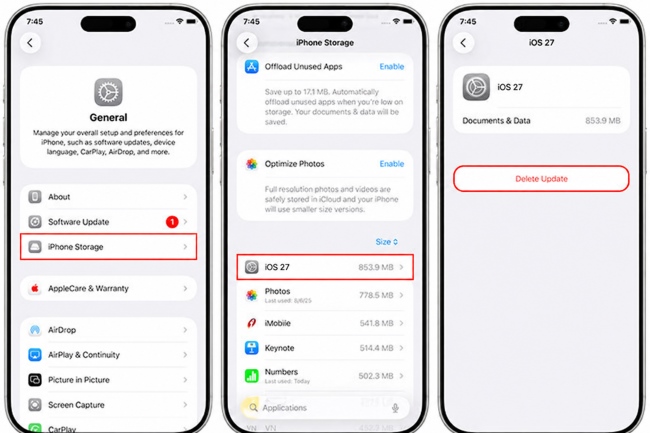
- Step 3. Return to Settings > General > Software Update and download iOS 27 again.
If the update file does not appear in iPhone Storage, continue with the next solution.
Fix 5: Retry the Update on a Stable Network
Use a reliable Wi-Fi connection when downloading and verifying the update again. Wi-Fi is more likely to affect the download or verification stage than the progress bar after installation has already started.
- Step 1. Go to Settings > Wi-Fi. Connect to a stable Wi-Fi network.

- Step 2. Temporarily turn off any VPN or proxy if you use one.
- Step 3. Return to Settings > General > Software Update and try again.
Fix 6: Update with Finder or Apple Devices
If the iPhone starts normally but the update still fails, try updating it with a computer. Finder or Apple Devices can use a different update path, which may work when the on-device update does not.
- Step 1. Connect your iPhone to the computer with a USB cable.
- Step 2. Open Finder on Mac or Apple Devices on Windows. On an older system, use iTunes.
- Step 3. Select your iPhone. Choose Check for Update.
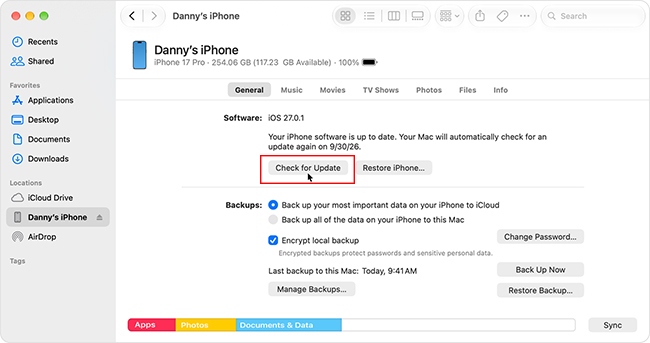
- Step 4. Select Download and Update and keep the iPhone connected until the process finishes.
Fix 7: Repair Persistent iOS Issues with TunesKit
If your iPhone repeatedly gets stuck on the update bar or loops back to the Apple logo after a force restart, the problem may involve a deeper iOS system issue.
TunesKit iOS System Recovery offers a dedicated Standard Repair mode that is designed to repair 150+ iOS system issues without erasing existing data. Because the program downloads a fresh, complete iOS 27 firmware package to rebuild the damaged system, your iPhone will automatically be updated to the latest iOS 27 version as soon as the repair finishes—eliminating the need to run the update again in Settings.
- Step 1. Launch TunesKit iOS System Recovery on your Mac or Windows computer and connect your stuck iPhone using a USB cable.
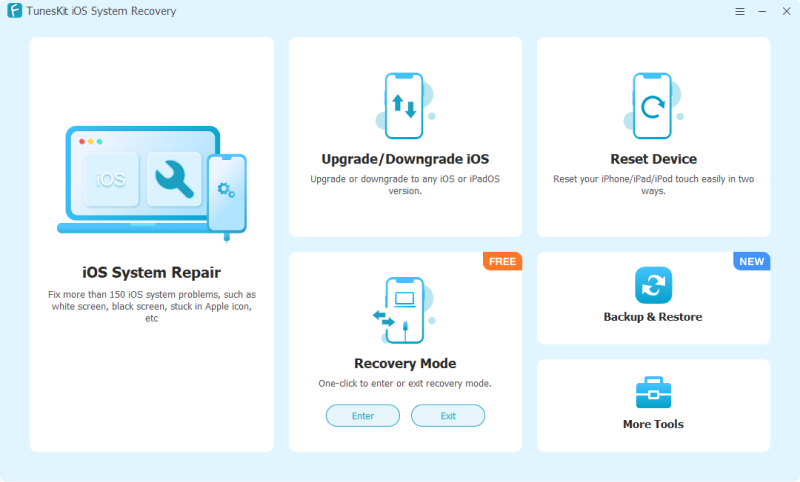
- Step 2. Select iOS System Repair on the main interface, click Start, and choose Standard Repair so your personal data remains untouched.

- Step 3. Verify your iPhone model details on the screen and click Download to let the software fetch a clean iOS 27 firmware package.
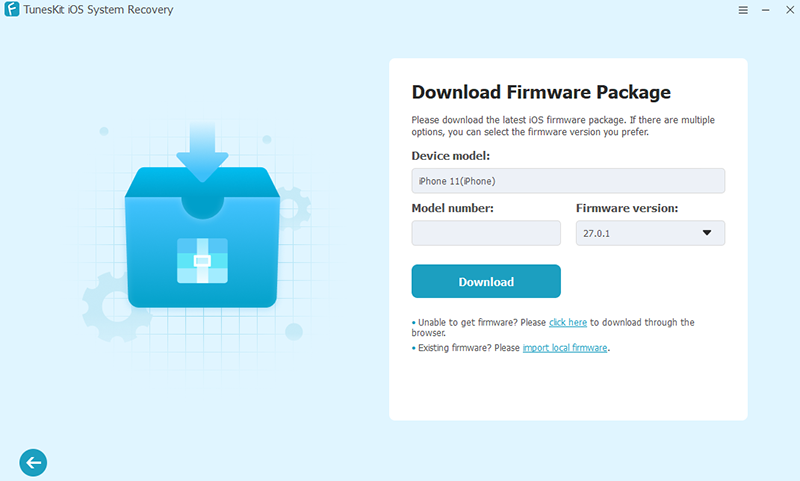
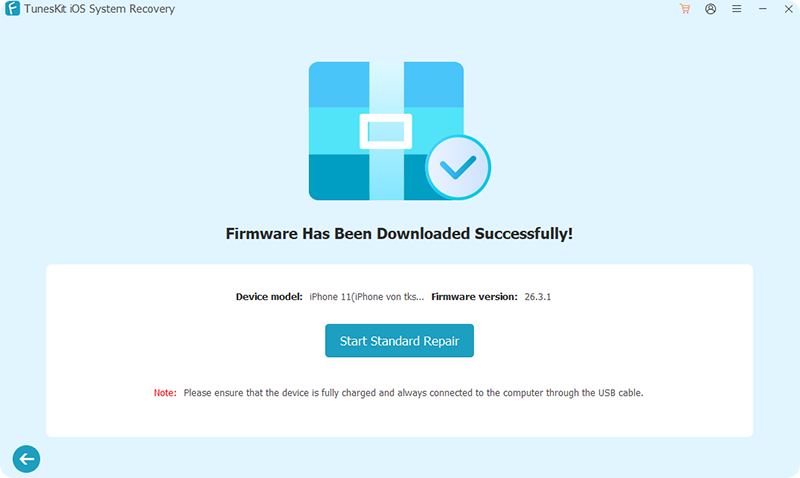
- Step 4. Click Start Standard Repair once the package is verified. Keep your iPhone connected for a few minutes until it restarts normally into the updated iOS 27 system.
Fix 8: Use Recovery Mode and Choose Update First
If your iPhone keeps returning to the Apple logo and progress bar, or cannot update normally through Finder or Apple Devices, Recovery Mode can provide another recovery path. Choosing Update attempts to reinstall iOS without erasing your personal data. Restore erases the iPhone, so it should only be used when necessary.
- Step 1. Connect the iPhone to a Mac or Windows computer.
- Step 2. Put the iPhone into Recovery Mode.
- Step 3. When Finder or Apple Devices offers Update or Restore, choose Update first.
- Step 4. Use Restore only if updating does not work and you have a backup.

FAQs About iPhone Stuck on Update Bar
-
How long should I wait if the iPhone update bar is stuck?
There is no fixed time for every iOS update. The progress bar may pause or move slowly. If it has shown no visible movement for about an hour and the iPhone is still unresponsive, you can start troubleshooting.
-
Will force restarting an iPhone during an update erase my data?
A force restart does not normally erase personal data. However, interrupting an active update can cause startup or installation problems, so only force restart the iPhone when the update appears completely frozen.
-
Why did the iPhone update progress bar start over?
The progress bar may sometimes finish and then start again while iOS completes the update or related system processes. This does not necessarily mean the update has failed. Keep the iPhone connected to power and let the process continue.
-
What if the update bar comes back after a force restart?
If the update screen returns, connect your iPhone to a computer. Use TunesKit iOS System Recovery to repair the system without data loss, or enter Recovery Mode and choose Update before considering a full restore.
Conclusion
Start with the least disruptive fix and move to computer-based or system-level recovery only when the iPhone remains stuck. If none of these methods helps and the device still cannot update or start normally, contact Apple Support for further diagnosis. For problems at other update stages, visit our iOS update troubleshooting center to find the matching solution.