


How to Factory Reset iPhone 6/7/8/X/11: Fix It in 5 Ways

If you want to factory reset your iPhone 6, here are the fastest methods:
- Use Settings (if you know the passcode)
- Use iCloud (remote reset)
- Use Security Lockout feature
- Use Recovery Mode with iTunes
- Use TunesKit iOS System Recovery (best for locked devices)
Many users choose to factory reset their iPhone when upgrading to newer models like iPhone 16 or iPhone 17, or before selling their old device. Besides that, a factory reset is also one of the most effective ways to fix persistent iOS system issues, such as freezing, crashing, or software glitches.
After resetting your iPhone to factory settings, the device will restart and return to its original state, just like a brand-new iPhone. You can then set it up again or restore your data from a backup in iCloud or iTunes. In this guide, we will show you 5 easy and proven ways to factory reset iPhone 6 with or without passcode. All methods are compatible with the latest iOS 18/26 and support all iPhone models.

Video Demo: iPhone 6/7/8/X/11 Factory Reset
Before exploring how to reset iPhone to factory settings, you could watch the video first. In this video, we have tried to reset the iPhone to factory settings using TunesKit iOS System Recovery and iTunes when your device is locked.
5 Ways to Factory Reset iPhone 6/7/8/X/11 With or Without Passcode
Factory resetting your iPhone is easier than you might think, whether you still have the passcode or your device is locked. In this section, we'll walk you through five simple and effective methods to reset your iPhone under different situations, including without a passcode or even without a computer.
Method 1: Factory Reset iPhone 6 via Settings (Easiest)
Here's an important reminder you should know before resetting: All data and settings stored on your device, ranging from notes, app data, to photos, videos, music, and others, will be removed. The following emthod will specifically use the iPhone to implement data deletion and factory reset. It means that the whole process will be done on the iPhone via Settings without having to connect to a computer on the premise that you can normally get access to the phone.
- Step 1. Power on iPhone and enter the passcode to unlock the device.
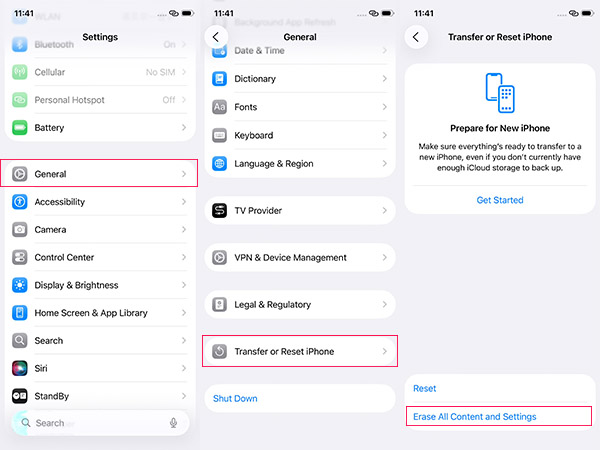
- Step 2. Head to Settings > General > Transfer or Reset iPhone and tap on Erase All Content and Settings.
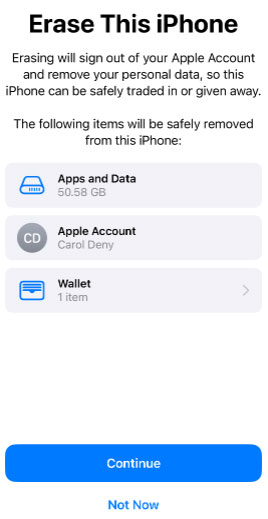
- Step 3. Tap Continue to confirm when a warning message pops up and then enter the password of your device and Apple ID info as required.
- Step 4. Wait for a while until your iPhone completes reset.
The time it takes to reset the iPhone on the device depends on the model, and you will see a rough estimate from the warning box, but the time to fully restore the device can range from several minuts to more than an hour. And your iPhone will not be operated while resetting as all the files will be cleared.
Method 2: Factory Reset iPhone 6 with iCloud
This method works through Apple's iCloud service, allowing you to remotely erase your iPhone even if you don't have physical access to it. It's especially useful when your device is lost, stolen, or locked and inaccessible. This method is best for Find My iPhone is enabled, device is online(connected to the internet), and you know your Apple Account password.
- Step 1. Visit www.iCloud.com/#find, then enter your Apple ID and tap the Find My iPhone option.
- Step 2. Tap All Devices and select the iPhone you want to erase.
- Step 3. Choose Erase This Device to finish the process of resetting iPhone to factory settings.

Method 3: Use Security Lockout (No Computer Needed)
Apple introduced the Security Lockout feature to let users reset a locked iPhone directly from the lock screen after multiple failed passcode attempts. This method is built into iOS, making it the most straightforward and secure option without needing a computer or extra tools.
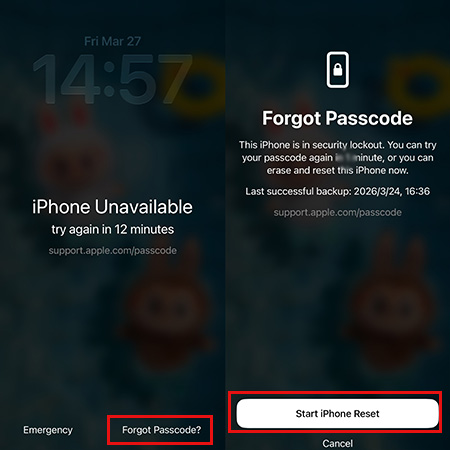
- Step 1. Enter the wrong passcode multiple times until the "iPhone Unavailable" screen appears.
- Step 2. Tap Forgot Passcode? at the bottom.
- Step 3. Tap Start iPhone Reset option to confirm. Enter your Apple ID password, and wait for the device to erase and restart
Method 4: Use Recovery Mode with iTunes/Finder
Recovery Mode allows your computer to communicate with your iPhone at a system level, making it possible to reinstall iOS and erase the device even when it's locked or not functioning properly. This is Apple's official solution for serious issues.
- Step 1. Use an original USB cable to connect your iPhone to a PC or Mac computer and then open iTunes.
- Step 2. Put your iPhone into Recovery Mode: Press and release Volume Up, press and release Volume Down, at last, press and hold the Side button until Recovery Mode appears.
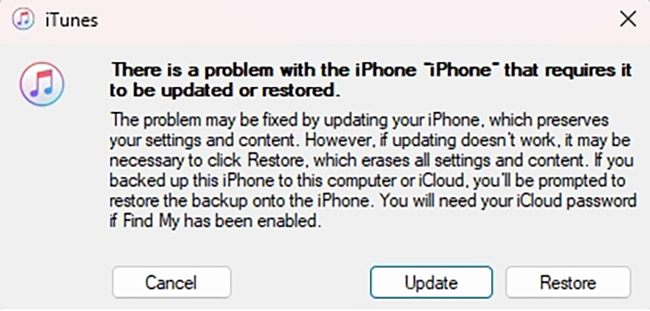
- Step 3. Then iTunes will detect your iPhone in the recovery mode and go to choose the Restore option on iTunes. Wait until the restoration is done, and your iPhone will be reset to the factory resettings.
 View Also: How to Enter or Exit Recovery Mode on iPhone
Method 5. How to Factory Reset iPhone 6 without iTunes or Passcode
This might be one of the most efficient solutions on how to reset iPhone when locked. There are many such applications that can help you out and TunesKit iOS System Recovery is a trustworthy and powerful one. It will help you remove any kind of screen passcode no matter it's numeric ones or more advanced Touch ID and Face ID.
Its full compatibility also enables users to restore other models including the latest iPhone 17, iPad, or devices that're running the latest iOS 26, etc. Now just get the free download of this software and try it out. Here's how to factory reset iPhone without iTunes or passcode using TunesKit software.
Key Features of TunesKit iOS System Recovery
Fix more than 150 iOS issuses including iPhone stuck in boot loop, iPhone green screen, iPhone stuck on white Apple, etc., without causing any data loss.
 600,000+ Downloads
Step 1Connect your iPhone 6 to the computer
Launch TunesKit program and connect your iPhone with a USB cord. Then select the Reset Device option.

Step 2Select a mode to reset
Select the Factory Reset option to factory reset your iPhone by using TunesKit iOS System Recovery.

Step 3Download the firmware package
Confirm your device info and correct it if anything is wrong. Then click the Download button to start downloading and verifying the iOS firmware package that matched your device.

Step 4Reset iPhone 6 to factory settings
Once the download comes to the end, click the Reset button to factory reset iPhone without password. Wait a while until the process completes. Don't disconnect your device during the whole process.

Comparison Table
| Method | Need Passcode | Need Computer | Difficulty | Best For |
|---|---|---|---|---|
| Settings | ✅ | ❌ | Easy | Normal reset |
| Security Lockout | ✅Apple ID Passcode | ❌ | Easy | Forgot passcode |
| iCloud | ✅ | ❌ | Easy | Lost iPhone |
| iTunes | ❌ | ✅ | Medium | System issues |
| TunesKit iOS System Recovery | ❌ | ✅ | Easy | Locked device |
FAQs About Factory Reset iPhone 6
-
Will I lose any data after factory resetting iPhone 6?
Yes. You will lose all the data and content from your iPhone after factory resetting your iPhone 6. If you don't want to keep your data well, it would be a better choice for you to back up your iPhone before factory resetting it. If you have already lost the data, you can try using TunesKit iPhone Data Recovery to get your iPhone data back.
-
Is it possible to factory reset my iPhone 6 if I forgot the passcode?
Yes. You can use iTunes or TunesKit iOS System Recovery to factory reset your iPhone 6 without entering any passcode. However, if you want to use iTunes to make it, your iPhone should be synced with iTunes before. Using TunesKit iPhone Unlocker or TunesKit iOS System Recovery is the best solution for users to factory reset the iOS device without any passcode.
Conclusion
Now you've learned about how to reset iPhone 6 to factory settings. And you can try the aforementioned solutions one by one until your problem is solved. If your iPhone is locked and you need to factory reset it, we highly recommend you to try TunesKit iOS System Recovery since it's easy and efficient. In case that there is any data loss issue occuring on your iPhone, turn to an efficient iOS data recovery tool such as TunesKit iPhone Data Recovery for help. It can recover up to 20 types of deleted data either from your iPhone directly or iTunes and iCloud backup.


