


8 Ways to Fix iOS 27 Bluetooth Issues
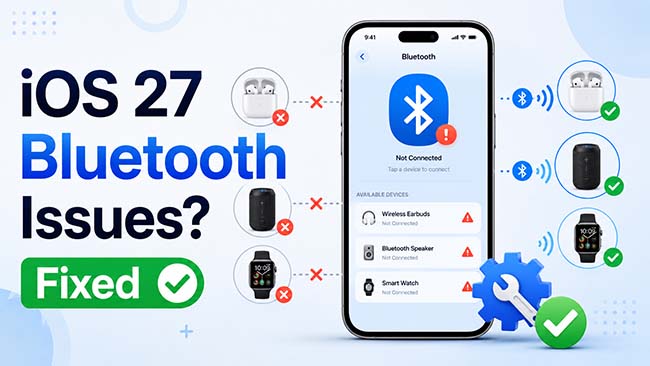
After updating your iPhone, you may run into iOS 27 Bluetooth issues, such as Bluetooth not connecting, devices failing to pair, frequent disconnections, or no audio from wireless accessories. These problems can affect AirPods, speakers, car systems, and other Bluetooth devices. In this guide, we'll explain the common causes and show you practical ways to get Bluetooth working normally again.
- Common Bluetooth Issues in iOS 27
-
8 Ways to Fix iOS 27 Bluetooth Issues
- Method 1. Turn Bluetooth Off and Back On
- Method 2. Restart Your iPhone and Bluetooth Device
- Method 3. Forget the Bluetooth Device and Pair It Again
- Method 4. Check the Bluetooth Accessory
- Method 5. Update to the Latest iOS 27 Version
- Method 6. Reset Network Settings
- Method 7. Fix iOS 27 Bluetooth Issues with TunesKit iOS System Recovery HOT
- Method 8. Downgrade iOS 27 to iOS 26
- FAQs About iOS 27 Bluetooth Issues
- Conclusion
Common Bluetooth Issues in iOS 27
After updating to iOS 27, Bluetooth problems may appear in different ways. Identifying the exact symptom can help you choose the right fix faster. Common iOS 27 Bluetooth issues include:
- 1. Bluetooth won't turn on – The Bluetooth switch may be unavailable, unresponsive, or keep turning off.
- 2. Bluetooth devices won't connect – Your iPhone may detect AirPods, speakers, or other accessories but fail to connect.
- 3. Bluetooth pairing fails – A device may not appear in the Bluetooth list or may repeatedly show a pairing error.
- 4. Bluetooth keeps disconnecting – Connected devices may randomly lose connection and reconnect.
- 5. No sound over Bluetooth – The device appears connected, but audio still plays through the iPhone speaker.
- 6. Poor or interrupted audio – Bluetooth audio may stutter, lag, cut out, or sound distorted.
- 7. AirPods not connecting properly – AirPods may fail to pair, connect to only one earbud, or disconnect unexpectedly.
8 Ways to Fix iOS 27 Bluetooth Issues
If you experience Bluetooth issues after updating to iOS 27, start with basic connection fixes before resetting network settings or repairing the system. Apple recommends checking the accessory, restarting it, and pairing it again when a Bluetooth connection fails.
Method 1. Turn Bluetooth Off and Back On
Bluetooth may occasionally stop responding correctly because of a temporary wireless service or connection glitch. Turning Bluetooth off and back on forces your iPhone to restart the Bluetooth connection process and scan for nearby accessories again. This is one of the quickest fixes to try when a device suddenly disappears or refuses to connect.
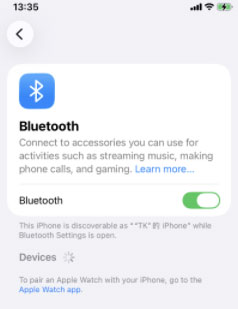
- Step 1. Open Settings > Bluetooth.
- Step 2. Turn off the Bluetooth switch.
- Step 3. Wait about 10 seconds, then turn Bluetooth back on.
- Step 4. Put your Bluetooth accessory into pairing mode and try connecting again.
Method 2. Restart Your iPhone and Bluetooth Device
If Bluetooth stopped working after an iOS 27 update or during normal use, restarting both devices can clear temporary system processes, cached connection errors, and minor communication glitches. Restarting the accessory is also important because the problem may come from the Bluetooth device rather than the iPhone.
- Step 1. Turn off your Bluetooth accessory.
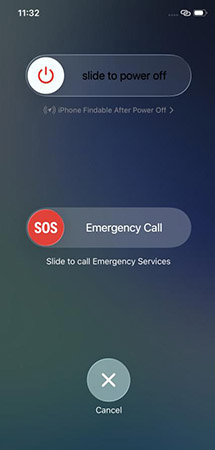
- Step 2. Restart your iPhone. Press and hold the Side button and either Volume button on Face ID models (Or the Side button for iPhone with Home button) until the power-off slider appears. Drag the slider to turn off the iPhone.
- Step 3. Wait about 30 seconds, then turn your iPhone back on.
Step 4. Turn the Bluetooth accessory back on.
Step 5. Open Settings > Bluetooth and try connecting again.
Apple also recommends turning a Bluetooth accessory off and back on when it cannot connect. Make sure the accessory has sufficient battery power as well.
Method 3. Forget the Bluetooth Device and Pair It Again
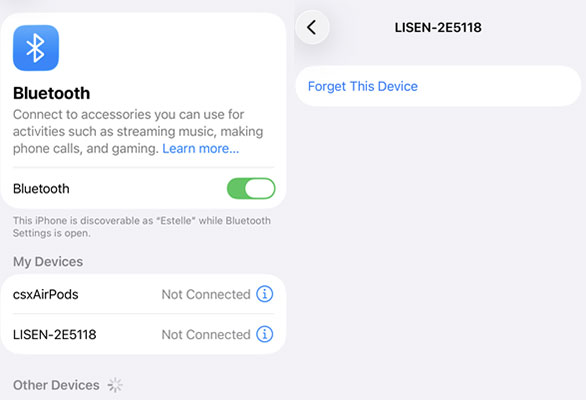
Your iPhone stores pairing information for each Bluetooth accessory. If that saved connection data becomes outdated or stops working correctly after a software update, the accessory may appear under My Devices but fail to connect. Forgetting the device removes the existing pairing record so you can create a fresh connection.
- Step 1. Go to Settings > Bluetooth.
- Step 2. Find the problematic device under My Devices.
- Step 3. Tap the Info (i) button beside its name.
- Step 4. Tap Forget This Device, then confirm.
Step 5. Put the Bluetooth accessory back into discovery or pairing mode.
Step 6. Return to Settings > Bluetooth and tap the device name when it appears.
If required, enter the accessory's PIN or passcode. Apple confirms that Bluetooth accessories must be placed in discovery mode before they can be paired with an iPhone.
Method 4. Check the Bluetooth Accessory
Not every Bluetooth problem is caused by iOS 27. If only one pair of headphones, speaker, keyboard, car system, or other accessory refuses to connect while other Bluetooth devices work normally, the accessory itself may be the source of the problem. Checking its power, pairing status, firmware, and connection to other devices can help rule this out.
- Step 1. Charge the Bluetooth accessory sufficiently.
- Step 2. Make sure it is turned on and in pairing mode.
- Step 3. Move the accessory close to your iPhone.
- Step 4. Disconnect the accessory from another phone, tablet, or computer if it automatically connects there.
- Step 5. Check whether a firmware update is available from the accessory manufacturer.
- Step 6. Try pairing the accessory with another phone. If it also fails, the issue is more likely related to the accessory itself.

Method 5. Update to the Latest iOS 27 Version
Apple may release iOS updates that include bug fixes, stability improvements, and compatibility changes for wireless connections. If your Bluetooth issue is caused by a software bug, installing the latest available iOS 27 update may resolve it without requiring any other changes.
- Step 1. Connect your iPhone to Wi-Fi and a charger.
- Step 2. Open Settings > General > Software Update.
- Step 3. Check whether a newer iOS 27 build is available.
- Step 4. Tap the Update Now button. After the update finishes, reconnect your Bluetooth accessory and test it again.
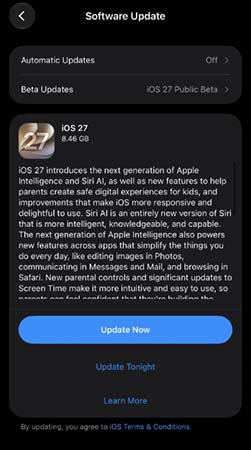
Keeping both your iPhone and Bluetooth accessories updated can also reduce compatibility issues.
Method 6. Reset Network Settings
If Bluetooth problems affect several different devices, the issue may be related to damaged or conflicting network configuration data rather than one specific accessory. Resetting network settings clears saved wireless configurations and restores network-related settings to their defaults.
This method does not erase your photos, apps, messages, or other personal content. However, it removes saved Wi-Fi networks and passwords, so you will need to reconnect to Wi-Fi afterward.
- Step 1. Open Settings on your iPhone.
- Step 2. Tap General > Transfer or Reset iPhone. Tap Reset.
- Step 3. Select Reset Network Settings.
- Step 4. Enter your iPhone passcode if prompted. Confirm the reset and allow the iPhone to restart.

Then go back to Settings > Bluetooth and pair your Bluetooth device again.
Method 7. Fix iOS 27 Bluetooth Issues with TunesKit iOS System Recovery
If Bluetooth worked normally before an iOS update but remains unstable after reconnecting devices, restarting the iPhone, and resetting network settings, the issue may be related to the iOS system itself. In this situation, repairing the system can be another troubleshooting option before performing a full restore.
TunesKit iOS System Recovery provides a Standard Repair mode designed to repair common iOS system problems while preserving personal data. This can be useful when Bluetooth problems appear together with other unusual iOS behavior. Meanwhile, it can fix other iOS issues like iPhone stuck on update complete screen, iPhone stuck on verifying update, and iPhone blue box issues, etc. Compatible with the latest iOS/iPadOS version and all iPhone/iPad models, it is the NO.1 choice for you to fix system problems.
Fix iOS 27 Bluetooth Issues
Repair iOS-related Bluetooth problems without data loss using TunesKit iOS System Recovery.
Here's a guide on how to fix iOS 27 Bluetooth issues using TunesKit iOS System Recovery.
Step 1. Connect Your iPhone
Install and launch TunesKit iOS System Recovery on your Windows PC or Mac. Connect your iPhone to the computer with a USB cable. Choose iOS System Repair, and click Start.

Step 2. Choose Standard Repair
Select Standard Repair. This mode is intended to repair common iOS system errors without deleting personal data.

Step 3. Download the Firmware Package
Confirm that the detected device information is correct, then click the Download button to download the firmware package provided by the program.
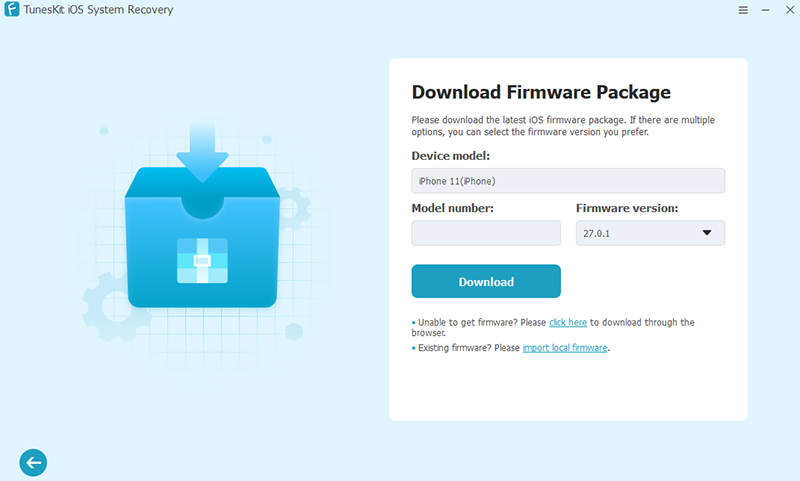
Step 4. Start Repairing iOS
After the firmware download finishes, click the Start Standard Repair button. Keep the iPhone connected to the computer until the repair is complete. Once the iPhone restarts, open Settings > Bluetooth, pair your accessory again, and check whether the connection works normally.

Method 8. Downgrade iOS 27 to iOS 26
If the Bluetooth problem only appeared after installing iOS 27 and none of the fixes above work, you can consider downgrading iOS 27 to a stable iOS 26 version. TunesKit iOS System Recovery includes a dedicated iOS downgrade feature that can roll back your iPhone to an available, Apple-signed iOS 26 firmware without using iTunes.
 Before you start
Back up your important data first. Downgrading to an older iOS version can erase the device, and you can only install an iOS 26 firmware version that Apple is still signing.
- Step 1. Install and launch TunesKit iOS System Recovery, then connect your iPhone to the computer.
- Step 2. Choose Upgrade/Downgrade iOS > iOS Downgrade.
- Step 3. Select an available signed iOS 26 firmware version and click Download.
- Step 4. After the firmware is downloaded and verified, click Start Downgrade and keep your iPhone connected until the process finishes.
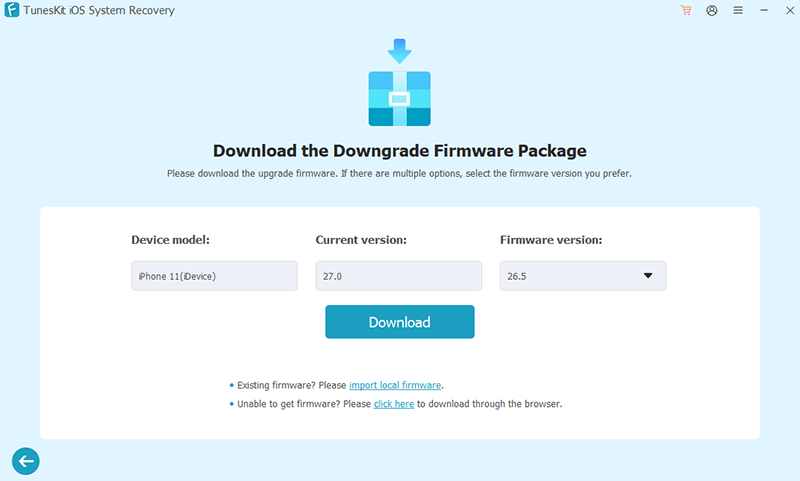
Once your iPhone restarts on iOS 26, pair your Bluetooth devices and check whether the connection problem has been fixed.
FAQs About iOS 27 Bluetooth Issues
-
Why is Bluetooth not working after updating to iOS 27?
Bluetooth problems after an iOS update can be caused by temporary connection glitches, outdated accessory firmware, corrupted pairing information, network setting conflicts, or iOS system errors. Restarting your devices and pairing the accessory again are good first steps.
-
Why does Bluetooth keep disconnecting on iOS 27?
Frequent disconnections may result from weak Bluetooth signals, low accessory battery, interference, outdated firmware, or a software issue on the iPhone. Keep the devices close together, update both devices, and reset network settings if the problem affects multiple accessories.
-
How do I know whether the problem is my iPhone or the Bluetooth device?
Try connecting your iPhone to another Bluetooth accessory and pair the problematic accessory with another phone. If multiple accessories fail only with your iPhone, the issue is more likely related to the iPhone. If the accessory fails with multiple devices, the accessory itself may be responsible.
Conclusion
Most iOS 27 Bluetooth issues can be fixed by restarting Bluetooth, reconnecting accessories, updating iOS, or resetting network settings. If the problem is caused by deeper iOS system errors, TunesKit iOS System Recovery offers a Standard Repair mode designed to repair common iOS issues without erasing personal data, making it a useful option before performing a full device restore.



