


Fix Apple Intelligence Taking Too Much Storage on iOS 27
If you notice iOS 27 Apple Intelligence taking too much storage, you are not alone. Downloaded AI models, Siri data, cached files, and enabled Apple Intelligence features can occupy several gigabytes on your iPhone. This guide explains why the storage usage increases and shows practical ways to reduce it without affecting your important data.
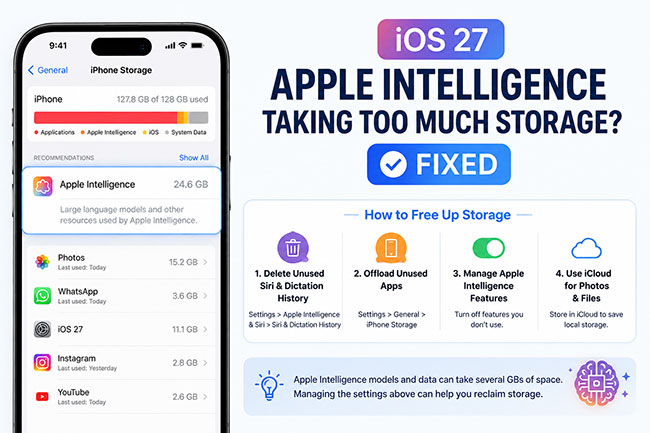
- How to Check Apple Intelligence Storage Usage on iOS 27
-
[iOS 27] How to Free Up Storage When Apple Intelligence Takes Too Much Space
- Method 1: Turn Off Apple Intelligence
- Method 2: Follow the iPhone Storage Recommendations
- Method 3: Offload Unused Apps
- Method 4: Optimize iPhone Photo Storage
- Method 5: Remove Downloaded Files Without Deleting Them from iCloud
- Method 6: Delete Large Apps, Downloads, and Media
- Method 7: Repair iOS 27 with TunesKit iOS System Recovery HOT
- FAQs About iOS 27 Apple Intelligence Storage
- Conclusion
How to Check Apple Intelligence Storage Usage on iOS 27
Before reducing Apple Intelligence storage, first check how much space it currently uses on your iPhone. This helps you confirm whether Apple Intelligence is the main cause of the storage problem.
- Step 1. Open Settings on your iPhone.
- Step 2. Tap General > iPhone Storage.
- Step 3. Wait a few seconds for iOS to calculate your storage usage.
- Step 4. Scroll down and tap iOS to view the space used by the operating system and Apple Intelligence.
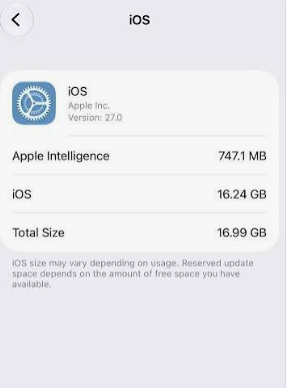
On some iOS 27 versions, Apple Intelligence storage may appear as a separate figure under iOS. If it is not listed separately, its downloaded models and related files may be included in iOS or System Data, so an exact total may not be available.
 View Also:
 [iOS 27] How to Free Up Storage When Apple Intelligence Takes Too Much Space
Apple Intelligence stores AI models directly on your iPhone so that many features can work privately on the device. If iOS 27 Apple Intelligence is taking too much storage, you can turn it off to remove the downloaded models or clear other content while keeping Apple Intelligence enabled.
 Note
Note
Turning off Apple Intelligence is the only method below that directly removes its on-device models. The other methods free up general iPhone storage.
Method 1: Turn Off Apple Intelligence
If you do not regularly use Writing Tools, notification summaries, image generation, or other AI features, turning off Apple Intelligence is the most effective way to recover its storage. Apple states that disabling the feature removes its downloaded on-device models.
- Step 1. Open the Settings app on your iPhone.
- Step 2. Scroll down and tap Apple Intelligence & Siri.
- Step 3. Turn off the switch next to Apple Intelligence.
- Step 4. Confirm that you want to turn it off.
- Step 5. Go to Settings > General > iPhone Storage and wait for the storage information to refresh.
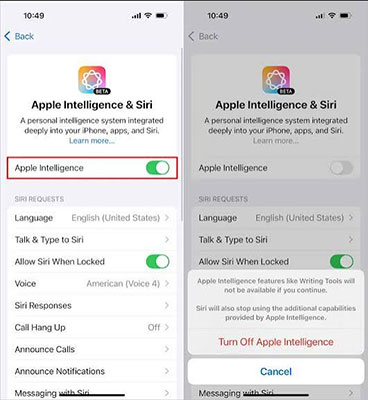
 Warning: Turning Apple Intelligence back on will download the required models again and use additional storage.
Method 2: Follow the iPhone Storage Recommendations
If you want to continue using Apple Intelligence, check the recommendations provided by iOS 27. Your iPhone may suggest removing unused apps or reviewing large files that can be safely deleted.
- Step 1. Go to Settings > General > iPhone Storage.
- Step 2. Wait for your iPhone to calculate the current storage usage.
- Step 3. Review the recommendations displayed below the storage chart.
- Step 4. Tap Enable or open a recommendation to review its details.
- Step 5. Remove only the apps, downloads, or files you no longer need.
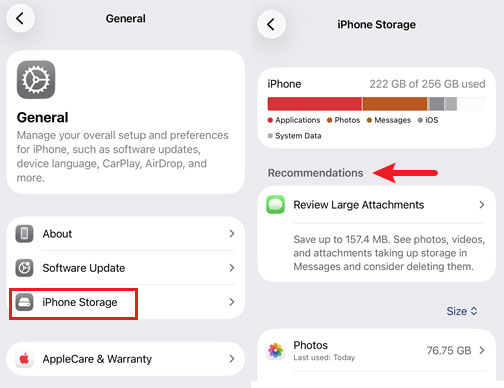
Check the amount of available storage again after completing the recommended actions.
Method 3: Offload Unused Apps
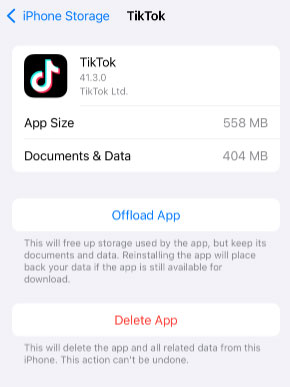
Offloading removes an app while keeping its documents and personal data. The app remains on the Home Screen with a cloud icon and can be downloaded again later.
- Step 1. Open Settings > General > iPhone Storage.
- Step 2. Scroll through the app list and choose an app you rarely use.
- Step 3. Tap Offload App.
- Step 4. Tap Offload App again to confirm.
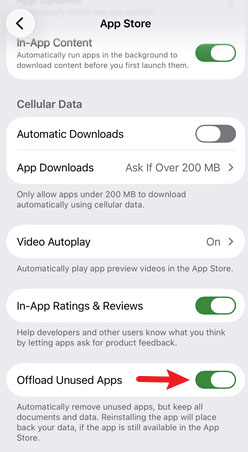
To make this process automatic, go to Settings > Apps > App Store and turn on Offload Unused Apps. Your iPhone will offload eligible apps when storage becomes low while retaining their documents and data.
Method 4: Optimize iPhone Photo Storage
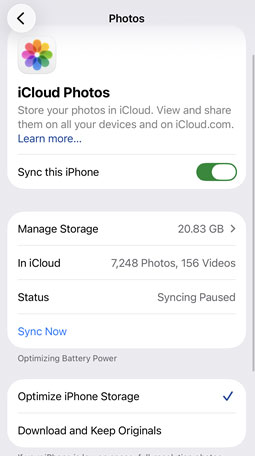
Photos and videos can consume more space than Apple Intelligence. With iCloud Photos and Optimize iPhone Storage enabled, full-resolution originals are stored in iCloud while smaller versions are kept on your iPhone when space is limited.
- Step 1. Open Settings and tap your name at the top.
- Step 2. Tap iCloud > Photos.
- Step 3. Turn on Sync this iPhone if it is currently disabled.
- Step 4. Select Optimize iPhone Storage.
- Step 5. Connect the iPhone to Wi-Fi and power so that it can finish syncing and optimizing your library.
Make sure your iCloud account has enough available storage before enabling this option.
Method 5: Remove Downloaded Files Without Deleting Them from iCloud
Files downloaded from iCloud Drive can occupy local iPhone storage. You can remove their downloaded copies while keeping the original files safely stored in iCloud.
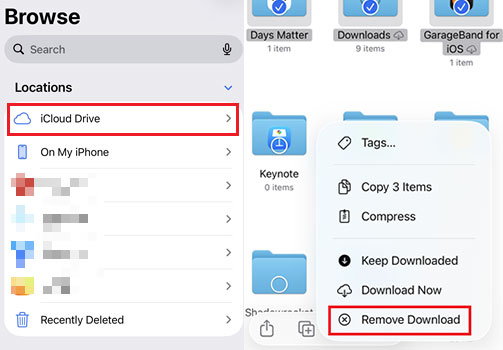
- Step 1. Open the Files app.
- Step 2. Tap Browse > iCloud Drive.
- Step 3. Find the downloaded file that you no longer need offline.
- Step 4. Touch and hold the file, then tap Remove Download.
- Step 5. To remove several local copies, tap the three-dot menu, choose Select, select the files, and tap Remove Download.
Note
Do not choose Delete unless you want to remove the file from iCloud Drive and your other devices as well.
Method 6: Delete Large Apps, Downloads, and Media
If your iPhone is still nearly full, review which apps and downloaded items use the most space. Deleting an app removes both the app and its related data, while removing offline media keeps the content available for downloading again.
- Step 1. Go to Settings > General > iPhone Storage.
- Step 2. Check the app list, which is generally arranged by storage usage.
- Step 3. Tap a large app to review its app size and stored data.
- Step 4. Choose Delete App when you no longer need the app or its data.

Step 5: Open apps such as Music, Podcasts, TV, or streaming services and remove downloaded songs, episodes, and videos you have already finished.
Step 6: Open Files > Browse > On My iPhone > Downloads and delete unnecessary Safari downloads.
After cleaning your storage, return to Settings > General > iPhone Storage to check how much space you have recovered. Apple Intelligence will continue using space while it remains enabled because its required models are stored on the device.
Method 7: Repair iOS 27 with TunesKit iOS System Recovery
If Apple Intelligence still occupies an unusually large amount of storage after you turn it off, restart your iPhone, and remove unnecessary files, the problem may be related to an iOS storage calculation error, damaged system files, or a software glitch.
In this situation, TunesKit iOS System Recovery can reinstall and repair the iOS system through its Standard Repair mode. The process is designed to preserve your photos, apps, messages, and other personal data. It also lets you repair iTunes error 75 and other iTunes errors for free, downgrade from iOS 27 to iOS 26 while the version is still signed by Apple, and back up or restore iPhone and iPad data with one click.
Fix Apple Intelligence Storage Errors
Repair iOS 27 storage glitches with TunesKit iOS System Recovery while keeping your photos, apps, messages, and other personal data intact.
 600,000+ Downloads
Here's a step-by-step guide to fix Apple Intelligence storage issues with TunesKit iOS System Recovery.
Step 1. Connect iPhone to PC
Download and install TunesKit iOS System Recovery on a Windows PC or Mac. Connect your iPhone to the computer with a USB cable. Open TunesKit and select iOS System Repair.

Step 2. Choose A Repair Mode
Click Start button, choose Standard Repair, and select your connected iPhone model. Avoid Deep Repair because it erases the device.

Step 3. Download Firmware Package
Follow the onscreen instructions to place the iPhone into Recovery Mode or DFU Mode when required. Check the device information and click Download to obtain the matching iOS 27 firmware package.

Step 4. Start to Repair iOS 27 Bugs
After the firmware has been downloaded and verified, click Start Standard Repair. Keep the iPhone connected until the repair is complete.

FAQs About iOS 27 Apple Intelligence Storage
-
How much storage does Apple Intelligence use on iOS 27?
Apple currently requires at least 7 GB of available device storage for Apple Intelligence. Actual usage may vary depending on the installed models, supported languages, and available features. Since iOS 27 is still in preview, the final storage requirement may change before its public release.
-
Why does Apple Intelligence take up so much iPhone storage?
Apple Intelligence downloads AI models directly to your iPhone so that many features can run on the device. These models support tools such as Writing Tools, notification summaries, Image Playground, Genmoji, and enhanced Siri features.
-
Will Apple Intelligence storage return after I turn it back on?
Yes. When you enable Apple Intelligence again, the required on-device models will begin downloading. Keep the iPhone connected to Wi-Fi and power while the download completes.
-
Is high Apple Intelligence storage usage always an iOS 27 bug?
Not necessarily. Several gigabytes of usage are expected because Apple Intelligence relies on downloaded models. However, if the reported size is unusually high, continues increasing, or does not decrease after Apple Intelligence is disabled, the problem may be related to an iOS storage calculation or system error.
Conclusion
Apple Intelligence can take up several gigabytes on iOS 27 because its AI models are stored directly on the iPhone. You can reduce the usage by disabling Apple Intelligence, clearing unnecessary files, and restarting the device. If the storage remains unusually high due to an iOS error, TunesKit iOS System Recovery can repair the system with Standard Repair while keeping your personal data intact.



