


AirPods Not Connecting to iPhone 17? Fix Now
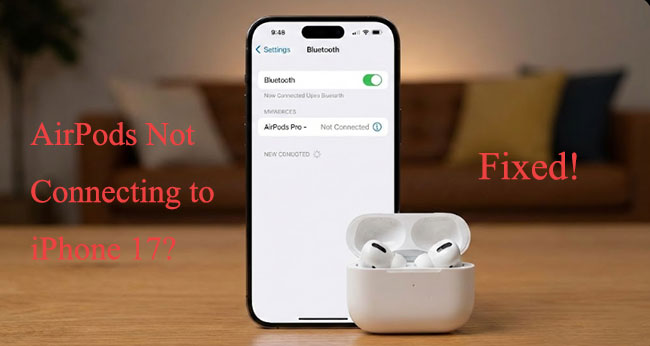
If your AirPods not connecting to iPhone 17, you're not alone. Many users experience pairing or Bluetooth issues after setting up a new device or updating iOS. Whether your AirPods keep disconnecting from iPhone, won't show up or refuse to pair at all, these connection problems can be really annoying.
In this guide, we'll walk through the most common reasons why AirPods are not connecting to iPhone 17 and the practical methods you can take to fix the issue quickly.
Part 1. Why Won't My AirPods Connect to iPhone 17?
The iPhone 17 series runs on iOS 26, which introduced a new wireless stack designed for the "N1" chip. While this offers better efficiency, it has led to some initial "handshake" errors between the phone and older Bluetooth accessories. Common culprits include:
- Firmware Out of Sync: Your AirPods may need a background update to communicate with iOS 26.
- Network Settings Glitch: A bug in the iPhone 17's Continuity stack.
- Wireless Interference: Conflicts between the new 5G/Wi-Fi 7 radios and Bluetooth LE.
Part 2. 6 Ways to Fix AirPods Not Connecting to iPhone 17
After understanding the possible reasons why AirPods fail to connect to the iPhone 17, it is essential to explore practical solutions. The following section outlines 6 effective ways to fix AirPods not connecting to iPhone 17 and restore a stable wireless connection quickly and easily.
Method 1. Charge with Lid & Open to Reconnect
The "Power-Plugging" trick refers to placing your AirPods in their charging case and connecting the case to a power source (via cable or wireless charger) for a short period before trying to reconnect them. While it sounds simple, this method can resolve several common connection issues.
- Step 1. Place your AirPods in the case and plug the case into a USB-C charger.
- Step 2. Keep the lid open while the case is charging.
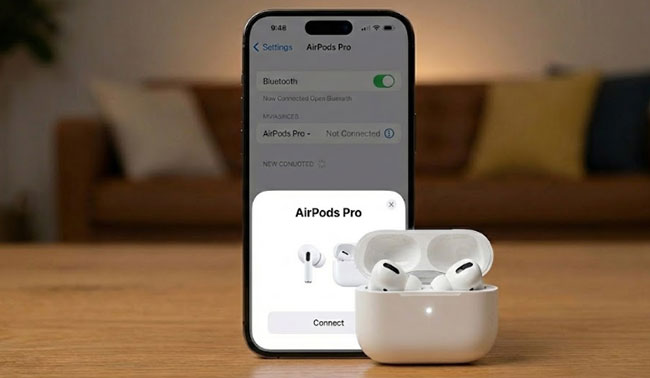
- Step 3. Bring the case close to your iPhone 17 and wait for the "Connect" prompt to appear.
Method 2. Reset the Network Settings
If the AirPods connect to other devices but not your iPhone 17, the problem lies within the iPhone's network settings. This method resets all Wi-Fi and Bluetooth configurations to factory defaults, removing any deep-seated software glitches.
- Step 1. Go to Settings > General > Transfer or Reset iPhone.
- Step 2. Tap Reset and select Reset Network Settings.

 Note
Note
This will erase your saved Wi-Fi passwords, but it often flushes out Bluetooth pairing bugs.
Method 3. Factory Reset Your AirPods
If your iPhone "sees" the AirPods but cannot connect, the local pairing certificate may be corrupted. "Forgetting" the device forces the iPhone to treat the AirPods as a brand-new accessory, wiping out any conflicting data logs.
- Step 1. On your iPhone, go to Settings > Bluetooth, tap the (i) next to your AirPods, and select Forget This Device.

- Step 2. With the lid open, hold the setup button on the back of the AirPods case for 15 seconds.

- Step 3. For the AirPods Pro 3 or AirPods 4, you may need to double-tap the front of the case until the light flashes amber then white.
Method 4. Toggle Off "Automatic Ear Detection"
"Automatic Ear Detection" allows AirPods to detect when they are in your ears and automatically route audio from your iPhone. While this feature is convenient, it can sometimes interfere with the connection process due to sensor or software glitches. Toggling it off and back on can help refresh the connection system.
- Step 1. Once connected (even if the audio is choppy), open the Settings app on your iPhone, then tap Bluetooth, select your connected AirPods, and tap the "i" icon.
- Step 2. Toggle Automatic Ear Detection to Off.

- Step 3. Test the connection. If it stabilizes, you can try toggling it back on later after a software update.
Method 5. Check for iOS Updates
Keeping your iPhone 17 updated is one of the most important steps when fixing AirPods connection issues. iOS updates often include bug fixes, security patches, and performance improvements that directly affect Bluetooth connectivity and device compatibility.
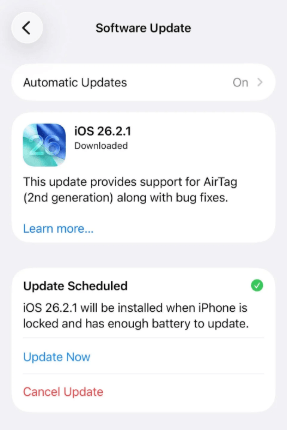
- Step 1. Navigate to Settings > General > Software Update.
- Step 2. Tap the Update Now button to install any available updates, as these often contain the latest Bluetooth drivers for the iPhone 17.
- Step 3. Test the connection. If it stabilizes, you can try toggling it back on later after a software update.
Pro Tip
If you notice your audio stuttering specifically when you are on Wi-Fi, try turning off Wi-Fi temporarily to see if the AirPods stay connected. This confirms a known "interference" bug that Apple is currently patching.
Method 6. Use TunesKit iOS System Recovery
If standard troubleshooting—like resetting your network settings or factory resetting your earbuds—fails to resolve AirPods not connecting to iPhone 17, the issue likely resides deep within the iOS system architecture. Software bugs in the new "N1" chip's wireless handshake or corrupted Bluetooth drivers can cause a persistent failure that simple settings toggles can't fix.
In such cases, TunesKit iOS System Recovery provides a more thorough solution by repairing the core iOS firmware without affecting your personal data. In addition, it can fix 150+ iOS issues without data loss such as AirPods enable charging case sounds greyed out, Airpods pop up not showing, and AirPods keep pausing on iPhone,etc. Comes with an intuitive interface, it is suitable for every iOS users.
Fix AirPods Not Connecting to iPhone 17 Easily
TunesKit iOS System Recovery quickly fixes iOS glitches causing AirPods connection issues on iPhone 17 without data loss.
 600,000+ Downloads
Here's a step-by-step guide to fix Airpods not connecting to iPhone 17 using TunesKit iOS System Recovery.
Step 1. Connect Your Device
First, download and launch the program on your Mac or PC. Using an original Apple USB cable, connect your iPhone to the computer. Once the software recognizes the device, click the "iOS System Repair" option and then hit the Start button.

Step 2.Select Standard Repair
You will be presented with two choices: Standard Repair and Deep Repair.
- Standard Repair: Solves common issues with no data loss.
- Deep Repair: Used for more complex issues (like a disabled device) but will erase all data.
Choose "Standard Repair" to keep your files safe. If your device isn't detected, follow the on-screen instructions to manually put it into DFU or Recovery Mode.

Step 3.Download the Firmware Package
The software will automatically detect your iPhone model and current iOS version. Verify that the information on the screen matches your device. Click the Download button to grab the official Apple firmware package required for the fix.

Step 4.Initiate the System Recovery
Once the download is complete, click Repair button. Keep your device connected throughout this process. The software will begin unzipping the firmware and "reinstalling" a healthy version of the iOS over your current corrupted one.

Part 3. FAQs about AirPods Not Connecting to iPhone 17
-
1. Why do my AirPods disconnect when I walk into crowded areas?
The iPhone 17 Pro and Pro Max have sensitive Wi-Fi 7 and 5G antennas that can sometimes interfere with Bluetooth LE (Low Energy).
1. Navigate to Settings > Accessibility > Touch.
2. Toggle Tap to Wake to Off.
3. Some users have found that disabling "Raise to Wake" in Display & Brightness also reduces background "micro-wake" events that trigger Bluetooth renegotiation.

-
2. Are older AirPods (Gen 1 or 2) compatible with iPhone 17?
Yes, all generations of AirPods are technically compatible. However, older models may lack the modern firmware needed to handle the iPhone 17's aggressive power management. If you are using older AirPods, you may need to disable Automatic Ear Detection in the AirPods settings to maintain a stable link.

-
3. What if my iPhone 17 says "Not Your AirPods"?
This often happens if the AirPods are still linked to an Apple ID via the Find My network.
1. Open the Find My app on your old device (or iCloud.com).
2. Find your AirPods in the list and select Remove This Device.
3. Once removed from the old Apple ID, they will be "free" to pair with the new iPhone 17 security architecture.

Part 4. Conclusion
In conclusion, if your AirPods are not connecting to iPhone 17, most common issues can be resolved by checking Bluetooth, resetting AirPods, updating iOS, or adjusting network settings. For persistent problems, TunesKit iOS System Recovery is a reliable solution—it can quickly fix iOS system glitches that block AirPods connectivity, all without causing any data loss, ensuring your iPhone 17 works smoothly with your AirPods again.


