


[10 Methods] How to Fix iPhone Keeps Disconnecting from Bluetooth
Recently, many iPhone users have experienced Bluetooth problems, including connection failures and frequent disconnections. If your iPhone keeps disconnecting from Bluetooth, especially when using wireless headphones, AirPods, car systems, or other accessories, it can interrupt music, calls, and daily use.
Normally, Bluetooth should stay connected unless it is turned off or the device moves out of range. If the connection keeps dropping for no clear reason, try the 10 methods below to fix the problem and restore a stable Bluetooth connection.
- Why Does My iPhone Keep Disconnecting from Bluetooth?
-
Top 10 Methods to Fix iPhone Bluetooth Keeps Disconnecting
- Fix 1. Force Restart Your iPhone
- Fix 2. Turn Bluetooth Off and On
- Fix 3. Check the Bluetooth Device, Battery, and Distance
- Fix 4. Forget and Re-pair the Bluetooth Device
- Fix 5. Check Bluetooth Permissions
- Fix 6. Disable AirPods Automatic Switching
- Fix 7. Update iOS to the Latest Version
- Fix 8. Reset Network Settings
- Fix 9. Fix iPhone Bluetooth Keeps Disconnecting without Data Loss HOT
- Fix 10. Reset All Settings
- Video Tutorial: Fix Bluetooth Keeps Disconnecting iPhone
- FAQs About iPhone Bluetooth Keeps Disconnecting
- Bottom Line
Why Does My iPhone Keep Disconnecting from Bluetooth?
There can be several reasons why your iPhone Bluetooth keeps disconnecting. Let's explore it together.
- 01 Interference: Other electronic devices or physical obstructions can interfere with Bluetooth signals.
- 02 Software Issues: Bugs or glitches in iOS ca cause connectivity problems.
- 03 Bluetooth Range: The device may be too far from your iPhone.
- 04 Battery Issues: Low battery on either the iPhone or the Bluetooth device can cause disconnections.
- 05 Device Compatibility: The Bluetooth device may not be fully compatible with your iPhone.
- 06 Hardware Problems: Issues with the Bluetooth hardware on either the iPhone or the device.
Fortunately, this matter is simple to settle and all methods to fix iPhone Bluetooth keeps disconnecting are presented in the next part.
Top 10 Methods to Fix iPhone Bluetooth Keeps Disconnecting
If your iPhone keeps disconnecting from Bluetooth, the problem may be caused by a temporary system glitch, incorrect Bluetooth settings, outdated software, interference, or an issue with the Bluetooth accessory itself. Try the following methods one by one until the connection becomes stable.
Fix 1. Force Restart Your iPhone
A temporary iOS glitch may cause Bluetooth connections to drop unexpectedly. Force restarting your iPhone can refresh the system without deleting any data.
- For iPhone 8, iPhone SE (2nd generation or later), and newer models: Press and quickly release the Volume Up and Volume Down button respectively. Thne, keep holding the Side button and release it when the Apple logo appears.
- For iPhone 7 and iPhone 7 Plus: Keep holding the Volume Down and Power button concurrently, and release them when the Apple logo appears.
- For iPhone 6s, iPhone SE (1st generation), and earlier models: Keep holding the Home button and Power button concurrently until the Apple logo appears.

Fix 2. Turn Bluetooth Off and On
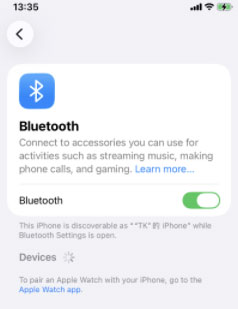
Refreshing Bluetooth is one of the easiest fixes when your iPhone keeps disconnecting from Bluetooth. For a complete restart of Bluetooth, turn it off from the Settings app rather than only using Control Center.
- Step 1. Open Settings on your iPhone.
- Step 2. Tap Bluetooth.
- Step 3. Turn off the Bluetooth switch.
- Step 4. Wait for about 10 seconds. Turn Bluetooth back on and reconnect your device.
Fix 3. Check the Bluetooth Device, Battery, and Distance
Sometimes the problem comes from the Bluetooth accessory rather than the iPhone. A low battery, excessive distance, or wireless interference can result in unstable connections.
- Step 1. Make sure both your iPhone and Bluetooth accessory have enough battery.
- Step 2. Keep the Bluetooth accessory close to your iPhone.
- Step 3. Restart the Bluetooth accessory if possible.
- Step 4. Move away from other wireless devices that may cause interference.
- Step 5. Connect the accessory again and check whether Bluetooth still disconnects.
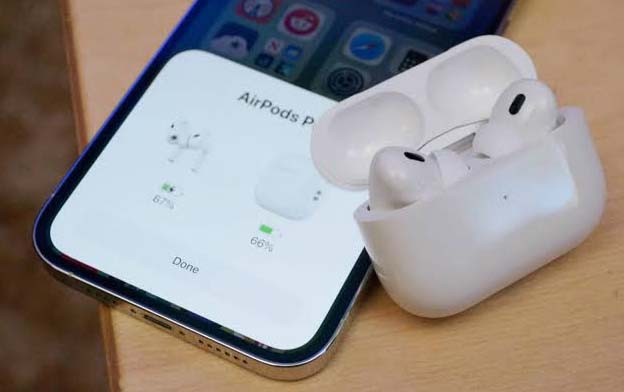
You can also connect the accessory to another phone or computer. If it disconnects there as well, the accessory itself may be causing the problem.
Fix 4. Forget and Re-pair the Bluetooth Device
Incorrect or corrupted pairing information can cause repeated Bluetooth disconnections. Removing the accessory and pairing it again creates a fresh connection.
- Step 1. Go to Settings > Bluetooth.
- Step 2. Find the Bluetooth device under My Devices.
- Step 3. Tap the Info (i) button next to it.
- Step 4. Tap Forget This Device.
- Step 5. Confirm by tapping Forget Device. Put the Bluetooth accessory into pairing mode.
- Step 6. Return to Settings > Bluetooth and pair it with your iPhone again.

Fix 5. Check Bluetooth Permissions
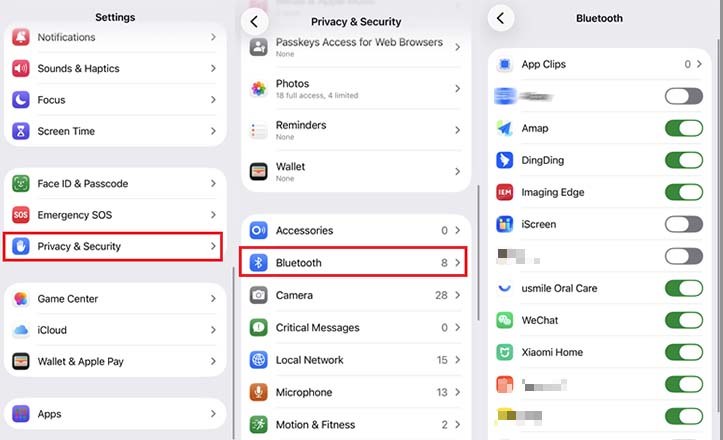
If Bluetooth disconnects only when you use a particular app, make sure that app has permission to access Bluetooth.
- Step 1. Open Settings app on your iPhone.
- Step 2. Go to Privacy & Security > Bluetooth.
- Step 3. Find the app that needs Bluetooth access.
- Step 4. Make sure Bluetooth permission is enabled for that app.
- Step 5. Reopen the app and test the connection again.
If the issue occurs with all Bluetooth devices rather than one app, continue with the methods below.
Fix 6. Disable AirPods Automatic Switching
If your AirPods appear to disconnect from your iPhone and connect to another Apple device instead, Automatic Switching may be responsible. Changing this setting can help keep your AirPods connected to your iPhone.
- Step 1. Put your AirPods in your ears and connect them to your iPhone.
- Step 2. Open Settings and tap your AirPods near the top of the screen. You can also go to Settings > Bluetooth and tap the Info (i) button next to your AirPods.
- Step 3. Tap Audio & Routing if this option appears.
- Step 4. Tap Connect to This iPhone.
- Step 5. Select When Last Connected to This iPhone.
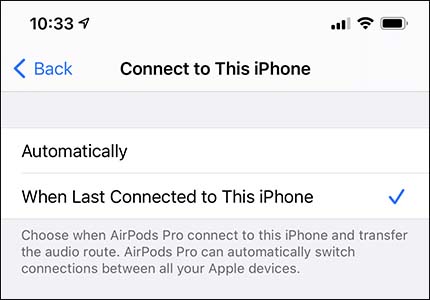
Your AirPods should now be less likely to automatically switch to another Apple device.
Fix 7. Update iOS to the Latest Version
Bluetooth bugs may sometimes be related to the version of iOS installed on your iPhone. Installing the latest available iOS update can provide bug fixes and compatibility improvements.
- Step 1. Connect your iPhone to Wi-Fi and a power source.
- Step 2. Open Settings app on your iPhone.
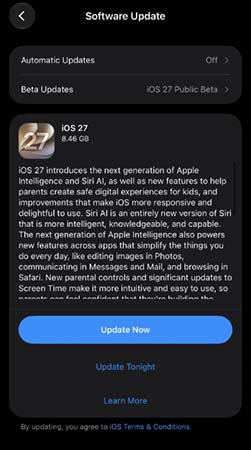
- Step 3. Go to General > Software Update.
- Step 4. If an update is available, tap the Update Now button. Wait for your iPhone to restart, then test Bluetooth again.
If you use AirPods or another accessory that supports firmware updates, make sure the accessory is also running its latest available firmware.
Fix 8. Reset Network Settings
If Bluetooth continues to disconnect, resetting your iPhone's network settings can remove problematic network configurations. Your iPhone will restart afterward. Note that this process removes saved Wi-Fi networks and passwords as well as other network settings, so you will need to reconnect to Wi-Fi afterward.
- Step 1. Open Settings on your iPhone. Tap General.
- Step 2. Select Transfer or Reset iPhone.
- Step 3. Tap Reset. Choose Reset Network Settings.
- Step 4. Enter your passcode and confirm the reset.

Fix 9. Fix iPhone Bluetooth Keeps Disconnecting without Data Loss
If the above common solutions don't solve the iPhone Bluetooth problem, then you could resort to related professional third-party tools like TunesKit iOS System Recovery to fix your iPhone Bluetooth keeps disconnecting.
This iOS system recovery software can be definitely working well while causing no data loss on your device. And it is able to resolve more than 150 kinds of different iOS issues including simple and complicated ones like iPhone stuck on update requested, reboot loop, black screen of death, iPhone is disabled, etc.
Fix iPhone Bluetooth Disconnecting
Repair iOS-related Bluetooth issues with TunesKit iOS System Recovery while keeping your iPhone data intact.
 600,000+ Downloads
Step 1. Connect Your Device
Launch TunesKit iOS System Recovery on your computer. Connect your iPhone to it and choose iOS System Repair. Then, click the Start button to begin.

Step 2. Select a Repair Mode
You need to select Standard Repair to fix the problem without data loss. Most issues can be solved by Standard Repair. Only when the standard repair fails to repair, the latter should be selected because it will erase your data.

Step 3. Download Firmware Package
Tap on the Download button after confirming the iPhone info to download a firmware package for your iPhone.

Step 4. Fix iPhone Bluetooth Keeps Disconnecting With Ease
Once the firmware package is downloaded, hit on the Start Standard Repair button and wait until it tells you the repair is finished. Then your iPhone will not always be disconnected from Bluetooth.

Fix 10. Reset All Settings
If none of the above methods works, you can reset all iPhone settings. This restores system settings to their defaults without deleting your photos, videos, apps, or other personal media.
- Step 1. Open Settings on your iPhone.
- Step 2. Go to General > Transfer or Reset iPhone.
- Step 3. Tap Reset. Select Reset All Settings.
- Step 4. Enter your iPhone passcode. Confirm the reset.
Your network settings, privacy settings, location settings, keyboard dictionary, Apple Pay cards, and other preferences will be reset. After your iPhone restarts, reconnect your Bluetooth device and check the connection again.
Video Tutorial: Fix Bluetooth Keeps Disconnecting iPhone
Now you can start to fix your iPhone keeps disconnecting from Bluetooth problem by watching the following video.
FAQs About iPhone Bluetooth Keeps Disconnecting
-
Why does Bluetooth disconnect during calls or music?
Bluetooth may disconnect because of wireless interference, low battery levels, software glitches, automatic device switching, or an unstable connection between your iPhone and the Bluetooth accessory.
-
How can I tell whether the problem is with my iPhone or the Bluetooth device?
Try connecting the Bluetooth device to another phone or computer. If it works normally on another device, the issue may be related to your iPhone. If it keeps disconnecting, the Bluetooth accessory itself may be the cause.
-
What is the typical Bluetooth range of an iPhone?
Bluetooth connections typically work best within about 10 meters (33 feet), but the actual range can vary depending on the Bluetooth accessory, walls, obstacles, and wireless interference. For a more stable connection, keep the devices relatively close together.
Bottom Line
In conclusion, we are very glad to help you to fix your iPhone Bluetooth keeps disconnecting. These solutions require you to perform the steps yourself. And we highly recommend the TunesKit iOS System Recovery. Finally, hope you have a wonderful experience.



