


How to Download and Install iOS 27 Beta without Developer Account
Apple's iOS 27 Beta introduces new features, UI improvements, and performance enhancements that many users want to try as soon as possible. However, one common question remains: Can you install iOS 27 Beta without a developer account?
The good news is yes. In this guide, we'll explain how to download and install iOS 27 Beta without a developer account, what you need before upgrading, and how to avoid common installation issues. Whether you're eager to test the latest features or simply curious about the beta release, this article has everything you need to know. Let's get started.

Install iOS 27 Developer Beta without Developer Account
 Note
Note
Before you start installing iOS Beta, make sure to back up your data. You can do this using iCloud or iTunes. This backup will help you switch back to a stable iOS version if you prefer the previous iOS version.
For those eager to access iOS 27 Beta without a developer account before the release of the public beta, several methods exist. Here we'll explore two ways to install the developer beta version of iOS 27, providing step-by-step instructions.
Way 1: Use TunesKit iOS System Recovery [Easy & Safe]
If you're looking for an easier way to install an iOS beta version, TunesKit iOS System Recovery can help simplify the process. In addition to fixing various iOS issues, the software allows you to upgrade your iPhone, iPad, or iPod touch to a supported iOS version without manually downloading firmware files. With just a few clicks, you can download and install the latest available iOS beta update on your device without a developer account.

Key Functions of TunesKit iOS System Recovery
- Install iOS beta without developer account
- Downgrade iOS 27 to iOS 26 without jailbreaking
- Repair iOS 27 issues without data loss
 600,000+ Downloads
600,000+ Downloads
600,000+ Downloads
Let's see how to install iOS 27 Developer Beta using TunesKit iOS System Recovery.
Step 1 Install and run TunesKit iOS System Recovery on your computer, and plug your iPhone into it. Choose More Tools on the main screen and select the Explore iOS Beta Features section.

Step 2 The available iOS Beta will be shown for you to choose from. Then, click on Download to download the firmware package for your iPhone.
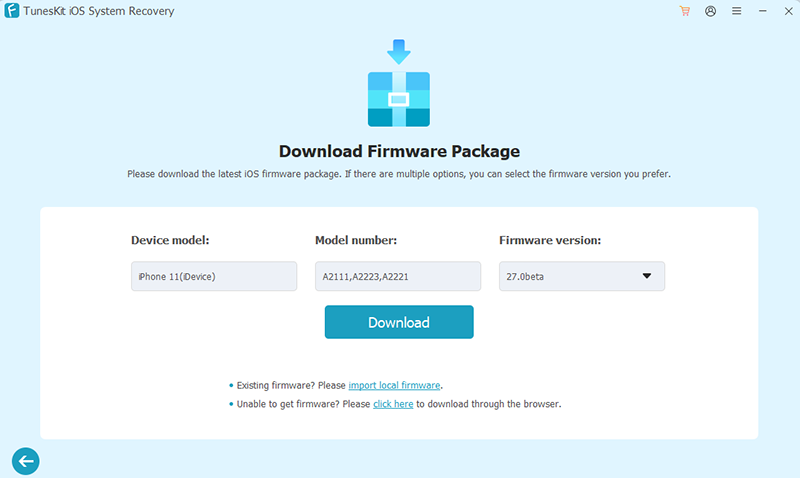
Step 3 Click Start Upgrade to install iOS 27 beta on your iPhone with no developer account.

Way 2: Use IPSW Beta Files
While slightly more complex than using TunesKit iOS System Recovery, this approach provides users with direct access to beta software, bypassing the need for developer credentials.
- Step 1. Go to IPSWBeta.dev, choose your device type and model, then click Download.

- Step 2. Open iTunes on your computer. If you are using a Mac, open Finder.
- Step 3. Connect your device to the computer, then click the "device" icon when it appears.
- Step 4. In the Summary section, press the Alt Key and click Update. In Finder, press the Option key and click Update.
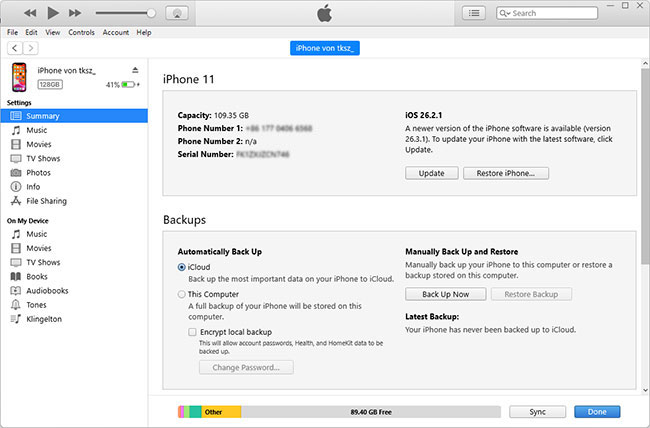
- Step 5. Choose the IPSW beta file you have downloaded, then click Open and the installation process begins.
- Step 6. Restart your iPhone after installing.
How to Install iOS 27 Public/Developer Beta with Developer Account
After the release of the developer beta, you don't have to wait long for the public beta. In this section, we'll outline two straightforward methods for installing the public beta. You should note that the two ways below are only available when the public beta releases.
Way 1: Join the Apple Beta Software Program
It grants users access to pre-release versions of iOS. By enrolling in this program, you'll gain early access to new features and contribute valuable feedback to improve the iOS experience. This is only feasible for devices running iOS 16.4 or later.
- Step 1. Visit the Apple Beta Software Program website.
- Step 2. Sign in with your Apple ID, then navigate to the Enroll Your Devices tab.

- Step 3. Click Open Beta Updates and follow the on-screen instructions.
- Step 4. Go to Settings on your iPhone, and tap on Profile Downloaded.
- Step 5. Tap Install and enter your passcode if asked.

- Step 6. Restart your iPhone, go to Settings → General → Software Update, then tap the Update Now or Download and Install button on the screen.
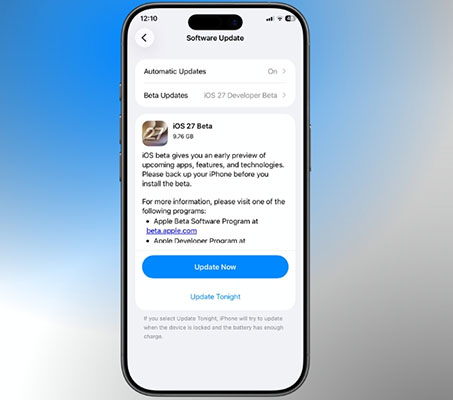
Way 2: Visit the Apple Developer Center
This method provides another avenue for eager users to explore iOS 27's capabilities. It is also feasible for devices running iOS 16.4 or later, and requires the Developer Mode enabled. If you have trouble with the Developer Mode, this article may help: iPhone Developer Mode Not Showing.
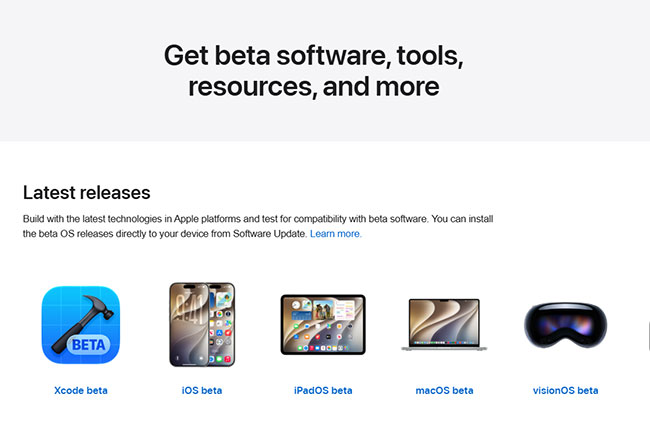
- Step 1. Visit the Apple Developer website, and log in with your Apple ID. You don't need to join the Program.
- Step 2. Open the "Downloads" section, find the iOS beta profile you need and choose Install Profile.
- Step 3. On your iPhone, go to Settings → General → Software Update → Beta Updates, then choose the beta version.
- Step 4. Go back to "Software Update" and tap on Update Now or Download and Install.
 Pro-tip:
If you are not satisfied with the new iOS beta after trying it and want to downgrade from iOS 27 beta, TunesKit iOS System Recovery can help you downgrade to a stable iOS 26 version.
FAQs About iOS 27 Beta
Q1: What is an Apple developer account? Is it free?
An Apple Developer account gives users access to Apple's developer resources, beta software, and testing tools. The good news is that creating an Apple Developer account is free—all you need is an Apple Account.
Apple also offers the Apple Developer Program, a paid membership intended for app developers who want to publish apps on the App Store. If your goal is simply to install and test iOS 27 Beta, you do not need a paid developer membership.
Q2: Which device models are compatible with iOS 27 beta?
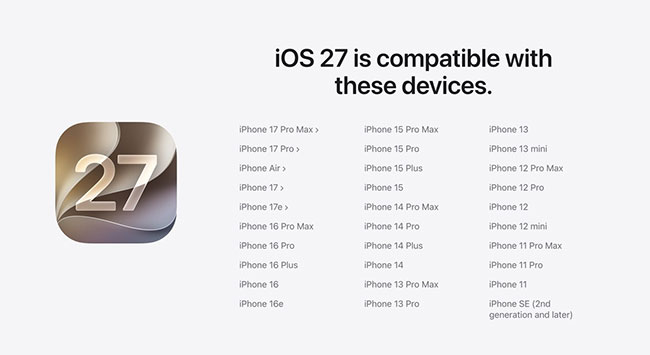
Here is the list of compatible iOS 27 Beta devices. If you want to know more details, visit iOS 27 Preview.
- iPhone 17 Series
- iPhone Air Series
- iPhone 16 Series
- iPhone 15 Series
- iPhone 14 Series
- iPhone 13 Series
- iPhone 12 Series
- iPhone 11 Series
- iPhone SE (2nd & later)
Q3: When is the iOS 27 beta coming out?
- iOS 27 Developer Beta: June 8, 2026
- iOS 27 Public Beta: July 15, 2026
- iOS 27: September 2025
Please note that the dates provided are approximate and based on Apple's typical release patterns. For the most accurate information, we recommend keeping an eye on Apple's official announcements and updates.
Q4: What's the difference between developer beta, public beta and final version?
| Developer Beta | Public Beta | Final Version | |
|---|---|---|---|
| Accessibility | only to registered Apple developers | anyone in the Apple Beta Software Program | all users with compatible devices |
| Enrollment | requires membership in the Apple Developer Program (annual fee) | free enrollment in the Apple Beta Software Program with an Apple ID | automatically available to users with compatible devices |
| Stability | may contain more experimental features and be less stable | generally more stable, suitable for everyday use | most stable version |
| Access to Resources | access to developer resources, including documentation, tools, and forums | limited access to developer resources; mainly focused on testing | access to official documentation and support resources |
Conclusion
This article explains developer account and knowledge about iOS beta. To install iOS 27 beta without developer account, you have 4 ways to take, with different approaches for the developer and public betas. Each method has its advantages, and you can choose the way you prefer. In addition, we recommend TunesKit iOS System Recovery for its quick and easy steps and no limitations on the beta version. It is hoped that you can successfully update your iPhone and enjoy the new features.


