


Control Center Not Working After iOS 27 Update? 11 Fixes
After updating to iOS 27, I noticed that Control Center sometimes stops responding, especially when I swipe down Notification Center and Control Center too quickly. What should I do? --From Reddit
Is iOS 27 Control Center not working on your iPhone after the latest update? You may have found that Control Center didn't open, swipe gestures stopped responding, or the screen froze unexpectedly. These issues can be caused by temporary system glitches, gesture conflicts, or update-related bugs. In this guide, we'll walk through the most effective ways to get Control Center working normally again.
- Why Is My Control Center Not Working in iOS 27?
-
[11 Fixes] How to Fix Control Center Not Working in iOS 27?
- Fix 1. Make Sure You Are Using the Correct Swipe Gesture
- Fix 2. Force Restart Your iPhone
- Fix 3. Turn On Access Within Apps
- Fix 4. Enable Control Center on the Lock Screen
- Fix 5. Check the Screen and Screen Protector
- Fix 6. Avoid Opening Notification Center and Control Center at the Same Time
- Fix 7. Remove and Re-add the Problematic Control
- Fix 8. Update to the Latest iOS 27 Version
- Fix 9. Reset All Settings
- Fix 10. Repair iOS 27 with TunesKit iOS System Recovery HOT
- Fix 11. Contact Apple Support
- Conclusion
Why Is My Control Center Not Working in iOS 27?
If Control Center stops working after updating to iOS 27, the cause is usually related to a temporary system glitch, gesture conflict, incorrect settings, or an iOS bug. In some cases, Control Center may not open when swiping down, may freeze, or may respond slowly. Common causes include:
- 01 Temporary iOS 27 bugs: A software glitch after the update can make Control Center unresponsive.
- 02 Incorrect swipe gesture: On Face ID iPhones, you need to swipe down from the top-right corner of the screen.
- 03 Control Center access is disabled: Control Center may be turned off for the Lock Screen or within apps.
- 04 Touchscreen issues: A dirty, damaged, or unresponsive screen can prevent swipe gestures from working properly.
- 05 Conflicts with Notification Center: Quickly triggering Notification Center and Control Center at the same time may occasionally cause the interface to freeze.
- 06 Outdated iOS version: Apple may release a later iOS 27 update to fix known interface bugs.
[11 Fixes] How to Fix Control Center Not Working in iOS 27?
If Control Center didn't open, froze, or stopped responding after you updated to iOS 27, try the fixes below in order. Start with simple gesture and settings checks, then move on to system-level troubleshooting if the issue continues.
Fix 1. Make Sure You Are Using the Correct Swipe Gesture
Before changing any settings, make sure you are opening Control Center correctly. On iPhones with Face ID, Control Center is accessed from the top-right corner of the display. Swiping down from the center or left side instead opens Notification Center. After updating to iOS 27, the interface may also feel slightly different, so a swipe that starts too far inward may not trigger Control Center reliably.
- Step 1. Unlock your iPhone and go to the Home Screen.
- Step 2. Place your finger at the very top-right corner, close to the battery icon.
- Step 3. Swipe downward toward the center of the screen.
- Step 4. If it does not open, try the gesture again more slowly and start closer to the edge.
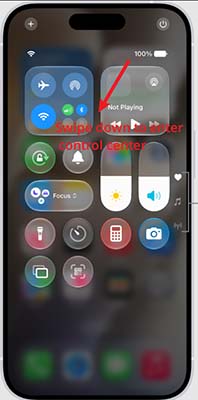
If Control Center opens normally after adjusting your gesture, no further troubleshooting is necessary.
Fix 2. Force Restart Your iPhone
If Control Center was working normally before the iOS 27 update but suddenly becomes unresponsive, a temporary system process may have frozen. This is especially likely when Control Center and Notification Center both stop responding or the interface briefly freezes.
A force restart reloads iOS at a low level without deleting your apps, photos, messages, or other personal data. For that reason, it is one of the safest first fixes for an update-related interface glitch.
- Step 1. Quickly press and release the Volume Up button.
- Step 2. Quickly press and release the Volume Down button.
- Step 3. Press and hold the Side button.
- Step 4. Keep holding it even if the power-off slider appears.
- Step 5. Release the Side button when the Apple logo appears.
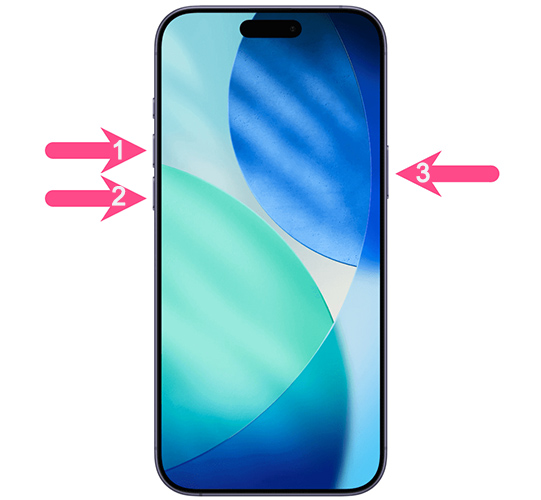
After your iPhone starts again, swipe down from the top-right corner and check whether Control Center responds normally.
Fix 3. Turn On Access Within Apps
If Control Center works from the Home Screen but refuses to open while you are using Safari, YouTube, games, or other apps, the problem may simply be the Access Within Apps setting.
When this option is turned off, iOS intentionally blocks Control Center while an app is open. This can easily look like a Control Center bug if you do not realize the setting has changed.
- Step 1. Open Settings on your iPhone.
- Step 2. Scroll down and tap Control Center.
- Step 3. Find Access Within Apps.
- Step 4. Turn the switch on.
- Step 5. Open an app and swipe down from the top-right corner again.
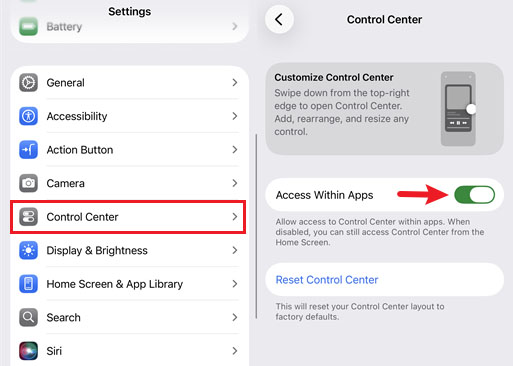
If Control Center now appears, the problem was caused by the access restriction rather than iOS itself.
Fix 4. Enable Control Center on the Lock Screen
Control Center can also be disabled specifically for the Lock Screen. In this case, it may work perfectly after you unlock your iPhone but refuse to appear while the device is locked.
Apple provides this setting for privacy and security reasons, so checking it is important if your problem only happens before Face ID or passcode authentication.
- Step 1. Open Settings on your iPhone.
- Step 2. Tap Face ID & Passcode option.
- Step 3. Enter your iPhone passcode. Scroll down to Allow Access When Locked.
- Step 4. Turn on Control Center.

Lock your iPhone and swipe down from the top-right corner to test it again.
Fix 5. Check the Screen and Screen Protector
Control Center depends on a swipe starting from a very specific area of the touchscreen. If the upper-right corner does not register touch correctly, the gesture may fail even though the rest of the display seems normal.
Dust, moisture, a thick screen protector, a tight case, or physical display damage can all interfere with touch input near the edge of the screen.
First, clean the screen with a soft, dry microfiber cloth. If you use a screen protector or case that covers part of the display edge, temporarily remove it and try again.

You can also test the same part of the display by dragging an app icon or tapping controls near the upper-right area. If touch regularly fails there, the issue may be hardware-related rather than an iOS 27 Control Center bug.
Fix 6. Avoid Opening Notification Center and Control Center at the Same Time
Some iOS 27 users have reported interface problems after quickly swiping down Notification Center and Control Center in succession. Because both panels use similar top-edge gestures, overlapping animations or input can occasionally leave the interface frozen or temporarily unresponsive.
If your issue happens after rapidly swiping from both sides of the top of the screen, try avoiding overlapping gestures.
Step 1. Clear all Notifications completely before opening Control Center.
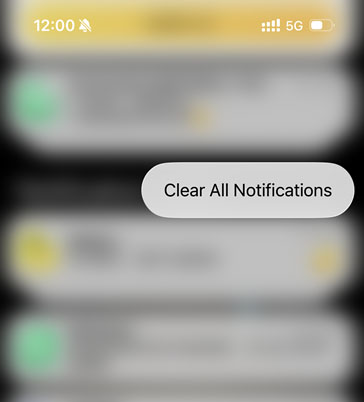
Step 2. Wait one or two seconds between swipe gestures.
Step 3. If the screen has already frozen, perform a force restart.
Step 4. After restarting, test Control Center using only a single swipe from the top-right corner.
If the problem no longer appears, the issue was likely caused by a temporary interface conflict.
Fix 7. Remove and Re-add the Problematic Control
Sometimes Control Center itself opens normally, but one control does not respond. For example, Screen Recording may not start, a connectivity control may freeze, or a newly added shortcut may stop working.
In this case, there is no need to reset the whole iPhone. Removing and adding that specific control again can refresh its configuration.
- Step 1. Swipe down from the top-right corner to open Control Center.
- Step 2. Touch and hold an empty area to enter editing mode.
- Step 3. Tap the Minus button on the problematic control.
- Step 4. Tap Add a Control.
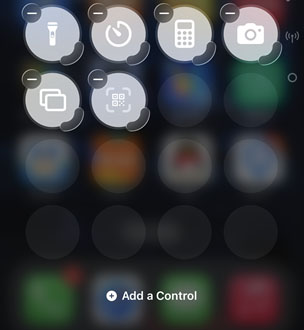
Step 5. Find the same control and add it back.
Step 6. Exit editing mode and test the control again.
This solution is most useful when only one Control Center function is affected.
Fix 8. Update to the Latest iOS 27 Version
If the issue started immediately after installing iOS 27, it may be caused by an early software bug rather than your settings. Apple regularly releases follow-up updates to correct system stability, touch, animation, and interface problems.
Therefore, check whether a newer iOS 27 build is available before moving to more invasive solutions.
- Step 1. Open Settings app on your iPhone.
- Step 2. Tap General option.
- Step 3. Select Software Update.
- Step 4. Wait for your iPhone to check for available updates. If an update appears, tap the Update Now button.
- Step 5. Enter your passcode if prompted and keep the iPhone connected to Wi-Fi and power.
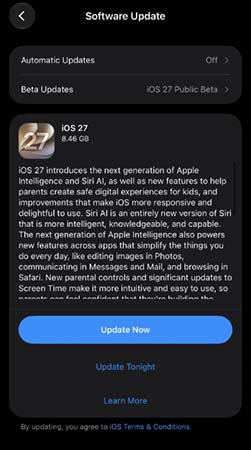
Once the installation finishes, open Control Center again and test the swipe gesture.
Fix 9. Reset All Settings
If Control Center still fails after you check its access settings and update iOS, a corrupted or conflicting system preference may be responsible.
Reset All Settings restores many iOS preferences to their defaults without erasing your photos, messages, apps, or other personal files. However, saved Wi-Fi networks, keyboard settings, privacy preferences, and some customizations will need to be configured again.
- Step 1. Open Settings. Go to General > Transfer or Reset iPhone.
- Step 2. Tap Reset. Select Reset All Settings.
- Step 3. Enter your device passcode.
- Step 4. Tap Reset All Settings again to confirm.

After your iPhone restarts, test Control Center before changing other settings.
Fix 10. Repair iOS 27 with TunesKit iOS System Recovery
If Control Center remains frozen, cannot be opened, or stops responding together with other system gestures, the problem may go beyond a simple Control Center setting. A damaged iOS component or an incomplete update can affect system interfaces even after multiple restarts.
You can take advantage of a powerful iOS repair tool, TunesKit iOS System Recovery comes in handy. It is designed to fix 150+ iOS system problems while preserving user data. For example, it can fix RCS not working on iOS 27, iPhone died during iOS 27 update, and iOS 27 mail notifications not working, etc. Compatible with both macOS and Windows, it is the optimal choice when you encounter iOS glitches.
Fix iOS 27 Control Center Issues Fast
Repair iOS 27 system glitches that make Control Center freeze, disappear, or stop responding—without erasing your data in Standard Repair mode.
 600,000+ Downloads
Here is how to fix iOS 27 control center not working using TunesKit iOS System Recovery.
Step 1. Connect iPhone to PC
Install and launch TunesKit iOS System Recovery on your Mac or Windows PC. Connect your iPhone to the computer with a USB cable. On the main interface, click iOS System Repair. On the next page, click the Start button.

Step 2. Choose A Mode
Choose Standard Repair. This mode is the better first choice because it is intended to repair iOS without data loss.

Step 3. Download the Firmware Package
Once your iPhone is detected, check the displayed device information, including the Model, iOS Version, and firmware details. Click Download button to download the matching iOS firmware package.
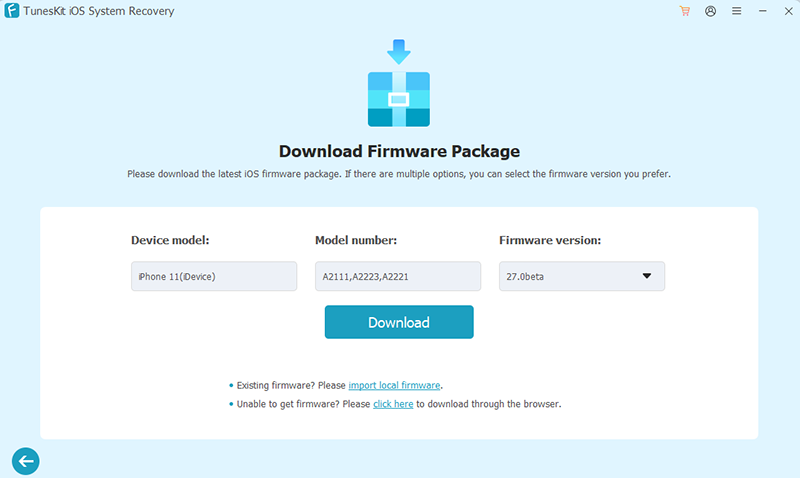
Step 4. Start to Fix
After the firmware has been downloaded and verified, click Start Standard Repair. Keep the iPhone connected during the repair process. Do not disconnect the USB cable or close the program.
When the program shows that the repair is complete, allow the iPhone to restart. Afterward, swipe down from the top-right corner and check whether Control Center works normally.

Fix 11. Contact Apple Support
If Control Center still does not respond after reinstalling iOS, especially when the top-right part of the screen also fails to recognize taps or swipes, the issue may be hardware-related.
A damaged digitizer, display connector, replacement screen, or other touch component can prevent iOS from detecting the Control Center gesture correctly.
This is more likely if your iPhone:
- Was recently dropped;
- Was exposed to water or moisture;
- Has a cracked or replaced screen;
- Has dead touch areas near the top-right corner;
- Still has the same problem after a complete iOS restore.
In these cases, contact Apple Support or take the iPhone to an Apple Store for hardware diagnostics.

Conclusion
If iOS 27 Control Center is not working, start with simple fixes like checking the swipe gesture, restarting your iPhone, and reviewing Control Center settings. If the problem continues, TunesKit iOS System Recovery is a practical option for repairing deeper iOS glitches, and its Standard Repair mode can fix system issues without erasing your data.



