


Pangu FRP Bypass Review: Does It Really Work for Android FRP Lock Removal?
Factory Reset Protection (FRP) is one of Android's most important security features. If you forget the Google account linked to your phone or purchase a second-hand device that wasn't properly signed out, the setup process can come to a complete halt.
In these situations, many users search online for fast and free fixes and eventually encounter Pangu FRP Bypass. But does it really work, and is it safe to use? In this in-depth post, we'll examine how the tool works, safety concerns, and whether it's still worth trying on modern Android devices.
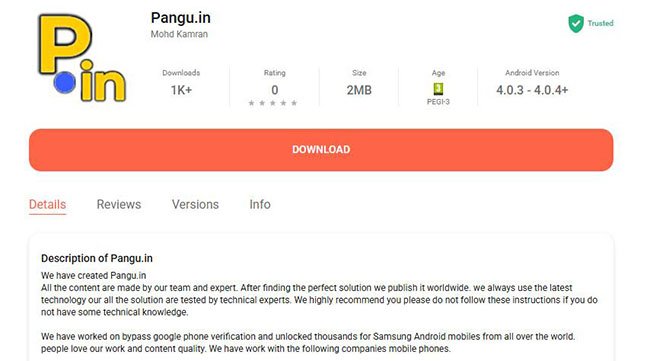
Part 1. Comprehensive Review of Pangu FRP Bypass
Before deciding whether Pangu FRP Bypass is right for you, it's important to clearly understand what this tool actually is and what problem it claims to solve. Many users download FRP bypass tools without fully understanding their origin, purpose, or limitations, which often leads to frustration or even security risks.
1.1 What is Pangu FRP Bypass?
Pangu FRP Bypass is a third-party Android utility designed to help users bypass Google's Factory Reset Protection after a device reset. The tool is typically used by people who:
- Forgot the Google account credentials previously synced to the device
- Bought a used Android phone that is still FRP-locked
- Are stuck on the “Verify your account” screen during setup
1.2 How Pangu FRP Bypass Claims to Work
Understanding how Pangu FRP Bypass works helps set realistic expectations. Many users assume these tools use advanced or permanent unlocking techniques, but in reality, most FRP bypass tools rely on temporary system loopholes.
Pangu FRP Bypass generally works by exploiting older Android system vulnerabilities that allow limited access to apps or settings during the setup process. By redirecting the user away from the Google verification screen, it attempts to let them add a new Google account.
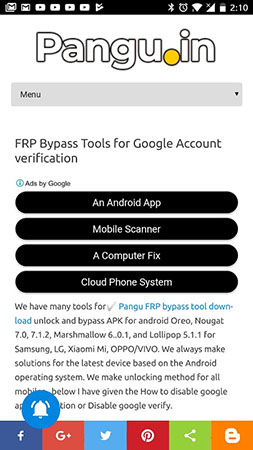
In simplified terms, the process may involve:
- Gaining access to a browser or system menu from the FRP screen
- Downloading and installing helper APK files
- Opening system settings indirectly
- Adding a new Google account to the device
1.3 Compatibility and Supported Android Versions
Compatibility is often the deciding factor in whether Pangu FRP Bypass succeeds or fails. While many websites list broad compatibility claims, real-world results tend to be much more limited.
Claimed Compatibility
According to various sources, Pangu FRP Bypass may support:
- Android versions from Android 5.0 to Android 8 or 9
- Some builds of Android 10 or 11 (with inconsistent results)
- Older devices from brands such as Samsung, LG, HTC, and Xiaomi
Real-World Limitations
In practice, success rates drop sharply on newer devices:
- Android 12 and above: Very unlikely to work
- Devices with recent security patches: Often blocked entirely
- New Samsung models with modern One UI versions: Usually incompatible
1.4 Pros and Cons of Pangu FRP Bypass
To fairly evaluate any FRP bypass tool, it's important to weigh both its strengths and weaknesses. While Pangu FRP Bypass does offer some advantages, they come with notable trade-offs.
 Pros:
Pros:- Completely free to use
- No account registration required
- Can sometimes work without a PC
- Useful for older or test devices
 Cons:
Cons:- Unreliable on modern Android versions
- Complex steps that confuse beginners
- No official updates or technical support
- High chance of failure after reboot
- Potential security risks from APK files
1.5 Is Pangu FRP Bypass Safe and Legit?
Safety is one of the most common concerns when users search for Pangu FRP Bypass APK. Because the tool is not officially distributed, it's essential to approach it with caution.
Safety Risks
- APKs are often downloaded from third-party sites
- No guarantee that files haven't been modified
- Potential exposure to malware, ads, or trackers
Legitimacy Concerns
- No confirmed developer identity
- No official documentation or customer support
- No endorsement from Google or device manufacturers
1.6 How to Use Pangu FRP Bypass to Bypass FRP?
If you are sure that Pangu FRP Bypass is your selection for FRP bypass, the following steps will help you use this tool. You need to prepare a personal computer so that you can download the tool to your phone.
Step 1. Go to the Pangu FRP Bypass website to download it to your computer and then move the download file to a USB drive. Connect the USB drive to your phone and then install the tool on your phone via an OTG cable.
Step 2. Open the tool on your phone and then tap on the three-dot icon and then tap on the Browser sign-in option.
Step 3. On this screen, you should enter a new Gmail ID and then tap the Next button.
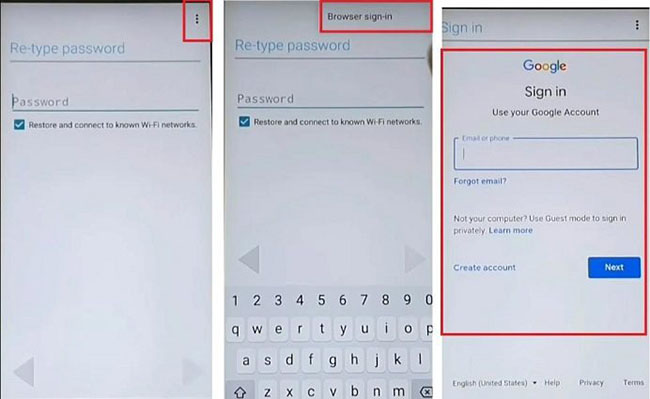
Step 4. Next, you will be prompted to make a different password. Tap on Finish to continue.
Step 5. After that, power off your phone and then restart it after a minute.
Step 6. Click the Next button to contine the welcoming process.
Step 7. You will be prompted that "New account successfully included."
Step 8. When you arrive at the page requiring Gmail, you should enter the Gmail that you just added.
Step 9. Tap on the Next button. The process is done.
Part 2. Best Alternative to Pangu FRP Bypass - TunesKit Android Unlocker
For users who find that Pangu FRP Bypass no longer works, especially on newer Android versions, TunesKit Android Unlocker is often considered a more reliable alternative. Unlike APK-based methods that rely on outdated system loopholes, TunesKit Android Unlocker uses a PC-based, guided workflow designed to reduce manual steps and compatibility guesswork.
What Makes TunesKit Android Unlocker a Better Alternative?
Pros:- Works better on newer Android versions (depending on model)
- Does not rely on risky APK sideloading
- Provides on-screen instructions for each step
- Reduces trial-and-error common with free FRP APK tools
Why Choose TunesKit Android Unlocker
Bypass FRP lock without passcode with ease. No Technical Skills Needed. High Success Rate. Support lots of Android version incuding 16.
 600,000+ Downloads
Below is a general, high-level process showing how TunesKit Android Unlocker is typically used to bypass FRP.
Step 1 Connect android phone to computer
Start by downloading and installing TunesKit Android Unlocker on a Windows or macOS computer. Use a USB cable to connect your Android phone to the computer. Make sure the phone is powered on and remains on the Google verification screen.
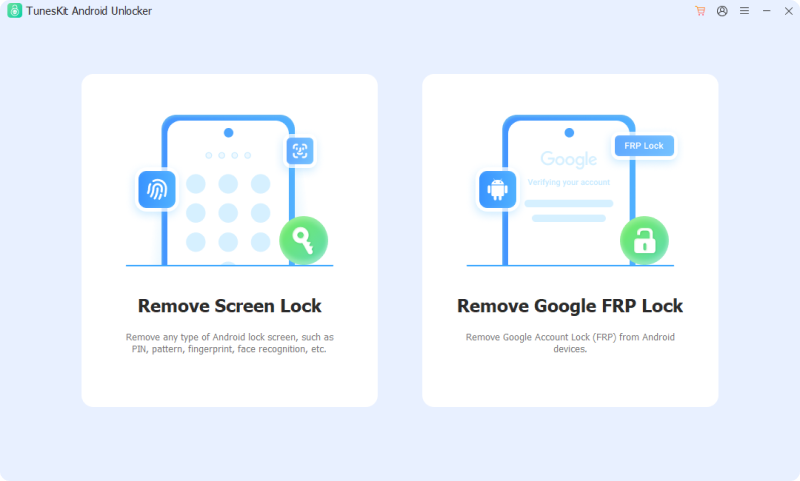
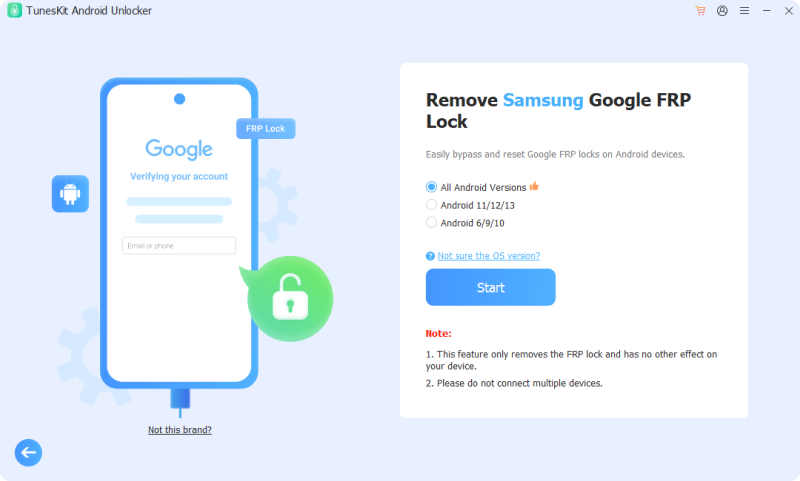
Step 2 Choose the FRP removal feature
Open the software and then choose the Remove Google FRP Lock option from the main interface. Choose your Android phone brand and then click the Start button.
Step 3 Remove FRP from phone
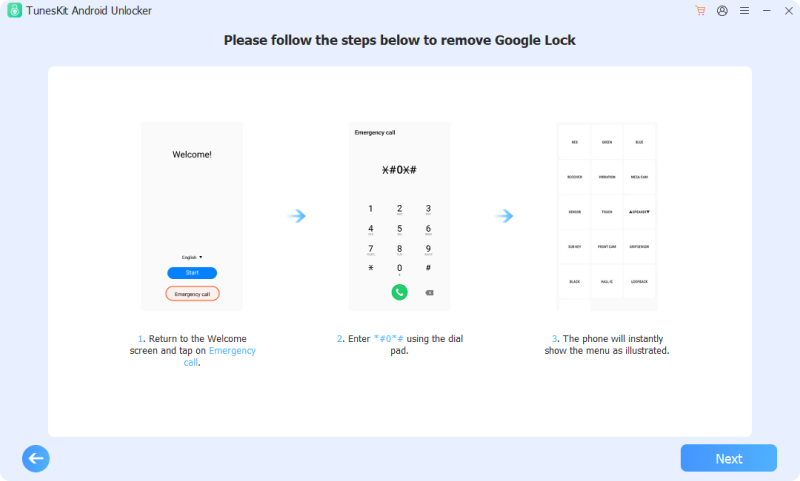
Follow the on-screen instructions to bypass FRP lock. Click the Next button to continue. Tap Allow on you phone when it is prompted.
Part 3. FAQs about FRP Bypass
-
1. Why do FRP bypass APKs often stop working?
FRP bypass APKs typically rely on temporary system loopholes. When Google releases Android updates or security patches, these loopholes are closed. As a result, methods that worked months or years ago may suddenly fail, even on the same device model.
-
2. Is FRP bypass legal?
FRP bypass legality depends on ownership and intent. Bypassing FRP on a phone you legally own or have permission to access is generally acceptable in many regions. However, bypassing FRP on a lost, stolen, or unauthorized device may violate laws or terms of service. Always ensure you are the rightful owner before attempting any FRP bypass method.
Part 4. Conclusion
Pangu FRP Bypass can still work, but only in limited, specific scenarios. It is best viewed as a last-resort free option for older Android devices rather than a dependable universal solution. For modern Android phones, especially those with recent updates, tools like TunesKit Android Unlocker or official Google recovery options are often more realistic choices.


