


2026 Guide: Secure Startup LG Bypass
LG Secure Startup is a powerful security feature designed to protect your data using device-level encryption. However, if you forget the PIN, pattern, or password, or if the phone unexpectedly triggers Secure Startup after a reboot, you may find yourself completely locked out.
This guide provides realistic, accurate, and detailed methods on how to bypass LG Secure Startup, what's actually possible, and what limitations you must understand. It also follows safe, credible recommendations and avoids misleading “quick hacks” that don't work with encryption-level security.

Part 1. What Is LG Secure Startup?
LG Secure Startup is a pre-boot security feature on many LG devices. When enabled, it requires users to enter a password, PIN, or pattern before the device boots into Android. This ensures your data stays encrypted and inaccessible to unauthorized users.
Key Characteristics of LG Secure Startup:
- It activates before Android loads, meaning standard lock-screen tricks do not work.
- It protects full-disk encrypted data, locking the entire system.
- Even correct Google account login cannot bypass this screen.
- If you forget the password, LG states that your data cannot be recovered.
Why LG Phone Shows the Secure Startup Screen:
- You previously enabled Secure Startup.
- You changed or added a PIN, pattern, or password.
- A system update, cache wipe, or maintenance action triggered it.
- You bought a second-hand device.
Part 2. How to Bypass LG Secure Startup
In this part, we'll walk you through every effective method to bypass LG Secure Startup, explain when each approach works, and help you choose the safest option based on your situation. Whether you still remember your Google account, your device is stuck in a boot loop, or you're dealing with a pre-owned phone with no credentials, this guide provides clear steps to unlock your LG device and get it working again.
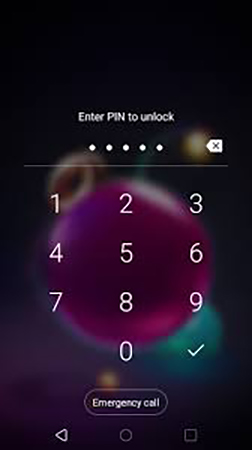
Method 1: Try Your PIN or Recover Your Password
Before attempting resets or tools, it's best to try recovering the original Secure Startup password. Many users regain access simply by retrying familiar PINs or correcting input mistakes. This approach avoids data loss and works when Secure Startup is tied to your Google account's decryption key.
This method is safe and does not erase any data.
Step 1. Retry familiar PINs/patterns. Try recently used passwords, common PINs, or older unlock patterns.
Step 2. Wait out lockout timers. After multiple failed attempts, wait for the countdown and try again calmly.
Step 3. Check Google account timing. If you recently changed your Google password, wait 24 hours and try again.
Step 4. Verify keyboard input. Ensure Caps Lock, special characters, and keyboard language are correct.
Method 2: Factory Reset to Remove LG Secure Startup
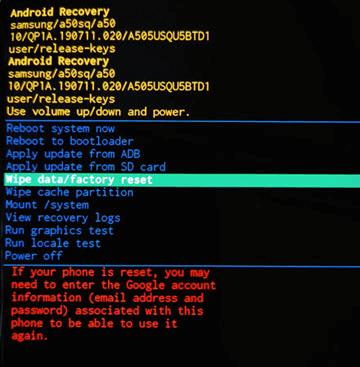
A factory reset is the most reliable way to remove Secure Startup when the password cannot be recovered. This method erases all user data but fully removes the encryption lock, allowing the device to boot normally again.
Step 1. Power off your LG phone.
Step 2. Hold Power + Volume Down, release Power at LG logo, then press again to put your phone into recovery mode.
Step 3. Use volume keys to highlight Factory Data Reset, then press the Power button to confirm.
Step 4. Reboot your phone and there will be no Secure Startup.
Method 3: Use Google Find My Device to Reset Remotely
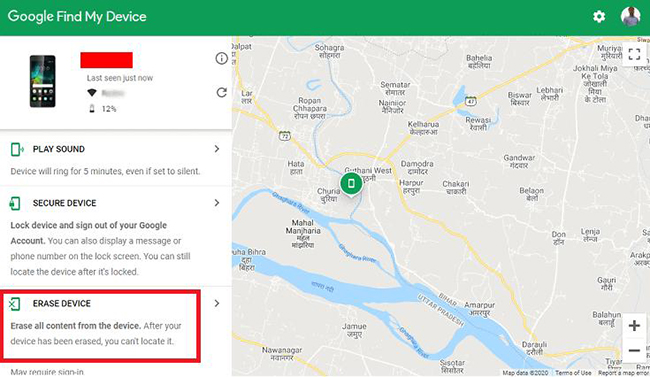
If Find My Device was enabled before the lockout, you can remotely reset your LG phone online. This removes Secure Startup without needing Recovery Mode.
Step 1. Visit Google Find My Device.
Step 2. Sign in with the phone's Google account.
Step 3. Select the device and then choose Erase Device.
Step 4. Confirm to start the remote reset.
Method 4: Use TunesKit Android Unlocker to Bypass LG Secure Startup without Password
Although it is rare, all the above methods may fail altogether. If that happened or you need a more efficient method to bypass Secure Startup on your LG phone, you can choose to use a third-party unlock tool like TunesKit Android Unlocker.
TunesKit Android Unlocker is a specialized Android unlocking software designed to help users remove screen locks, including PINs, patterns, passwords, and fingerprints. It provides a guided interface for safely resetting locked devices and resolving boot or lock screen issues.
Key Features of TunesKit Android Unlocker
Unlock Android screen without passcode with ease. Supports All Android versions. Available on Windows and Mac.
 600,000+ Downloads
Let's learn how to use TunesKit Android Unlocker to unlock your Android phone step by step.
Step 1 Connect device to computer
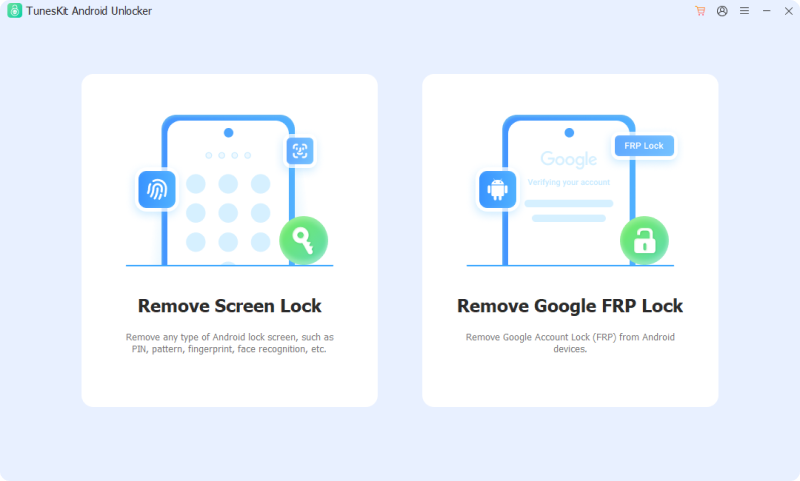
Download and install TunesKit Android Unlocker on your computer and open it. Connect your device to the computer via a USB cable. The software will automatically recognize your device's brand.
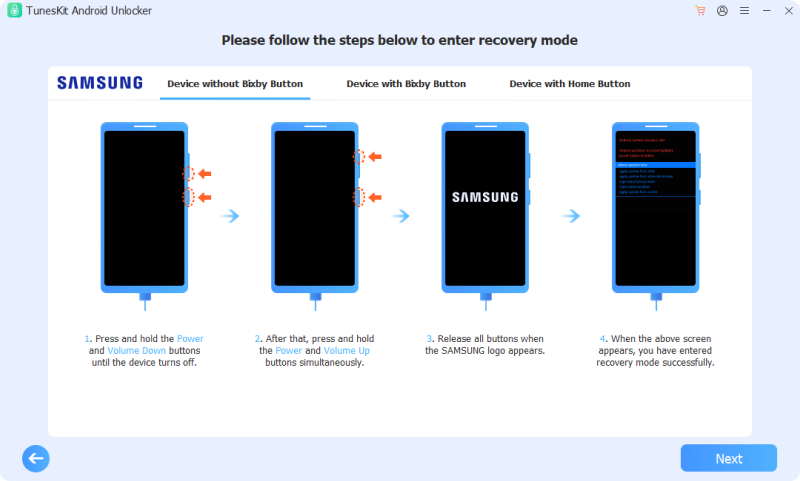
Step 2 Enter recovery mode
Open the tool and select the Remove Screen Lock option. You will see an instruction about how to put your phone into recovery mode. Follow it and then click the Next button.
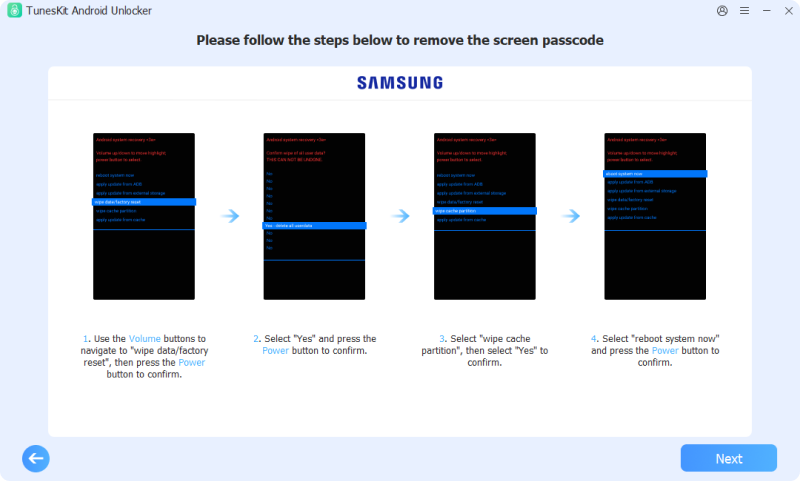
Step 3 Remove screen lock
Follow the steps shown on the computer to manually remove the screen lock on your phone. After that, click the Next button.
Part 3. FAQs about Bypassing LG Secure Startup
-
1. Can I bypass LG Secure Startup without losing data?
No, not in most cases. LG Secure Startup encrypts the device's storage, so removing the lock usually requires a factory reset, which will erase all user data. Always back up your data regularly to avoid loss.
-
2. Does removing Secure Startup also remove FRP (Factory Reset Protection)?
No. Secure Startup and FRP are separate security layers. Even after removing Secure Startup, FRP may still require the original Google account credentials to activate the device.
-
3. Is bypassing Secure Startup safe?
Yes, if you use official methods (Recovery Mode, Google Find My Device) or reputable tools like TunesKit Android Unlocker. Avoid unknown software, “secret codes,” or unverified online tools, as they can damage your device or compromise security.
-
4. How do I turn off Secure Startup on my LG?
Once you get back into the phone (usually after a reset), you should disable this feature immediately to prevent this from happening again.
Step 1. Open Settings and tap the General tab.
Step 2. Select Lock Screen & Security.
Step 3. Tap Encryption & Credentials.
Step 4. Tap Secure Startup.
Step 5. Select "No thanks" (or "Do not require PIN to start device").
Part 4. Conclusion
Bypassing LG Secure Startup is possible, but only by understanding the feature's encryption-based design and using legitimate, realistic methods. If you are confused about Secure Startup LG bypass, you can use the methods shown in this article to solve it. TunesKit Android Unlocker would be the easiest solution when you forgot your phone password.


