How to Reset Android Phone When Locked [2026 Guide]
Forgot your Android PIN, password, or pattern and can't get past the lock screen? In most cases, you can still reset an Android phone when locked, even if you cannot open the Settings app. The two most widely available options are Google Find Hub and Android Recovery Mode. This guide explains how to factory reset a locked Android phone in detail.
Quick Answer: How to Reset Android Phone When Locked
If you cannot unlock your Android phone because you forgot the PIN, password, or pattern, Google states that the device generally needs to be erased before you can set a new screen lock. You can usually do this in one of two ways: remotely through Google Find Hub or directly through the phone's Recovery Mode.
If those approaches are inconvenient, TunesKit Android Unlocker provides a computer-assisted alternative for supported Android phones. According to its current product documentation, it is designed to remove PINs, patterns, passwords, fingerprints, and face locks, and its normal screen-lock removal workflow usually involves data loss.
At a Glance: Ways to Reset a Locked Android Phone
| Method | Screen Password Needed | Computer Needed | Data Loss | Best For |
|---|---|---|---|---|
| Google Find Hub | No | No | Yes | Phone is online and connected to Google |
| Recovery Mode | No | Usually no | Yes | Phone cannot be unlocked normally |
| TunesKit Android Unlocker | No | Yes | Usually yes | Users who prefer guided computer-assisted lock removal |
| Samsung SmartThings Find | No | No | Yes | Eligible Samsung Galaxy devices |
Before resetting the phone, check whether one of the following situations lets you regain access without erasing local data.
Before You Factory Reset an Android Phone When Locked
A factory reset removes the current screen lock, but it is also destructive. Checking your remaining recovery options and account information first can prevent unnecessary data loss or activation problems later.
- Check Whether You Can Unlock Android Without Resetting
- Make Sure You Know Your Google Account
- Check Whether Your Data Is Backed Up
- Charge the Android Phone Before Resetting
How to Reset Android Phone When Locked
If you're locked out of your Android phone and can't remember the PIN, password, or pattern, there are still several ways to reset it. Below, we'll walk through practical methods using Google Find Hub, Recovery Mode, a computer-assisted unlocking tool, and a specific method for Samsung phone.
Option 1: Via Google Find Hub
 Best For: A locked Android phone that is powered on, online, and connected to Google Account.
Google Find Hub can remotely locate, secure, or factory reset compatible Android devices.
- Step 1. Open Google Find Hub on another phone, tablet, or computer.
- Step 2. Sign in with the Google Account associated with the locked Android phone.
- Step 3. Select the locked phone from the available devices.
- Step 4. Open the device settings or management options.
- Step 5. Choose the Factory reset device or erase option.
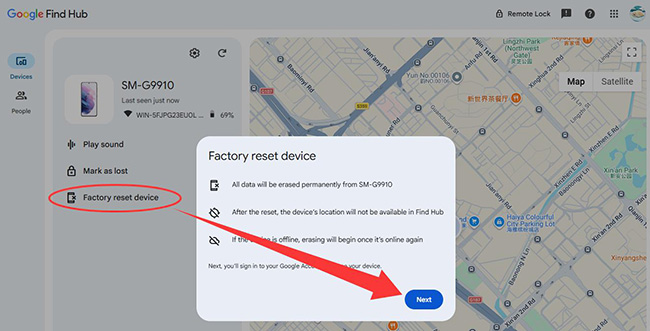
- Step 6. Review the warning and confirm that you want to erase the device.
What If the Locked Android Is Offline?
Find Hub needs to communicate with the phone before it can carry out a remote reset. If the phone cannot be reached or does not meet Google's requirements, use Recovery Mode instead.
Option 2: Using Recovery Mode
Best For: A locked phone that cannot be reset remotely.Recovery Mode is a built-in maintenance environment that operates separately from the normal Android interface. Because you do not need to open Settings first, it is one of the most practical ways to factory reset Android without a password.
The exact button combination depends on the phone brand and model, but the overall process is similar.
- Step 1. Turn off the Android phone completely.
- Step 2. Press the correct Power and Volume button combination for your model to enter Recovery Mode.
- Step 3. Use the Volume buttons or touchscreen controls to locate Wipe data/factory reset, Wipe Data, or a similar option.
- Step 4. Select the factory-reset option and confirm that you want to erase the phone.
- Step 5. Wait for the reset process to finish without interrupting it.
- Step 6. Select Reboot system now or the equivalent option to restart the device.
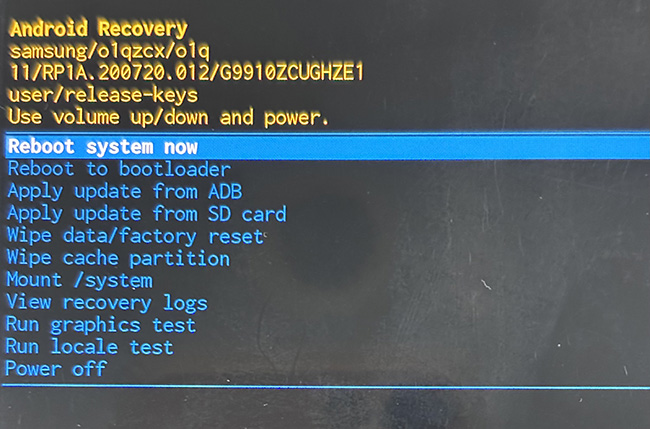
Because there is no universal Recovery Mode combination, use the brand-specific instructions below.
Option 3: Using TunesKit Android Unlocker
Best For: Users who have forgotten the screen lock and prefer a guided computer-based process.If hardware-button combinations or Recovery Mode menus seem confusing, TunesKit Android Unlocker provides another way to remove a forgotten screen lock from supported Android devices.
The program is designed to handle common Android lock types, including PINs, patterns, passwords, fingerprints, and face locks. It requires a Windows or Mac computer and a USB cable for the standard workflow.
Key Features of TunesKit Android Unlocker
Factory reset Android phone without unlocking it. No Technical Skills Needed. High Success Rate. Support lots of Android version including 16.
 600,000+ Downloads
- Step 1. Install and launch TunesKit Android Unlocker on your Windows PC or Mac. Connect the locked Android phone to the computer using a USB cable. Choose Remove Screen Lock from the main interface.
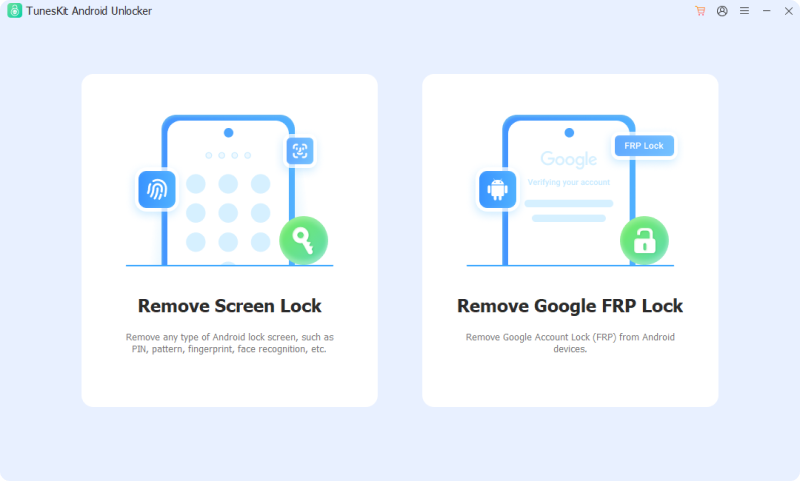
- Step 2. Select your Android phone brand and confirm the device information when prompted. Follow the onscreen instructions to place the phone into the required Recovery Mode or device mode.
- Step 3. Follow the onscreen prompts to begin removing the screen lock. Keep the phone connected until TunesKit shows that the screen lock has been removed successfully.
Option 4: For Samsung: Reset a Locked Galaxy with SmartThings Find
Samsung Galaxy owners may have another remote-reset option through SmartThings Find. If the phone is connected to your Samsung account, accessible online, and the required remote features are enabled, you may be able to erase it remotely.
- Step 1. Open SmartThings Find on another device.
- Step 2. Sign in with the Samsung account connected to the locked Galaxy phone.
- Step 3. Select the locked device.
- Step 4. Choose Erase data.
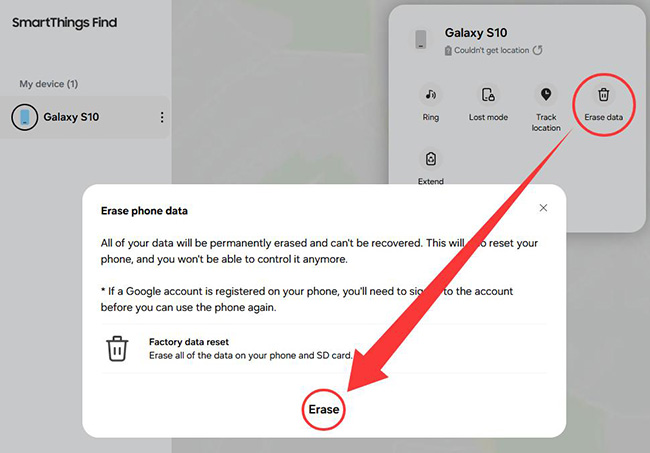
- Step 5. Confirm that you want to reset the phone.
 Further Reading: What to Do If You forgot Your Samsung Tablet Password
Can You Reset an Android Phone When Locked Without Losing Data?
Usually, not if a factory reset is required.
A true factory reset erases user data and settings stored locally on the device. Files already synchronized with Google or another cloud service may be restored afterward, but data stored only in the phone's internal memory is normally lost.
There are a few situations where you may avoid resetting:
- You remember the correct password after a temporary lockout.
- A currently accepted biometric method still works.
- A supported Samsung phone allows the previous screen lock to be used.
- Your data was already backed up and can be restored afterward.
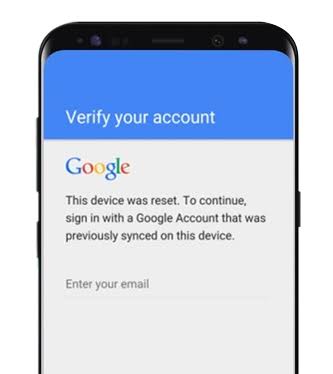
What If Android Asks for the Previous Google Account After Reset?
If Android asks you to verify a Google Account that was previously synced with the phone:
- Step 1. Enter a Google Account that was previously added to the device.
- Step 2. Enter the correct password for that account.
- Step 3. If you forgot the password, use Google's account-recovery process on another device.
- Step 4. If the password was recently changed, wait for any required security period before trying again.
- Step 5. If you still cannot verify the account, contact the manufacturer or an authorized support provider and prepare proof of purchase.
FAQs About How to Reset Android Phone When Locked
-
Can I reset a locked Android phone without a computer?
Yes. Recovery Mode normally uses the phone's physical buttons, while Google Find Hub can be accessed from another phone or tablet.
-
Does factory reset remove the Android password or PIN?
Yes. A complete factory reset removes the existing local PIN, password, or pattern because the phone's user settings and data are erased. But Factory Reset Protection may still require the previous Google Account during setup.
-
Does factory reset remove a Google Account?
The locally stored Google Account information is removed, but Android may still require a previously synced Google Account during setup because of FRP.
Conclusion
If you need to know how to reset an Android phone when locked, first check whether you can regain access without erasing the device.
If a reset is unavoidable, Google Find Hub is suitable for an online phone, while Recovery Mode is the main built-in method when the phone cannot be accessed normally. If you prefer guided instructions on a computer, TunesKit Android Unlocker is another option for supported Android devices.