


How to Fix RCS Not Working on iOS 27
If RCS is not working on iOS 27, the issue may be caused by carrier support, incorrect messaging settings, network problems, or an iOS glitch. Check RCS Messaging, update carrier settings, restart your iPhone, and install the latest iOS update to restore RCS features.
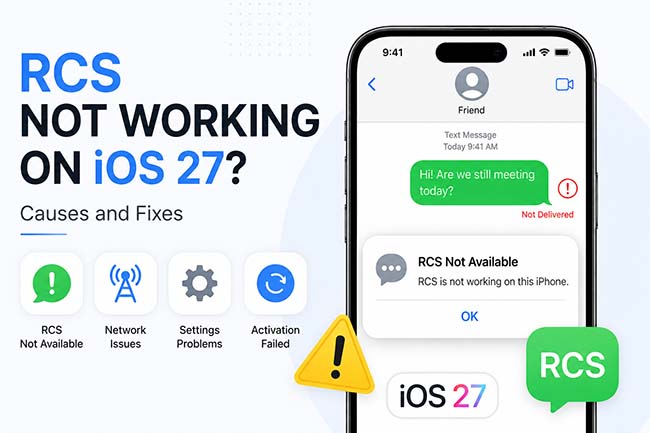
If you find RCS not working on iOS 27 after updating your iPhone, you may be unable to send or receive RCS messages, see delivery/read receipts, or use other enhanced messaging features. The problem can be related to carrier support, RCS settings, network issues, or temporary iOS glitches. In this guide, we'll explain the common causes and show you practical ways to get RCS working again.
- Why Is RCS Messaging Not Working on iOS 27?
-
[Top 10] How to Fix iOS 27 RCS Not Working After Update
- Fix 1. Turn RCS Messaging Off and Back On
- Fix 2. Check Whether RCS Is Activated
- Fix 3. Make Sure Your Carrier Supports RCS on iPhone
- Fix 4. Check Your Cellular and Internet Connection
- Fix 5. Restart Your iPhone
- Fix 6. Update Your Carrier Settings
- Fix 7: Repair iOS 27 System Issues with TunesKit iOS System Recovery HOT
- Fix 8. Update iOS 27 to the Latest Version
- Fix 9. Reset Network Settings
- Fix 10. Contact Your Carrier
- Bonus Fix: Temporarily Disable the Second SIM or eSIM
- Conclusion
Why Is RCS Messaging Not Working on iOS 27?
If RCS stops working after updating to iOS 27, the problem may be caused by the software itself, your carrier, or the RCS activation process. Common causes include:
- 01 iOS 27 bugs: Some iOS 27 users report that RCS falls back to SMS, gets stuck on "Waiting for Activation," or fails to send and receive messages after an update.
- 02 Your carrier doesn't support RCS: RCS on iPhone is a carrier-provided service, and availability varies by carrier or region.
- 03 RCS is still activating: Apple notes that there can be a delay after RCS is first enabled. During this time, RCS may not work normally.
- 04 RCS Messaging is turned off: The RCS option under Settings > Apps > Messages > RCS Messaging must be enabled.
- 05 Poor Wi-Fi or cellular connection: Unlike traditional SMS, RCS uses Wi-Fi or cellular data, so an unstable Internet connection can prevent messages from being sent or received.
- 06 Dual-SIM or eSIM issues: Some iOS 27 users have reported RCS activation failures when two SIMs or eSIMs are active at the same time.
[Top 10] How to Fix iOS 27 RCS Not Working After Update
If RCS worked normally before the update but stopped afterward, try the fixes below in order. Recent users have reported RCS switching back to SMS, getting stuck on "Waiting for Activation," or temporarily failing to send and receive messages.
Fix 1. Turn RCS Messaging Off and Back On
Start by refreshing the RCS connection. This is particularly useful if Messages suddenly falls back to SMS after installing iOS 27. Some iOS 27 users have reported that toggling RCS restored message delivery.
- Step 1. Open Settings on your iPhone.
- Step 2. Scroll down and tap Apps > Messages.
- Step 3. Tap RCS Messaging.
- Step 4. Turn RCS Messaging off.
- Step 5. Restart your iPhone, then return to the same menu and enable RCS Messaging again.
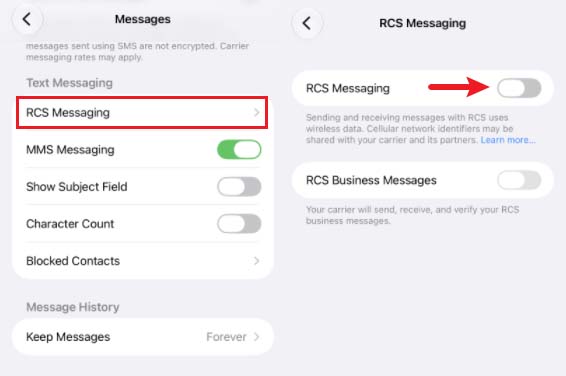
Apple notes that RCS may take some time to activate after being turned on, so don't assume it has failed immediately.
Fix 2. Check Whether RCS Is Activated
If you see Waiting for Activation or Activation Failed, the problem is likely with RCS registration rather than the Messages app itself.
Go to: Settings > Apps > Messages > RCS Messaging, and make sure RCS is enabled and check its activation status. Apple says RCS activation can take several hours in some cases.
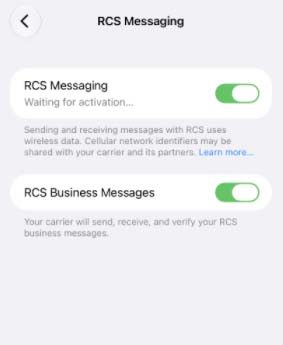
If you recently changed your SIM, transferred your number, or switched carriers, allow additional time for the carrier to register your number.
Fix 3. Make Sure Your Carrier Supports RCS on iPhone
RCS on iPhone is a carrier-provided service. Updating to iOS 27 does not automatically give every carrier or mobile plan RCS support.
Apple requires:
- A compatible iPhone running iOS 18 or later
- An active cellular plan
- A carrier that supports RCS on iPhone
- Wi-Fi or cellular data for sending RCS messages
If the RCS Messaging option is completely missing from Settings, check with your carrier first. Availability varies by carrier and region.
Fix 4. Check Your Cellular and Internet Connection
RCS requires an Internet connection, unlike standard SMS.
- Step 1. Open Settings > Cellular and make sure your cellular line is turned on.
- Step 2. Make sure Cellular Data is enabled. If you are using Wi-Fi, disconnect and try cellular data instead.
- Step 3. Turn Airplane Mode on for several seconds, then turn it off to reconnect to your carrier.
- Step 4. Try sending an RCS message again.
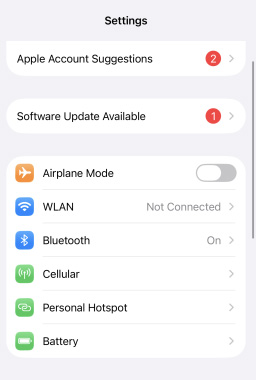
Apple confirms that iMessage, MMS, and RCS require either cellular data or Wi-Fi.
Fix 5. Restart Your iPhone
A restart can refresh Messages, cellular registration, and network services after an iOS update.
Press and hold the Side button + either Volume button, drag the Power Off slider, wait for the iPhone to shut down, and then hold the Side button until the Apple logo appears.
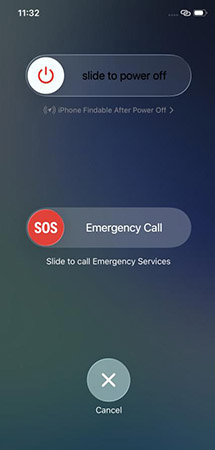
After restarting, open Settings > Apps > Messages > RCS Messaging and check whether RCS has activated. Apple also recommends restarting the device when Messages cannot send or receive messages.
Fix 6. Update Your Carrier Settings
An outdated carrier configuration may prevent features such as RCS from registering correctly after an iOS update. Carrier settings updates can improve cellular connectivity and add support for carrier features. Restart your iPhone afterward and check RCS again.
- Step 1. Connect your iPhone to Wi-Fi or cellular data.
- Step 2. Go to Settings > General > About. Stay on this page for a few seconds.
- Step 3. If a Carrier Settings Update appears, tap Update.

Fix 7: Repair iOS 27 System Issues with TunesKit iOS System Recovery
If RCS stopped working immediately after updating to iOS 27, but carrier support, RCS activation, and network settings are all normal, the problem may be caused by an iOS system glitch. In this case, you can use TunesKit iOS System Recovery to repair the underlying iOS system instead of repeatedly changing your Messages or network settings.
TunesKit iOS System Recovery is designed to fix more than 150 iOS/iPadOS system issues. Its Standard Repair mode repairs the iOS system without erasing personal data, including the iMessage not working after iOS 27 update, iMessage not sending photos, and iPhone Messages blank issues.
Fix iOS 27 RCS Issues Easily
Repair iOS 27 system glitches that may cause RCS to stop working—without erasing your data in Standard Repair mode.
 600,000+ Downloads
Here's a step-by-step guide to fix RCS not working on iOS 27 using TunesKit iOS System Recovery.
Step 1. Connect Your iPhone
Download and install TunesKit iOS System Recovery on a Windows PC or Mac. Connect your iPhone with a USB cable, launch the program, and choose iOS System Repair > Start.

Step 2. Choose Standard Repair
Select Standard Repair. This mode is intended for common iOS system problems and repairs the system without deleting your personal data.

Step 3. Download the Firmware Package
Check that the detected iPhone model and firmware information are correct. Click Download to obtain the compatible firmware package.

Step 4. Repair iOS 27
Once the firmware is ready, click Start Standard Repair. Keep your iPhone connected until the repair finishes. After your iPhone restarts, enable RCS if necessary, and check whether it activates and sends messages normally.

Fix 8. Update iOS 27 to the Latest Version
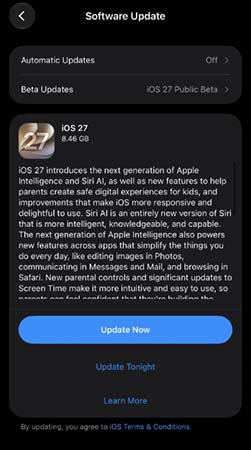
If RCS stopped working because of an iOS 27 bug, installing a newer iOS update may resolve it. After the update, check whether RCS activates and sends messages normally.
- Step 1. Open Settings app on your iPhone.
- Step 2. Go to General > Software Update.
- Step 3. If an update is available, tap the Update Now button.
- Step 4. Keep your iPhone connected to power and Wi-Fi until the update finishes.
Fix 9. Reset Network Settings
If RCS still won't connect, reset your iPhone's network configuration. Your photos, apps, and other personal data are not erased, but network settings are reset to their defaults. After the iPhone restarts, reconnect to Wi-Fi and enable RCS again.
- Step 1. Open Settings > General.
- Step 2. Tap Transfer or Reset iPhone > Reset.
- Step 3. Select Reset Network Settings.
- Step 4. Enter your iPhone passcode and confirm.

Fix 10. Contact Your Carrier
If RCS is still stuck on Waiting for Activation, the RCS option is missing, or messages continue to fall back to SMS, contact your cellular carrier. Ask the carrier to verify:
- RCS is supported on your account and plan.
- Your phone number is correctly provisioned for RCS.
- Your SIM or eSIM is properly activated.
- There are no RCS or IMS provisioning problems on your line.
Apple specifically recommends contacting your carrier when you still can't send or receive RCS, SMS, or MMS messages after basic troubleshooting.
 Tip
Tip
If RCS worked perfectly on iOS 26 but repeatedly breaks only on the iOS 27, the iOS 27 itself should be considered a likely cause. In that case, downgrading iOS 27 to iOS 26 is more effective than changing Messages settings.
Bonus Fix: Temporarily Disable the Second SIM or eSIM
If you use Dual SIM and RCS only fails when both lines are active, temporarily disabling the second line can help determine whether the issue is related to your SIM configuration.
- Step 1. Go to Settings > Cellular.
- Step 2. Select your secondary SIM or eSIM.
- Step 3. Temporarily turn off Turn On This Line.
- Step 4. Keep your main RCS-enabled line active.
- Step 5. Return to Settings > Apps > Messages > RCS Messaging. Turn RCS off and back on.
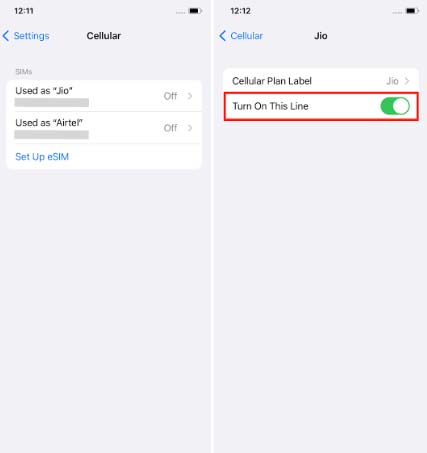
Do not delete your eSIM just for this test. Simply disabling the second line is enough to determine whether Dual SIM is contributing to the problem.
Conclusion
If RCS is not working on iOS 27, start with basic checks like RCS settings, carrier support, network connection, and carrier updates. If the issue began after the iOS 27 update and appeared to be system-related, TunesKit iOS System Recovery can help repair iOS glitches with its Standard Repair mode without erasing your personal data.



