


iMessage Not Working After iOS 27 Update? Here's How to Fix It
Is iMessage not working after the iOS 27 update? Your phone number may fail to activate, iMessages may turn green, messages may not appear on your iPhone, or conversations may stop syncing across Apple devices. This guide helps you identify the problem and try the right fix without unnecessary troubleshooting.
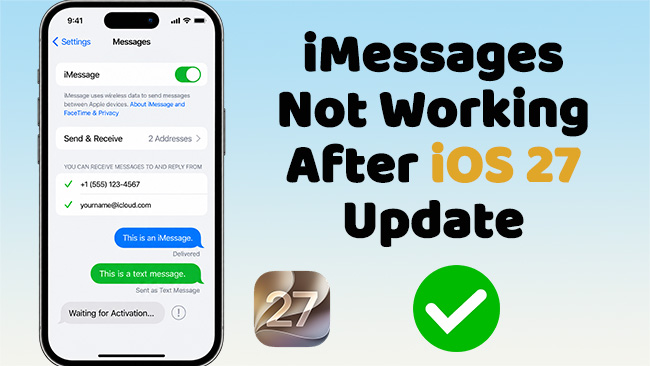
If iMessage stopped working after updating to iOS 27, start with these checks:
- Check whether Apple's iMessage service is online.
- Make sure Wi-Fi or cellular data works.
- Go to Settings > Apps > Messages and confirm iMessage is enabled.
- Open Send & Receive and make sure your phone number is selected.
- If you use an iOS 27 beta, check for a newer build.
- Why Is iMessage Not Working After the iOS 27 Update?
- Identify Your iMessage Problem First
-
How to Fix iMessage Not Working After iOS 27 Update
- Fix 1. Check Apple iMessage System Status
- Fix 2. Check Wi-Fi and Cellular Data
- Fix 3. Make Sure iMessage Is Turned On
- Fix 4. Check Your Phone Number in Send & Receive
- Fix 5. Restart Your iPhone
- Fix 6. Restart iMessage and FaceTime Correctly
- Fix 7. Check Date and Time Settings
- Fix 8. Update Carrier Settings
- Fix 9. Check Your SIM or eSIM
- Fix 10. Update to the Latest iOS 27 Version
- Fix 11. Reset Network Settings
- Fix 12. Repair iOS 27 System Issues with TunesKit iOS System Recovery HOT
- iMessage Still Not Working on iOS 27? Know Who to Contact
- FAQs About iMessage Not Working After iOS 27 Update
- Conclusion
Why Is iMessage Not Working After the iOS 27 Update?
iMessage may stop working after an iOS 27 update if the update affects your phone number registration, network connection, carrier settings, or Messages system processes. Since iOS 27 is currently in beta, a software bug in a specific build may also cause temporary iMessage problems. Common causes include:
- iMessage activation or phone number registration failed
- Network, carrier, or SIM/eSIM connection changed after the update
- Send & Receive or Apple Account settings are not working correctly
- An iOS 27 beta bug is affecting Messages
Identify Your iMessage Problem First
Not every iMessage problem after the iOS 27 update has the same cause. Before trying the fixes below, check which symptom matches your situation.
| Problem After iOS 27 | What It May Mean | What to Check First |
|---|---|---|
| Phone number won't activate or shows Waiting for Activation. (User report) | iMessage phone-number activation is incomplete | Check SMS service, carrier connection, and activation settings. See iMessage Waiting for Activation |
| iMessages suddenly turn green or don't send as iMessage. (User report) | iMessage may be unavailable, causing Messages to use RCS, SMS, or MMS instead | Check iMessage and Send & Receive. See Why Are My Messages Green |
| Some iMessages aren't received or don't appear on your iPhone (User report) | Message delivery or display may be affected by an iOS 27 beta issue | Check your connection, restart the iPhone, and install the latest iOS 27 build |
| Messages don't sync with iCloud or other Apple devices. (User report) | Messages in iCloud or cross-device syncing may not be working correctly | Check iCloud and Apple Account settings. See iMessage Not Syncing Between iPhone and Mac |
| Messages appear blank, missing, or unexpectedly filtered. (User report) | A Messages display, sync, or filtering issue may be involved | Restart Messages, check message filters, and update iOS 27 |
 Note
Note
These symptoms have been reported by users testing iOS 27 beta builds. They may be beta-specific and do not necessarily represent confirmed or widespread iOS 27 bugs.
How to Fix iMessage Not Working After iOS 27 Update
Try the following solutions in order. The earlier methods are quick and non-destructive, while later fixes change network settings or repair the operating system.
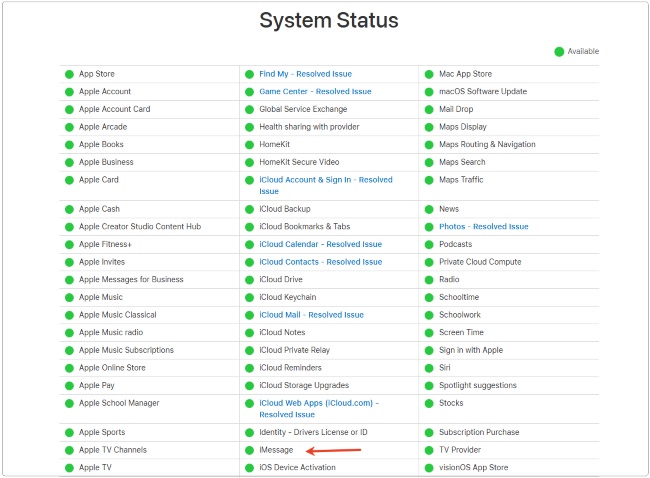
Fix 1. Check Apple iMessage System Status
Before changing your iPhone settings, check whether iMessage is experiencing an Apple-side service interruption. If Apple's service is unavailable, repeatedly restarting or resetting your iPhone will not solve the problem.
- Step 1. Open Safari or another browser.
- Step 2. Open Apple's System Status page.
- Step 3. Look for iMessage.
- Step 4. If Apple reports an outage, wait until service is restored before troubleshooting your device.
Fix 2. Check Wi-Fi and Cellular Data
iMessage sends messages through Wi-Fi or cellular data rather than relying only on traditional SMS. Apple requires an active internet connection for iMessage sign-in and activation.
- Step 1. Open Safari and load a webpage to confirm that the internet actually works.
- Step 2. If you are on Wi-Fi, temporarily switch to cellular data and test iMessage again.
- Step 3. If cellular data does not work either, turn Airplane Mode on for a few seconds, then turn it off.
- Step 4. Reopen Messages and send a test iMessage. If only one particular Wi-Fi network causes the problem, the network rather than iOS 27 may be responsible.

Fix 3. Make Sure iMessage Is Turned On
An update, activation problem, or account change can leave iMessage disabled or still activating. Check whether iMessage is still enabled after the update.
- Step 1. Open Settings.
- Step 2. Scroll down and tap Apps.
- Step 3. Select Messages. Make sure iMessage is turned on.

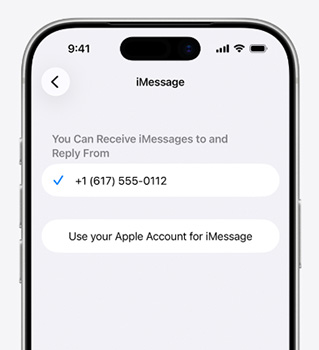
Fix 4. Check Your Phone Number in Send & Receive
This is one of the most important fixes if your messages started turning green, new conversations come from your email address, or people cannot reach you through your normal phone number.
- Step 1. Go to Settings > Apps > Messages.
- Step 2. Tap Send & Receive.
- Step 3. Under You Can Receive iMessages To and Reply From, make sure your phone number is selected.
- Step 4. Make sure the correct Apple Account email address is also selected if you want to receive messages through it.
- Step 5. Under Start New Conversations From, choose your phone number if you want new iMessages to originate from your number rather than your email address.

Fix 5. Restart Your iPhone
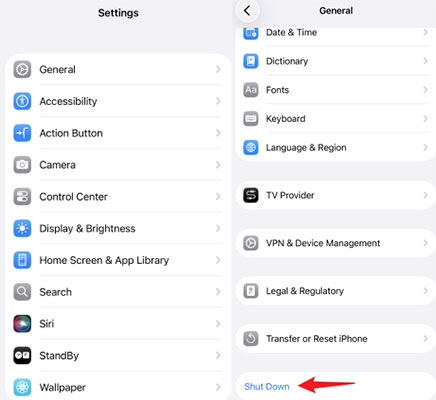
If Messages became unresponsive immediately after the iOS 27 update, a normal restart can clear temporary processes without deleting your data. An easy method that works without remembering model-specific button combinations is as follows.
- Step 1. Go to Settings > General.
- Step 2. Scroll down and tap Shut Down.
- Step 3. Drag the power slider to turn off the iPhone.
- Step 4. Wait briefly, then press and hold the Side button until the Apple logo appears.
- Step 5. After the iPhone reconnects to Wi-Fi or cellular data, reopen Messages and test iMessage.
Fix 6. Restart iMessage and FaceTime Correctly
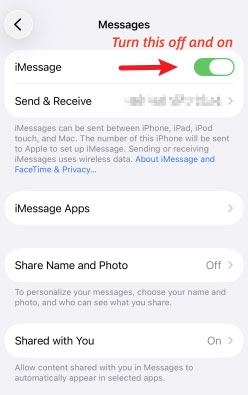
For activation problems, you can turn both iMessage and FaceTime off and back on rather than simply switching iMessage off for a few seconds. Refreshing iMessage can help when its registration did not complete correctly after the update.
- Step 1. Go to Settings > Apps > Messages.
- Step 2. Turn iMessage off.
- Step 3. Go back to Settings > Apps > FaceTime.
- Step 4. Turn FaceTime off.
- Step 5. Restart your iPhone.
- Step 6. Return to Messages and FaceTime settings and turn both services back on. Give your phone a moment to reactivate before testing iMessage again.
Fix 7. Check Date and Time Settings
Incorrect date, time, or time-zone information can interfere with iMessage activation. It specifically recommends checking that the time zone is correct when troubleshooting iMessage sign-in.
- Step 1. Open Settings > General > Date & Time.
- Step 2. Turn on Set Automatically.
- Step 3. Check that the displayed time and time zone are correct. Then return to Messages and check whether iMessage activates normally.

Fix 8. Update Carrier Settings
Carrier settings affect how your iPhone connects to your mobile network. This check is especially useful when your phone number will not activate with iMessage after the iOS 27 update.
- Step 1. Connect your iPhone to Wi-Fi or cellular data.
- Step 2. Go to Settings > General > About.
- Step 3. Wait on the About screen for a few seconds.
- Step 4. If a carrier settings update appears, follow the onscreen instructions to install it.

Fix 9. Check Your SIM or eSIM
If your phone number is missing from Send & Receive, stays stuck activating, or messages suddenly originate from your email address, check the cellular line itself.
- Step 1. Open Settings > Cellular.
- Step 2. Confirm that your normal phone line appears and is turned on.
- Step 3. If you use Dual SIM, make sure the correct line is active.
- Step 4. Return to Settings > Apps > Messages > Send & Receive.
- Step 5. Check whether your phone number is now available.
Fix 10. Update to the Latest iOS 27 Version
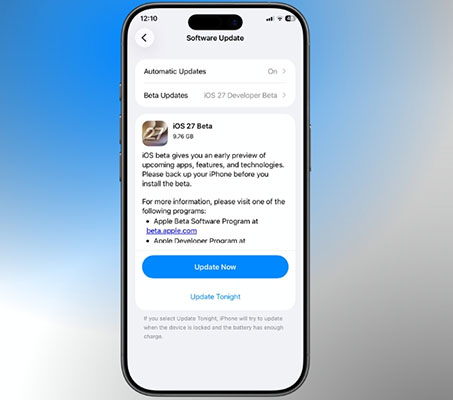
If your problem started with an iOS 27 beta, check whether a newer build is available. Beta bugs can be build-specific, so updating is generally more reasonable than immediately downgrading or erasing the iPhone.
- Step 1. Connect your iPhone to a reliable Wi-Fi network.
- Step 2. Go to Settings > General > Software Update.
- Step 3. If a newer iOS 27 beta or update is available, tap Update Now.
- Step 4. Allow the installation to finish, then test iMessage again.
Fix 11. Reset Network Settings
Use this method only after basic connection, activation, and carrier checks have failed. Resetting network settings does not erase your photos, apps, or messages, but it removes previously used network settings and certain VPN settings, and disconnects the current Wi-Fi connection.
- Step 1. Open Settings > General.
- Step 2. Tap Transfer or Reset iPhone.
- Step 3. Tap Reset.
- Step 4. Choose Reset Network Settings.
- Step 5. Enter your iPhone passcode if prompted.
- Step 6. After the reset, reconnect to Wi-Fi and test iMessage again.

Note
Do not choose Erase All Content and Settings, because that option removes your device data.
Fix 12. Repair iOS 27 System Issues with TunesKit iOS System Recovery
If iMessage still isn't working after the iOS 27 update and you have already ruled out Apple's servers, internet connection, Send & Receive settings, activation, carrier settings, and your SIM/eSIM, the iOS installation itself may be worth investigating.
In that situation, a system repair utility such as TunesKit iOS System Recovery can be used as a later-stage troubleshooting option. TunesKit is now compatible with iOS 27 and provides a Standard Repair mode designed to repair common iOS system problems while preserving existing data.
This method is appropriate only when the problem appears software-related. It cannot repair an Apple server outage, inactive mobile line, unsupported SMS service, or carrier provisioning issue.
- Step 1. Install and launch TunesKit iOS System Recovery on your Windows PC or Mac.
- Step 2. Connect the affected iPhone to the computer with a USB cable.
- Step 3. Choose iOS System Repair, then select Standard Repair. This is the non-data-erasing repair mode described by TunesKit.
- Step 4. Confirm the detected device information and download the matching firmware package.
- Step 5. Start the repair and keep your iPhone connected until the process completes. After the iPhone restarts, reconnect to the internet and test iMessage.

iMessage Still Not Working on iOS 27? Know Who to Contact
If none of the methods above solves the problem, the next step depends on the symptom.
Contact Your Carrier If:
- Your phone number remains on Waiting for Activation.
- Your SIM/eSIM cannot make calls or send SMS.
- Your number does not appear correctly on the cellular line.
- You cannot send or receive international SMS.
According to Apple, the phone-number verification can take up to 24 hours. If your number still does not receive a checkmark after that period, please contact your carrier and confirm that international SMS works. There is no need to repeatedly turn iMessage off and on while verification is in progress.
Contact Apple If:
- You cannot sign in to iMessage with your Apple Account.
- Your phone number and carrier are working correctly but iMessage still cannot activate.
- Messages repeatedly crashes or behaves abnormally across different networks.
- The issue remains after installing a newer iOS build.

If You're Running the iOS 27 Beta
If the issue can be reproduced consistently and started only with a particular iOS 27 beta, install the next available beta when possible and submit a report through Feedback Assistant. Apple provides Feedback Assistant specifically for reporting software bugs and supplying diagnostic information.
FAQs About iMessage Not Working After iOS 27 Update
-
Does a green message after iOS 27 mean I'm blocked?
No. A green bubble only means the message was sent through RCS, SMS, or MMS instead of iMessage. It does not confirm that the recipient blocked you.
-
Are missing messages after the iOS 27 update permanently deleted?
Not necessarily. Some iOS 27 beta users have reported messages appearing blank, missing temporarily, or showing on another Apple device but not the iPhone. Check Messages in iCloud, restart the device, and install the latest iOS 27 build before assuming the messages are permanently lost.
-
Can I still use iMessage if my phone number won't activate?
Possibly. If your Apple Account email is activated for iMessage, you may still be able to send and receive iMessages with that email address. However, people messaging your phone number may not reach you through iMessage until number activation is complete.
-
Should I downgrade iOS 27 if iMessage keeps failing?
Usually not as the first step. Since iOS 27 is still beta, check for a newer build and rule out network, activation, carrier, and account issues first. Consider downgrading only if the problem is clearly tied to the beta and normal troubleshooting does not help.
View Also: How to Downgrade iOS 27 to iOS 26
Conclusion
When iMessage is not working after the iOS 27 update, don't immediately reset or restore your iPhone. Start by checking Apple System Status, your internet connection, the iMessage toggle, and Send & Receive settings. If activation is stuck, check your SIM/eSIM, carrier settings, SMS capability, and allow sufficient time for phone-number verification.
For users running the current iOS 27 beta, installing the latest available build should also be a priority. If all account, network, activation, and carrier issues have been ruled out and the problem appears to come from the iOS system itself, TunesKit iOS System Recovery can serve as a later-stage repair option before considering more disruptive restoration methods.



