


iOS 27 New Recovery Mode Explained: What's New?
Apple introduces a redesigned iOS Recovery experience in iOS 27, giving users more ways to troubleshoot iPhone software issues directly on the device. The new recovery environment includes tools for diagnosing problems, updating iOS, erasing the device, and accessing traditional computer-based Recovery Mode.
If your iPhone won't start properly, gets stuck during an update, or runs into serious software problems, iOS 27's new Recovery Mode offers a simpler and more user-friendly way to get your device working again.
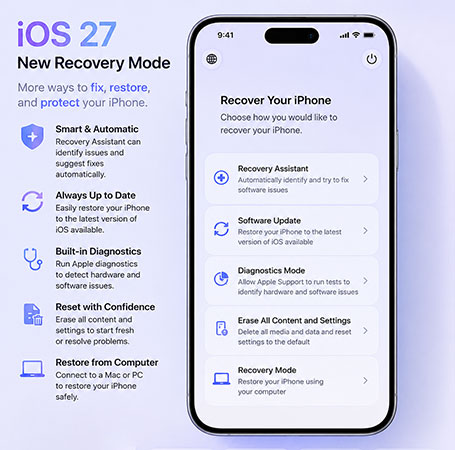
What's New on iOS 27 Recovery Mode
iOS 27 introduces a new iOS Recovery environment with several built-in options for troubleshooting and restoring your iPhone easily:
- Recovery Assistant – Attempts to fix stability or startup issues and may auto-launch when a problem is detected.
- Software Update – Restarts your iPhone and uses a nearby iPhone or iPad to update the software.
- Diagnostics Mode – Lets you or Apple Support run diagnostics and calibration to identify device issues.
- Erase All Content and Settings – Erases your iPhone without requiring a computer.
- Recovery Mode – Restarts your iPhone into traditional Recovery Mode, which requires a Mac or PC.
Together, these options make iPhone recovery more accessible while reducing the need to immediately connect the device to a computer.
How to Enter Recovery Mode on iOS 27?
Entering iOS Recovery on iOS 27 is simple. Follow these steps:
- Step 1. Turn off your iPhone completely. If it won't shut down normally, force restart it first.
- Step 2. Make sure your iPhone is not connected to a power source.
- Step 3. Press and hold the Side button until the "Continue holding for recovery" screen appears.
- Step 4. Keep holding until you see "Loading recovery options."
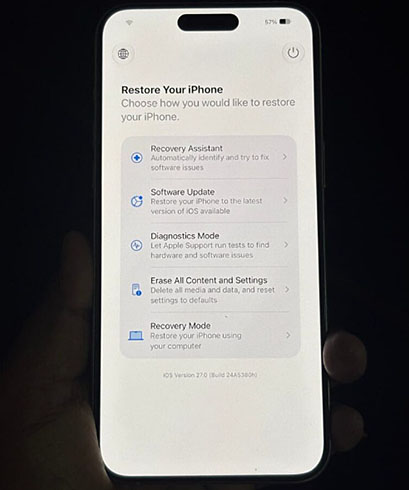
- Step 5. When the Restore your iPhone screen appears, choose the recovery option that best fits your situation.
 Further Reading: How to Enter/Exit Recovery Mode iPhone FREE
How to Fix iOS 27 Stuck in Recovery Mode
If your iPhone running iOS 27 is stuck on the Connect to Computer screen, keeps returning to Recovery Mode, or cannot boot normally, try the following solutions in order.
Method 1. Restart iPhone from the iOS Recovery Screen
If your iPhone has entered the new iOS Recovery interface, try restarting it before using more advanced recovery methods.
- Step 1. On the iOS Recovery screen, tap the Power button.
- Step 2. Select Restart from the available options.
- Step 3. Wait for your iPhone to restart and check whether it boots normally.
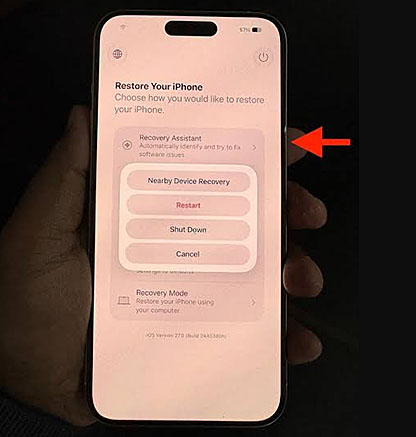
If the iPhone returns to Recovery Mode after restarting, continue with the methods below.
Method 2. Force Restart Your iPhone
A force restart refreshes the iPhone's system memory and can clear temporary errors that cause the device to remain trapped in Recovery Mode. It does not delete your data and is the safest first step.
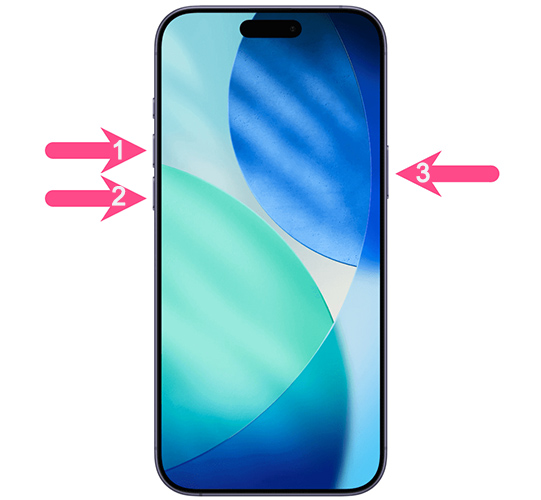
- Step 1. Quickly press and release the Volume Up button. Quickly press and release the Volume Down button.
- Step 2. Press and hold the Side button.
- Step 3. Continue holding the Side button until the Apple logo appears. Release the button and wait for the iPhone to restart normally.
Method 3. Exit Recovery Mode with TunesKit iOS System Recovery (One Click)
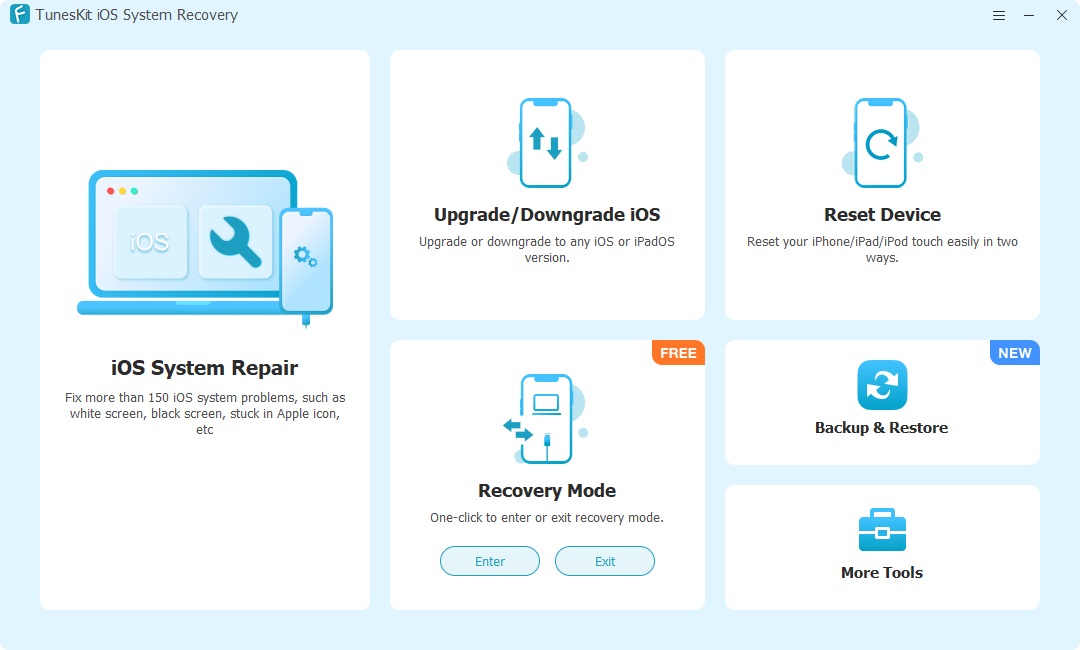
If the iPhone is repeatedly entering Recovery Mode, the problem may be caused by an iOS system error rather than a simple restart issue. TunesKit iOS System Recovery provides a quick way to exit Recovery Mode without manually performing button combinations. This method is useful when the device is recognized by a computer but cannot boot normally.
- Step 1. Download and install TunesKit iOS System Recovery on your computer, and launch the program.
- Step 2. Connect your iPhone to the computer using a USB cable. Wait for the software to detect your iPhone.
- Step 3. On the main screen, you should see the Recovery Mode section, simply click Exit button to exit iOS 27 Recovery Mode for free.
- Step 4. Wait while the software processes the request. When the process finishes, your iPhone should restart automatically.
Method 4. Update iOS Using a Nearby iPhone or iPad
If your iPhone can access the new iOS Recovery interface, you may be able to use another nearby iPhone or iPad to update its software.
- Step 1. Open iOS Recovery and go to the Restore Your iPhone screen.
- Step 2. Select Software Update.
- Step 3. Place another compatible iPhone or iPad nearby and follow the on-screen instructions.
- Step 4. Keep both devices close together until the update is complete.
This option may resolve software problems without immediately erasing the iPhone.
Method 5. Update or Restore iPhone with a Computer
If your iPhone remains stuck in Recovery Mode, use a Mac or PC to reinstall iOS.
- Step 1. Connect your iPhone to a computer. Open Finder on Mac or the Apple Devices/iTunes app on Windows.
- Step 2. If needed, enter Recovery Mode by quickly pressing Volume Up, quickly pressing Volume Down, and then holding the Side button until the Connect to Computer screen appears.
- Step 3. Choose Update first to reinstall iOS without erasing your data.
- Step 4. If Update does not fix the issue, repeat the process and choose Restore.
- Step 5. Wait for iOS to reinstall, then set up your iPhone or restore from a backup.

 Note
Note
Restoring your iPhone erases its data, so use this option only after other methods have failed.
FAQs About iOS 27 New Recovery Mode
-
Does iOS Recovery show battery and network information?
The new interface provides clearer recovery status and on-screen guidance. Some tools, including Recovery Assistant and Diagnostics Mode, require Wi-Fi.
-
Do I still need a Mac or PC to fix my iPhone?
Not always. iOS 27 offers several on-device recovery tools, but traditional Recovery Mode still requires a Mac or PC.
-
Does iOS Recovery erase my data?
Not necessarily. Restarting, Recovery Assistant, or updating iOS may preserve your data, while Erase All Content and Settings and a full restore will delete it.
-
Can I exit iOS Recovery without restoring my iPhone?
Yes. You can tap the Power button on the iOS Recovery screen and choose Restart to try booting normally.
Conclusion
iOS 27 introduces a more flexible recovery experience, giving users several ways to troubleshoot startup, update, and system issues. If your iPhone still gets stuck in Recovery Mode, you can try restarting, updating iOS, or using a computer to restore the device.
For a simpler option, TunesKit iOS System Recovery can also help you exit Recovery Mode and fix common iOS system problems with just a few clicks.



