


8 Ways to Fix iPhone Died During iOS 27 Update
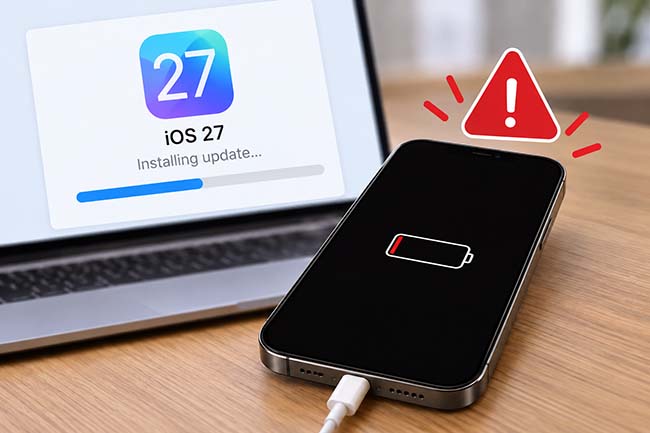
If your iPhone died during iOS 27 update, it may get stuck on a black screen, Apple logo, or fail to turn on afterward. This can happen due to a drained battery, interrupted installation, or an iOS update error. This guide explains what happens when an update is interrupted and provides practical ways to get your iPhone working again.
- Why Did My iPhone Die During iOS 27 Update?
- What Happens If Your iPhone Dies During an iOS 27 Update?
-
How to Fix iPhone Died During iOS 27 Update?
- Fix 1. Charge Your iPhone for at Least 30 Minutes
- Fix 2. Force Restart Your iPhone
- Fix 3. Give the iOS 27 Update More Time
- Fix 4. Update the iPhone in Recovery Mode
- Fix 5. Fix the Interrupted iOS 27 Update with TunesKit iOS System Recovery HOT
- Fix 6. Restore Your iPhone in Recovery Mode
- Fix 7. Try a DFU Restore
- Fix 8. Contact Apple Support
- How to Prevent Your iPhone from Dying During an iOS Update
- FAQ About iPhone Died During iOS 27 Update
- Conclusion
Why Did My iPhone Die During iOS 27 Update?
If your iPhone suddenly turns off while installing iOS 27, the update process has likely been interrupted. Depending on when the interruption occurs, the iPhone may restart normally, resume the update, get stuck on the Apple logo or progress bar, or fail to turn on.
Here are the most common reasons why an iPhone died during iOS 27 update:
- 01 Low or depleted battery: Installing a major iOS update consumes power. If the battery runs out during installation, the iPhone can shut down before the update finishes.
- 02 Battery or charging problems: An aging battery, damaged charging cable, faulty adapter, or charging port problem may prevent the iPhone from receiving enough power.
- 03 Interrupted iOS installation: If the installation is interrupted, some system files may not be installed correctly.
- 04 Insufficient storage: iOS needs enough free space to download, prepare, and install an update. Extremely limited storage can interfere with the process.
- 05 iOS update errors: A software error during installation can leave the device stuck on an Apple logo, progress bar, Recovery Mode screen, or black screen.
- 06 Hardware problems: If the iPhone does not respond to charging, a force restart, or computer detection, the issue may involve the battery or another hardware component.
What Happens If Your iPhone Dies During an iOS 27 Update?
An iPhone shutting down during an update does not automatically mean the device is permanently damaged. If the interruption occurs before critical system files are being installed, the iPhone may simply restart or resume the process after receiving enough power.
If the installation itself is interrupted, however, iOS may fail to boot correctly. You might see a black screen, Apple logo, frozen progress bar, Recovery Mode screen, or repeated restart loop. The appropriate solution depends on which state your iPhone is currently in.
How to Fix iPhone Died During iOS 27 Update?
Start with charging and a force restart. If your iPhone still cannot boot normally, move on to computer-based update and system repair methods. Avoid restoring the iPhone until necessary because a restore erases the device.
Fix 1. Charge Your iPhone for at Least 30 Minutes
If the battery ran out during the iOS 27 update, the iPhone may not turn on immediately after you connect it to power. Give the battery enough time to reach a usable charge level before trying other fixes.
Use a reliable charging cable and power adapter, and plug the iPhone directly into a wall outlet.
- Step 1. Connect your iPhone to a working charger.
- Step 2. Leave it charging for at least 30 minutes without repeatedly trying to turn it on.
- Step 3. Check whether the low-battery screen, Apple logo, or update progress bar appears.
- Step 4. If the update resumes, keep the iPhone connected to power until the installation finishes.

If the iPhone remains completely unresponsive, test another compatible cable, power adapter, and outlet before proceeding.
Fix 2. Force Restart Your iPhone
If your iPhone has enough power but remains stuck on a black screen, Apple logo, or frozen update screen, perform a force restart. This forces the device to reboot without erasing your data.
- Step 1. Quickly press and release the Volume Up button.
- Step 2. Quickly press and release the Volume Down button.
- Step 3. Press and hold the Side button.
- Step 4. Keep holding the Side button until the Apple logo appears, then release it.
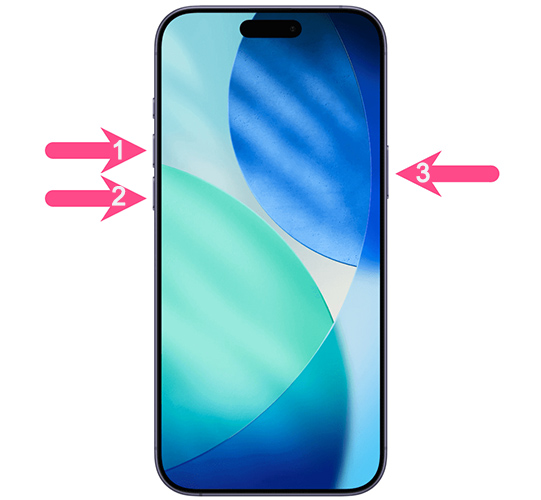
The Apple logo may take several seconds to appear, so do not release the Side button too early.
Fix 3. Give the iOS 27 Update More Time
If your iPhone turns back on but displays an Apple logo with a progress bar, avoid immediately forcing another restart. The update may still be installing.
Keep the iPhone connected to power and wait for the progress bar to complete. Major updates can take longer depending on the device model, available storage, and the amount of data on the iPhone.
If the progress bar has not moved for an unusually long time, move to the next method.
Fix 4. Update the iPhone in Recovery Mode
If the interrupted update prevents iOS from starting normally, Recovery Mode lets a Mac or Windows PC reinstall the latest compatible iOS version.
When your computer offers Update and Restore, try Update first. Update attempts to reinstall iOS while preserving your personal data, whereas Restore erases the iPhone.
- Step 1. Connect the iPhone to your Mac or Windows PC with a USB cable.
- Step 2. Open Finder on a Mac, or the Apple Devices/iTunes app on a compatible Windows PC.
- Step 3. For iPhone 8 or later, quickly press Volume Up, quickly press Volume Down, and then press and hold the Side button. Continue holding it after the Apple logo appears until you see the Recovery Mode screen.
- Step 4. Select your iPhone on the computer when it is detected.
- Step 5. When prompted to Update or Restore, choose Update first. Keep the iPhone connected while the computer downloads and reinstalls iOS.
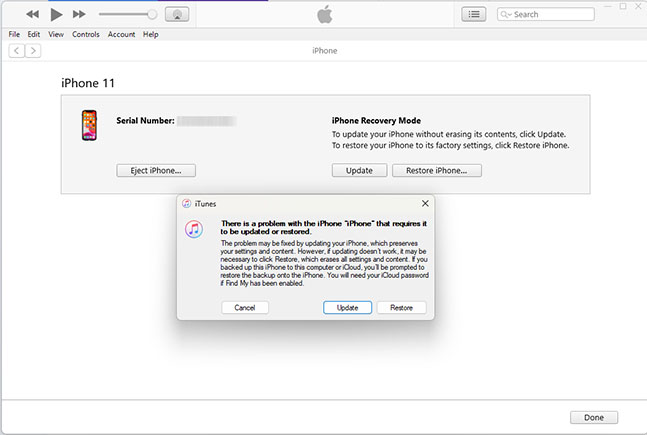
If the download takes long enough that the iPhone exits Recovery Mode, allow the download to finish and then put the device into Recovery Mode again.
Fix 5. Fix the Interrupted iOS 27 Update with TunesKit iOS System Recovery
If your iPhone still cannot boot after the iOS 27 update was interrupted, the problem may involve damaged or incomplete iOS system files. Before using a full restore that erases your data, you can try TunesKit iOS System Recovery.
It is designed to repair common iOS system problems while preserving user data. It can be useful when an interrupted update leaves an iPhone stuck on the Apple logo, in a boot loop, on a black screen, or in Recovery Mode.
Key Features of TunesKit iOS System Recovery
Fix common update-related system problems without data loss using Standard Repair & Support the latest iOS and iPhone models
 600,000+ Downloads
Step 1. Connect iPhone to PC
Download and launch TunesKit iOS System Recovery on your computer. Connect the affected iPhone via USB, choose iOS System Repair, and click the Start button.

Step 2. Choose A Mode
Select Standard Repair first. This mode attempts to repair iOS while preserving your existing data.

Step 3. Download Firmware Package
Confirm the detected device information, choose an available firmware package, and click Download.

Step 4. Start to Repair
After the firmware has downloaded, click Start Standard Repair and keep the iPhone connected until the process finishes. After the repair, check whether your iPhone can start normally. If Standard Repair cannot resolve the issue, Deep Repair may handle more serious system problems, but it erases device data.

Fix 6. Restore Your iPhone in Recovery Mode
If Recovery Mode Update fails and system repair does not solve the problem, restoring the iPhone is the next option. This method erases the data and settings currently stored on the device, so use it after trying non-data-loss solutions.
- Step 1. Connect your iPhone to a computer and put your iPhone into Recovery Mode.
- Step 2. Open Finder on Mac or Apple Devices/iTunes on Windows.
- Step 3. Select the affected iPhone.
- Step 4. When the Update or Restore prompt appears, choose Restore.
- Step 5. Follow the onscreen instructions to reinstall iOS.

Once the restore is complete, you can set up the iPhone again and restore your data from iCloud or computer backup.
Fix 7. Try a DFU Restore
If a standard Recovery Mode restore fails, a DFU restore provides a deeper reinstall. It can help when the iPhone's firmware or iOS installation is seriously corrupted.
 Warning: A DFU restore erases the iPhone. Make sure you understand the data-loss risk before proceeding.
For an iPhone 8 or later:
- Step 1. Connect the iPhone to your computer and open Finder or Apple Devices.
- Step 2. Quickly press and release Volume Up, then quickly press and release Volume Down.
- Step 3. Hold the Side button until the screen turns black.
- Step 4. While continuing to hold the Side button, press and hold Volume Down for about 5 seconds.
- Step 5. Release the Side button but continue holding Volume Down for about 10 seconds.
- Step 6. If the screen stays completely black and the computer detects an iPhone that needs to be restored, the device has entered DFU mode.
- Step 7. Click the OK button, then click the Restore iPhone option to restore the iPhone. If you see the Apple logo or Recovery Mode screen, the button timing was not correct. Repeat the process.
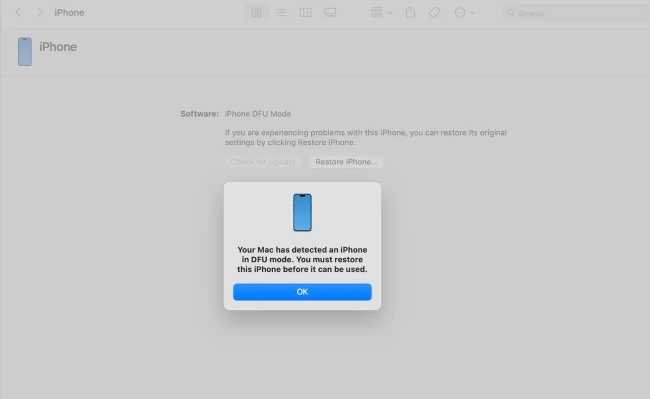
 Further Reading: Full Guide - How to Put iPhone/iPad in DFU Mode
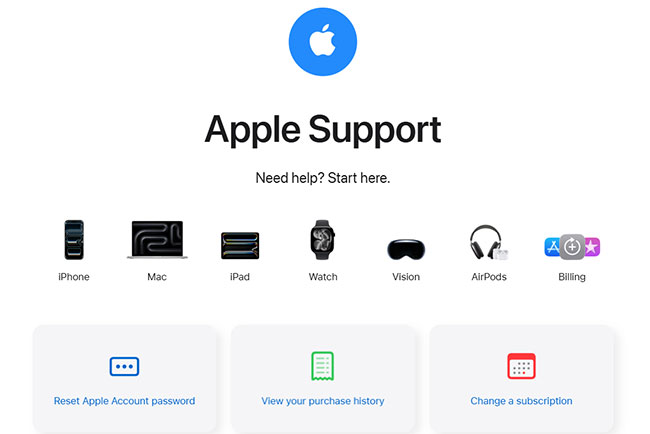
Fix 8. Contact Apple Support
If your iPhone touch completely unresponsive after charging, force restarting, and connecting it to a computer, the problem may be hardware-related rather than an interrupted iOS installation.
This is especially worth checking if the computer cannot detect the iPhone at all, the device does not respond to multiple known-working chargers, or it had battery or power problems before the iOS 27 update.
In this case, contact Apple Support or visit an Apple Store or Apple Authorized Service Provider for hardware diagnostics.
How to Prevent Your iPhone from Dying During an iOS Update
Before installing another major iOS update, back up your iPhone and make sure it has sufficient free storage and battery power. Keep the device connected to a reliable charger during installation, use a stable Wi-Fi connection for over-the-air updates, and avoid disconnecting the iPhone from a computer while an update is in progress.
Most importantly, do not intentionally force-restart or power off an iPhone while the update progress bar is moving unless troubleshooting instructions specifically require it.
FAQ About iPhone Died During iOS 27 Update
-
Will my data be lost if my iPhone dies during an update?
A shutdown itself does not automatically erase your data. Charging, force restarting, Recovery Mode Update, and non-data-loss system repair methods can be attempted first. A Recovery Mode Restore or DFU restore, however, erases the device.
-
Should I unplug my iPhone if it gets stuck during the iOS 27 update?
If an update progress bar is still moving, keep the iPhone connected to power and allow the installation to finish. If the device has clearly stopped responding for an extended period, troubleshoot it with a force restart or Recovery Mode as appropriate.
-
Why won't my iPhone turn on after the iOS 27 update?
The battery may be depleted, the installation may have been interrupted, or iOS may be unable to boot correctly. Charge the iPhone first, then try a force restart. If it remains unresponsive, connect it to a computer and use Recovery Mode.
Conclusion
If your iPhone died during iOS 27 update, start by charging it and performing a force restart. For an interrupted installation, try Update in Recovery Mode before choosing any option that erases data. If the problem is caused by an iOS system error, TunesKit iOS System Recovery provides another repair option before resorting to a full restore.



