How to Fix iPadOS 27 Beta Stuck on Verifying Update
Getting stuck during an update is incredibly irritating, especially when you're excited to try out the latest features. If your iPad is frozen on the loading screen with the message "iPadOS 27 Beta Stuck on Verifying Update," you aren't alone. This is a common hiccup during major beta rollouts, usually triggered by a temporary network glitch, server overload on Apple's end, or a corrupted installation file.
Before you panic about your data, this issue is almost always fixable with a few quick troubleshooting steps.
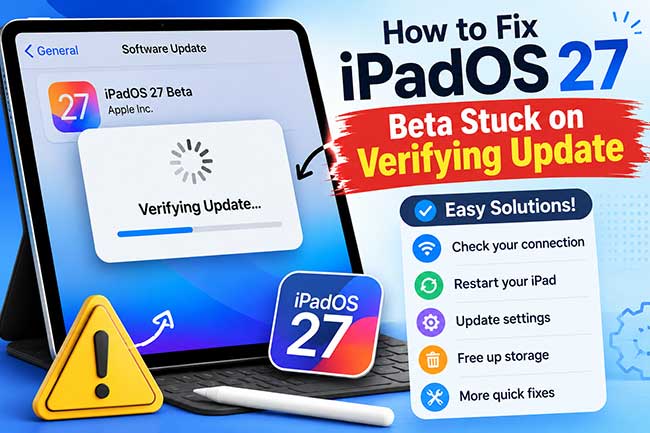
Why Is Your iPad Stuck on Verifying Update for iPadOS 27 Beta?
The "Verifying Update" screen is a security checkpoint where your iPad authenticates the beta firmware with Apple's servers. Getting trapped in this loop simply means that crucial digital handshake failed. Before trying any fixes, here is what typically disrupts this process behind the scenes:
- 01 Apple Server Overload: When a new beta drops, millions of users slam Apple's authentication servers simultaneously. Your iPad is essentially stuck in a massive digital traffic jam waiting for its verification token.
- 02 Wi-Fi Hiccups: The verification process requires a flawless, constant connection. A split-second drop or signal dip can cause the process to stall indefinitely without throwing an error.
- 03 Corrupted Update File: Beta downloads are prone to data corruption. If even a tiny piece of the file gets scrambled during download, your iPad will refuse to verify it to protect itself from being bricked.
- 04 System Brain Freeze: iPadOS might just be having a temporary background glitch. A minor software conflict can prevent the system from passing the downloaded package over to the installation manager.
How to Fix iPadOS 27 Beta Stuck on Verifying Update
Watching your iPad stall indefinitely on the "Verifying Update" screen is alarming, but your device is not permanently stuck. This common beta roadblock usually just means the system needs a quick manual nudge to break the communication loop.
Here are the most effective methods to clear the glitch and get your iPadOS 27 installation back on track.
Method 1. Force Restart the iPad
A simple force restart is usually the quickest way to unfreeze a stuck verification screen. It clears active memory and stops background processes without erasing any of your personal data. This is completely safe to do even while the update is stuck, as the actual installation hasn't begun yet.
If your iPad does not have a Home button, use this sequence:
- Step 1. Quickly press and release the Volume Up button.
- Step 2. Immediately press and release the Volume Down button.
- Step 3. Press and hold the Top (Power) button until the screen goes dark and the Apple logo appears, then let go.

If your iPad still has a Home button, the process is slightly different:
- Step 1. Press and hold both the Home button and the Top (Power) button simultaneously.
- Step 2. Keep holding them for about 10 seconds until the Apple logo shows up on your screen.
- Step 3. Release both buttons and allow the iPad to boot up normally.

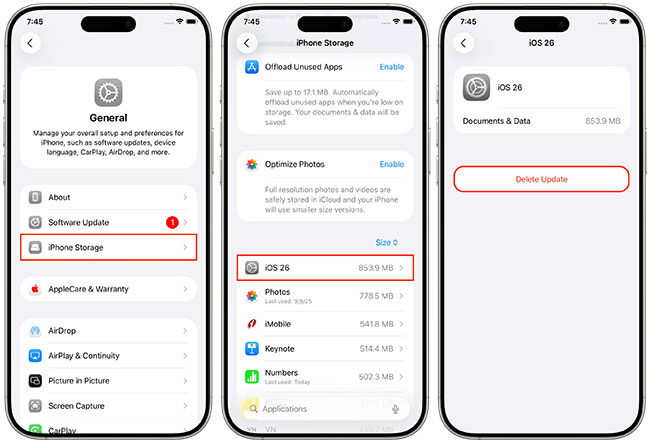
Method 2. Delete the Beta Update File and Re-download
Often, the beta file itself becomes corrupted during the initial download process. When your iPad attempts to verify a damaged file against Apple's servers, it gets trapped in an endless loop. Deleting the existing file forces the system to grab a fresh, clean copy.
- Step 1. Open the Settings app on your iPad and tap on General.
- Step 2. Navigate to iPad Storage and wait a moment for the list of apps and files to populate.
- Step 3. Scroll down to locate the iPadOS beta update file in the list, tap on it, and select Delete Update.
- Step 4. Restart your device, then head back to Settings, General, and Software Update to start the download over.
Method 3. Reset Your Network Connections
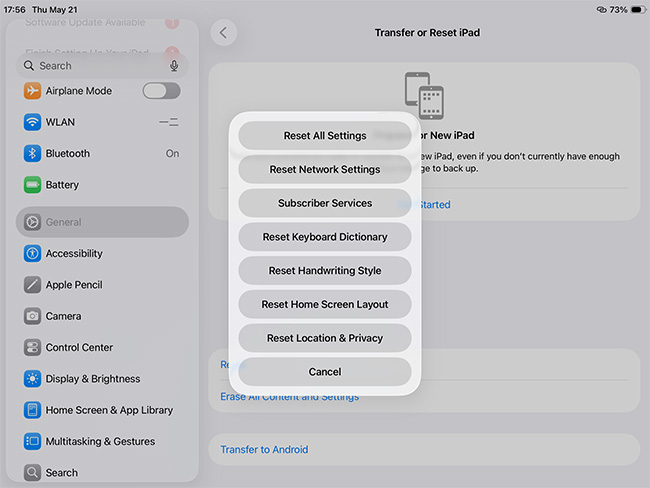
Verification requires a stable, uninterrupted connection to Apple's authentication servers. A weak Wi-Fi signal or a minor network glitch can easily halt the process indefinitely. Refreshing your network settings will clear out any bad configurations. Before you begin this process, make sure you have your Wi-Fi passwords handy.
- Step 1. Go to Settings, tap General, and scroll down to Transfer or Reset iPad.
- Step 2. Tap on Reset, then choose Reset Network Settings from the pop-up menu.
- Step 3. Enter your device passcode to confirm your choice.
- Step 4. Once your iPad reboots, reconnect to your Wi-Fi network and try the update again.
Method 4. Free Up Storage Space
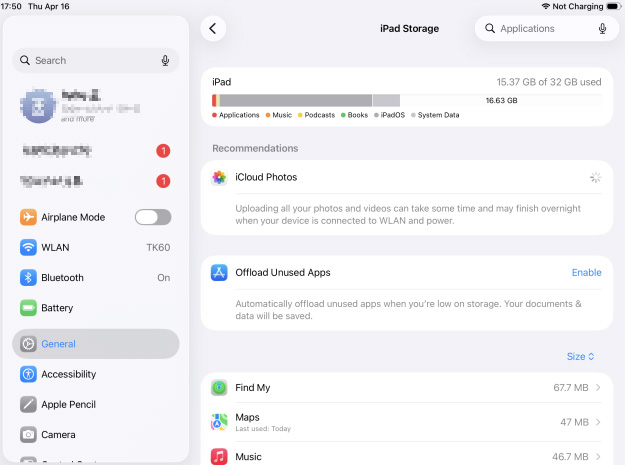
Beta updates are notoriously large and require significant extra room to unpack and verify the installation files. If your iPad is running critically low on space, the verification process will simply stall out. You typically need at least a few gigabytes of breathing room.
- Step 1. Open Settings, navigate to General, and select iPad Storage.
- Step 2. Review the colored bar at the top to see exactly what is consuming your space.
- Step 3. Delete large, unused apps or offload heavy media files until you have at least 5GB to 10GB of free space.
Method 5. Fix iPadOS 27 Beta Stuck on Verifying Update Without Data Loss
Sometimes, conventional restarts or network resets simply cannot break the system out of its frozen state. In these situations, relying on a professional third-party system recovery tool is a highly efficient alternative. TunesKit iOS System Recovery is specialized software designed specifically to resolve various complex iOS and iPadOS issues.
It offers a highly practical "Standard Repair" mode tailored to tackle various system update failures. The biggest advantage of this mode is its ability to fix a system trapped in a verification loop without erasing any of your existing data. It also enables you to downgrade iOS 27 to iOS 26 in one click and repair iTunes 4010 and other iTunes errors for free.

Fix iPadOS 27 Beta Stuck on Verifying Update
Easily repair your iPad when it gets stuck on the "Verifying Update" screen with TunesKit iOS System Recovery—no data loss, no hassle.
 600,000+ Downloads
600,000+ Downloads
600,000+ Downloads
Let's see how to fix iPadOS 27 Beta stuck on verifying update via TunesKit iOS System Recovery.
Step 1. Connect Your iPhone to the Computer
Download and install TunesKit iOS System Recovery on your computer (Mac or Windows), then connect your frozen iPad to the computer using a reliable USB cable. Launch the software, click into the "iOS System Repair" module on the main interface, and click the "Start" button on the next page.

Step 2. Choose a Mode
Choose "Standard Repair" on the mode selection page to guarantee your data remains secure.

Step 3. Check and Download Firmware Package
The software will automatically detect and display your iPad model and system version. Verify that the on-screen device information is accurate, then click the Download button to let the software retrieve the matching official firmware package.
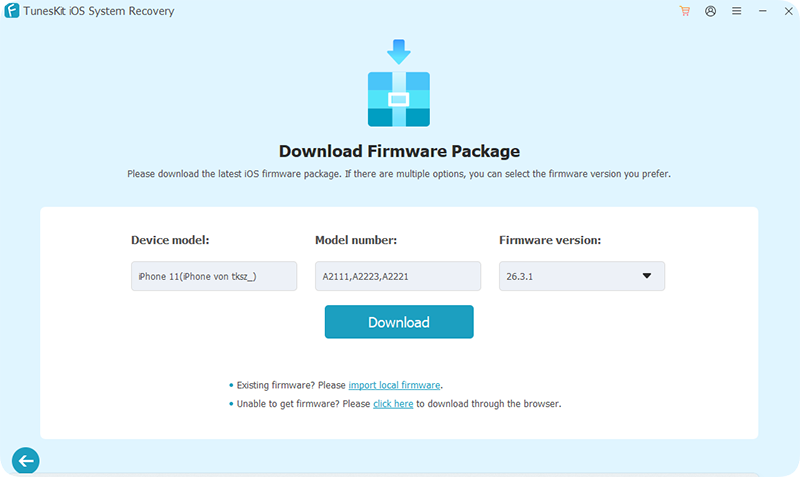
Step 4. Check and Download Firmware Package
Once the firmware package is downloaded and extracted, click the "Start Standard Repair" button in the bottom right corner to automatically begin fixing your iPadOS system, ensuring you keep the device securely connected during this time.

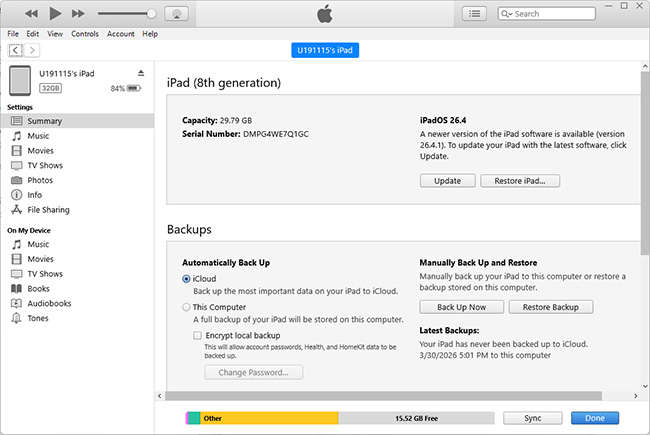
Method 6. Update via a Computer
If over-the-air updates continue to fail, using a physical cable and a computer is your most reliable fallback. Your Mac or Windows PC will take over the heavy lifting of downloading and verifying the firmware. This bypasses the on-device verification glitch completely.
- Step 1. Connect your iPad to your computer using a compatible USB or Thunderbolt cable. Enter your iPad passcode to trust this computer if you haven't connected before.
- Step 2. Open Finder (on a Mac running Catalina or newer) or iTunes (on a PC or older Mac).
- Step 3. Select your iPad from the sidebar or top menu, and click on Update.
- Step 4. Follow the on-screen prompts to let the computer download and install the beta software.
FAQs About iPadOS 27 Beta Stuck on Verifying Update
-
How long should the "Verifying Update" process normally take?
Under normal conditions, the verification process is quite fast. It should take anywhere from a few seconds to a maximum of five minutes depending on your internet connection and device speed.
If your screen has been sitting on "Verifying Update" for more than 15 minutes, it is safe to assume the process has stalled out. Waiting for hours will generally not yield any results because the verification loop is broken. You will need to intervene to get the device functioning again.
-
Will force restarting my iPad during verification delete my data?
No, a force restart is entirely safe at this specific stage of the update. The verification process happens right before any new code is actually written to your device's core system. Because the actual installation has not yet begun, interrupting it by force restarting simply clears the active memory without corrupting your drive.
When your iPad boots back up, it will return to its current operating system. All of your personal files, photos, and apps will remain completely untouched.
Conclusion
Getting stuck on the iPadOS 27 beta "Verifying Update" screen is a frustrating but common hurdle that basic troubleshooting—like a force restart, freeing up storage, or resetting network connections—can usually fix. If those conventional methods fail, TunesKit iOS System Recovery offers the ultimate safety net. Its intuitive Standard Repair mode efficiently breaks the verification loop and resolves the underlying system glitch with zero data loss, ensuring your personal files remain perfectly intact while you quickly get back to exploring the latest iPadOS features.