


7 Ways to Fix iTunes Not Recognizing iPhone in Recovery Mode
It is a moment of pure panic. You've put your iPhone into Recovery Mode to fix a problem, but when you connect it to your computer, iTunes remains silent. No pop-up, no device icon, nothing. You are stuck with a phone that displays a cable pointing to a computer, but the computer refuses to acknowledge it exists.
Don't worry—your iPhone isn't broken. In this guide, we will walk you through 7 proven methods to force iTunes to recognize your iPhone successfully.

- Why Is My iPhone in Recovery Mode Not Showing Up in iTunes?
- 7 Ways to Fix iTunes Not Detecting iPhone in Recovery Mode
- Solution 1. Check Your Hardware Connection
- Solution 2. Fix the Apple Mobile Device USB Driver
- Solution 3. Fix iPhone Recovery Mode Without iTunes (No Data Loss)HOT
- Solution 4. Update iTunes to the Latest Version
- Solution 5. Uninstall and Reinstall iTunes
- Solution 6. Disable Antivirus and Firewall Temporarily
- Solution 7. Put iPhone into DFU Mode
- FAQs About iTunes Not Recognizing iPhone in Recovery Mode
- Final Words
Why Is My iPhone in Recovery Mode Not Showing Up in iTunes?
Generally, this ghosting issue is almost always caused by a communication breakdown between Windows/macOS drivers and your device. Here are the detailed reasons.
- Corrupted Drivers: The "Apple Mobile Device USB Driver" on Windows often fails to switch correctly when an iPhone enters Recovery Mode.
- Faulty Connection: A non-MFi certified cable or a loose USB port can charge the phone but fail to transfer data.
- Software Glitches: Sometimes, the iOS system itself is frozen in a state that blocks external connections.
- iTunes Glitches: Outdated iTunes versions may not support newer iOS versions like iOS 18/26.
 Quick Tip:
If you want to skip the complex troubleshooting and fix the connection immediately (without data loss), jump straight to Solution 3. The One-Click Fix
7 Ways to Fix iTunes Not Detecting iPhone in Recovery Mode
Now, let's dive into the real solutions to this problem, starting from basic troubleshooting to the driver fixes and a professional iOS system repair tool.
Solution 1. Check Your Hardware Connection
Before messing with system settings, we must rule out the physical connection. Check the following hardware issue before moving forward.
Switch USB Ports: Don't use a USB hub or the front panel ports on a desktop PC, as they often lack sufficient power. Plug your lightning or USB-C cable directly into the rear USB port (motherboard) of your computer.
Clean the Port: Use a toothpick or compressed air to gently remove any pocket lint from your iPhone's charging port. Even a small amount of dust can block the data connection.
Use an MFi-Certified Cable: Third-party cables are often "charge only" and lack the data pins required for Recovery Mode. Ensure you are using an original Apple cable or a certified alternative (like Anker or Belkin).

Solution 2. Fix the Apple Mobile Device USB Driver
If your cable is fine, this is the most likely culprit. Windows computers notoriously mishandle the specific driver required for an iPhone in Recovery Mode. You need to manually update it.
Step 1: Connect your iPhone to the computer and open Device Manager (Right-click the Start button and select it).
Step 2: Expand the Universal Serial Bus controllers or Portable Devices section. You will likely see "Apple Mobile Device USB Driver" or "Apple iPhone" with a yellow warning triangle.
Step 3: Right-click the device name and select Update driver.
Step 4: Choose Browse my computer for drivers > Let me pick from a list of available drivers on my computer.
Step 5: Select Apple Mobile Device USB Driver from the list and click Next. Windows will reinstall the correct driver version. Once finished, iTunes should immediately pop up detecting your device.

Solution 3. Fix iPhone Recovery Mode Without iTunes (No Data Loss)
If the manual driver fix is too complicated, or if iTunes asks you to "Restore" (which erases all your data), there is a better way. TunesKit iOS System Recovery is a professional repair tool designed to bypass iTunes errors. It can detect an iPhone in Recovery Mode even when iTunes can't, and it can fix the underlying system loop without deleting your photos or contacts.
 Why Choose TunesKit iOS System Recovery?
- Detects Undetectable Devices: Recognizes iPhones that are invisible to iTunes.
- No Data Loss: The Standard Repair mode fixes system glitches while keeping your data safe.
- One-Click Entry/Exit: Can often kick a phone out of Recovery Mode with a single click for free.
Just follow these quick steps, and see how to use TunesKit to fix your iPhone in recovery mode not detected by iTunes.
Step 1. Launch TunesKit and Connect Your iPhone
Launch TunesKit iOS System Recovery after installation is completed. Next, plug your iPhone into the computer. The software should detect it immediately.

Step 2.Select Repair Mode
Choose iOS System Repair and then select Standard Repair. This mode fixes common iOS stuck issues without data loss.

Step 3.Download Firmware Package
Confirm your device information (Model, iOS version) on the screen. Correct any errors if needed, then click "Download" to verify and acquire the firmware package required to fix the system.

Step 4.Begin to Fix iPhone in Recovery Mode Not Detected by iTunes
The last thing you shall do is make the verified firmware package unzipped by tapping "Repair". With the firmware package unzipped, TunesKit iOS System Recovery embarks on repairing the iPhone in recovery mode not recognized by iTunes.

Solution 4. Update iTunes to the Latest Version
An outdated version of iTunes may simply lack the code to recognize newer devices like the iPhone 17 or iOS 26 firmware. Thus, it tends to trigger quite a few problems like iTunes not recognizing iPhone in recovery mode, iTunes errors, iPhone not showing up in iTunes, etc.
- For Windows: Please run iTunes first → click "Help" in the top menu bar → choose "Check for Updates" from a drop-down menu. If an update is pending, download and install it.

- For Mac (macOS Mojave 10.14 and earlier): After launching iTunes on your Mac computer → touch "iTunes" in the upper-leftmost corner → "Check for Updates". If an update is available, complete downloading and installation as instructed.

Pro tip:For users having a Mac with macOS Catalina 10.15 or newer, this action is not required. Restoring iPhone on Mac with this operating system is using "Finder".
Solution 5. Uninstall and Reinstall iTunes
If updating didn't work, and iTunes still fail to detect your iPhone in recovery mode, your iTunes installation might have corrupted library files. You need a clean slate. Follow the quick steps below.
Step 1: Quit iTunes and press "Windows + X" keys on your keyboard at the same time. Select "Apps and Features" (or Installed Apps).
Step 2: Search for "iTunes" and click Uninstall.
Step 3: Also uninstall "Apple Mobile Device Support", "Apple Software Update", and "Bonjour" if listed.
Step 4: Restart your computer and download a fresh installer from the Apple website.

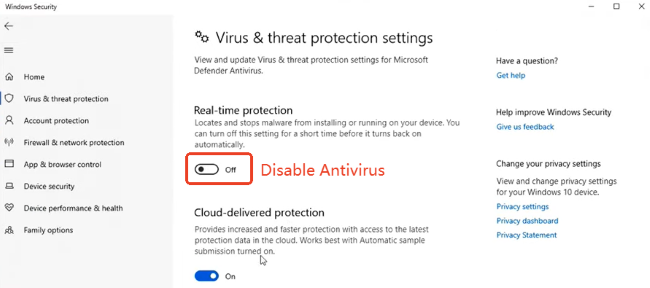
Solution 6. Disable Antivirus and Firewall Temporarily
Sometimes, security software identifies the connection between a "Recovery Mode" device and your PC as a potential threat (like a virus trying to hijack the phone).
Step 1: Right-click your antivirus icon in the system tray and select Pause Protection (usually for 10 minutes).
Step 2: Disable the Windows Defender Firewall temporarily via Control Panel.
Step 3: Reconnect your iPhone and see if iTunes detects it.
Solution 7. Put iPhone into DFU Mode
Provided none of the previous methods have a positive effect on the problem of iTunes not recognizing iPhone in recovery mode, try manually putting your iPhone into DFU mode to bypass such trouble.
- For iPhone 8 and newer:
1. Quick-press Volume Up, then Volume Down. Hold the Side Button until the screen goes black.
2. As soon as it goes black, hold Volume Down while continuing to hold the Side Button for 5 seconds. Release the Side Button but keep holding Volume Down for another 10 seconds.
3. The screen should remain black. If iTunes says "iTunes has detected an iPhone in recovery mode", you succeeded.
- For iPhone 7 and 7 Plus:
1. Press and hold the Power and Volume Down buttons for 8 seconds.
2. After that, continue holding down the Volume Down button while releasing the Power button until your iPhone is detected by iTunes.
3. Similarly, the iPhone screen is completely black when it gets into DFU mode.
- For iPhone 6 and older:
1. Hold down the Power button and Home buttons simultaneously.
2. Later, release the Power button and keep pressing the Home button until iPhone appears in iTunes.

FAQs About iTunes Not Recognizing iPhone in Recovery Mode
-
Can I exit Recovery Mode without a computer?
Yes, usually a Force Restart (holding the specific button combination for your model) will break the cycle and boot the phone normally, provided the iOS system isn't corrupted.
-
Does fixing this delete my data?
Fixing the connection (drivers, cables) does not delete data. However, once iTunes detects the phone, if you choose Restore inside iTunes, your data will be erased. Using tools like TunesKit iOS System Recovery helps solve the problem without losing data.
-
Why does my computer make a sound when I plug it in, but iTunes shows nothing?
This confirms the hardware connection is good (the USB port is working), but the software handshake is failing. This is probably a driver issue — refer back to Solution 2 of this guide.
Final Words
We hope these 7 methods helped you resolve the "iTunes not detecting iPhone" issue. In most cases, updating the drivers or changing the cable will get you back on track.
However, if you want to avoid the risk of data loss or find the manual steps too complex, TunesKit iOS System Recovery remains the safest and fastest alternative. If you encounter any issues during the process, our 24/7 support team is always ready to help. Just leave a comment below!


